
Usage Limits, Budgets, and Unavailable Features
Builders evaluates usage against the owner of the project that performs the action. A personal project uses the current user's limits and runtime budget. A team project uses the applicable team owner context. Moving a pipeline or changing project ownership can therefore change which budget, storage quota, project limit, pipeline limit, and concurrent-run capacity apply.
An unavailable action is not automatically a billing problem. Check ownership, role permissions, resource availability, and usage limits separately.
Understand the usage resources
| Resource | What it controls | Where to inspect it |
|---|---|---|
| Renewable compute tokens | Workflow runtime funded by a renewable allocation | Dashboard and Budget |
| Non-renewable compute tokens | Additional workflow runtime from add-on packages or transferred balance | Dashboard and Budget |
| AI tokens | Use of the platform-managed Boilerplate Pro AI - Full Speed source | AI source selector and purchase flow |
| Static Drive storage | Persistent files stored in the personal or team drive scope | Dashboard and Static Drive |
| Projects | Number of projects that can be created for one owner | Projects creation dialog |
| Pipelines | Number of pipelines allowed in the selected project owner scope | Project pipeline list |
| Concurrent runs | Number of workflow executions that may be active at the same time | Active runs, Logs, and run alerts |
Limits are plan- and owner-dependent. Use the values displayed for the selected user or team instead of copying a limit from another workspace or from a screenshot.
Read the Budget summary
Open Budget from the Builders navigation. The upper cards show the current user's budget and any separate team budgets available to the account.


Read each value as follows:
| Field | Meaning |
|---|---|
| Remaining | Compute tokens currently available in that owner context. Builders displays Unlimited when the account has an unlimited runtime allowance. |
| Allocated | Renewable allocation plus non-renewable add-on allocation. A value such as 0 ct + 60000 ct means the first allocation is empty and the second contains 60,000 compute tokens. It is not a single 60,000-token renewable package. |
| Next renewal | Date of the next renewable allocation. - means that the current budget response has no upcoming renewal date. |
| Active records | Number of allocation records currently contributing to the budget. Open the card to inspect them individually. |
The Dashboard presents renewable and non-renewable balances on separate lines. A warning such as 0 ct renewable compute tokens left describes the renewable line only. Check the non-renewable balance and the aggregated Remaining value before concluding that all workflow runtime is exhausted.
Use Usage scope to switch between the personal budget and an accessible team budget. The Budget chart shows compute-token usage for the selected scope over the last 14 days. The Dashboard chart covers the last 30 days, so the two charts can legitimately show different time windows.
Inspect allocation records
Select a budget card to open its records.

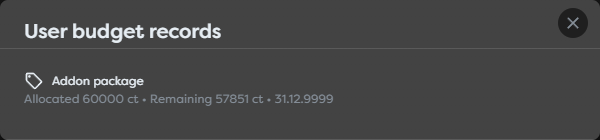
Builders distinguishes these record types:
| Record type | Lifecycle | Operational use |
|---|---|---|
| Monthly allocation | Renewable record associated with a recurring allocation and its renewal period | Regular workflow runtime included in the renewable package |
| Addon package | Non-renewable record with its own remaining balance and displayed period end | Additional capacity purchased once or received through a transfer |
Each record shows the amount allocated, the amount remaining, and its period end. Do not treat non-renewable as meaning that a package can never end. It means that Builders does not replenish that record automatically; the record still has its own displayed end date.
When investigating a balance change, compare the record list with the usage chart and run costs. The summary is aggregated, while the records explain which allocations currently fund it.
Add or extend usage
Select Unlock more usage from the Dashboard or Budget page.
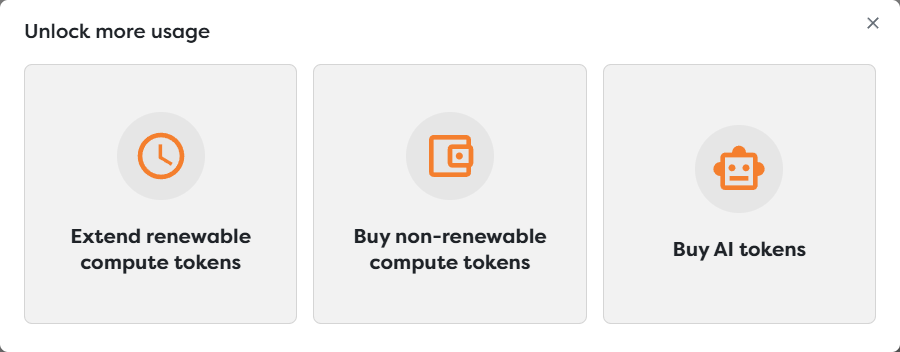
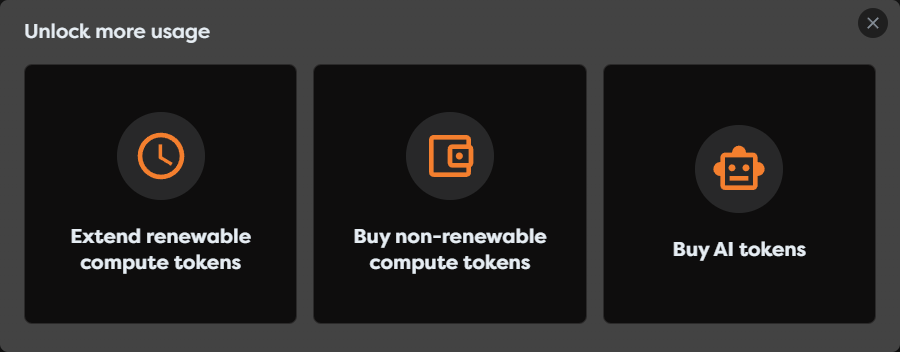
Choose the capacity that matches the failing operation:
| Action | Purchase route | Use it for |
|---|---|---|
| Extend renewable compute tokens | Renewable Builders compute tokens | Increasing recurring workflow runtime capacity |
| Buy non-renewable compute tokens | Builders compute-token add-on | Adding one-time workflow runtime capacity without changing the renewable allocation |
| Buy AI tokens | Builders AI tokens | Funding the platform-managed Boilerplate Pro AI source |
The Builders dialog routes to the corresponding purchase area on boilerplate.com; it does not complete a purchase inside the dialog. Before confirming an order, verify the signed-in account, product, amount, renewal terms, price, and intended billing owner on the purchase page. Return to Budget after completion and confirm that the expected record or balance is visible before retrying production work.
Do not buy AI tokens to solve an ordinary workflow-runtime shortage. Every executed block consumes compute tokens, including AI Agent blocks. AI tokens are an additional balance used only when the selected AI source requires them.
Separate compute and AI charging
| AI source | Builders compute tokens | Builders AI tokens | External provider billing |
|---|---|---|---|
| Boilerplate Free AI - Limited Speed | Yes, for workflow execution | No | No private provider account |
| Boilerplate Pro AI - Full Speed | Yes, for workflow execution | Yes, from the displayed billing owner | No private provider account |
| Private AI agent | Yes, for workflow execution | No | Yes, according to the connected provider account |
| Team AI agent | Yes, for workflow execution | No | Yes, according to the team connection's provider account |
A Pro AI request can therefore have enough compute budget but still be unavailable because its AI-token balance is empty. A private provider can have available Builders compute tokens but still reject a request because of provider credit, rate, model, or credential limits.
See Choose a Model Source and Control Usage for source-specific behavior.
Transfer compute budget to a team member
The transfer action appears on the user budget when there is transferable balance and an eligible shared team. It moves compute tokens from the current user to another user in that team.
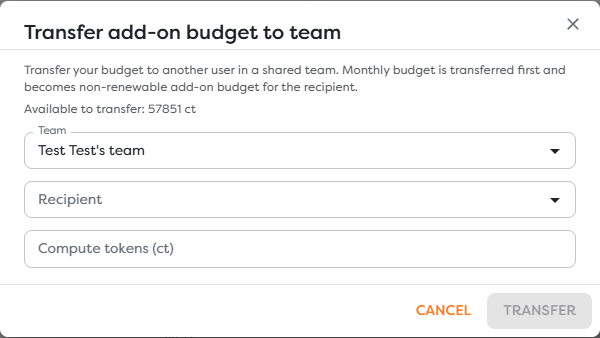
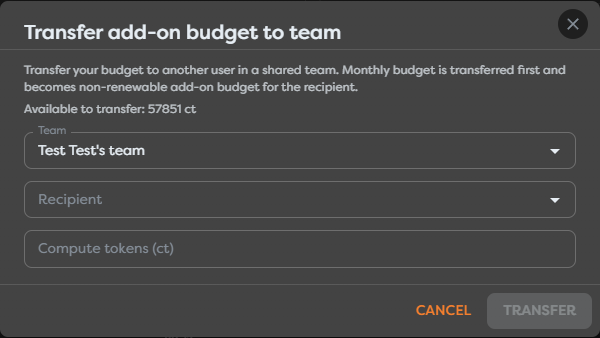
- Open Budget and select the transfer action on the user budget card.
- Select the shared Team that contains the intended recipient.
- Select a Recipient other than the current account.
- Enter a positive whole number in Compute tokens (ct).
- Compare the amount with Available to transfer.
- Recheck the team, recipient, and amount, then select Transfer.
- Confirm the reduced sender balance and ask the recipient to confirm the new add-on record.
The transfer dialog applies an important conversion rule: the sender's monthly budget is transferred first, and the recipient receives the transferred amount as non-renewable add-on budget. The action can therefore reduce the sender's renewable balance even though the button is labelled Transfer add-on budget to team.
Budget transfer is not the same as funding a team-owned project:
| Operation | Result |
|---|---|
| Transfer compute tokens to a team member | The selected recipient receives personal non-renewable add-on balance |
| Run a team-owned project | The workflow is evaluated against the applicable team owner context and team budget |
| Change a project from user to team ownership | Future runs and limits follow the destination owner; no token balance is copied with the project |
Treat a confirmed transfer as a balance-changing operation. Builders does not present it as an automatic or reversible sharing rule, so verify the recipient and amount before submission.
Recognize owner-specific creation limits
Project and pipeline limits are checked for the selected owner context.
- When a user or team has reached its project limit, Builders disables creation and reports
Project limit reached (usage/limit). - If every owner available in the creation dialog is at its project limit, Builders reports that the project limit has been reached for every available owner.
- When the selected project owner has reached its pipeline limit, Builders disables creation and reports
Pipeline limit reached (usage/limit). - An
unlimitedvalue means the corresponding count is not capped by a numeric limit in the current feature response.
Reaching a creation limit does not itself move, delete, or change ownership of existing projects or pipelines. Remove an unneeded item only after its published triggers, runs, resources, and recovery requirements have been reviewed. Alternatively, change the applicable plan or choose another legitimate owner scope; do not move a workflow merely to bypass governance.
Respond to runtime and storage limits
| State | Likely effect | What to verify |
|---|---|---|
| No usable compute balance | A new run may fail to start or fail during runtime budget enforcement | Project owner, aggregated remaining budget, allocation records, run alert, and run logs |
| Concurrent-run capacity reached | Another execution cannot use a runtime slot until capacity becomes available | Active runs, long-running or stuck blocks, stop/cancel decision, and owner-specific concurrency limit |
| Static Drive quota reached | A persistent upload or file write can be rejected | Correct user/team drive scope, used and maximum storage, file size, and obsolete files |
| AI-token balance exhausted | Boilerplate Pro AI can be unavailable or reject the premium request | Selected AI source, displayed billing owner, and AI-token balance |
Do not assume that every trigger event waits in an internal queue when concurrent-run capacity is full. Inspect the trigger response, alert, and Logs for the actual execution result. Provider-managed queues such as SQS or RabbitMQ have their own delivery and retry behavior, which is separate from Builders runtime concurrency.
Before deleting Static Drive files to free capacity, find every workflow that reads those paths. Storage cleanup can restore write capacity while breaking existing reads. Prefer archiving to an approved external store when retention is required.
Distinguish unavailable blocks from exhausted limits
The Designer can display a block as unavailable because its prerequisite is missing in the current project scope. Common prerequisites include:
- a compatible integration and provider capability;
- a database connection;
- a private or team AI agent;
- a target pipeline for Subflow;
- a storage destination;
- an account feature or eligible AI source.
Disable Hide unavailable blocks to inspect the catalog entry and its reason. Showing the item does not grant the missing capability. Configure the prerequisite under the same personal or team owner as the project, then reopen the Designer.
A permission failure can look similar. A Viewer may be able to inspect a project but not edit or run it; a Designer or Team Leader may still lack an ownership-transfer action reserved for Team Owner. Check Team Roles and Permissions before purchasing capacity for a disabled administrative action.
Diagnose an unavailable action
Use the following order so that one problem is not hidden by another:
- Confirm the project's Owner type and Owner.
- For a team project, confirm team membership, Builders access, and the member's role.
- Confirm that the requested action is allowed for that role.
- For creation, compare project or pipeline usage with the limit shown for that owner.
- For execution, check aggregated compute balance, budget records, and active runs.
- For persistent file operations, check the correct user or team Static Drive quota.
- For Pro AI, check AI tokens and the displayed billing owner; for private AI, check provider billing and credentials.
- For a block, disable Hide unavailable blocks and configure its required resource in the project scope.
- Inspect Alerts, Logs, block logs, and the external provider response before retrying.
Retry only after the limiting state has changed. Repeated run attempts can consume more compute tokens and can repeat external effects when an earlier attempt progressed farther than expected.