
Versions, Saving, and Publishing
Versions separate work in progress from the workflow currently used by live triggers. Use them to preserve a stable release while preparing, testing, and reviewing later changes. This article uses the Documentation - Versions Publishing pipeline in the Hack It UP - event project.
Understand the workflow states
A pipeline version can pass through several distinct states:
- Pending edits exist in the open Designer and have not been saved.
- Saved draft changes are persisted in the selected version but are not live.
- Published version is the saved version used by the pipeline's live triggers.
Editing the canvas does not save or publish it. Adding, moving, configuring, connecting, or deleting a block creates pending changes and enables the rollback and save controls.


After Snap to grid, the toolbar provides Runs, schema import, schema export, rollback, save, and publication controls. Save and Rollback are disabled when the canvas matches the saved version.
Protect pending changes
Builders warns before an action such as switching versions discards pending workflow changes.
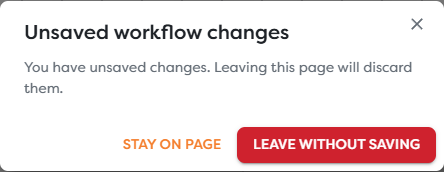
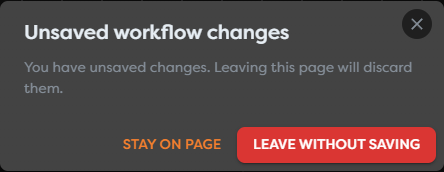
Choose:
- Stay on page to keep editing or save the current version.
- Leave without saving to discard the pending changes and continue the navigation.
Do not use navigation as a substitute for rollback when you intend to remain in the current version. Select Rollback unsaved workflow changes in the toolbar to restore the last saved workflow. Rollback takes effect immediately and does not show a second confirmation dialog.
Save a draft
Select Save after the workflow passes validation. Saving persists the current canvas in the selected version; it does not make that version public.
Before saving:
- Resolve every block settings error.
- Check required connections and named output branches.
- Confirm that the selected version is the one you intend to change.
- Review imported schemas or large layout changes before replacing the saved state.
If Save opens a block settings dialog instead of completing, that block still contains a required or invalid value. Correct it, select Apply, and save again.
Create a new version
Open the version selector and choose Create new version. Enter a meaningful name that distinguishes the purpose of the new work.
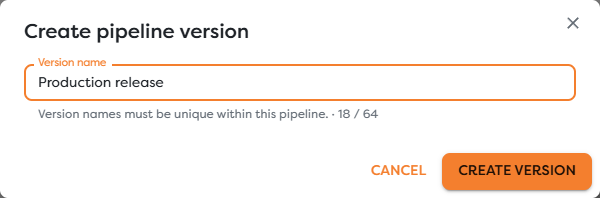
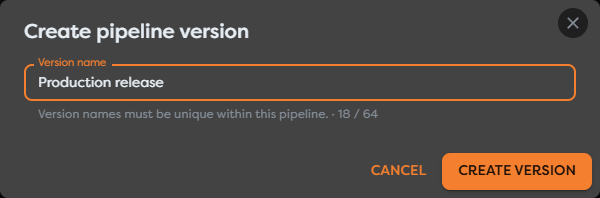
Version names:
- must be unique within the pipeline,
- can contain up to 64 characters,
- can be changed later with Rename version.
The new version is created from the selected workflow and becomes the active editable version. Changes made there do not alter a previously published version until the new version is saved and published.
Choose the version to publish
Open the selector before publication and verify both the sequential version number and its descriptive name. The Published label identifies the version currently serving live triggers.
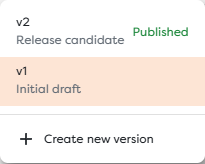
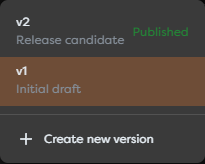
To publish a version:
- Select the intended version.
- Resolve validation problems and save any pending changes.
- Run the available controlled tests and inspect their results.
- Select Set public.
- Reopen the version selector and confirm that the intended entry displays Published.
The publication status can take a moment to refresh after the request completes. Treat the Published label, not the button click alone, as confirmation.
A published version is read-only. Live triggers continue using it while another version is edited. Publishing a replacement changes which saved version is public; it does not merge unsaved work from another version.
Rename a version
Select the version, then use Rename version in the toolbar. Renaming changes its descriptive name while its sequential identifier, such as v1 or v2, remains the same.
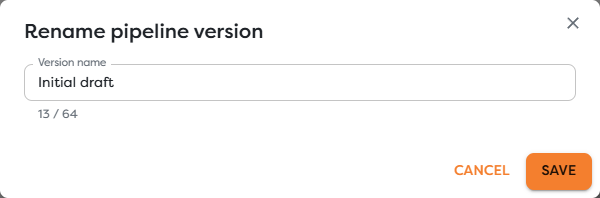
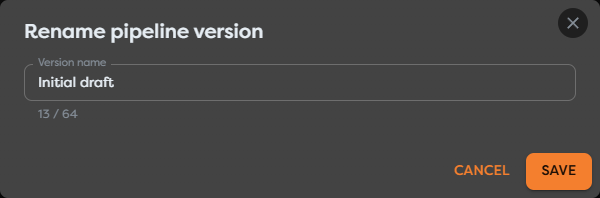
Use names that communicate release intent, such as Initial draft, Release candidate, or a feature-specific label. The new name must remain unique within the pipeline.
Delete an eligible version
Select an unpublished version and use Delete version. Builders identifies the sequential version and descriptive name before deletion.
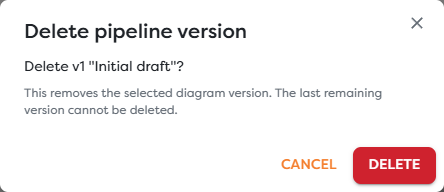
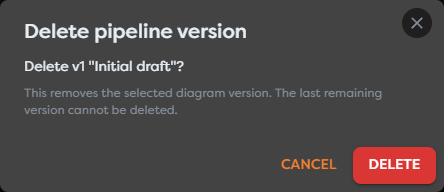
Deleting removes the entire diagram version. It does not delete the pipeline, but it cannot be undone through workflow rollback. The last remaining version cannot be deleted, and a published version cannot be deleted while it is public.
Select Cancel unless you have confirmed that the version is no longer needed. Export the workflow schema first when you need an external backup.
Continue work after publication
When a published workflow requires changes:
- Keep the published version unchanged.
- Create a new version from the required starting point.
- Give it a unique descriptive name.
- Edit, save, and test the new draft.
- Publish it only after verifying its runs and external effects.
- Unpublish only when the live trigger must stop accepting new work.
Unpublishing does not cancel runs that are already executing. Review run history after every publication change.