Messaging Action Blocks
Messaging action blocks let a running workflow read, send, or reply to messages through an integration configured for the project. They belong to the Process catalog group and run after a trigger or another executable block reaches their input.
These blocks do not receive provider events by themselves. Use the matching Trigger Blocks to start a published workflow from a new email, Slack event, SMS, Signal message, Teams notification, or WhatsApp Business webhook.
Choose the channel and action
The current Process catalog provides seven messaging actions:
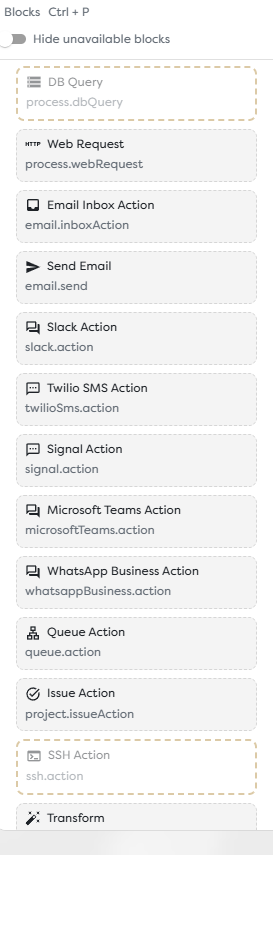
| Block | Type identifier | Required integration | Typical purpose |
|---|---|---|---|
| Email Inbox Action | email.inboxAction | Email SMTP/IMAP with inbox access, GMail, or Outlook | Read or manage messages in an authorized mailbox. |
| Send Email | email.send | Email SMTP/IMAP with sending enabled, GMail, or Outlook | Send an email through the selected mailbox identity. |
| Slack Action | slack.action | Slack | Perform a supported Slack message operation in the authorized workspace. |
| Twilio SMS Action | twilioSms.action | Twilio SMS | Perform a supported SMS operation through the configured Twilio account. |
| Signal Action | signal.action | Signal Messenger | Perform a supported message operation through the configured Signal bridge. |
| Microsoft Teams Action | microsoftTeams.action | Microsoft Teams | Perform a supported Teams message operation in the connected tenant. |
| WhatsApp Business Action | whatsappBusiness.action | WhatsApp Business Platform | Perform a supported WhatsApp Business message operation for the configured sender. |
The operation selector in each block is the source of truth for the actions supported by the current Builders version. Provider APIs, granted permissions, account policy, and the selected integration can further limit what succeeds at runtime.
Understand the integration boundary
A messaging block combines workflow data with an external authorization boundary:
upstream block output
-> rendered action settings
-> selected Builders integration
-> provider API or Signal bridge
-> named block output
The block controls the operation and its runtime values. The integration controls credentials, provider identity, default destinations when supported, and whether the external service permits that operation. Selecting a block does not create or expand provider permissions.
Integrations are ownership-aware. A personal project can select eligible personal resources; a team project can select resources exposed to that team. If an action is unavailable or its integration selector is empty, configure the integration in the same ownership scope and confirm that the project has Builders access to it.
Use these references before configuring an action:
- Email Integrations covers SMTP/IMAP, GMail, Outlook, read and send permissions, and mailbox testing.
- Messaging Integrations covers Slack, Teams, WhatsApp Business, Twilio SMS, Signal, callbacks, provider authorization, and delivery constraints.
- Integration Ownership and MCP Access explains project scope and the separate MCP permission used by AI Agent tools.
MCP access is not required for a normal messaging action block. It is a separate capability used when an AI Agent is allowed to invoke integration-backed tools.
Configure runtime values
Add the action after the step that produces the destination and message data. Open Block Settings, select the integration and operation, then complete every field required by that operation.
Use literal values only for fixed configuration such as a dedicated test channel. Use template expressions for values that change between runs, for example a recipient, channel, conversation identifier, subject, body, or reply target produced by the trigger or an earlier block.
Keep these identifiers distinct:
- a provider account or tenant identifies the authorization boundary;
- a channel, chat, mailbox, phone number, or recipient identifies a destination;
- a message or thread identifier identifies an existing conversation item;
- a Builders integration identifies the stored connection used by the block.
Do not substitute display names where the operation requires a stable provider ID. When an inbound trigger supplies a reply target or conversation identifier, pass that exact value forward instead of rebuilding it from visible labels.
Connect success and error paths
Messaging actions can fail after the workflow has started because the provider rejects authorization, identifiers, content, rate, policy, or delivery requests. Connect the normal output to work that should continue only after the action is accepted, and connect an available error output to logging, alerting, compensation, or retry logic.
An accepted provider request is not always proof of final delivery. For production workflows, retain the returned provider identifiers and status data needed to correlate later delivery events or support investigations.
Avoid an automatic reply loop when the same channel also starts the workflow. Filter messages produced by the integration itself, ignore provider status events that are not new inbound content, and preserve the provider's event or message identifier for deduplication.
Test before publishing
- Use a controlled mailbox, channel, chat, or phone number.
- Test the required capability from the integration configuration when that test is available.
- Run the draft with representative input and inspect the action's rendered settings.
- Confirm the named output and returned provider identifiers in block output.
- Verify the effect in the provider, including sender identity, destination, formatting, and thread placement.
- Test authorization, invalid-destination, and rate or policy failures through the error path.
- Publish only the workflow version that produced the expected external effect.
Testing a send operation does not validate inbox access or webhook delivery. Test every direction the workflow uses independently.
Troubleshoot messaging actions
- The block is unavailable: disable Hide unavailable blocks, then configure an eligible integration in the project's ownership scope.
- No integration appears: confirm the integration type, status, owner, team access, and the project owner shown in Builders.
- The provider returns unauthorized or forbidden: reconnect or update credentials and grant only the scopes required by the selected operation.
- The destination is rejected: use the provider's canonical channel, chat, mailbox, number, or recipient identifier and confirm the connected identity can access it.
- The action succeeds but nothing arrives: inspect the returned provider status, sender policy, recipient eligibility, templates, rate limits, spam filtering, and the provider's own delivery logs.
- Replies create more runs: add filters for messages sent by the integration and deduplicate inbound provider event IDs.
- A template resolves incorrectly: inspect the upstream block output and test the expression with representative data before publishing.
Next steps
- Configure Email Integrations
- Configure Messaging Integrations
- Use Template Expressions
- Test Runs in the Designer
- Read Block Logs and Output
Continue with Email Inbox Action to configure mailbox reads and message-management operations.