
Navigate Builders
Builders organizes navigation around two levels: global product areas and the current project or pipeline. Use the main navigation to move between resources across your account, then use row actions and breadcrumbs to work within a specific workflow.
Open the main navigation
On a desktop-sized screen, the main product areas appear as icons in the header. Hover over an icon to see its name. On a narrow screen, select Open navigation to display the same destinations as a labeled drawer.
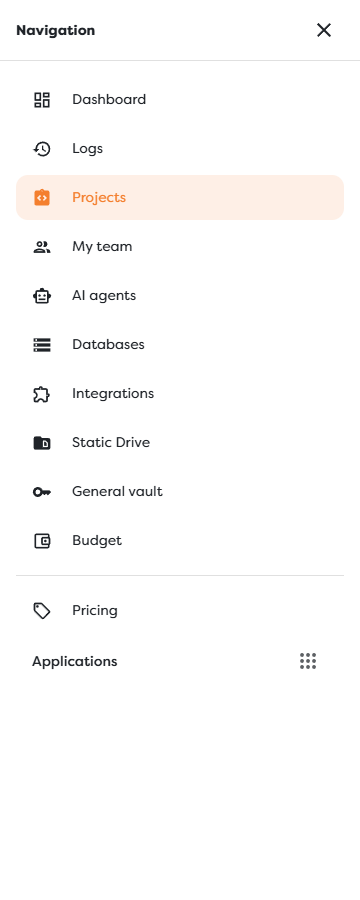
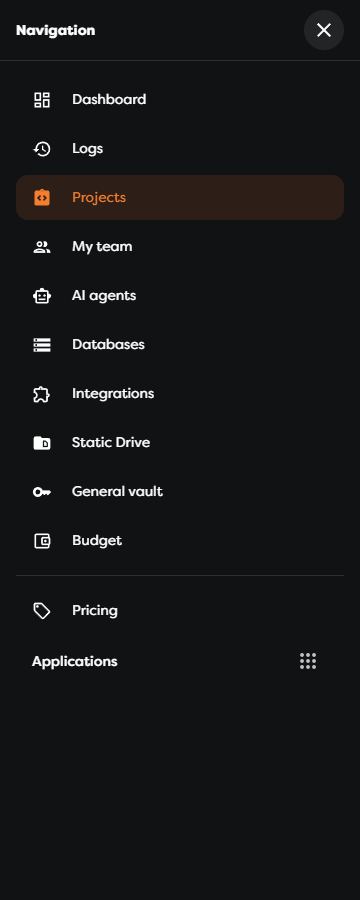
The highlighted item is the area that is currently open. Closing or expanding the drawer does not change the current page.
Main product areas
- Dashboard summarizes usage, capacity, active pipelines, alerts, recent events, and shortcuts to frequently used resources.
- Logs opens the retained user-event history. Use it to review account activity such as project changes and integration configuration.
- Projects opens the hierarchy used to create, share, and organize projects, pipelines, and workflow versions.
- My team opens team management in the separate Boilerplate Team application. Team membership and roles determine which team-owned Builders resources a user can access.
- AI agents manages private AI-provider connections that workflow nodes can use.
- Databases manages reusable database configurations for workflows.
- Integrations opens configured connections and the catalog of available integrations.
- Static Drive manages persistent files that can be read or written by workflows.
- General vault stores reusable typed and secret values for workflow configuration.
- Budget shows compute-token and AI-token balances, packages, usage limits, and renewal information.
- Pricing opens subscription and add-on options in the Boilerplate Store.
- Applications opens the Boilerplate application switcher for moving between products such as Builders, Team, Store, Blog, and Wiki.
My team, Pricing, and destinations in Applications can open outside Builders. Check the browser tab and domain before assuming that you are still in the Builders interface.
Find runs and alerts
Runs and alerts are available from contextual entry points rather than as labeled items in the navigation drawer:
- Open Runs from Quick access on the Dashboard to browse execution history across the resources available to you.
- Use a project's or pipeline's run action when you need history scoped to that resource.
- Select the notification bell in the header to review alerts and unread status. An alert can link directly to the affected project, pipeline, or node when that context is available.
Global run history and Logs serve different purposes. Runs contain workflow execution details; Logs record user activity in the product.
Move from a project to a workflow
The normal route into the Designer is:
- Open Projects.
- Find the project and open its Pipelines action.
- Find the pipeline and select Open.
- Choose the workflow version you want to inspect or edit.
Project and pipeline lists preserve the ownership context. A resource can be personal or team-owned, and the available actions depend on your access level.
Use Designer breadcrumbs
The breadcrumb above the workflow canvas shows the complete location of the open version.


Use the breadcrumb links as predictable return paths:
- Projects returns to the project list.
- The project name identifies the current owner context.
- Pipelines returns to the pipeline list for that project.
- The pipeline name identifies the workflow currently open in Designer.
- The version selector switches the workflow version in the current pipeline.
Save or roll back pending Designer changes before leaving the workflow or switching versions. Browser Back can leave the current editing context and is not a substitute for resolving unsaved changes.
Account and display controls
Select your avatar in the header to open account-level actions. This menu includes the light/dark theme control, issue reporting, and sign out. Theme selection changes the interface appearance but does not change workflow data.
Account registration and sign-in are handled by the separate Boilerplate authentication application. Team administration is also external to Builders, even though My team is available in the Builders navigation.
Navigation on mobile
On narrow screens, the labeled navigation drawer is the primary way to change product areas. Lists and account resources can still be reviewed, but workflow Designer is intended for a desktop-sized browser where the canvas, node configuration, and debugging panels can be used together.
For workflow editing, move to a desktop or sufficiently wide browser window. Avoid making critical canvas changes from a narrow viewport where controls and workflow context cannot be displayed at the same time.