
Messaging Integrations
Messaging integrations connect Builders to Slack, Microsoft Teams, WhatsApp Business Platform, Twilio SMS, or a self-hosted Signal bridge. Each integration can authorize outbound actions, receive provider events through a callback, and, when MCP is enabled, back compatible AI Agent tools.
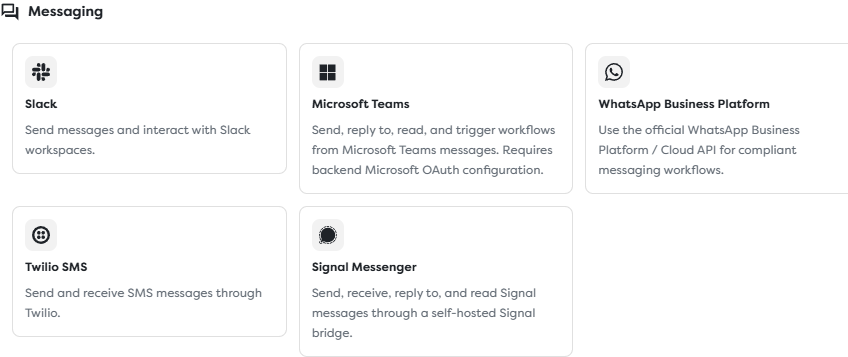
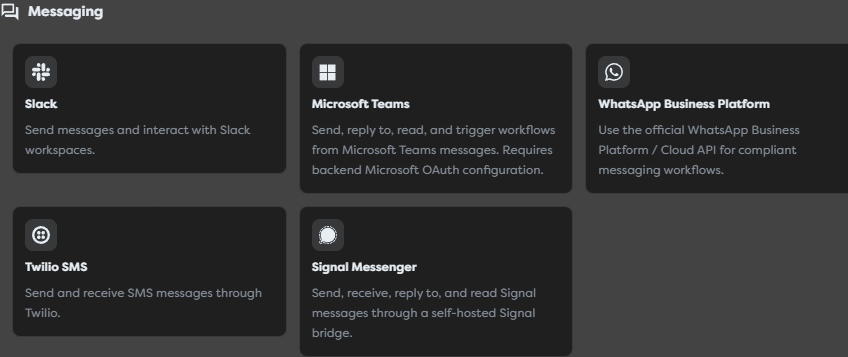
Choose the messaging boundary
| Integration | Outbound connection | Inbound route | Inbound verification | Typical destination |
|---|---|---|---|---|
| Slack | Slack Web API with a bot token | Events API Request URL | Slack signing secret | Workspace channel or thread |
| Microsoft Teams | Microsoft Graph through delegated Microsoft OAuth | Graph change-notification subscription | Subscription validation plus clientState | Team channel or chat |
| WhatsApp Business Platform | Meta Cloud API with a System User token | Meta App webhook subscribed to WABA messages | Verify Token challenge plus App Secret signature | WhatsApp business phone number |
| Twilio SMS | Twilio Messaging API with Account SID and Auth Token | Incoming-message webhook on a number or Messaging Service | X-Twilio-Signature validated with the Auth Token | SMS-capable number or Messaging Service |
| Signal Messenger | API of a self-hosted Signal bridge | Bridge or forwarder posts to the Builders callback | Shared webhook secret | Signal account, contact, or group supported by the bridge |
Choose Slack or Teams for workspace collaboration, WhatsApp Business or Twilio for managed customer messaging, and Signal only when the team can operate the bridge and its receive path. These channels have different identity, delivery, policy, and retention models; they are not interchangeable transports behind one generic credential.
Understand the two directions
Every messaging integration has two independent operational paths:
Outbound
workflow action or AI tool
-> Builders integration
-> provider API or bridge
-> destination
Inbound
provider subscription, number, or bridge
-> Builders callback URL
-> published messaging trigger
-> workflow
Test connection checks the supported provider or bridge API operation. It does not prove that the inbound callback is registered, authenticated, subscribed to the correct events, or connected to a published trigger.
Likewise, receiving a provider webhook does not prove that the integration may send or reply. Test outbound and inbound behavior separately.
Register the callback after saving
Builders generates a stable callback URL for a saved messaging integration. The common setup order is:
- Enter the provider identifiers, API credential, and inbound verification secret.
- Assign the integration to the project owner's personal or team scope.
- Decide whether the integration should be available to supported MCP tools.
- Save the integration.
- Reopen it and copy the complete Webhook callback URL.
- Register that URL in the provider or bridge without changing its path, case, or query behavior.
- Complete the provider's verification or subscription flow.
- Select the integration in the matching trigger, save the workflow, and publish the intended version.
- Send one real inbound event and inspect the resulting run.
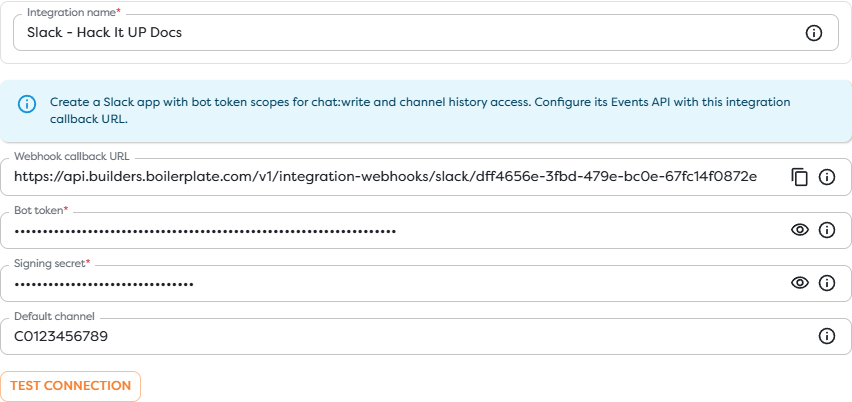
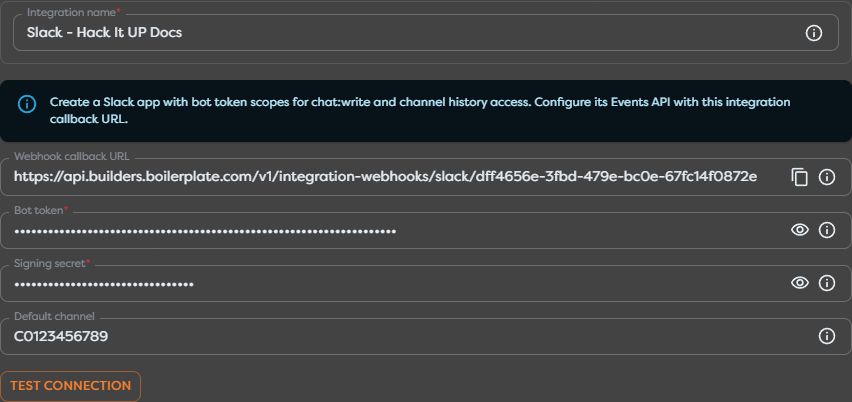
The callback URL routes traffic to the integration, not to an arbitrary draft. A live run starts only when a compatible published pipeline contains the trigger using that integration.
Do not put a proxy in front of the callback that rewrites the URL, request body, form parameters, or provider signature headers. Those values commonly participate in request verification.
Configure Slack
Create a Slack app for the intended workspace and configure:
- a bot token with only the OAuth scopes required by the actions and subscribed events;
- the app signing secret;
- an optional default channel ID for outbound actions;
- the Builders callback as the Events API Request URL.
The default channel is an outbound fallback. It does not filter inbound events. Slack event subscriptions, granted scopes, app membership, and downstream workflow conditions determine what reaches the automation.
Slack verifies an HTTP Request URL with a url_verification challenge. Builders handles that flow through the saved callback. Subscribe only to the required bot events, then reinstall the app when Slack requires refreshed consent for new scopes.
For sending, chat:write is a common baseline. Reading channel, group, direct-message, or multi-party message events requires the scope associated with the chosen event type and visibility. Follow Slack app setup, the Events API, and Slack request verification.
Use Slack Message Trigger for the complete subscription, filtering, retry, and test procedure.
Configure Microsoft Teams
Connect the intended Microsoft work or school account, confirm its tenant, and optionally set default team, channel, or chat IDs for outbound actions. Store a strong Webhook client state for validating notifications.
The saved Builders integration supplies the callback and Graph account context. It does not automatically create every Microsoft Graph subscription the workflow needs. Create a subscription for the exact resource, such as a channel or chat message collection, using:
- the Builders callback as
notificationUrl; - the same random value as
clientState; - only the required change types;
- an expiration supported by that resource;
- a lifecycle notification URL when Microsoft requires one.
Microsoft validates the notification URL during subscription creation. Subscriptions expire and must be renewed; monitor the returned expiration rather than assuming the requested duration was accepted.
Channel, chat, user, and tenant-wide subscriptions use different resources and permission models. Use Teams message change notifications, webhook delivery, and the subscription resource.
Use Microsoft Teams Trigger for subscription examples, validation, renewal, lifecycle events, and loop prevention.
Configure WhatsApp Business Platform
Use the official Meta WhatsApp Business Platform. The integration requires the business and sender context plus three credentials with separate purposes:
| Value | Purpose |
|---|---|
| System User access token | Authorizes Cloud API operations against assigned WhatsApp business assets |
| Meta App Secret | Verifies signatures on delivered webhook requests |
| Webhook Verify Token | Matches the value used during callback verification and protects the challenge handshake |
Also configure the WABA ID, phone number ID, display number, optional default recipient, and optional approved template defaults. Outbound defaults do not decide which inbound messages start the trigger.
After saving, register the Builders callback in the Meta app, enter the identical Verify Token, complete verification, and subscribe the app to the WABA messages webhook field. Assign the System User only the required business assets and permissions, commonly whatsapp_business_messaging and whatsapp_business_management for the supported operations.
WhatsApp delivery is policy-aware. A technically valid API credential does not override business verification, phone registration, template approval, customer opt-in, conversation, rate, quality, or regional requirements. Review Meta's Cloud API overview and webhooks documentation.
Use WhatsApp Business Trigger for webhook verification, message/status separation, media, templates, retries, and testing.
Configure Twilio SMS
The Twilio integration stores the Account SID and Auth Token. Configure either a default From number, a Messaging Service SID, or both according to the outbound design.
For inbound SMS or MMS, route A message comes in on the receiving number to the Builders callback using the required method. When a sender belongs to a Messaging Service, verify whether the service defers to the sender's webhook or uses its own service-level incoming-message route.
Do not confuse these callbacks:
| Callback | Meaning |
|---|---|
| Incoming message webhook | A customer sent a new SMS or MMS; this can start Twilio SMS Trigger |
| Delivery status callback | The state of an outbound message changed; this is not a new inbound customer message |
Twilio signs inbound requests with X-Twilio-Signature using the account Auth Token, exact webhook URL, and request parameters. Builders owns validation at its integration callback. Preserve the complete URL and provider body.
Follow Twilio's Messaging Webhooks, Messaging Services, and Webhooks security.
Use Twilio SMS Trigger for number routing, payload inspection, MMS handling, replies, duplicate control, and debugging.
Configure Signal Messenger
Signal uses a self-hosted bridge rather than a vendor-hosted application platform. Builders connects to the bridge API for outbound operations, while the bridge or a forwarding service must deliver inbound events to the Builders callback.
Configure:
- the publicly reachable HTTPS bridge base URL;
- an optional bridge API token for Builders-to-bridge calls;
- the registered or linked Signal account;
- an optional default recipient;
- a separate webhook secret for bridge-to-Builders calls.
The bridge API token and webhook secret protect opposite directions and should not reuse the same value. The forwarder must send the webhook secret using the header supported by Builders, such as x-signal-webhook-secret or the documented bearer form.
Operate the bridge as production infrastructure: restrict network access, use trusted TLS, protect registration data, persist required state, supervise the receive process, queue forwarding retries, monitor account linkage, and keep the bridge compatible with Signal service changes. The signal-cli-rest-api project documents one commonly used bridge implementation.
Use Signal Trigger for forwarding, payload normalization, group context, reply identifiers, ordering, and operations.
Connect triggers, actions, and AI tools
Select the integration inside the compatible trigger, action, or AI tool. A Designer edge carries workflow data; it does not grant provider access.
All current messaging integration forms expose the MCP step. Enabling MCP makes the saved connection eligible for supported AI Agent tools, but it does not enable any tool automatically. The AI Agent still needs the individual operation enabled and the intended integration selected.
Keep the tool allowlist narrow:
- a summarizer may need message reads but not send permission;
- a reply assistant can produce proposed text before a human-approved action sends it;
- an outbound notifier does not need inbox or history access;
- a channel-specific agent should not receive a workspace-wide or tenant-wide subscription by default.
See Configure Tools and Integrations.
Prevent loops and duplicate effects
Provider retries, message edits, delivery status changes, bridge redelivery, and subscription recreation can produce repeated or related events. A bot reply can also match the same subscription that received the original message.
- Reject unsupported event types and status updates before expensive processing.
- Ignore bot-authored or self-authored messages unless explicitly required.
- Build an idempotency key from the provider, account or workspace, conversation, event or message ID, and relevant change type.
- Record the key atomically with the business effect when possible.
- Preserve thread, reply, channel, phone, chat, or group identifiers instead of guessing a destination.
- Make outbound retries aware that the provider may have accepted the first request before Builders observed a timeout.
Treat all incoming text, files, contact data, and quoted messages as untrusted. Validate media type and size before downloading attachments, and restrict AI tools against prompt injection carried inside provider messages.
Test and monitor the complete path
For every messaging integration:
- Run Test connection with the final credential.
- Save and reopen the integration.
- Register and verify the generated callback.
- Confirm the provider subscription, number route, or bridge forwarder.
- Publish a minimal trigger workflow that records
{{input}}without an external side effect. - Send one uniquely identifiable real message.
- Match the provider event ID or message ID to the Builders run.
- Test one outbound action and verify the destination separately.
- Simulate a duplicate or retry and confirm idempotent handling.
- Configure monitoring for token revocation, callback errors, subscription expiry, bridge health, and missing expected traffic.
Troubleshoot messaging integrations
- Connection succeeds but no run starts: inspect provider-side callback registration, subscription or route, request verification, and published trigger selection.
- No callback URL appears: save the integration, reopen it, and copy the generated URL from Config.
- The callback cannot be verified: compare the exact URL and verification secret, and preserve provider validation requests.
- Outbound works but inbound does not: the API credential is valid, but the Events API, Graph subscription, Meta webhook, Twilio route, or Signal forwarder is missing or failing.
- Inbound works but replies fail: verify outbound scopes, sender identity, destination identifiers, provider policy, and account balance or limits.
- The wrong events start runs: narrow the provider subscription and add downstream conditions for sender, channel, message type, subtype, or status.
- Events stop later: check token revocation, Graph subscription expiration, WABA/app state, Twilio routing changes, or Signal bridge health.
- An AI tool cannot select the connection: verify project ownership, MCP status, integration compatibility, and the individual tool setting.
- Messages or effects repeat: use provider event identifiers and an idempotent business boundary.