
What Is Boilerplate Builders?
Boilerplate Builders is a visual platform for creating, sharing, running, and monitoring workflow automations. It combines a low-code workflow designer with team workspaces, managed integrations, reusable data connections, hosted public interfaces, versioning, and execution logs.
Instead of writing the infrastructure around every automation, you model a process as connected blocks. A workflow can receive an event, form submission, message, file, or API request; transform and route the data; call external services or AI; store the result; and return or send a response.
Builders is suitable for internal business processes, integration workflows, public APIs, hosted forms and chats, file processing, messaging assistants, issue triage, scheduled jobs, and other repeatable multi-step tasks.
Projects organize and share work
Builders organizes work in a hierarchy:
- A project groups pipelines and defines their personal or team ownership scope.
- A pipeline represents one automation, business process, API flow, form, or chat experience.
- A version is a saved state of a pipeline. One version can be published while later changes remain in a draft.
- A run is one execution of a test or published workflow, including its status, timing, block logs, input, and output.
Project settings show the current ownership scope and provide the action used to transfer a project when it should become shared team work.
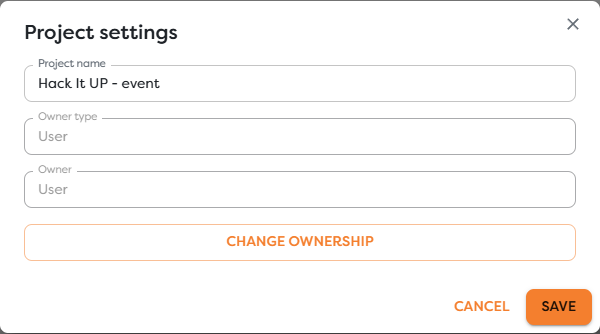
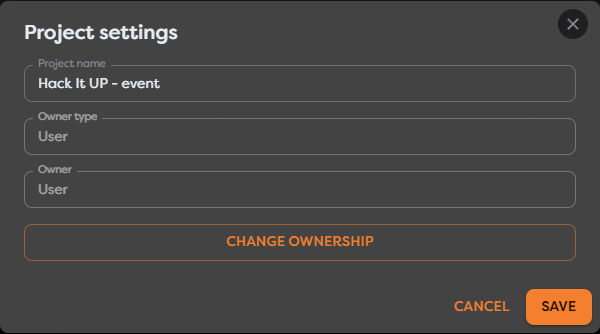
A personal project belongs to your user workspace. A team-owned project is shared with members of that team according to their Builders role. Team ownership makes the project's pipelines available in the shared scope and lets permitted members open, edit, test, and publish them. Administrative settings and destructive actions remain restricted by role.
Ownership also determines which supporting resources a pipeline can use. Team projects see compatible team-owned integrations, Vault entries, databases, AI connections, and files. A resource from a personal workspace is not automatically exposed to a team workflow. When a project changes owner or a pipeline moves between projects, Builders validates its resource references and reports anything that is no longer accessible.
Teams can design workflows together
Members can collaborate on a team pipeline in the visual Designer. The collaboration experience includes active-participant indicators, colored selections, and synchronized changes to the diagram and block settings. Team members can also work with the shared Designer AI Assistant conversation.
Unsaved changes are shared editing state, not a published release. Collaborators should coordinate who saves the next version and review the diagram before publishing, especially when several people are editing the same pipeline.
The visual Designer builds executable workflows
The Designer provides a canvas, block catalog, settings panels, ports, connections, selection tools, zoom controls, context menus, and draft-state controls. You can add and connect blocks, configure their inputs, copy or organize parts of a diagram, roll back unsaved changes, and import or export workflow schemas.
Workflows can combine:
- Triggers for manual runs, schedules, HTTP endpoints, web forms, chats, email, messaging platforms, queues, and issue trackers.
- Processing blocks for code, data transformation, HTTP requests, database queries, AI, file operations, delays, subflows, and synchronization of parallel paths.
- Conditions for if, if/else, and switch-style routing.
- Actions for sending email and messages, saving files, updating issues, publishing queue messages, using SSH, and calling connected services.
- Layout blocks such as areas and sticky notes, which document a diagram without executing.
Data moves through connections from a block's output port to another block's input. Template expressions can reference earlier block output, run metadata, and allowed Vault values.
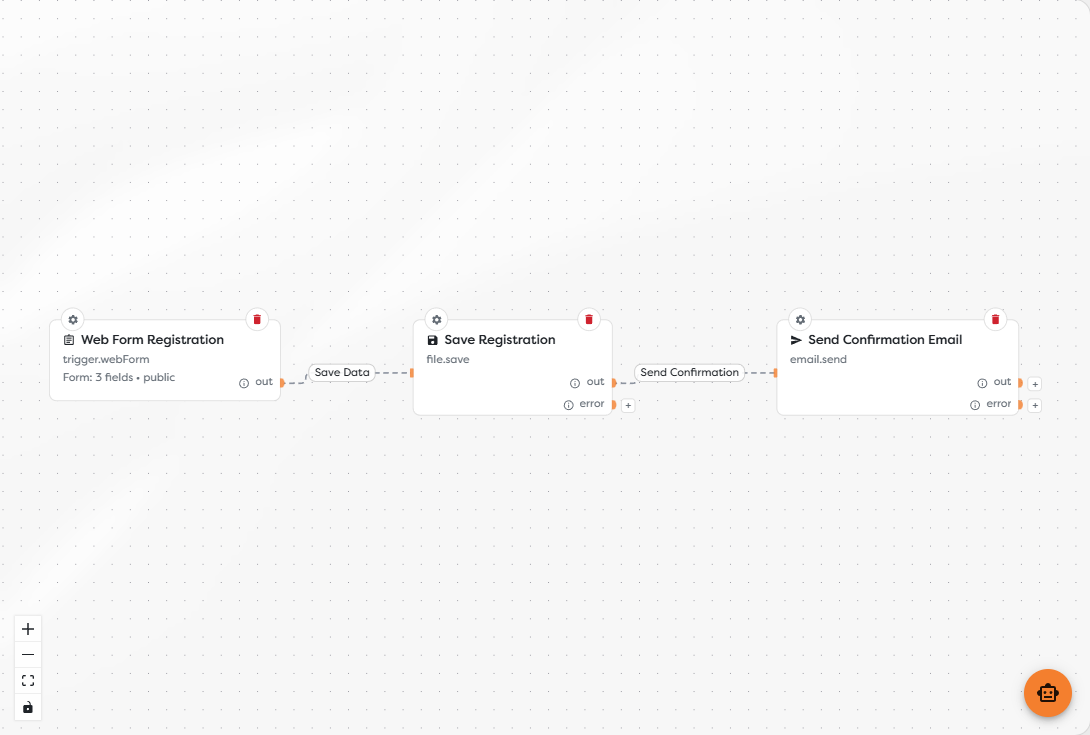
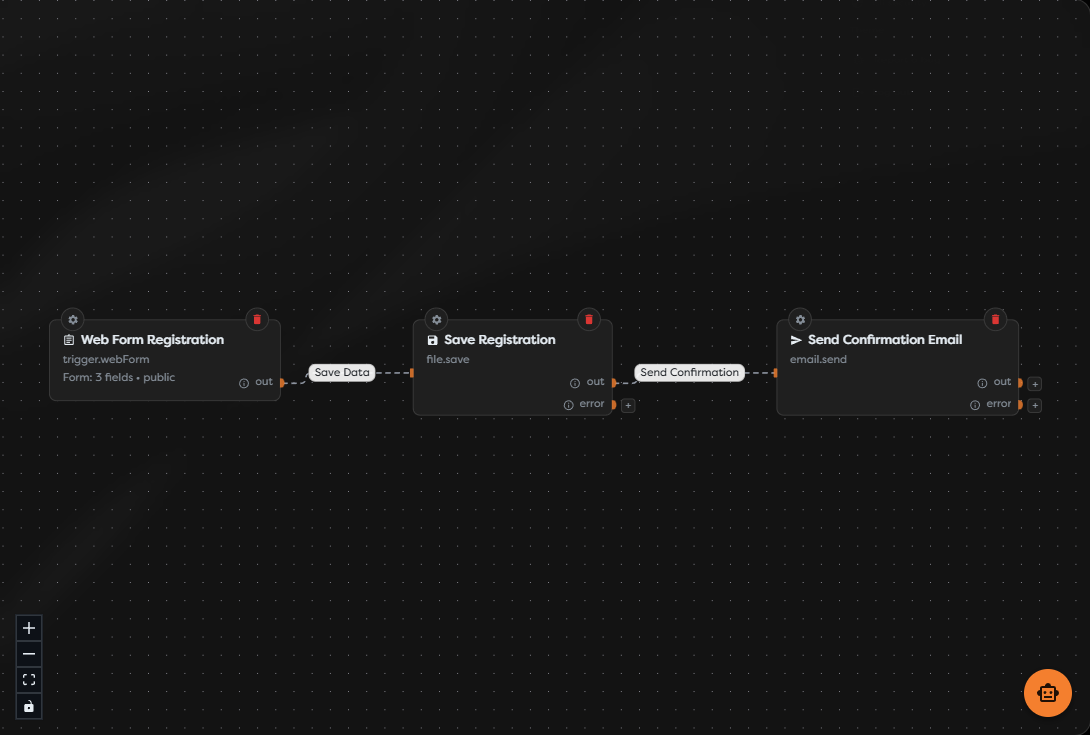
The example below is an executable event-registration pipeline: a public form starts the run, the submitted data is saved, and a confirmation email is sent.
The Designer AI Assistant can help create or modify a workflow. Private AI connections can also power compatible AI blocks and the assistant, but AI-made changes should be reviewed and tested like any other draft change.
Integrations connect external services
Integrations store reusable connection configuration for external systems. Compatible blocks select a configured integration instead of requiring credentials in every workflow.
The integration catalog covers categories such as:
- email, including Gmail, Outlook, and SMTP/IMAP;
- storage, including Amazon S3, S3-compatible storage, Google Drive, and OneDrive;
- messaging, including Slack, Microsoft Teams, Signal, Twilio SMS, and WhatsApp;
- issue tracking, including GitHub Issues, GitLab Issues, and Jira;
- queues, including RabbitMQ, ActiveMQ, Amazon SQS, and Amazon SNS;
- remote access through SSH.
The first step of the integration wizard lets you compare available providers by category before entering credentials or assigning ownership.
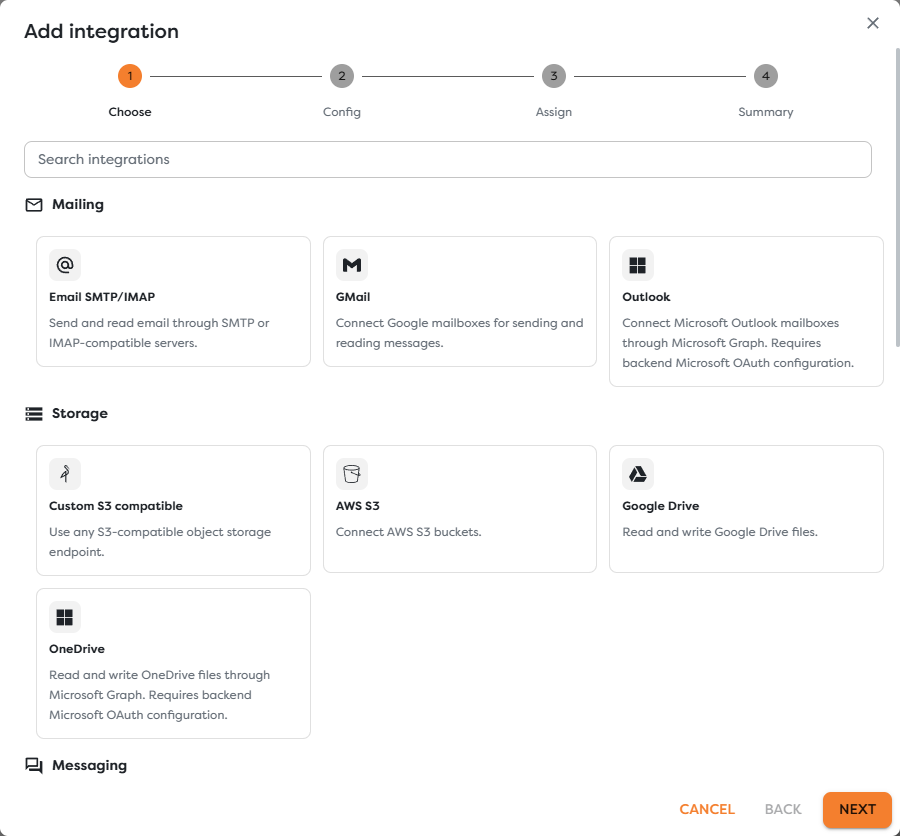
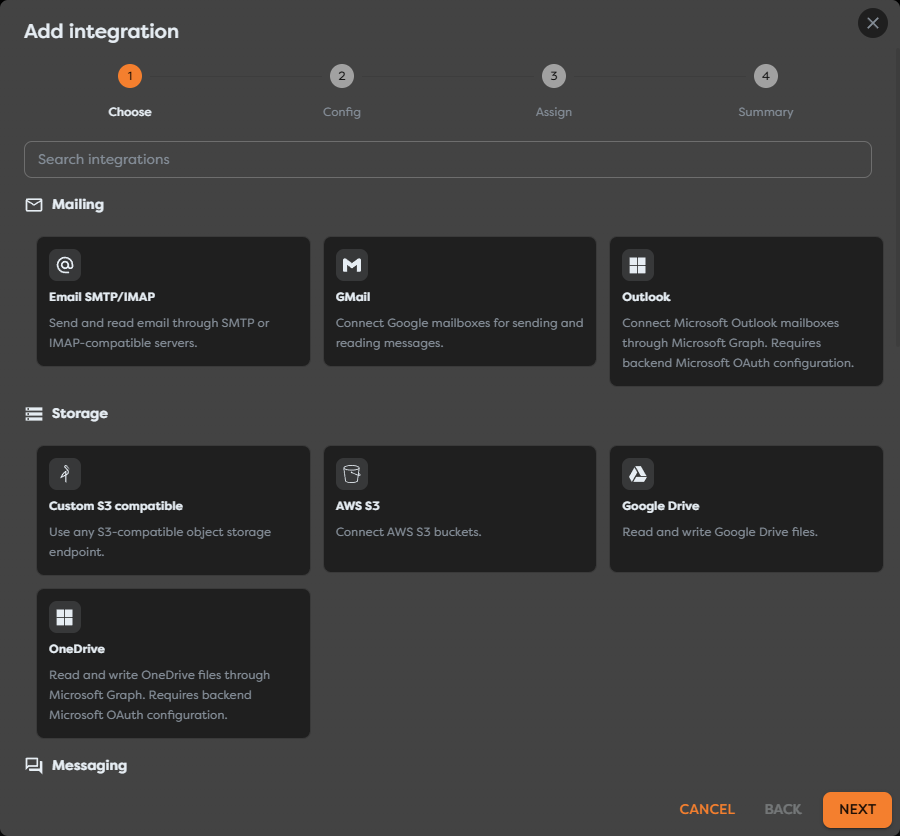
Catalog entries can be enabled, temporarily unavailable, dependent on server configuration, or marked as coming soon. Seeing an integration or block in the catalog does not by itself guarantee that it is configured and available in the current project scope.
Integrations can be personal or team-owned. Some can also be enabled for MCP access so approved AI tools can use them. Credentials should remain in the integration configuration rather than being placed in block input, logs, or a workflow schema.
Databases, files, Vault, and AI connections
Builders includes reusable data resources in addition to provider integrations:
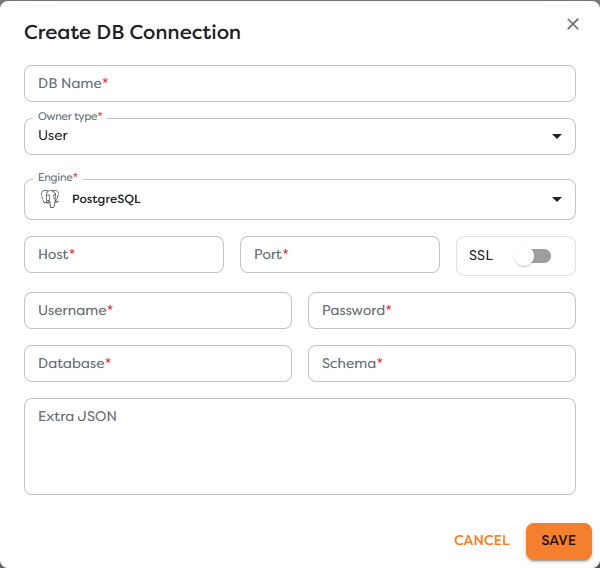
- Database connections connect PostgreSQL, MySQL, or MongoDB to DB Query blocks. Connections support SSL where required and personal or team ownership, and can be validated through a controlled DB Query.
- Static Drive stores persistent personal or team files. It supports folders, uploads, previews, supported text editing, moving, deletion, and workflow access by path.
- Context Drive stores temporary files for one workflow run. Use it for intermediate data that does not need to survive the run.
- General Vault stores reusable simple, JSON, or dotenv-style values for template expressions. Secure values can be limited to executor-side retrieval.
- Private AI agent connections configure OpenAI, Anthropic, Google, or OpenAI-compatible model providers for AI blocks and the Designer Assistant.
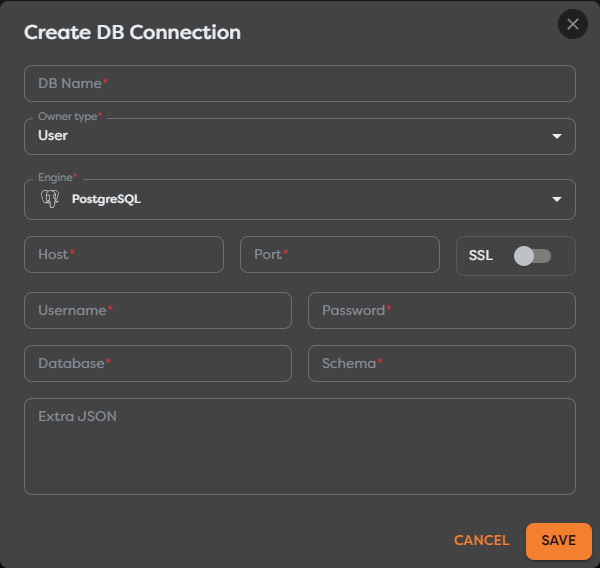
Database configuration keeps the engine, network settings, SSL option, credentials, database, and owner scope in one reusable connection.
Vault entries have their own owner scope and value type. Secure mode prevents the stored value from being returned to the browser and cannot be reversed for that entry.
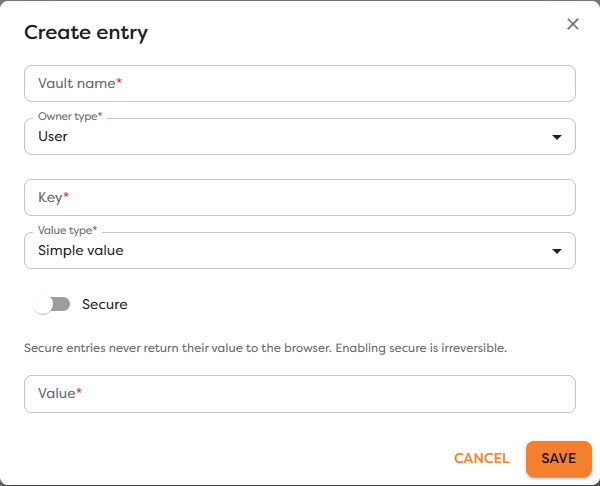
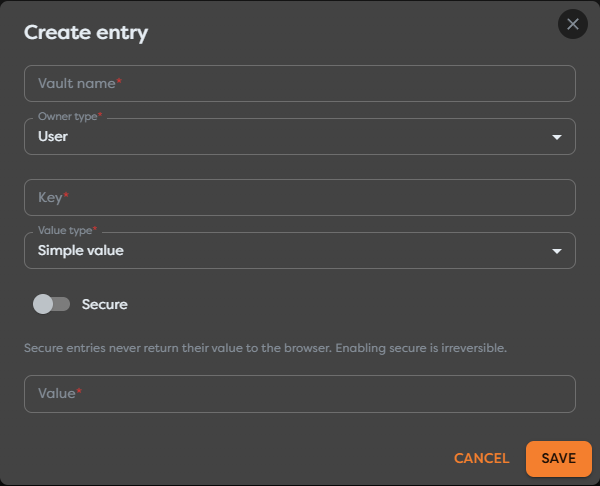
Each resource follows the same ownership boundary as projects. This prevents a team pipeline from silently using a private credential, database, model provider, or file store that other team members cannot access.
Publish APIs, forms, and chats
A published workflow can expose a hosted interface rather than only running inside Builders. Depending on its trigger, a pipeline can provide:
- an HTTP endpoint for API clients and webhooks;
- a hosted web form that starts a run with submitted fields and files;
- a hosted or embedded chat experience;
- an automatically activated schedule or provider event listener.
Public workflow surfaces can use public access, Basic authentication, generated access tokens, or bearer-token verification where supported. The published version handles live traffic; later Designer changes remain drafts until another version is published.
Test, monitor, and troubleshoot runs
Builders separates test runs from published workflow runs. Test runs let you validate the current draft before it becomes live. Run history then provides project and status filters, execution timing, and access to each block execution.
For an individual block you can inspect input, output, structured logs, errors, duration, and applicable execution cost. Repeated block entries can represent separate executions inside a loop. Active runs can be cancelled from supported views.
Operational alerts point back to affected projects, pipelines, or nodes. The Logs area also records user events so teams can review relevant activity and diagnose changes or failures.
Versions, budgets, and limits
Saving creates or updates a named workflow version. Publishing selects the version used by live triggers. This separation lets a team continue editing a draft without changing the currently published automation.
Workflow execution consumes compute tokens from the budget of the project's personal or team owner. Builders Pro AI uses a separate AI-token balance, while private AI providers use their own provider billing. Storage quotas and limits for projects, pipelines, and concurrent runs can also affect creation and execution.
The Budget area shows the applicable balances and renewal information. Check the owner scope, required integrations, resource access, and available limits before treating a workflow as production-ready.
When to use Builders
Builders is a good fit when a process benefits from:
- a visible and reviewable workflow instead of hidden orchestration code;
- reusable integrations, databases, files, secrets, and AI connections;
- shared team ownership and real-time editing;
- explicit test, version, and publication stages;
- hosted endpoints, forms, or chat interfaces;
- block-level logs, run history, alerts, and operational control.
For a one-off local script with no shared resources, publication lifecycle, or monitoring requirements, a visual workflow may add unnecessary overhead. Builders is most useful when an automation must be repeatable, observable, integrated with other systems, and maintainable by more than one person.