
Read File
Read File loads one file from an internal drive or an integration-backed provider and exposes it to downstream blocks as a canonical File value.
Use it to parse a JSON configuration, load text for transformation, forward an uploaded file, retrieve a document for an AI step, or copy a file between storage providers.
Configure Read File
- Add Read File from File System in Workflow Designer.
- Enter a descriptive label.
- Select the Storage type.
- For Google Drive, OneDrive, AWS S3, or Custom S3, select a compatible integration.
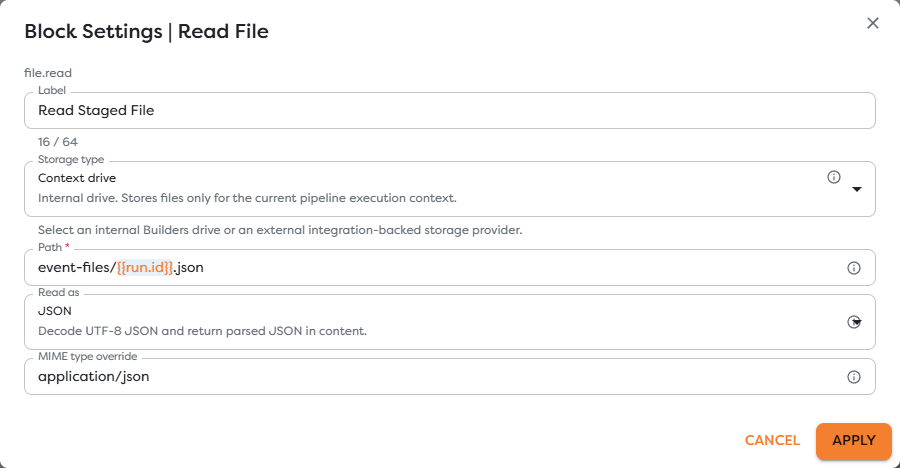
- Enter or pick the source Path.
- Select Read as.
- Set MIME type override only when Builders cannot infer the correct media type.
- Select Apply, save the draft, and run a controlled test.
Select storage and integration
Context drive and Static drive are internal Builders storage and do not use an integration selector. External storage requires an integration that matches both the provider and the read operation.
| Selected storage | Required capability |
|---|---|
| Google Drive | drive.read |
| OneDrive | drive.read |
| AWS S3 | s3.read |
| Custom S3 | s3.read |
The integration supplies credentials and provider configuration. The block supplies the file path and decoding mode. Builders combines them only while executing the block.
If no compatible integration is listed, confirm that it is active, supports read access, and belongs to the same personal or team scope as the project.
Enter the source path
The path is resolved after template expressions are evaluated. For example:
event-files/{{run.id}}.json
Its meaning depends on the selected storage:
- Context drive: path created during the current run;
- Static drive: persistent Builders path;
- Google Drive or OneDrive: path in the selected connected drive;
- AWS S3 or Custom S3: object key in the bucket configured by the integration.
Use the folder button to pick an existing file when it is available. Static drive can be browsed directly. An external file picker becomes available only after a compatible integration is selected. Context drive paths are entered manually because their files are created during a run.
Choose how bytes are decoded
| Read as | Result |
|---|---|
| Auto | Detects JSON, XML, text, images, and binary data from provider metadata, MIME type, or extension. |
| Text | Decodes the file as a UTF-8 string. |
| JSON | Decodes UTF-8 JSON and returns the parsed value as the file content. Invalid JSON fails the block. |
| XML | Validates XML and returns its UTF-8 source as the file content. |
| Base64 | Returns binary content in the runtime's tagged ByteArray representation. |
| Data URL | Returns a data URL using the detected or overridden MIME type. |
Choose an explicit mode when downstream behavior must not depend on a filename extension. In the example, JSON guarantees that downstream blocks receive parsed registration data even though the file first passed through Context drive.
Override the MIME type
Builders first uses provider metadata and the file extension. Set MIME type override when that information is missing or incorrect, for example application/json or image/png.
Use a registered media type where possible. See the IANA Media Types registry.
An override changes how the content is described and can affect Auto or Data URL handling. It does not convert one file format into another.
Use the canonical File output
The block's Out connection passes an object containing file. That canonical File carries the file content together with details such as its name or path, size, MIME type, and available provider metadata. The representation of its content depends on Read as.
When the next block should copy the file without modifying it, connect Read File to Save File and use:
{{input.file}}
in Save File's File reference mode. This is the preferred boundary between providers: the next block receives a canonical File rather than a Google Drive, OneDrive, or S3-specific response.
When you need the decoded value instead, inspect the successful block in the test run and select the relevant property from template autocomplete. Provider metadata is not guaranteed to have an identical shape across every storage type.
Test the read
- Ensure the source file exists before Read File runs.
- Start a test with representative input.
- Confirm that Read File reports
success. - Check the log for the rendered storage, path, and byte size.
- Verify the decoded content in the first downstream block that consumes it.
- Test at least one invalid path and confirm that the workflow handles the failed read as intended.
Troubleshoot Read File
- Path is required: enter a literal path or a template that resolves to a non-empty value.
- Storage integration is required: select the external integration after selecting the storage type.
- Integration is missing: configure a provider integration with
drive.readors3.readaccess in the project scope. - The file is not found: inspect the rendered path in the run log and verify its case, drive, bucket, and folder.
- JSON or XML parsing fails: confirm the source encoding and syntax, or use Text when parsing should happen later.
- The MIME type is wrong: correct the provider metadata or set a MIME type override.
- The provider rejects access: verify the connected account can read the exact file, shared drive, folder, bucket, or object.