
Use the AI Designer Assistant
The AI Designer Assistant can inspect an editable workflow, answer questions about its structure, and prepare changes directly on the canvas. Its changes remain part of the unsaved Designer preview until you review and save them.
This article uses the dedicated Documentation - AI Designer Assistant pipeline. It shows how to choose an AI source, write a workflow-scoped request, inspect tool activity, approve destructive actions, and decide whether to save or roll back the result.
Open the assistant on an editable version
Open an unpublished pipeline version in Workflow Designer, then select the floating assistant action in the lower-right corner of the canvas. The assistant is unavailable on a published version because published workflows are read-only.
The conversation belongs to the selected pipeline version. Before sending a request, confirm the project, pipeline, and version in the breadcrumb. Switching to another version changes both the workflow context and the assistant conversation you are working with.
Choose an AI source
Open the source settings from the assistant panel and select the source that should process the request.
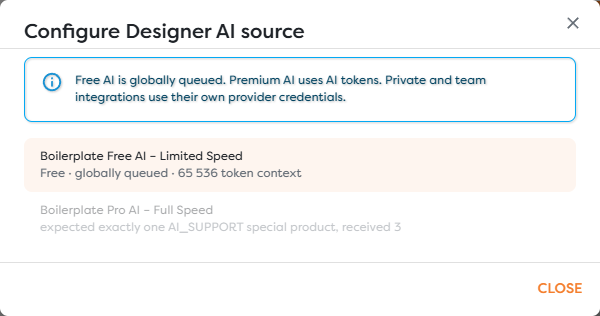
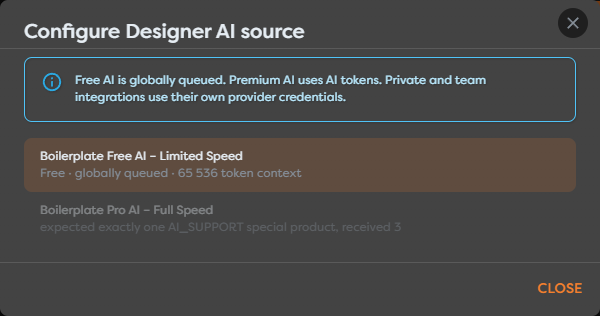
The available choices depend on the workspace configuration and your access:
- Boilerplate Free AI - Limited Speed is free, globally queued, limited to interactive work, and currently provides a 65,536-token context.
- Boilerplate Pro AI - Full Speed uses the AI token balance owned by the account or team funding the request.
- Private AI agents use provider credentials configured for your private integration.
- Team AI agents use provider credentials shared through an available team integration.
Private and team sources are billed by their configured provider and do not consume Builders AI tokens. If a source is disabled, check its displayed requirement, your workspace access, and the relevant balance or provider configuration.
Ask for a workflow-scoped change
Describe the intended result in terms of the current diagram. Use exact block labels, state what may be changed, and include constraints that protect the rest of the workflow. For example:
Rename the block labeled "Save Request" to "Store Request Draft".
Then add a Sticky Note with the text "Review before publishing"
beside the workflow. Do not delete any existing blocks or connections.
Apply the changes to the diagram.
For reliable results:
- Request one coherent workflow change at a time.
- Identify existing blocks by their visible labels and purpose.
- Say explicitly which blocks or connections must remain unchanged.
- Describe the expected branch, configuration, or final diagram state.
- Attach a file only when the assistant needs it to understand the request.
Attachments become part of the version conversation context. Do not attach credentials, production data, or files that other collaborators should not access.
Inspect responses and tool activity
The assistant streams its response and displays the workflow tools it uses. A tool card shows whether the operation started, completed, or failed and summarizes what it inspected or changed.
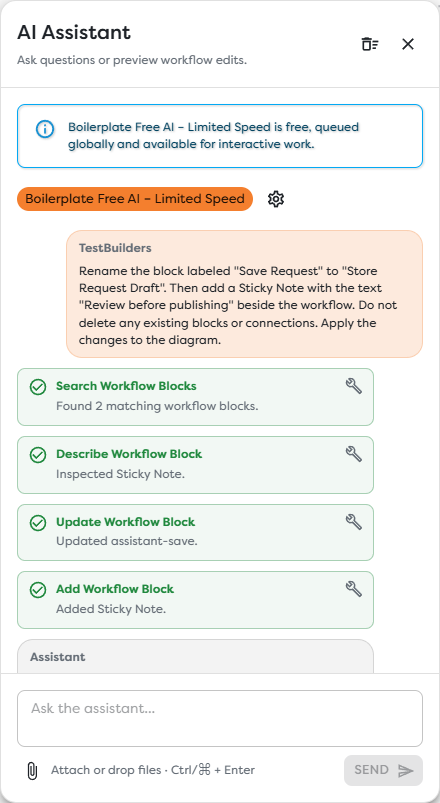
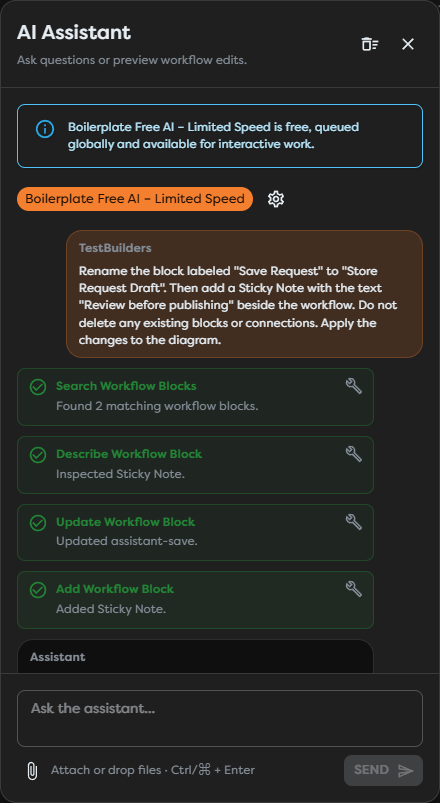
Review the tool sequence instead of relying only on the final message. A change request can involve searching for matching blocks, inspecting a block definition, updating a block, adding another block, and completing the task.
If a tool fails, open its details and read the reported error. Correct an ambiguous label, missing block, incompatible configuration, or access problem before sending a narrower follow-up. You can stop an active task if the assistant is following the wrong approach; stopping it does not automatically reverse workflow edits already placed in the preview.
Approve destructive changes
Removing workflow structure requires explicit approval. Before deletion, the assistant displays the number of blocks and connections it intends to remove.
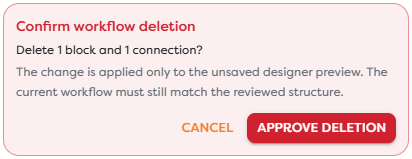
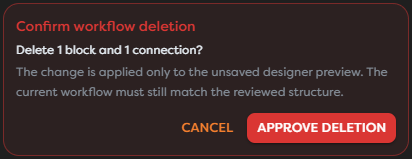
Select Cancel when the scope is incorrect or the diagram has changed since the request. Select Approve deletion only after confirming that:
- the named blocks are the intended targets,
- the connection count matches the branch being removed,
- another collaborator has not changed the same area,
- the remaining workflow will still have valid execution paths.
Approval applies the deletion only to the unsaved Designer preview. It does not save or publish the version.
Review the unsaved preview
After an AI change, inspect the actual canvas. The assistant's summary is not a substitute for checking labels, connections, settings, validation, and layout.


Use the same review process as for a manual edit:
- Confirm every added, updated, moved, or removed block.
- Open affected block settings and check required values and resources.
- Trace each execution branch and verify its port connections.
- Use Auto layout or canvas navigation controls if the result is difficult to inspect.
- Resolve validation errors and run a controlled test when the workflow is executable.
- Select Save only when the preview represents the intended draft.
Save persists the current draft but does not publish it. Rollback restores the last saved graph and discards all pending changes in the shared preview, including manual edits and changes made by the assistant.
Work with the shared team assistant
On a team-owned workflow, the panel identifies itself as the shared assistant for that team workflow. Other collaborators can see when a participant is actively using it, and the version conversation and accepted edits are shared collaboration context.
Coordinate before sending a large request, approving deletion, clearing context, saving, or rolling back. Only one person should direct the assistant at a time, and the team should agree who owns the final diagram review and save.
Clearing the assistant context removes the conversation context for the version. It does not roll back changes already applied to the workflow preview.