Integrations
Integrations are reusable connection configurations for external services. Builders stores their credentials in Vault and lets compatible triggers, blocks, file operations, and approved AI tools reference the connection without embedding secrets in every pipeline.
Understand the integration boundary
An integration connects four concerns that should remain separate:
provider account or server
-> credential and permission set
-> Builders integration stored in Vault
-> compatible workflow block or AI tool
Creating an integration does not run a workflow and does not grant every project access to the provider. A block must support that integration type, the integration must be available in the project's ownership scope, and the selected credential must have the provider permissions required by the operation.
For AI Agent tools, the relationship has one additional gate:
AI Agent
-> enabled tool
-> compatible integration
-> MCP enabled for that integration
-> external operation
See Configure Tools and Integrations for the AI-specific authorization boundary.
Create an integration
Open Integrations and select Create. The wizard uses these steps:
| Step | Purpose |
|---|---|
| Choose | Select one of the integration types available in the catalog |
| Config | Enter the provider connection, identifiers, credentials, and optional defaults |
| Assign | Select personal or team ownership for the stored configuration |
| MCP | Decide whether supported AI Agent tools may use the integration |
| Summary | Review the selected type, scope, and configuration before saving |
Some types do not expose MCP and therefore use a four-step wizard without the MCP step. The current Email SMTP/IMAP and SSH forms follow that shorter flow.
Provider callback URLs are generated by Builders. Integrations that receive webhooks commonly require this order:
- Complete the configuration and assignment.
- Save the integration.
- Reopen it and copy its callback URL.
- Register that URL in the provider's webhook, Events API, number, topic, or subscription settings.
- Send a real provider event and inspect the resulting workflow run.
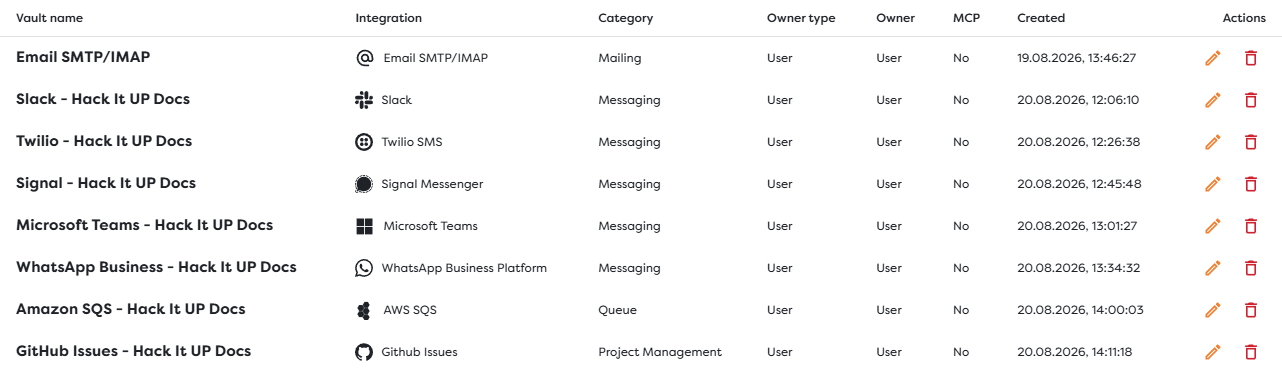
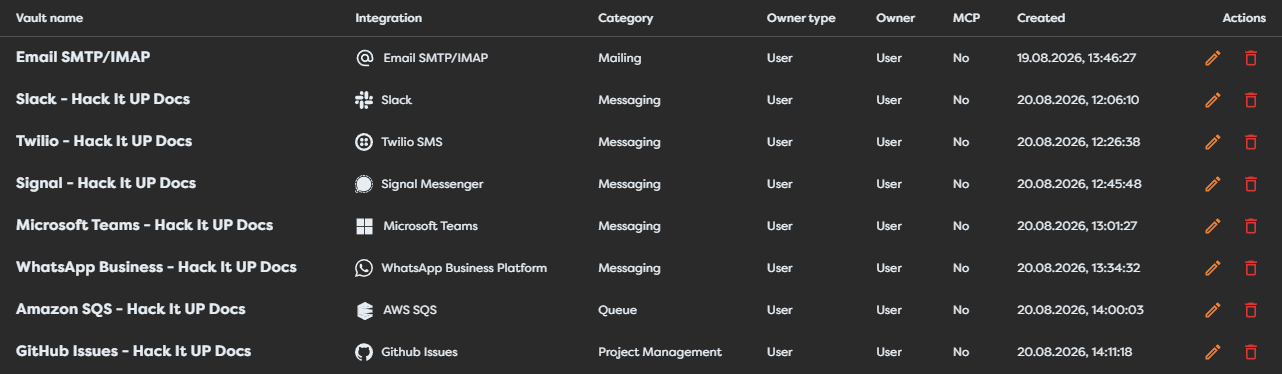
Read the integrations list
| Column | Meaning |
|---|---|
| Vault name | The reusable name selected for this stored configuration |
| Integration | The provider adapter and integration type |
| Category | Mailing, Storage, Messaging, Project Management, Queue, or Remote Access |
| Owner type / Owner | Whether the integration belongs to a user or a team, and which owner controls it |
| MCP | Whether the stored integration is enabled for supported AI tool access |
| Created | When the integration configuration was created |
| Actions | Edit or delete the stored integration |
The MCP value is not a connection-health indicator. Use Test connection in the configuration form and then execute a representative block. Webhook integrations also require an inbound event test because an outbound API check cannot prove that the provider callback is configured correctly.
Keep credentials out of workflows
- Store tokens, passwords, private keys, and application secrets only in supported integration fields.
- Do not paste credentials into block templates, Code blocks, schemas, exported workflow files, labels, logs, or screenshots.
- Use a service account or application identity where the provider supports one.
- Grant the smallest provider scope required by the blocks that will use the integration.
- Give production and test environments separate credentials and callback registrations.
- Rotate credentials deliberately and retest every dependent workflow after replacement.
Deleting or rotating a provider credential can break every workflow that references the integration. Inventory dependent pipelines before changing a shared connection.
Documentation map
- Integration Catalog and Status lists every current Builders integration and explains configured, compatible, tested, and MCP-ready states.
- Credentials and Configuration Reference maps every Builders field to its provider source and official documentation.
- File Storage Integrations covers storage paths, scopes, internal drives, provider permissions, and file-operation behavior.
- Email Integrations covers sending, inbox access, polling, Microsoft Graph, Gmail API authorization, and AI email tools.
- Messaging Integrations covers callbacks, subscriptions, replies, message identifiers, provider verification, and AI messaging tools.
- Queue Integrations covers broker and AWS connections, polling, publishing, acknowledgements, deletion, retries, and SNS webhook delivery.
- Issue and Project Management Integrations covers provider webhooks, scoped issue identifiers, actions, AI tools, permissions, and loop prevention.
- Integration Ownership and MCP Access covers personal and team scope, project transfers, MCP eligibility, AI tool readiness, and least-privilege access.
- Troubleshooting Integrations covers connection tests, provider errors, webhook and polling diagnostics, credential rotation, and safe recovery.
Next steps
- Data and Storage
- Browse the Integration Catalog
- Find Credentials and Configuration Values
- Configure File Storage Integrations
- Configure Email Integrations
- Configure Messaging Integrations
- Configure Queue Integrations
- Configure Issue and Project Management Integrations
- Configure Integration Ownership and MCP Access
- Troubleshoot Integrations
- What Is Boilerplate Builders?
- Configure Tools and Integrations