
Run Published Workflows
A published run executes the workflow version currently marked Published. It starts from a live trigger, records a separate run ID, and remains tied to the workflow definition accepted at the start of that run. Saving or testing a newer draft does not change the live version.
This article uses the Documentation - Published Runs pipeline in the Hack It UP - event project.
Confirm the published version
Open the pipeline in Designer and use the version selector to identify the entry marked Published. Selecting that version displays Public version is read-only.
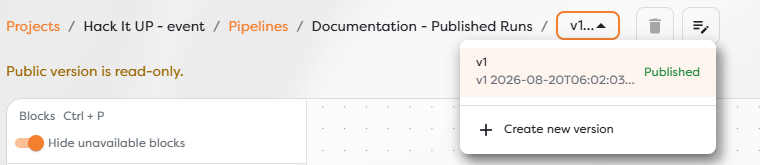
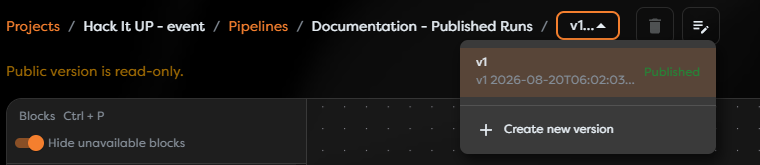
Before sending live input:
- Confirm the project and pipeline in the breadcrumb.
- Check the sequential version number and descriptive version name.
- Verify that the intended entry carries the Published label.
- Review the live trigger configuration from that published version.
Do not use the selected version alone as evidence. An editable draft can be selected while another entry remains published.
Start a published run
A live trigger starts the published workflow when it accepts its corresponding event. The way you create that event depends on the trigger.
| Trigger path | Required setup | How to start the published run |
|---|---|---|
| Manual Trigger | No integration | Open the pipeline's Runs view and use Trigger run. |
| Endpoint Trigger | No integration; configure the endpoint authorization | Send a request to the generated URL with the configured method, authorization, headers, and body. |
| Web Form Trigger | No integration | Submit the hosted form URL. |
| Chat Trigger | No integration | Send a controlled message through the published chat URL. |
| Cron Trigger | No integration | Wait for the configured schedule. |
| Email integration with inbox access, such as Gmail, Outlook, or IMAP | Deliver a controlled message to the monitored mailbox, folder, or label. | |
| Slack Message | Slack integration receiving message events | Send a controlled message through the connected Slack workspace. |
| Twilio SMS | Twilio SMS integration receiving webhooks | Send an SMS to the connected Twilio number. |
| Signal Message | Signal bridge integration receiving messages | Send a controlled message through the connected Signal bridge. |
| Microsoft Teams Message | Microsoft Teams integration receiving subscriptions | Send a controlled message in the subscribed Teams context. |
| WhatsApp Business Message | WhatsApp Business integration with its webhook configured in Meta | Send a controlled message to the connected WhatsApp Business account. |
| Queue Message | RabbitMQ, ActiveMQ, Amazon SQS, or Amazon SNS integration | Publish a controlled message to the configured queue or topic. |
| Issue Event | Jira, GitHub, or GitLab issue-tracker integration receiving events | Create or update an issue that matches the configured event, label, author, and text filters. |
An integration trigger is available only when its compatible integration is configured and accessible in the project's personal or team ownership scope. Configure the provider's webhook, subscription, inbox, or queue permissions before publishing, then generate one controlled event in that external service.
The Run action on a trigger block in Designer creates a test run of the selected saved version. It is not a substitute for verifying the live entry point.
For an Endpoint Trigger, confirm the HTTP method, custom path, generated URL, authorization mode, and synchronous or asynchronous behavior. Keep protected tokens outside screenshots, documentation, source control, and request logs.


Use a small, recognizable payload that is safe to process. For a protected endpoint, include its current authorization token through the required client configuration. A successful asynchronous response can contain triggered: true and a runId. This confirms that Builders accepted the request; it does not confirm that downstream blocks completed successfully.
Follow an active run
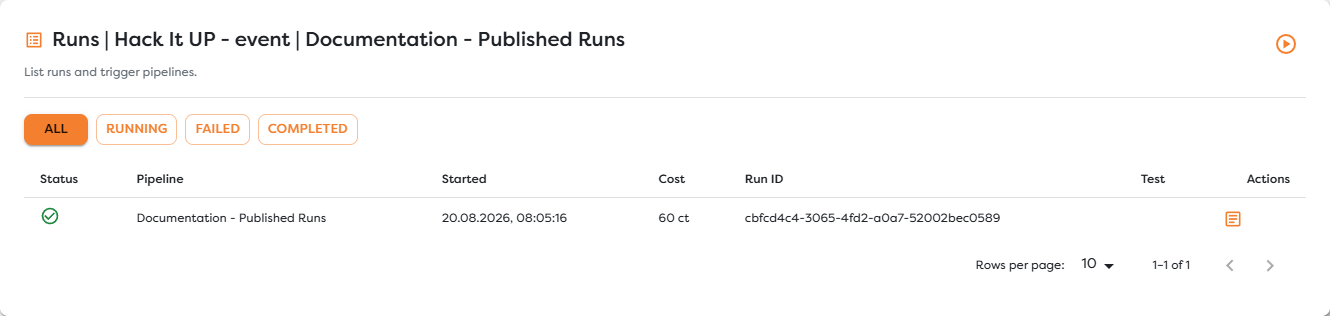
Open Runs from Designer or the pipeline actions. Select Running to isolate executions that have not reached a terminal state.
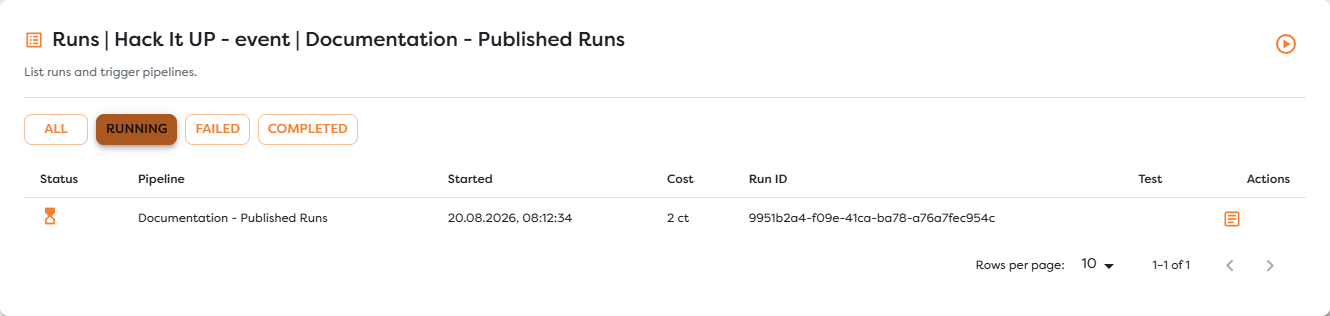
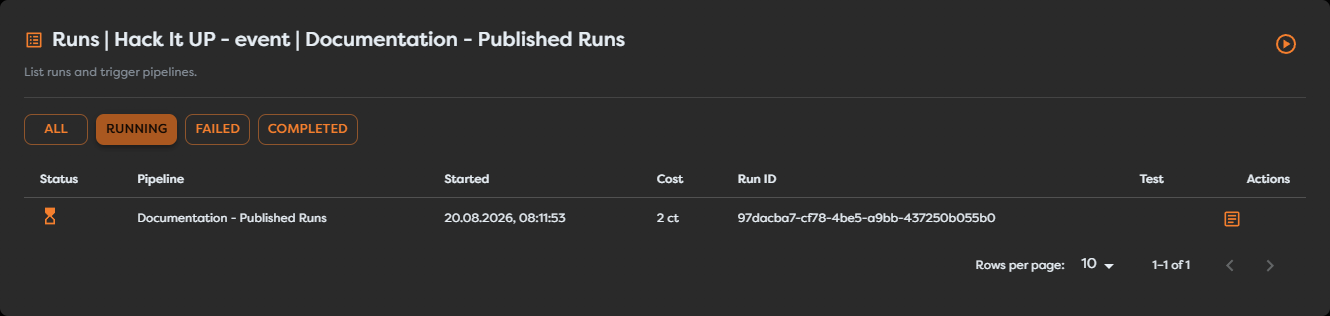
Use the row to correlate:
- Pipeline with the workflow that accepted the event;
- Started with the trigger request or external event time;
- Run ID with the identifier returned by the trigger, when available;
- Cost with compute tokens consumed so far;
- Test with the execution context.
A live run does not carry the test marker shown for Designer tests. Do not infer success from an empty Test column; it identifies context, not outcome.
Each accepted event creates its own run. Several rows can be active at the same time until the project or owner reaches its applicable concurrent-run limit. Check the trigger response and the Running filter when traffic is accepted slowly or rejected. A row can initially show only the trigger cost while downstream work is still pending.
Inspect the completed run
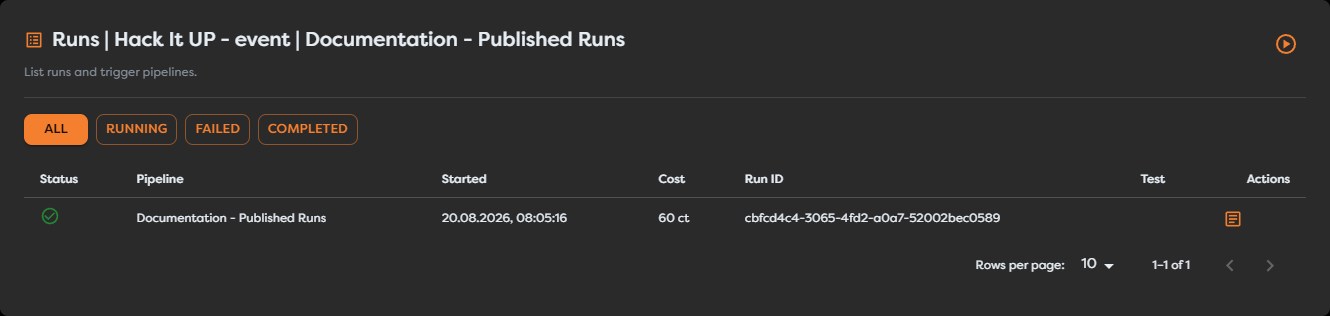
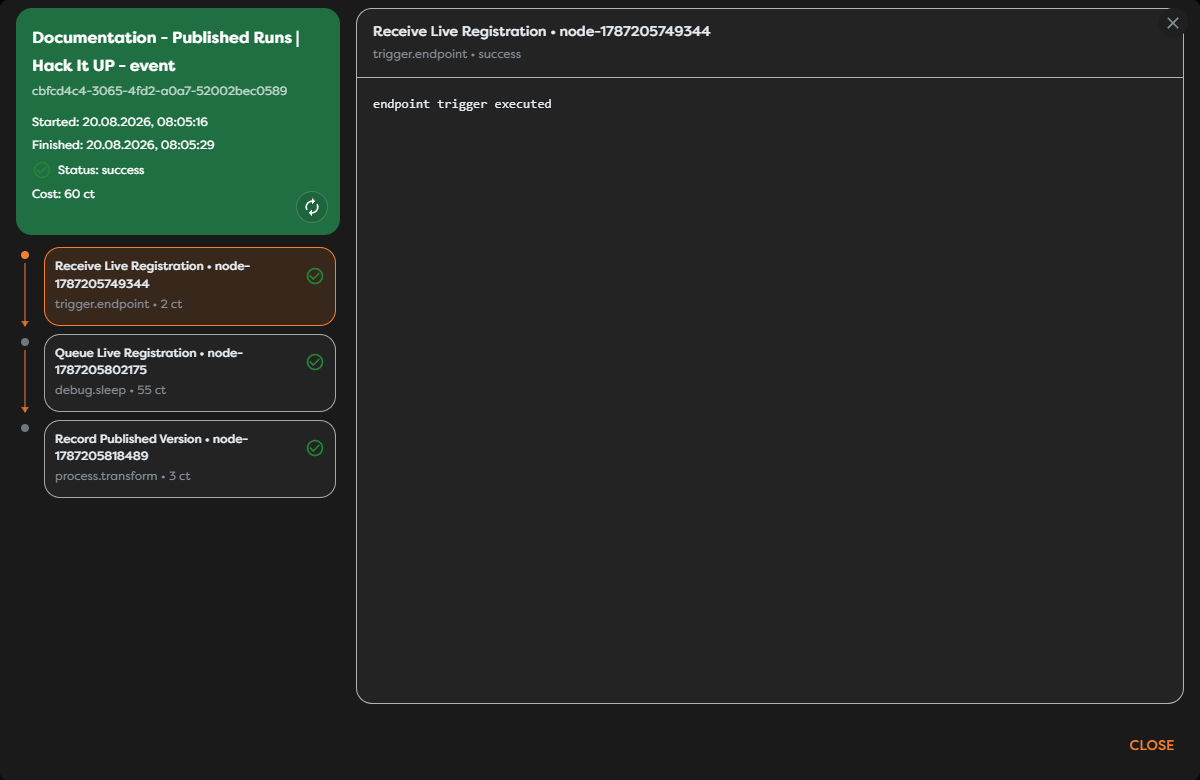
Select All or Completed, find the run by ID, and open Logs from its Actions column. The run inspector identifies the project and pipeline, the run UUID, start and finish times, final status, total cost, and every recorded block execution.
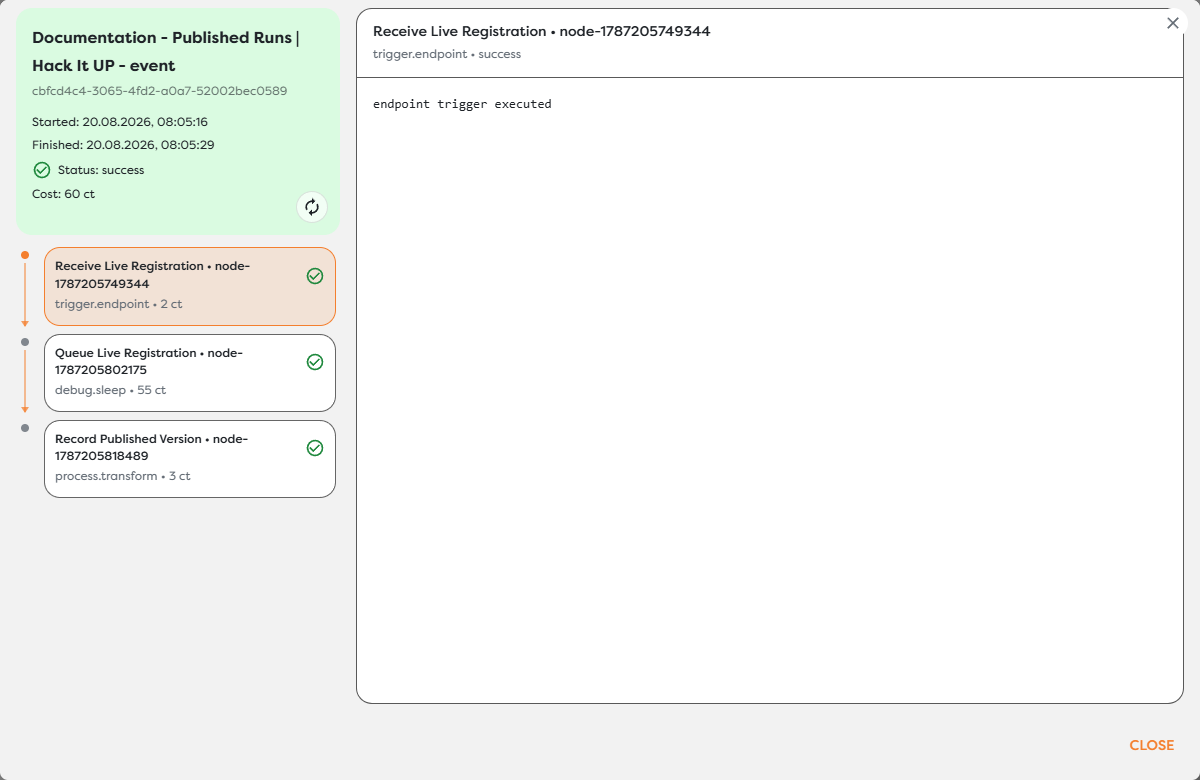
Read the execution path from top to bottom:
- Confirm that the expected trigger created the run.
- Check that every required block reached
success. - Select individual executions and inspect their runtime messages.
- Compare the final effect with the business result you expected.
- Keep the run UUID when the event must be correlated with an external system.
The trigger's accepted response and the run's final status answer different questions. The response confirms admission; the completed run shows whether the workflow finished. A success status also does not replace verification of an external effect such as a delivered message or stored record.
Identify the exact workflow version
The run list identifies the project, pipeline, trigger context, time, and run ID, but it may not display the version number directly. Add runtime metadata to an audit record when exact version attribution is required:
| Runtime value | Use |
|---|---|
{{run.id}} | Store the Builders run identifier. |
{{run.pipelineVersionId}} | Store the immutable version identifier. |
{{run.pipelineVersionNumber}} | Store the sequential version number, such as 1. |
{{run.triggerType}} | Record which trigger type started the run. |
{{run.isTest}} | Distinguish a Designer test from a published execution. |
{{run.correlationId}} | Correlate related execution data when the workflow uses it. |
Write this metadata to the same database row, event, or log entry as the workflow's business identifier. The run inspector then provides the block-level execution details, while the stored metadata identifies the exact release that produced the result.
Keep draft changes isolated
After publication, create a new version for further work. The version selector can show an editable v2 while v1 remains marked Published.
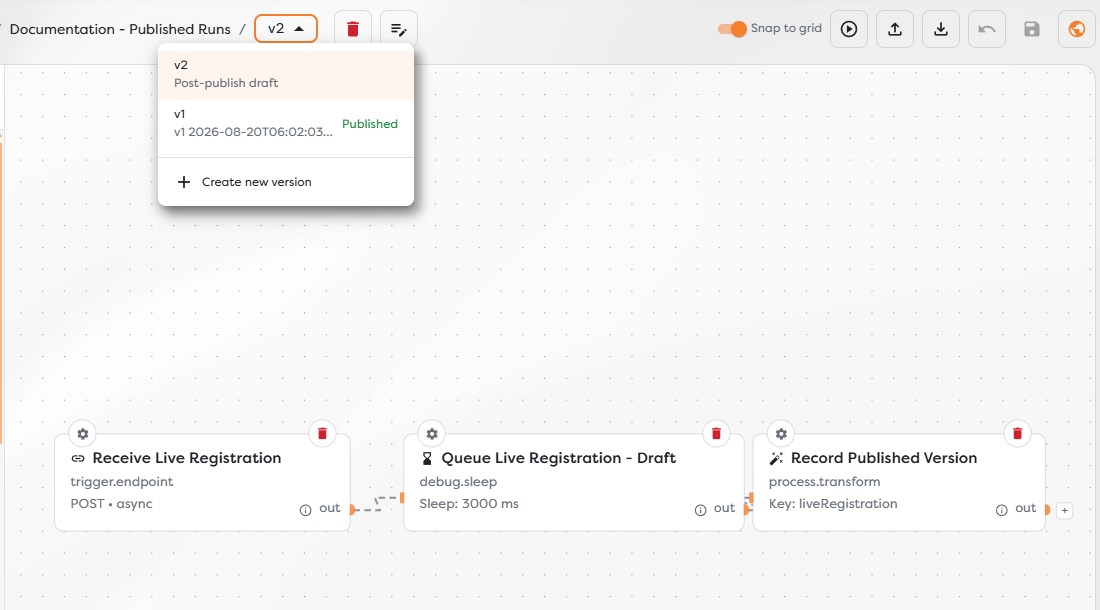
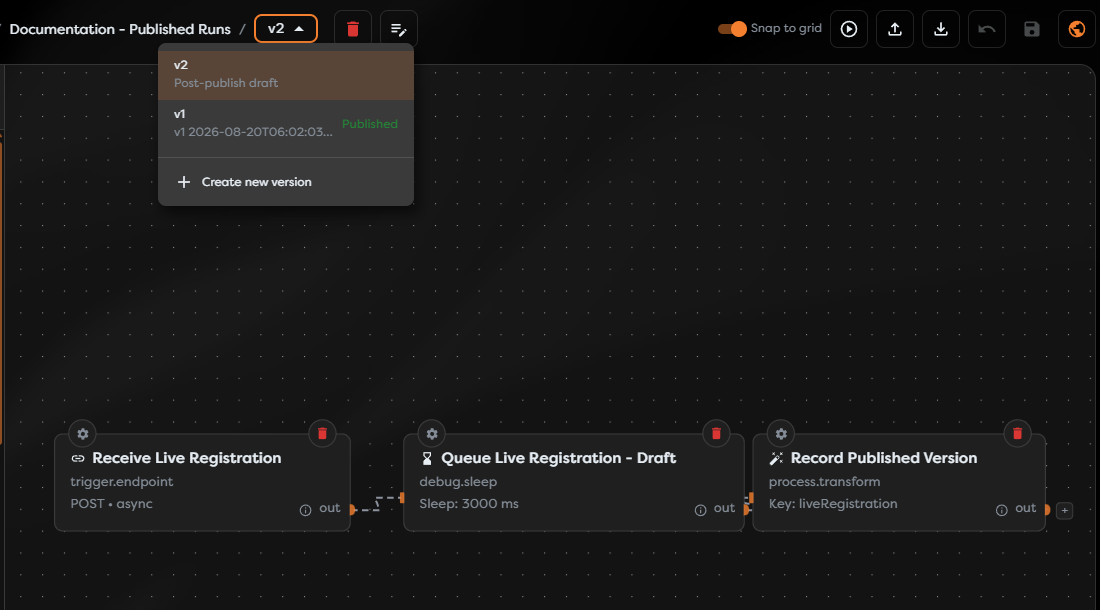
In the example, the draft changes Queue Live Registration to Queue Live Registration - Draft and shortens its delay. A later live endpoint request still executes the original Queue Live Registration block because v1, not v2, remains published.
The same isolation applies after a run starts. Publishing a replacement version affects newly accepted events; it does not rewrite the workflow definition of an execution already in progress. Unpublishing also does not cancel active runs.
Use this release sequence for changes:
- Create and save a new version.
- Test the draft from every relevant trigger path.
- Publish the verified version.
- Send one controlled event through the real live trigger.
- Inspect the new run and its external result.
- Keep or roll back the release according to the observed behavior.
Troubleshoot missing or delayed runs
- No run appears: confirm that the workflow is published and that the event reached the URL, schedule, form, or connected service configured in the published version.
- The trigger rejects the event: check authorization, payload validation, compute-token balance, concurrent-run availability, and the exact response returned to the caller.
- A run remains active: open its logs, identify the running block, and check timeouts or the availability of the external dependency.
- The run uses older behavior: reopen the version selector and verify which version carries Published. Saving a draft does not release it.
- The trigger accepted the event but work failed: find the returned run ID and inspect the first failed block. Acceptance is not completion.
- The row is marked as a test: reproduce the event through the live trigger rather than the Designer's block-level Run action.