
Publish and Embed a Chat
Use a Chat Trigger to publish a conversational workflow as a Builders-hosted page, a floating widget, or an inline chat. Every accepted visitor message starts a published run. The workflow must return one final value to the trigger's Response input for Builders to display as the assistant message.
The example is a Hack It UP Event Concierge that answers questions about the agenda, registration, and venue.
Build the response loop
Connect the trigger's Out port to the processing path. Connect the final response-producing block back to Response.
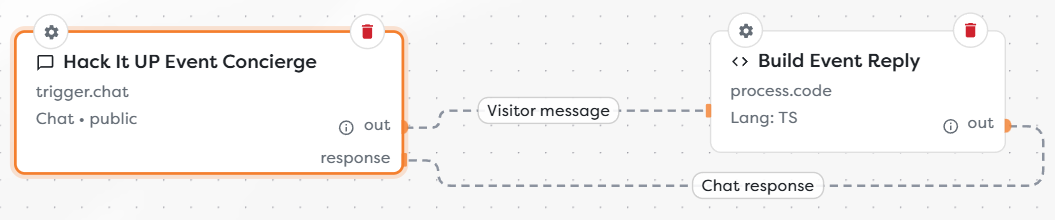
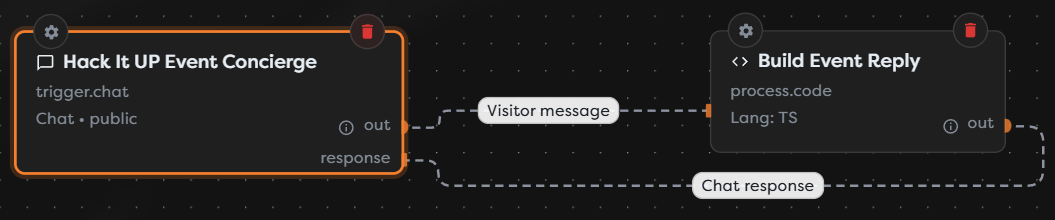
The two connections have different roles:
| Connection | Purpose |
|---|---|
| Out | Starts a run for the accepted visitor message |
| Response | Receives the final value that should be displayed to the visitor |
Normalize every successful branch to one response shape. If a Condition can produce several answers, join them through a common final block before returning to the trigger.
Configure visitor-facing text
Open Chat settings and set the title, welcome message, input placeholder, thinking label, launcher label, and launcher position.
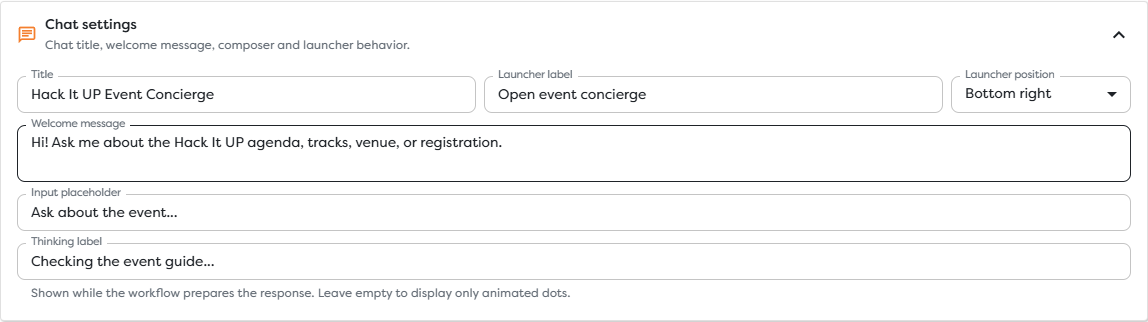
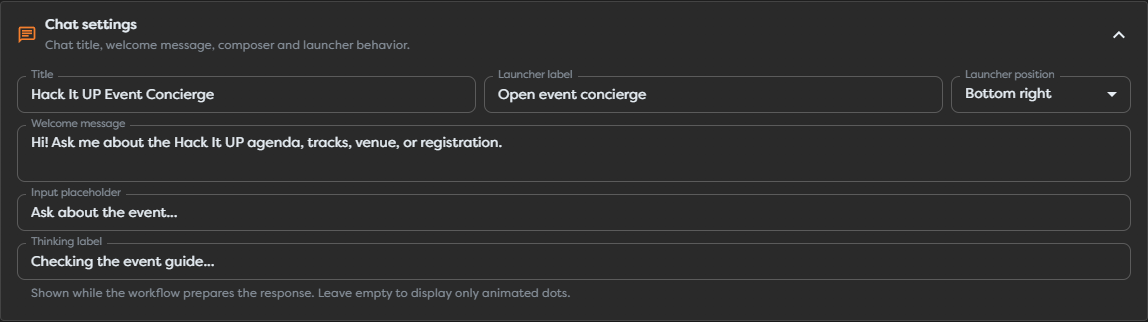
The welcome message appears before a visitor sends anything and does not create a run. The thinking label is presentation text while the workflow is executing; it does not expose internal model reasoning or block progress.
Keep promises aligned with actual capabilities. A chat that only reads an event guide should not claim it can change a booking, view personal data, or contact staff.
Read the visitor input
An accepted turn provides a chat object with message and session metadata. Downstream blocks read the visitor text as:
{{input.chat.message}}
Common fields include:
| Field | Meaning |
|---|---|
message | Untrusted visitor text |
sessionId | Correlates turns in one chat session |
visitorId | Client identifier for public chat; not verified identity |
userId | User value resolved by an authorization mode when available |
identitySource | Indicates visitor, Basic, or Bearer identity source |
timestamp | Recorded message time |
Inspect a real published run before relying on optional identity fields. Never treat a public visitorId as proof of the person's account or authority.
Return one assistant message
Set Response path to the string in the output from the block connected to Response. For a final object such as:
{
"reply": "Hack It UP is hosted at New York Expo.",
"sessionId": "<string>"
}
use:
{{input.reply}}
The input here is the returning final-block output. It is not the original trigger input unless the workflow deliberately includes those fields.
Provide a safe fallback for AI, database, HTTP, integration, or timeout failures. Do not return raw stack traces, prompts, credentials, provider payloads, or internal resource IDs.
Configure appearance and preview
Choose a built-in template or Manual CSS, then open Preview.
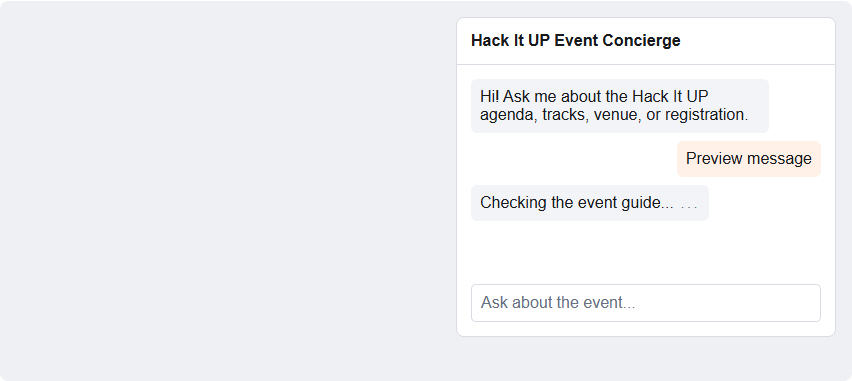
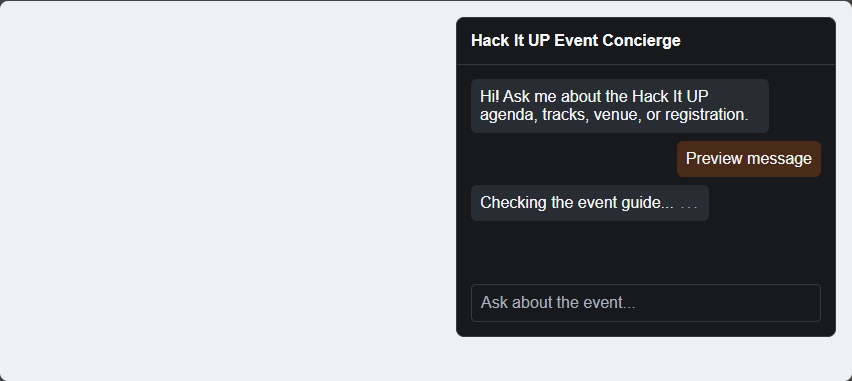
Verify the title, welcome message, user and assistant bubbles, thinking state, composer, focus states, contrast, launcher side, and narrow-screen layout. Preview simulates appearance; it does not execute the connected workflow.
Protect access, origins, and volume
Chat supports Public, Basic, Token, and Bearer verification. Select the mode according to the actions and information available through the conversation. See Authentication for Public Workflows.
Configure Allowed origins for every site that embeds the chat. Enter one origin per line, including scheme and port where applicable:
https://events.example.com
https://preview.events.example.com
An origin does not include a URL path. Leave the list empty when only the Builders-hosted page should use the chat. Use wildcard subdomains only when every matching host is trusted. The MDN CORS guide explains browser origin and preflight behavior.
Configure both rate ceilings:
| Limit | Scope |
|---|---|
| Client messages | Accepted messages from one resolved chat identity during the window |
| Global messages | Accepted messages across all visitors during the window |
| Window and Unit | Duration of the rate period |
Rate limits reduce bursts but do not verify identity, replace authorization, or guarantee a maximum total cost. Public visitor identifiers can be reset, and distributed clients can reach the global limit.
Publish and test the hosted chat
- Connect Out and Response.
- Configure a response path that resolves to one string on every successful branch.
- Configure authorization, origins, client and global limits, appearance, and fallback behavior.
- Save the draft and resolve Designer errors.
- Preview the appearance.
- Publish the intended version.
- Copy and open the exact Chat URL from the trigger.
- Send a non-sensitive message.
- Confirm the displayed assistant response.
- Inspect the published run, trigger input, final-block output, duration, usage, and external effects.
A later draft does not change the hosted chat until it is published.
Embed a floating widget
Open Embed and copy the generated floating snippet.
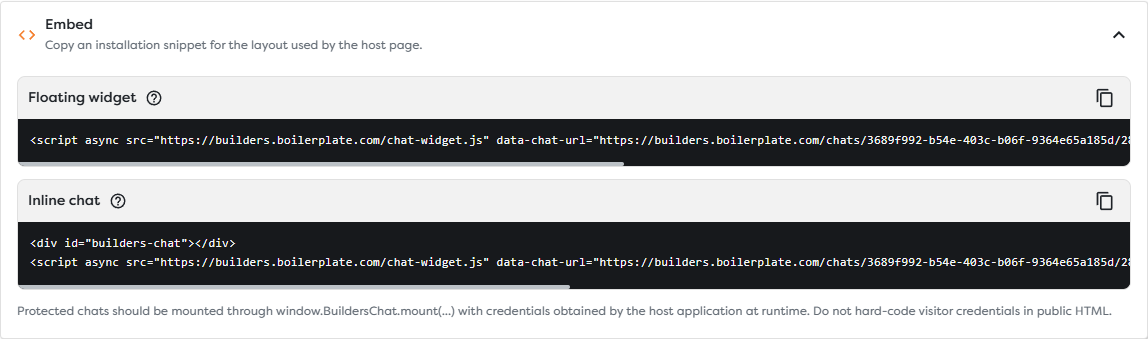
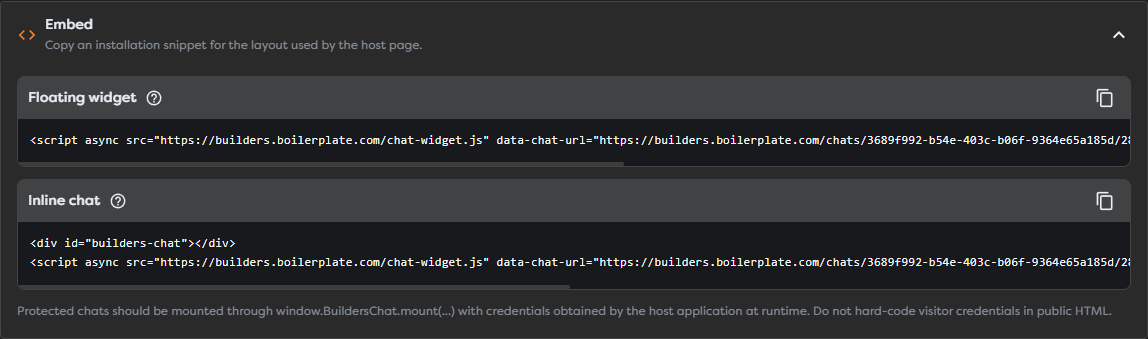
Its structure is:
<script async
src="https://builders.boilerplate.com/chat-widget.js"
data-chat-url="<copied Builders Chat URL>"
data-api-base="https://api.builders.boilerplate.com"
data-mode="widget"></script>
Test the launcher on desktop and mobile. It must not cover navigation, consent controls, checkout actions, or accessibility tools.
Embed an inline chat
The inline option requires a target element placed before the script:
<div id="builders-chat"></div>
<script async
src="https://builders.boilerplate.com/chat-widget.js"
data-chat-url="<copied Builders Chat URL>"
data-api-base="https://api.builders.boilerplate.com"
data-mode="inline"
data-target="#builders-chat"></script>
Give the target a stable responsive width and height in the host layout. The MDN script element reference describes loading behavior such as async.
Protected chats should obtain visitor credentials through the trusted host application and use the generated Builders integration contract. Do not hard-code a Basic password, access token, or visitor Bearer token in public HTML, a bundled frontend file, or data-* attributes.
Verify the production host
- Add the exact production and controlled preview origins.
- Test the host Content Security Policy, CORS behavior, and browser network requests.
- Verify the widget can load without exposing credentials in page source or logs.
- Send a real message from the host, not only from Builders Preview.
- Confirm session continuity across several turns and deliberate refresh behavior.
- Test empty input, oversized input, rapid messages, timeout, downstream error, and rate rejection.
- Check that external effects are idempotent when a visitor retries after a delayed answer.
Operate the conversation safely
Validate visitor text before SQL, HTML, file paths, commands, prompts, or privileged API calls. Require verified identity again before exposing personal records or performing booking, payment, deletion, or account actions.
Keep AI tools narrower than the prompt. Enforce permissions in workflow logic and provider scopes, not in conversational instructions alone. Limit retrieved context and response size, preserve sessionId for correlation, minimize stored message content, and define retention.
Monitor message volume, per-client and global rejections, response latency, run failures, compute tokens, AI usage, and provider cost.
Troubleshoot hosted and embedded chat
| Symptom | Check |
|---|---|
| Chat URL does not load | Published version and copied URL |
| Message creates no run | Authorization, allowed origin, rate limits, and browser network response |
| Widget keeps thinking | Failed, waiting, or timed-out block and Response connection |
| Empty assistant message | Final-block output and Response path |
| One branch never answers | Common final response shape for every successful branch |
| Host is blocked | Exact scheme, host, port, CSP, CORS, and network errors |
| Public visitor appears as several identities | visitorId is a client identifier, not durable verified identity |
| Preview works but live chat fails | Published version and real published run |