
Cancel a Running Workflow
Cancel an active run when it should not start additional workflow work. Builders exposes stop actions on the dashboard, in the header alerts popover, and in the run inspector.
Cancellation is a runtime control, not a rollback. Blocks that already completed keep their results, consumed credits, and external side effects.
This article uses the Documentation - Cancellation pipeline in the Hack It UP - event project. Its controlled test records a safe diagnostic object, waits for two minutes, and has no external integrations. The wait provides time to inspect and cancel the run before its final downstream block starts.
Decide whether to cancel
Before stopping a production run, record enough context to identify it later:
- the complete run UUID;
- project and pipeline;
- whether it is a test or published run;
- start time and current status;
- the active block and any completed external actions.
Cancel when continuing would create incorrect or unnecessary work. Do not use cancellation as the normal control flow for a workflow; model expected decisions with conditions and error paths instead.
Find an active run on the dashboard
Open Dashboard and locate Active pipelines. Each active card shows the pipeline, project, test marker when applicable, start time, and current state. The stop button on the right targets that run.


The dashboard receives live active-run updates. A newly started run can take a moment to appear, and a cancelled run remains visible until Builders reports a terminal state.
To stop from this card, choose the red square Stop action. The current interface sends the cancellation request immediately without a separate confirmation dialog. Check the pipeline and project before selecting it.
Stop from the alerts popover
Choose the Alerts bell in the application header. The popover begins with Active pipeline runs and lists each currently running execution with:
- pipeline and project;
- start time;
- a shortened run ID;
- a Test marker when applicable;
- a red Stop run action.
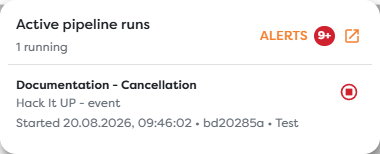
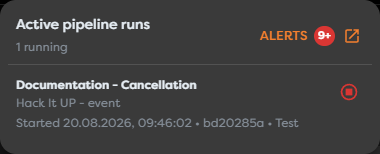
Use the shortened ID as a scanning aid only. Open the run details when you need to confirm the complete UUID. Selecting Stop run sends the cancellation request immediately; it does not open another confirmation dialog.
The Alerts link in the popover opens the broader alert and event view. That view is useful for operational context, while the active-run list is the direct stop surface.
Cancel from run details
Open Runs, locate the exact run, and choose Logs. You can also reach the same inspector from a running test in the Designer.
While the run is active, its header shows:
- Finished: -;
- Status: running;
- the accumulated cost;
- a red Cancel button.
The execution list identifies the block that is still running and preserves the successful blocks before it.
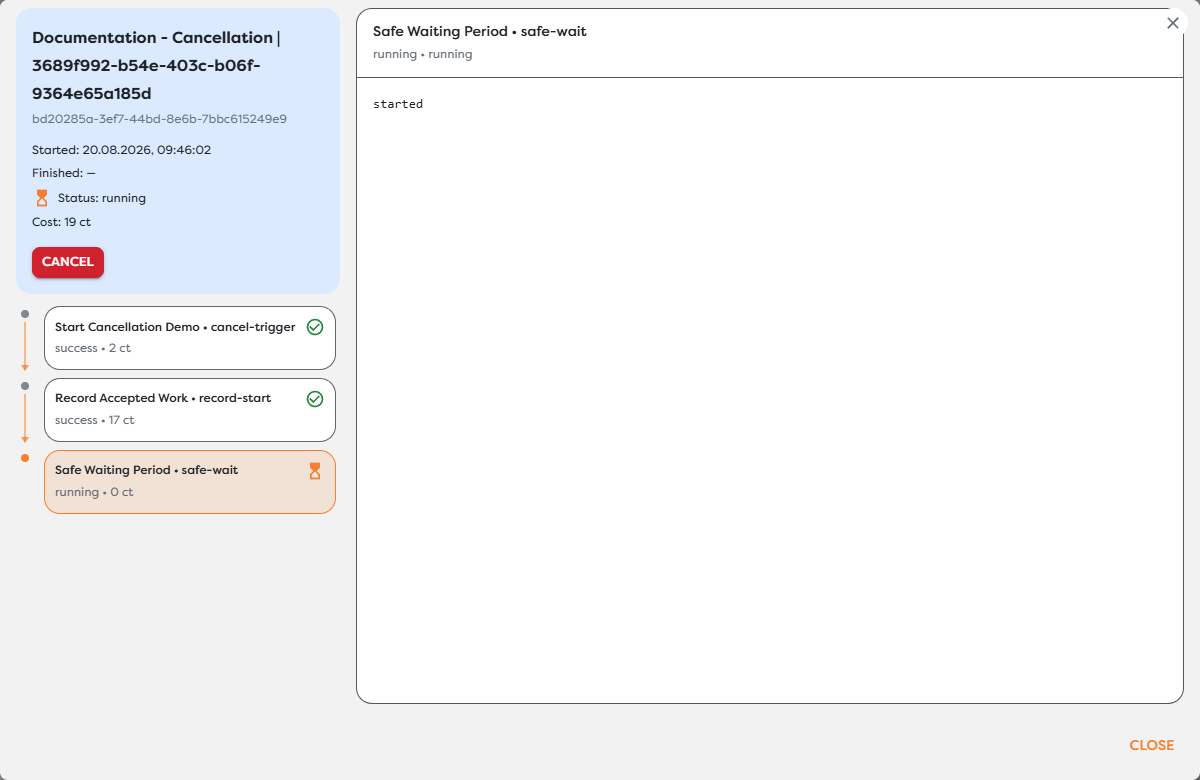
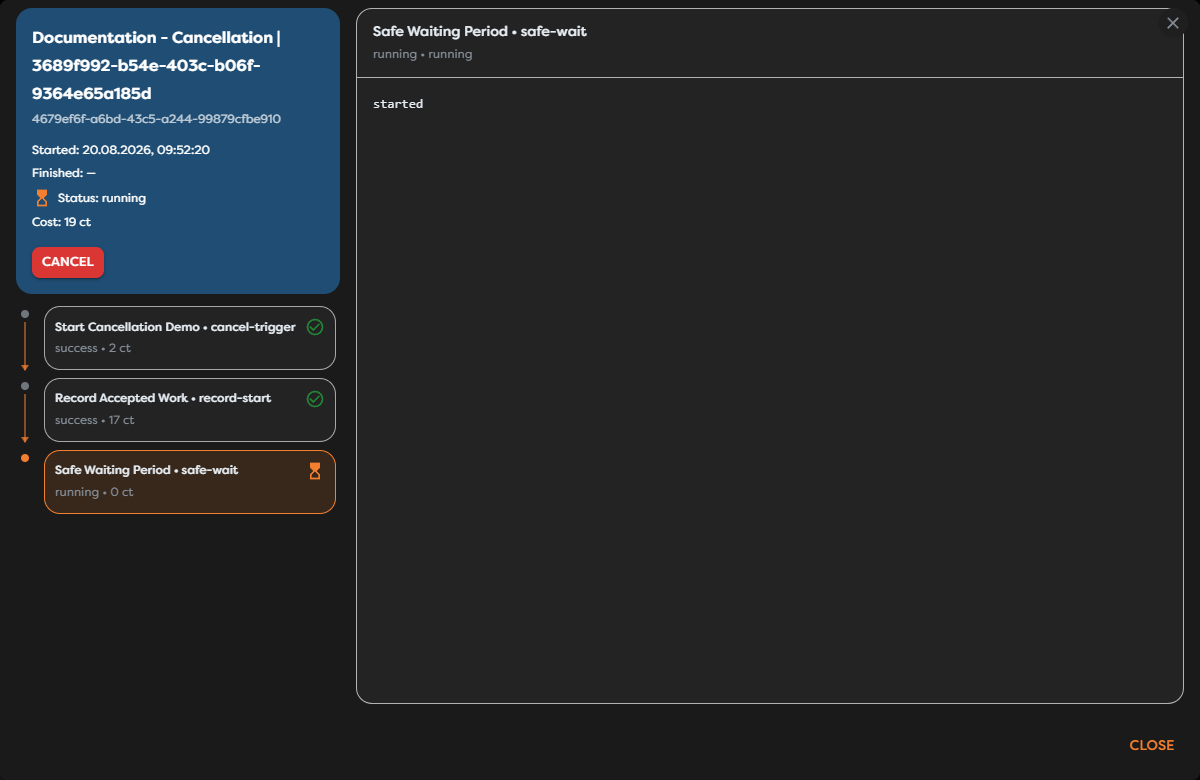
Confirm the full run UUID, then choose Cancel. This action also sends the request immediately without another confirmation dialog.
Use run details when several active executions have similar pipeline names or start times. It provides the strongest identity check and shows how far the workflow progressed before you stop it.
Wait for the terminal status
Cancellation is asynchronous. The request can be accepted while the run or active block still appears as running. Wait until the header contains a finish time and Status: cancelled before treating execution as stopped.
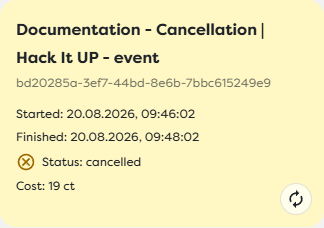
The controlled example ended with this execution path:
| Execution | Final result |
|---|---|
Start Cancellation Demo | Remained successful because the trigger had already completed. |
Record Accepted Work | Remained successful and retained its cost. |
Safe Waiting Period | Changed from running to cancelled after the runtime applied the request. |
Downstream Work Not Started | Was not scheduled and therefore did not appear as a successful execution. |
| Complete run | Received a finish time and the terminal status cancelled. |
The exact delay depends on the active block and runtime boundary. A wait, provider request, or other in-progress operation may not stop at the same instant that the user selects Cancel.
Understand what cancellation stops
After the runtime applies cancellation, Builders prevents new downstream block executions from being scheduled for that run. The stopped run cannot be resumed from the point where it ended. Starting it again creates another run with another UUID.
Cancellation does not:
- reverse a database write that already committed;
- recall an email or message that was already sent;
- refund compute credits already consumed;
- withdraw an HTTP request already accepted by another service;
- remove files or records created by completed blocks;
- update a third-party system merely because Builders marked the run cancelled.
An active integration block can still complete work outside Builders after cancellation if its request already crossed the external boundary. Verify the provider before retrying or compensating.
Plan for safe recovery
Design workflows that can recover from partial execution:
- attach an idempotency key or stable correlation ID to externally visible operations;
- record which side effects completed before starting the next one;
- make retries detect existing records instead of creating duplicates;
- add explicit compensating steps for business actions that can be reversed;
- separate long-running preparation from irreversible submission when possible;
- keep enough redacted context in logs to reconcile Builders with provider records.
Do not automatically renew or retrigger a cancelled production run until you know which effects already occurred. A new run can repeat completed actions.
Troubleshoot a run that remains active
- The run still shows running: cancellation is asynchronous. Keep the inspector open or allow the run list and dashboard to refresh until a finish time appears.
- The stop action disappeared: the run may already be terminal. Open its details and confirm the latest status.
- The run is not on the dashboard: open Runs, use the narrowest project or pipeline scope, and filter by Running.
- The alerts popover shows a similar run: compare the project, start time, test marker, and shortened ID, then open details for the complete UUID.
- A block completed after cancellation was requested: determine whether it had already started and crossed an external boundary. Check its logs and the provider before retrying.
- The run is cancelled but an external action still exists: cancellation does not roll back completed effects. Use the provider's reversal process or a deliberate compensation workflow.
- The dashboard card remains visible after terminal status: allow the live update to arrive or reload the dashboard; use the terminal run inspector as the authoritative result.
Escalate a run that remains active well beyond the expected block timeout with the run UUID, active block ID, cancellation time, and redacted logs. Do not include credentials or secure Vault values.