
Configure Tools and Integrations
Tools let an AI Agent request specific operations during execution. Enabling a tool creates an authorization boundary for that block; integration-backed tools also require a compatible integration with MCP access enabled.
Understand the connection
The relationship between an AI Agent, a tool, and an integration is:
AI Agent block
-> explicitly enabled tool
-> selected compatible integration, when required
-> MCP enabled on that integration
-> external service operation
The integration is selected inside the tool configuration. It is not connected to the AI Agent with a Designer edge. Canvas edges carry workflow execution and data; the tool setting grants the model permission to request an operation.
These are separate decisions:
- the model source decides which model and credentials produce the response;
- the prompt and attachments decide what request data the model can see;
- the tool allowlist decides which operations the model may request;
- the selected integration decides which external account and permissions back an integration tool.
Selecting a model does not automatically grant access to email, Slack, Drive, queues, or project management systems.
Read tool readiness correctly
| Status | Meaning | Action |
|---|---|---|
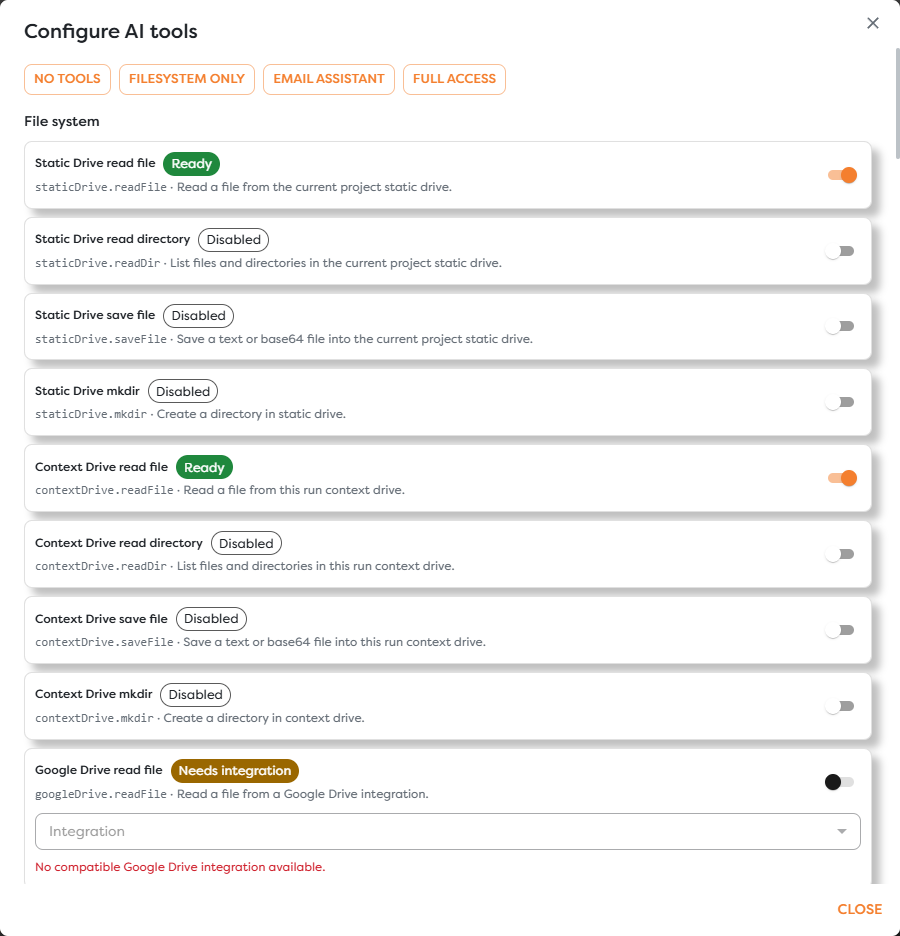
| Ready | The enabled tool can be used with its current configuration | Test its inputs, output, and side effects |
| Disabled | The tool is not available to this AI Agent | Enable it only if the task requires it |
| Needs integration | No compatible integration is available in the required ownership scope | Create or share a compatible integration, then select it |
| MCP disabled | A compatible integration exists, but it is not eligible for AI tool access | Enable MCP for the intended integration, then return to the tool configuration |
For integration-backed tools, Builders only offers compatible integrations whose configuration is MCP-enabled. The integration must also be available to the project through the correct personal or team ownership scope.
For email, the selected inbox or sender can be backed by Gmail, Outlook, or a compatible IMAP/SMTP configuration exposed by Integrations. Inbox access and sending are separate capabilities, so enable only the one the agent needs.
Distinguish built-in and integration-backed tools
| Category | Built-in examples | Integration-backed examples |
|---|---|---|
| File system | Static Drive and Context Drive read, list, save, and mkdir | Google Drive, OneDrive, and S3 operations |
| Web | Outbound web request | The destination service may still require credentials in the request design |
| None | Read inbox and send email | |
| Messaging | None | Slack, Twilio SMS, Signal, Microsoft Teams, and WhatsApp operations |
| Queue | None | Publish, read, and acknowledge queue messages |
| Project Management | None | Create, update, read, comment on, transition, close, or reopen issues |
Static Drive and Context Drive tools operate inside the Builders project or run storage boundary and do not require an external integration. A Google Drive read tool may perform a similar file operation, but it needs a selected Google Drive integration because it acts against an external account.
Use presets as a starting point
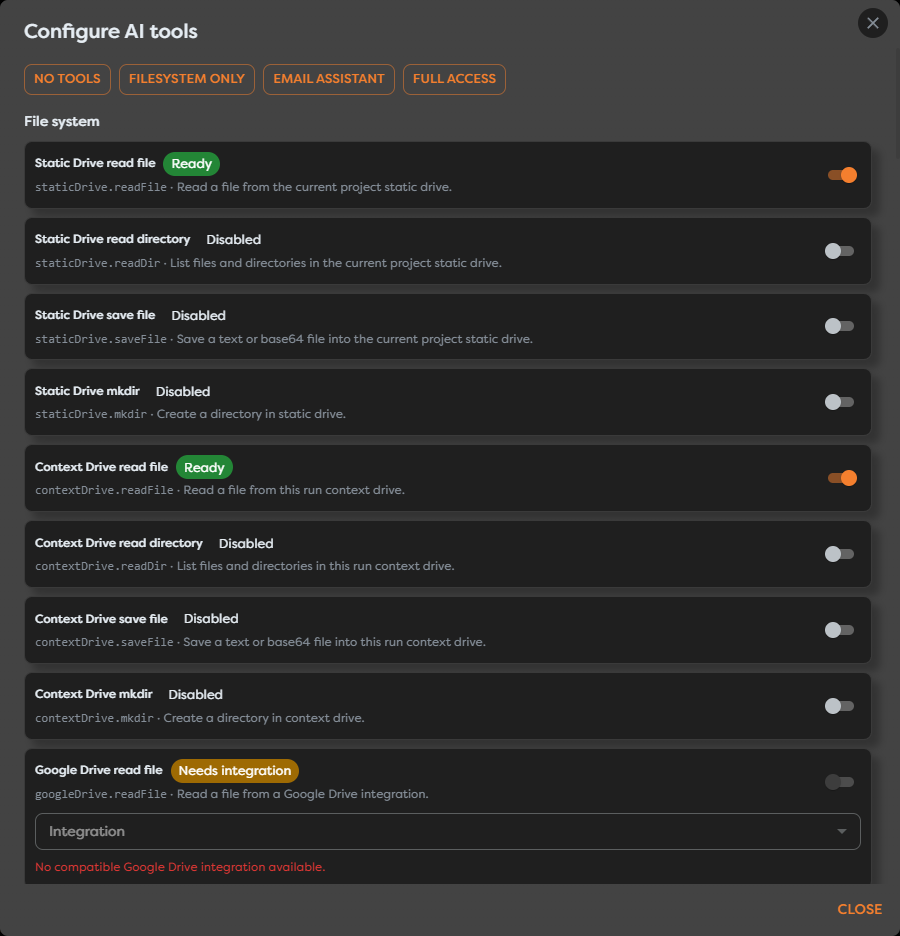
The tool dialog provides No tools, Filesystem only, Email assistant, and Full access presets. A preset changes the allowlist; it does not prove that every selected integration is configured or that every permission is appropriate.
Start with No tools or the narrowest relevant preset, then review each operation. Avoid Full access as a default. It can expose read operations, writes, outbound messages, queue acknowledgements, and issue changes that are unrelated to the agent's task.
Enabling a tool means the model is allowed to request it. It does not guarantee that the model will call it on every run. The prompt should explain when a tool is appropriate, but the allowlist remains the hard capability boundary.
Apply least privilege
- Define the external action required by the task.
- Enable the smallest operation that can perform it.
- Select the intended personal or team integration.
- Confirm MCP is enabled only for integrations intended for AI access.
- Test with a non-production destination or reversible operation.
- Inspect the AI block's tool calls and the external side effect.
- Remove tools that were enabled only for testing.
Separate read and write permissions. An agent that summarizes an inbox needs read access, but it does not automatically need permission to send mail. An agent that drafts an issue update may not need permission to close or transition the issue.
Treat tool input as untrusted
Prompt instructions, attachment text, web responses, and conversation history can influence tool selection and arguments. A malicious document or message may try to instruct the model to disclose data or perform an unrelated action.
- Do not enable a side-effecting tool merely because the prompt says the model should be helpful.
- Validate recipients, paths, URLs, issue projects, and other sensitive arguments where the workflow can enforce policy.
- Require a human approval step for high-impact or irreversible actions.
- Avoid passing secrets through prompts or tool-visible content.
- Make retries idempotent so a timeout does not duplicate an email, message, queue item, or issue.
Troubleshoot tool access
| Symptom | Check |
|---|---|
| Tool is disabled | Enable the individual operation or choose an appropriate preset |
| Tool needs an integration | Create a compatible integration in the same usable ownership scope |
| Tool says MCP disabled | Enable MCP on the selected integration and reopen the tool dialog |
| Expected integration is missing | Verify integration type, ownership, project access, and MCP eligibility |
| Agent does not call a ready tool | Clarify the prompt and inspect the model response and tool-call logs |
| External action fails | Inspect integration permissions, tool arguments, provider response, and the AI Error output |