
File Storage Integrations
File storage integrations connect Builders file operations to Google Drive, OneDrive, Amazon S3, or an S3-compatible service. The integration stores the provider connection and credentials; a File block selects that integration and supplies the path and operation.
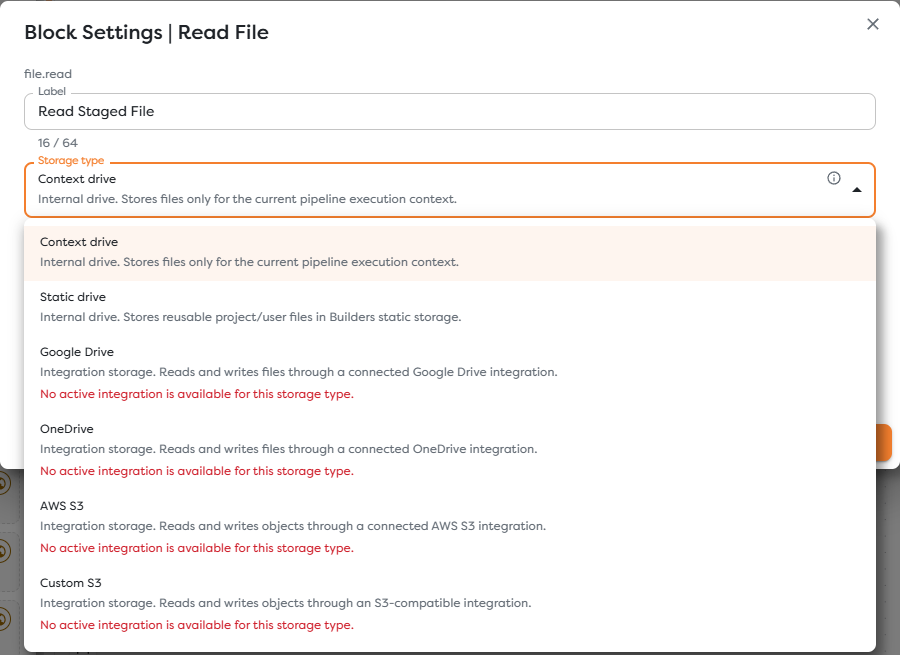
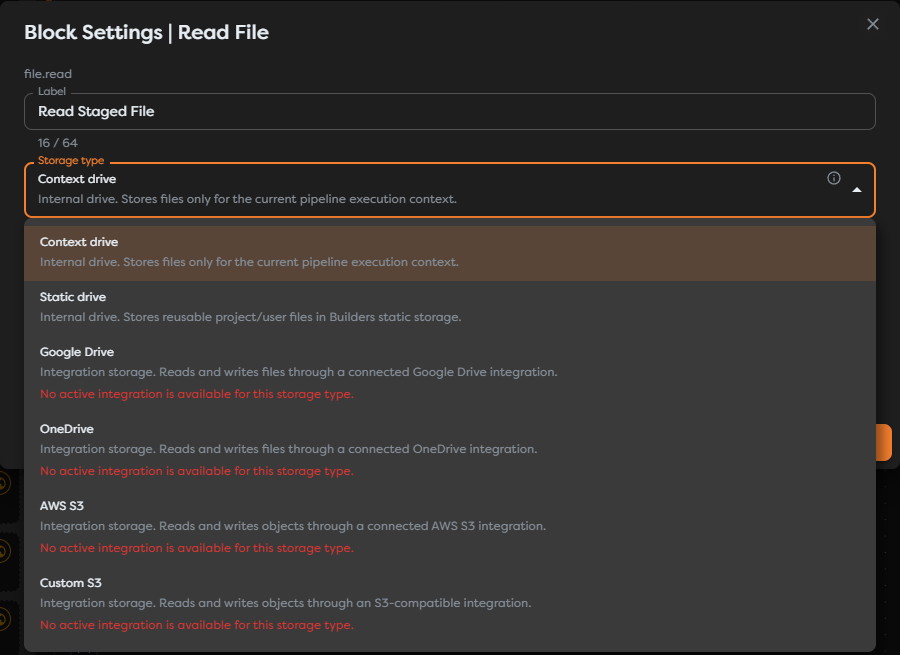
Choose the storage boundary
Builders exposes internal and external storage through the same File blocks, but their lifetime and authorization boundaries differ.
| Storage type | Integration | Lifetime and scope | Path identifies |
|---|---|---|---|
| Context drive | None | Temporary storage for one pipeline run | A file inside the current execution context |
| Static drive | None | Persistent Builders storage in the applicable personal or team scope | A Builders file or folder |
| Google Drive | Google Drive | Files available to the connected Google account and OAuth grant | A file path in the connected drive |
| OneDrive | OneDrive | Files available to the connected Microsoft account and delegated consent | A path relative to the connected drive |
| AWS S3 | AWS S3 | Objects in the configured AWS bucket | An object key |
| Custom S3 | Custom S3 compatible | Objects in the configured bucket at the custom endpoint | An object key |
Use Context drive for intermediate artifacts that only one run needs. Use Static drive when another Builders run must find the file without calling an external provider. Choose an external integration when the provider must own the durable copy or another system already works with that storage.
Connect the integration to a File block
The workflow does not carry provider credentials through its connections. Instead, the block holds a reference to a Vault-backed integration:
File block
-> selected storage type
-> selected compatible integration
-> provider path or object key
-> external storage operation
Read File requires the provider's read capability. Save File requires its write capability. Builders filters the integration selector by storage type, operation, status, and ownership scope.
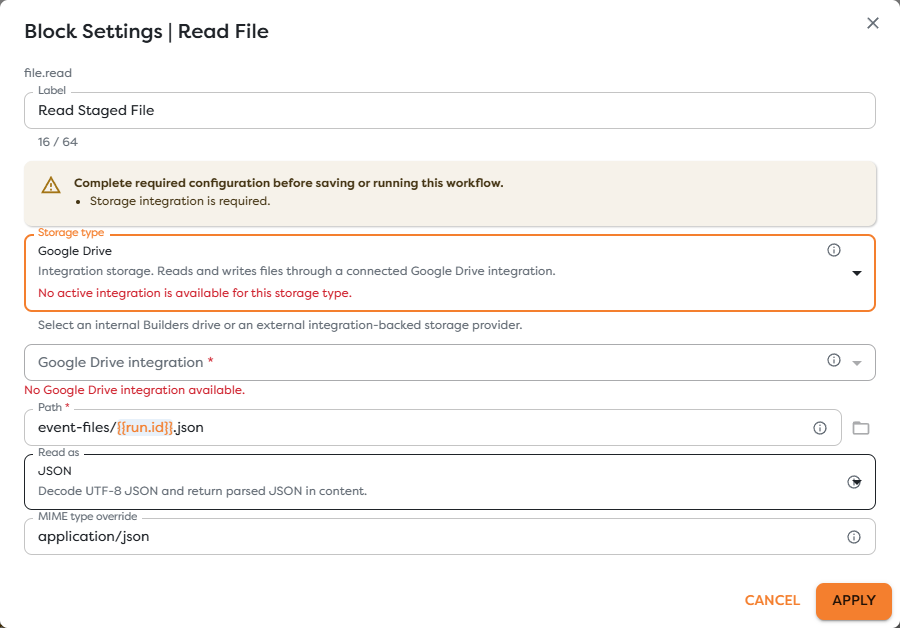
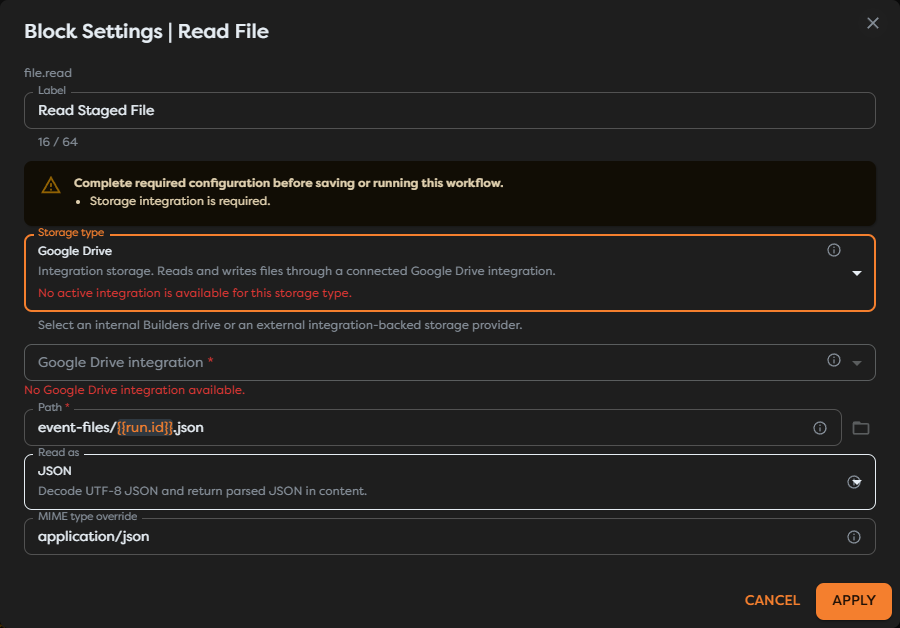
When the selector is empty:
- Open Integrations and create the matching storage integration.
- Assign it to the user or team that owns the project.
- Confirm that the provider credential permits the required operation.
- Return to the block and select the integration explicitly.
- Apply the settings, save the pipeline, and run a controlled test.
Imported and duplicated workflows do not make external credentials portable. Reselect the integration after moving a pipeline to another owner or environment.
Configure Google Drive
The Google Drive integration uses a Google account email plus OAuth client credentials and a refresh token. The form defaults to the drive.file scope.
That scope grants per-file access. It supports files created by the app and files the user explicitly opens, selects, or shares with the app; it does not automatically expose every existing file in the account. Use the narrow scope where possible, then make each required source file or destination folder available to the application.
Before using the integration:
- Enable the Google Drive API in the Google Cloud project.
- Configure an OAuth consent screen and web application client.
- Complete the server-side OAuth flow with offline access to obtain a refresh token.
- Enter the account email, scope, client ID, client secret, and refresh token in Builders.
- Test both a representative read and write against files available to the grant.
See Google Drive API scopes, the OAuth 2.0 web-server flow, and the Drive files and folders overview.
Configure OneDrive
The OneDrive integration uses the Microsoft authorization flow opened by Builders. The connected account and tenant determine which drive and files are visible to the integration.
Builders resolves the block path inside the connected drive. A path is name-based, so renaming or moving a file changes the path that the workflow must use. The provider's stable DriveItem ID is useful in direct Graph applications, but the File block configuration expects a path.
Before using the integration:
- Select Connect OneDrive in the integration form.
- Sign in with the intended Microsoft account and review the delegated consent.
- Confirm the account can access the source or destination in OneDrive.
- Record the tenant ID when the connection belongs to an organization.
- Test the exact path used by the workflow.
See Working with files in Microsoft Graph, addressing OneDrive items, and the Microsoft Graph permissions reference.
Configure AWS S3
The AWS S3 integration fixes the region and bucket at the connection boundary. The File block's path is the object key inside that bucket, for example:
event-registrations/{{run.id}}.json
Use a dedicated IAM principal and restrict it to the configured bucket and required key prefixes. Common permissions include:
| Workflow behavior | Typical AWS permission |
|---|---|
| Read an object or inspect its metadata | s3:GetObject on the allowed object ARN pattern |
| Write or replace an object | s3:PutObject on the allowed object ARN pattern |
| Browse keys or use a provider picker | s3:ListBucket on the bucket ARN, restricted by prefix where appropriate |
| Read or write objects encrypted with a customer-managed KMS key | The corresponding KMS permissions in addition to S3 permissions |
The exact policy depends on encryption, versioning, ownership, and the operations the workflow performs. Do not use the AWS account root user or a policy granting unrestricted S3 access.
See How Amazon S3 works with IAM, required permissions for S3 operations, and managing IAM access keys.
Configure Custom S3 compatible storage
Custom S3 uses the same object-key model but adds endpoint and routing settings. Configure:
- the externally reachable endpoint and service region;
- an existing bucket;
- an access key restricted to the required bucket and prefixes;
- TLS according to the endpoint certificate;
- path-style URLs when required by the provider or deployment.
The endpoint must be reachable from the Builders runtime, not only from an administrator's workstation or private local network. Keep Use SSL enabled for production endpoints. If Force path-style URLs is enabled, Builders addresses the bucket in the request path instead of requiring bucket-name DNS routing.
For MinIO, use Identity and Access Management and mc admin accesskey. For another compatible provider, follow its endpoint, signing, region, and policy documentation.
Move a file between providers
Read File normalizes provider data into a canonical File. Save File can consume that value in File reference mode, so a pipeline can cross storage boundaries without exposing provider-specific clients or credentials.


For a direct connection, set the Save File content to the exact expression:
{{input.file}}
The source integration authorizes the read, the workflow edge carries the canonical File, and the destination integration authorizes the write. Configure and test both integrations independently before testing the complete transfer.
Test the storage connection
Do not treat a successful integration connection test as proof that every path and operation is authorized.
- Read a known small file from the intended folder, drive, bucket, or prefix.
- Save a new file under a unique test path.
- Read the saved file back and compare its bytes or decoded value.
- Repeat the write to the same path and confirm whether replacement is acceptable.
- Test an unauthorized path and verify that the workflow follows its error route.
- Inspect the provider audit log when the provider supports one.
- Remove the test object after confirming the result.
Test with the same personal or team ownership and the same credential class used in production. A personal integration succeeding in a personal project does not validate a team-owned integration.
Troubleshoot storage integrations
- No active integration is available: create the matching provider integration and assign it to the project's owner scope.
- Test connection works but the file is denied: grant access to the exact Google file, OneDrive item, S3 bucket, or object-key prefix.
- Google Drive cannot find an existing file: make the file available to the app under the configured OAuth scope.
- OneDrive path stopped working: check whether the file or an ancestor folder was renamed or moved.
- S3 browsing fails but a known object can be read: add narrowly scoped
s3:ListBucketpermission if listing is required. - An S3 object is denied despite object permissions: check bucket policy, KMS key policy, explicit denies, and organization controls.
- Custom S3 cannot connect: verify public runtime reachability, certificate trust, endpoint, region, DNS style, and credentials.
- A copied workflow lost its selection: reopen each File block and bind an integration available to the new owner.