
Email Trigger
Use an Email Trigger to start a published workflow when a supported mailbox receives a new message. Builders polls the selected mailbox through an Email, Gmail, or Outlook integration with inbox access, normalizes the message, and sends it through the trigger's Out port.
This article uses the separate Documentation - Email Trigger pipeline in the Hack It UP - event project. It watches INBOX for event-registration messages and sends each new message to a Render Block for inspection.
Prepare an inbox-capable integration
Email Trigger requires an active Email, Gmail, or Outlook integration that provides the inbox or IMAP capability. The integration must be accessible in the same personal or team ownership scope as the project.


Email transport capabilities are separate:
| Capability | Used by | Purpose |
|---|---|---|
| Inbox or IMAP | Email Trigger and Email Inbox Action | Monitor or read received messages. |
| SMTP | Send Email | Send a new message. |
An integration may provide both capabilities, but one does not prove that the other works. A successful Send Email run confirms SMTP only. It does not confirm that Email Trigger can connect to the mailbox.
For a generic Email SMTP/IMAP integration, configure the IMAP host, port, TLS mode, username, password, and default mailbox. Gmail and Outlook integrations must grant the provider permissions required to read the intended inbox. Reconnect an OAuth integration when its grant has expired or been revoked.
Configure the mailbox
Drag Email Trigger from Triggers onto the Designer canvas and open its settings. Select the inbox-capable integration and enter the mailbox name.
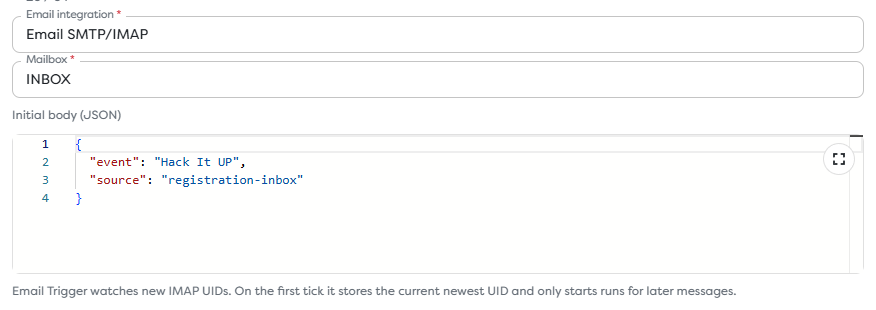
The example uses:
- Email integration:
Email SMTP/IMAP; - Mailbox:
INBOX; - Initial body: stable metadata identifying the event and source.
{
"event": "Hack It UP",
"source": "registration-inbox"
}
INBOX is the standard primary IMAP mailbox. Other folder names and separators are provider-specific. Enter a mailbox that the selected integration can open; a display label shown by a mail client is not always the protocol-level mailbox name.
The initial body adds workflow-specific context to the trigger payload. Keep it limited to stable, non-secret values. Credentials belong in the integration or General Vault, not in the trigger JSON.
Understand the first polling tick
Email Trigger watches IMAP UIDs rather than processing the mailbox as a historical queue. On the first polling tick, Builders records the current newest UID and starts runs only for messages that arrive later.
This prevents publication from unexpectedly processing an entire existing inbox. It also changes how the trigger must be tested:
- Save and publish the workflow version.
- Wait for at least one polling cycle so Builders can establish the UID baseline.
- Send a new message after that baseline exists.
- Find the resulting published run and inspect the trigger output.
A message that was already present before the first tick should not create a run. Marking an old message unread also does not give it a new IMAP UID.
Changing the monitored mailbox or replacing the published version can establish a different polling context. After such a change, repeat the controlled baseline-and-send test before relying on live traffic.
Connect the incoming path
Connect the Email Trigger's Out port to the first block that should process every new message. During development, a Render Block makes the complete normalized payload visible without performing an external action.


Label the edge according to the event it carries. The example uses New inbox message, which remains meaningful when the workflow later adds parsing, routing, database, or reply steps.
Email Trigger is polling-based. Delivery is not necessarily immediate, even when the provider has already accepted the message.
Inspect the normalized message
The trigger adds a normalized email object to the downstream input. The exact set of populated values depends on the message and provider, so inspect one real run before writing production templates.
Common data groups include:
| Data group | What to inspect |
|---|---|
| Mailbox identity | The selected mailbox and email.uid; an IMAP UID is scoped to its mailbox. |
| Message identity | Provider message ID and related identifiers used for correlation or deduplication. |
| Sender | Address and display name when supplied by the message. |
| Recipients | To, Cc, and Bcc values available to the receiving integration. |
| Content | Subject, plain-text body, HTML body, and message date. |
| Thread data | Reply and reference identifiers when the message contains them. |
| Attachments | File names, MIME types, sizes, and file descriptors when supported. |
| Initial metadata | Values supplied by the trigger's Initial body, such as the event and source. |
The default Email Inbox Action configuration demonstrates the UID path {{input.email.uid}}. Use that value only with the same integration and mailbox that produced it. Do not treat a UID as globally unique across accounts or folders.
Some messages contain text only, HTML only, or multipart alternatives. Write downstream logic that handles the formats your senders actually produce instead of assuming both body representations are always present.
Filter messages downstream
Email Trigger monitors new UIDs in the selected mailbox; its settings do not define sender, subject, or body filters. Add a Condition or Transform block immediately after the trigger when only part of the inbox should continue.
Useful checks include:
- an allowlist of sender addresses or domains;
- a stable subject prefix such as
Hack It UP registration:; - the presence of a provider message ID;
- supported attachment MIME types and size limits;
- required text or structured values before an expensive AI or integration action.
Treat all email content as untrusted input. Do not insert sender-controlled text directly into code, queries, file paths, HTML, or privileged provider actions.
Prevent duplicate effects
Builders tracks new mailbox UIDs, but production workflows should still make external effects idempotent. Mail systems can retry delivery, messages can be copied between folders, and an integration or published version can be reconfigured.
Before creating a ticket, database row, payment, or outbound reply:
- Build a deduplication key from the mailbox context and stable message identity.
- Check whether that key has already completed the business action.
- Record it atomically with the effect when possible.
- Preserve the run ID and provider message ID for investigation.
Use the provider message ID when it is present. Combine it with the mailbox or account context when different mailboxes can receive the same message.
Publish and test with a new message
Apply the settings, save the version, and publish it. Email Trigger does not monitor the inbox from an unpublished draft.
Use a controlled test message with a unique subject, known sender, plain text, HTML when relevant, and one small non-sensitive attachment when attachment handling is part of the workflow. Send it only after the first polling tick.
In the resulting run:
- Confirm
run.triggerTypeidentifies the email trigger. - Inspect the trigger output and locate the normalized
emailobject. - Compare sender, recipients, subject, bodies, IDs, and attachment metadata with the original message.
- Open the first downstream block and verify its resolved input.
- Confirm any external effect separately in its destination system.
A Designer test or a successful SMTP send does not verify live mailbox monitoring. The required test is a new message received through the integration used by the published Email Trigger.
Troubleshoot mailbox polling
- Email Trigger is unavailable: configure an accessible Email, Gmail, or Outlook integration with inbox or IMAP capability, then disable Hide unavailable blocks while verifying availability.
- The version cannot be saved: confirm that the integration belongs to the project's personal or team ownership scope and still provides inbox access.
- Existing messages create no runs: this is expected after the first tick; Builders records the newest UID and watches only later messages.
- A new message creates no run: confirm that the version is published, wait for the polling interval, and verify the exact integration and mailbox.
- SMTP works but the trigger does not: test the same integration with Email Inbox Action. Check IMAP or provider inbox permissions, host, port, TLS mode, credentials, and mailbox name independently of SMTP.
- An inbox read remains running: treat it as a connection problem. Verify network reachability and TLS settings, then cancel the run before retrying with corrected integration settings.
- Gmail or Outlook stopped receiving: reconnect the integration and confirm that the provider grant still includes mailbox read access.
- The wrong folder is monitored: enter the protocol-level mailbox name and account for provider-specific subfolder separators.
- The body is missing: inspect whether the message supplied text, HTML, or multipart content and handle the available representation.
- The same business action occurs twice: deduplicate with a stable message identity before performing the external effect.
- Processing is delayed: remember that Email Trigger polls the mailbox; provider delivery and the next polling cycle both contribute latency.
Next steps
- Trigger Blocks
- Use Template Expressions
- Read Block Logs and Output
- Run Published Workflows
- Email Integrations
The next trigger article covers Slack Message Trigger.