
Credentials and Configuration Reference
Use this reference to map Builders integration fields to the provider portal, server configuration, or administrator that owns the value. Provider interfaces change over time, so follow the linked official documentation and use the field names currently shown in Builders.
Protect credentials before you begin
- Create a dedicated application, service identity, or narrowly scoped account where the provider supports it.
- Never use an AWS root access key, a personal account password, or a broadly privileged token when a restricted credential is available.
- Store the value directly in the Builders integration form; do not place it in a pipeline, Code block, General Vault example, log, or screenshot.
- Record the credential owner, scope, expiry, and rotation procedure outside the secret value itself.
- Generate webhook secrets independently and use the same value in Builders and the provider configuration.
- Verify callback URLs after saving because they belong to the saved integration.
Mailing credentials
Email SMTP/IMAP
| Builders field | Source |
|---|---|
| SMTP host, port, TLS | The outbound server settings published by the mailbox provider or mail administrator |
| SMTP username and password | A service mailbox credential or provider-issued app password; do not use the primary password when the provider offers an app credential |
| From email | An address the SMTP credential is permitted to send as |
| IMAP host, port, TLS | The inbound server settings published by the mailbox provider or mail administrator |
| IMAP username and password | The inbox credential or provider-issued app password |
| Mailbox | The IMAP mailbox name, commonly INBOX |
SMTP and IMAP can be enabled and tested independently. Consult the mailbox provider; official examples include Gmail IMAP settings and Outlook.com POP, IMAP, and SMTP settings.
GMail
| Builders field | Source |
|---|---|
| GMail account email | The Google mailbox authorized by the refresh token |
| Client ID / Client secret | Google Cloud Console, APIs & Services > Credentials, from an OAuth client in the project with Gmail API enabled |
| Refresh token | The Google OAuth server-side authorization flow with offline access and the required Gmail scopes |
Use Google's Gmail server-side authorization guide, Gmail API scopes, and OAuth web-server flow. Sensitive or restricted mailbox scopes may require Google verification.
Outlook
| Builders field | Source |
|---|---|
| Connect Outlook | Complete the Microsoft sign-in and delegated consent opened by Builders |
| Outlook account email | The mailbox connected through Microsoft OAuth |
| Tenant ID | Microsoft Entra admin center, tenant overview; leave according to the account type supported by the configured Builders OAuth backend |
| Default mailbox | The mailbox address used when a block does not provide another mailbox |
Outlook requires Microsoft OAuth support in the Builders environment. Use Microsoft's application registration guide and Microsoft Graph permissions reference to understand delegated Mail.* permissions.
Storage credentials
Custom S3 compatible
| Builders field | Source |
|---|---|
| Endpoint | The HTTPS endpoint published by the MinIO or S3-compatible deployment administrator |
| Region | The region configured by the service, when required |
| Bucket | An existing bucket name assigned to the integration |
| Access key ID / Secret access key | A service access key restricted by the storage policy |
| Use SSL / Force path-style URLs | Match the deployment's TLS and URL routing configuration; path style is enabled by default for compatibility |
For MinIO, review Identity and Access Management and mc admin accesskey. Other S3-compatible providers publish equivalent endpoint and access-key instructions.
AWS S3
| Builders field | Source |
|---|---|
| Region | The AWS region shown for the S3 bucket |
| Bucket | The bucket name from the Amazon S3 console |
| Access key ID / Secret access key | A dedicated IAM identity with only the required bucket and object permissions |
Use AWS security credentials, managing IAM access keys, and the S3 authenticated-request reference. Do not create access keys for the AWS account root user.
Google Drive
| Builders field | Source |
|---|---|
| Google account email | The Drive account authorized by the refresh token |
| Scope | Select the narrow scope supported by the task; Builders exposes drive.file for files created, selected, or explicitly shared with the app |
| Client ID / Client secret | Google Cloud OAuth client in a project with Drive API enabled |
| Refresh token | Google OAuth server-side flow with offline access and the selected Drive scope |
Follow Google Drive API scopes and the Google OAuth web-server flow. With drive.file, explicitly share or select an existing file when the app did not create it.
OneDrive
| Builders field | Source |
|---|---|
| Connect OneDrive | Complete the Microsoft sign-in and delegated consent opened by Builders |
| Microsoft account email | The OneDrive account connected through Microsoft OAuth |
| Tenant ID | Microsoft Entra tenant overview for an organizational account |
Use Microsoft's application registration guide, Graph permissions reference, and OneDrive files in Microsoft Graph.
Messaging credentials
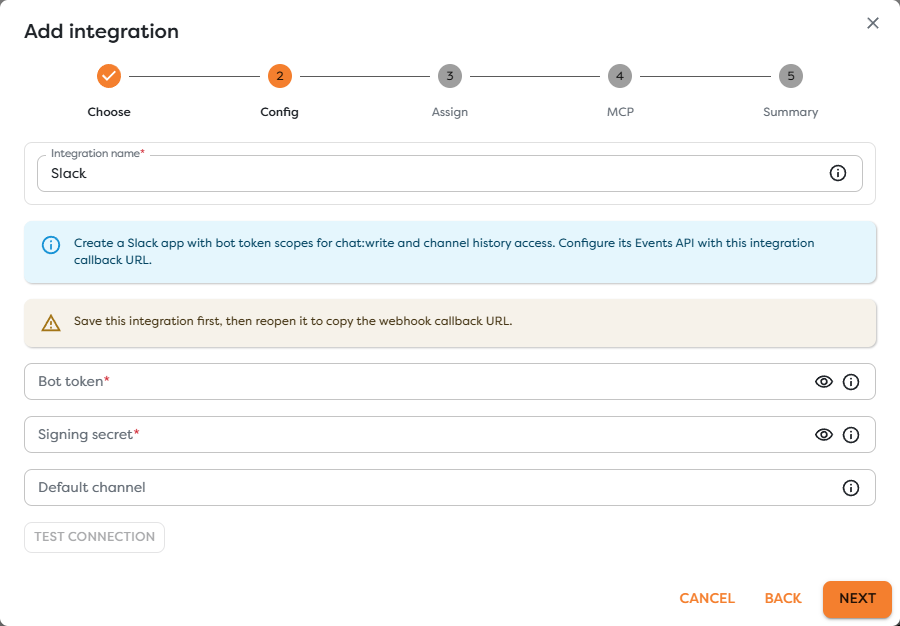
Slack
| Builders field | Source |
|---|---|
| Bot token | Slack app settings, OAuth & Permissions, after installing the app to the workspace; bot tokens normally begin with xoxb- |
| Signing secret | Slack app settings, Basic Information > App Credentials |
| Default channel | A channel ID used when a block does not supply another destination |
| Callback URL | Save the Builders integration, reopen it, and copy the generated URL to Slack Event Subscriptions > Request URL |
Create the app and grant only the bot scopes required by your workflow, such as chat:write plus the appropriate public, private, or direct-message history scopes. Follow Slack's app settings quickstart, token reference, Events API guide, and request-signing guide.
Microsoft Teams
| Builders field | Source |
|---|---|
| Connect Microsoft | Complete the Microsoft delegated OAuth flow opened by Builders |
| Account email / Tenant ID | The connected Microsoft account and its Entra tenant |
| Default team ID / channel ID / chat ID | Microsoft Teams or Graph identifiers for the intended default destination |
| Webhook client state | A secret value chosen for validating Microsoft Graph notifications |
| Callback URL | Save and reopen the integration, then use the generated URL for Graph notification subscriptions |
Builders requires backend Microsoft OAuth configuration. Review the Microsoft Graph permissions reference and Teams app permissions and consent. Grant only the delegated mail, file, chat, channel, and team permissions required by the workflows using this connection.
WhatsApp Business Platform
| Builders field | Source |
|---|---|
| WhatsApp Business Account ID / Phone number ID | Meta Business Manager or WhatsApp Manager for the connected business and sender |
| Display phone number / Default recipient | The approved business number and optional default destination |
| System user access token | Meta Business Manager system user assigned to the app and WhatsApp assets |
| Meta app secret | Meta for Developers, application settings |
| Webhook verify token | A strong value generated or chosen in Builders and entered identically in Meta webhook verification |
| Default template language / name | An approved message template in WhatsApp Manager |
| Callback URL | Save and reopen the integration, then register the generated URL under Meta App Webhooks |
Use Meta's WhatsApp Cloud API getting-started guide and Cloud API webhook guide. A token does not bypass WhatsApp business verification, template approval, recipient consent, or messaging-window rules.
Twilio SMS
| Builders field | Source |
|---|---|
| Account SID / Auth token | Twilio Console account dashboard |
| From number | An SMS-capable Twilio number assigned to the account |
| Messaging Service SID | Twilio Console, Messaging > Services, when using a Messaging Service |
| Callback URL | Save and reopen the integration, then configure the number or Messaging Service to send inbound messages to it |
See Twilio API credentials, Messaging Services, and incoming messaging webhooks. The Builders form currently requests the Account SID and Auth token; protect them as account-level credentials.
Signal Messenger
| Builders field | Source |
|---|---|
| Signal bridge base URL | The public HTTPS base URL of the self-hosted bridge |
| Bridge API token | The bridge's authentication layer, when configured |
| Signal account | The number registered or linked in the bridge |
| Default recipient | An optional Signal number or group used by default |
| Webhook secret | Generate or choose a strong shared secret in Builders and configure the bridge to send it as documented in the form |
| Callback URL | Save and reopen the integration, then configure the bridge to POST inbound envelopes to that URL |
Builders names signal-cli-rest-api as an example bridge. Signal automation here depends on a self-hosted, community-maintained boundary; secure it with HTTPS, authentication, network controls, updates, and backups of its Signal state.
Project management credentials
Jira
| Builders field | Source |
|---|---|
| Base URL | The Jira Cloud site URL, for example https://organization.atlassian.net |
| Email / API token | Atlassian account email and a generated Atlassian API token |
| Default project key | The Jira project key shown in project settings or issue identifiers |
| Default issue type ID | Jira issue metadata for the intended default type |
| Webhook secret | A secret chosen for the Jira webhook and entered identically in Builders |
| Callback URL | Save and reopen the integration, then register the URL in Jira webhook settings |
Use Atlassian's Jira API-token authentication guide and Jira webhooks documentation. An API token has the permissions of its Atlassian user, so use a dedicated account with constrained project access.
Github Issues
| Builders field | Source |
|---|---|
| Token | GitHub Settings > Developer settings > Personal access tokens, preferably a fine-grained token |
| Owner / Repository | The repository URL: https://github.com/{owner}/{repository} |
| Webhook secret | A strong value chosen for the repository webhook and entered identically in Builders |
| Callback URL | Save and reopen the integration, then register the URL in the repository webhook settings |
Grant the token the repository access and Issues permissions required by the configured actions. Review managing personal access tokens, repository webhooks, and credential security.
Gitlab Issues
| Builders field | Source |
|---|---|
| Use custom GitLab server | Enable for GitLab Self-Managed and provide the intended instance through the form's server configuration |
| Token | GitLab user profile, Access > Personal access tokens, with API access required by the issue operations |
| Project ID | GitLab project overview or project API metadata |
| Webhook secret | The secret token configured for the project webhook and entered identically in Builders |
| Callback URL | Save and reopen the integration, then register it under Project > Settings > Webhooks |
Use GitLab's personal access token guide and webhooks guide. GitLab recommends signing tokens for new webhooks where the receiver supports them; the current Builders form exposes a webhook-secret field, so use the authentication mode Builders explicitly supports.
Queue credentials
ActiveMQ
| Builders field | Source |
|---|---|
| STOMP broker URL | The broker's externally reachable STOMP or STOMP-over-TLS connector |
| Username / Password | A broker identity authorized only for the required destinations |
| Default queue / topic | Existing ActiveMQ destination names |
| Prefetch | The maximum unacknowledged delivery window appropriate for the consumer |
Configure the connector and destination permissions according to the official ActiveMQ STOMP documentation. Prefer stomp+ssl or another protected transport for traffic crossing untrusted networks.
RabbitMQ
| Builders field | Source |
|---|---|
| Connection URL | An amqp:// or amqps:// URI containing the broker host, port, virtual host, and application credential |
| Exchange / Queue / Routing key | Existing RabbitMQ topology configured for the workflow |
| Prefetch | The consumer's maximum unacknowledged message count |
Use the official RabbitMQ URI specification and AMQP concepts guide. Do not log a connection URL containing a password.
AWS SQS
| Builders field | Source |
|---|---|
| Region | The AWS region containing the queue |
| Queue URL | Amazon SQS console or API response for the specific queue |
| Access key ID / Secret access key | A dedicated IAM identity restricted to the required SQS actions and queue ARN |
| Custom endpoint | Only for a compatible emulator, private endpoint design, or non-default service endpoint |
Use Amazon SQS queue identifiers and AWS access-key guidance.
AWS SNS
| Builders field | Source |
|---|---|
| Region / Topic ARN | Amazon SNS console, topic details |
| Access key ID / Secret access key | A dedicated IAM identity restricted to the required SNS topic actions |
| Webhook secret | A strong secret used by the Builders callback boundary |
| Custom endpoint | Only for a compatible custom endpoint design |
| Callback URL | Save and reopen the integration, then subscribe the generated URL to the intended SNS topic |
Use Creating an Amazon SNS topic and AWS access-key guidance. Confirm the HTTPS subscription and test an actual notification after saving.
Remote access credentials
SSH
| Builders field | Source |
|---|---|
| Host / Port / Username | The server administrator or deployment inventory |
| Authentication method | Select the credential form authorized on the server; the current form supports a private key |
| Private key / Key passphrase | A dedicated client key whose public key is installed for the restricted server account |
| Known hosts entry | A server host key obtained through trusted provisioning or verified against an administrator-provided fingerprint |
| Strict host key checking | Keep enabled unless a controlled exception is explicitly justified |
| Default working directory | A directory the restricted account may safely access |
| Allowed commands JSON | An explicit JSON array of command names the integration may execute, for example ["ls", "cat", "tail"] |
Use the OpenSSH ssh-keygen and ssh_config references. Do not trust an unverified host key collected from the same potentially hostile network path you are attempting to secure.
Validate after saving
- Run Test connection with the final credential.
- Save and reopen integrations that expose a callback URL.
- Register the callback and matching secret in the provider.
- Execute the smallest representative read or write action.
- Send an inbound provider event for triggers and webhook-backed operations.
- Inspect the workflow run, provider delivery logs, and resulting external side effect.
- Record the credential owner, expiry, and rotation date without recording the secret itself.
Next steps
- Integration Catalog and Status
- File Storage Integrations
- Email Integrations
- Messaging Integrations
- Queue Integrations
- Issue and Project Management Integrations
- Integration Ownership and MCP Access
- Troubleshoot Integrations
- Integrations Overview
- Configure Tools and Integrations
- Read Block Logs and Output