
WhatsApp Business Action
Use WhatsApp Business Action to send a free-form text message, reply to an inbound message, send an approved template, or mark an inbound message as read through a WhatsApp Business Platform integration available to the project. The block uses Meta's official Cloud API and exposes separate Out and Error ports.
This article uses the WhatsApp Business - Hack It UP Docs integration and an event-registration template for the Hack It UP - event project.
Prepare the WhatsApp Business integration
Create and test a WhatsApp Business Platform integration before adding the block. The integration stores the WhatsApp Business Account ID, registered Phone number ID, System User access token, App Secret, Verify Token, and optional outbound defaults.
WhatsApp Business Action uses the System User token for outbound Cloud API calls. The token needs whatsapp_business_messaging and access to the business account and phone-number asset used by the integration. Webhook verification and signature checking are separate inbound concerns handled by the Verify Token and App Secret.
Use Meta's WhatsApp Cloud API overview and official WhatsApp Business Platform API collection for the provider contract. A valid token does not bypass phone registration, business verification, recipient consent, template approval, quality, rate, messaging-window, or regional policy requirements.
This block is for the official WhatsApp Business Platform. It does not automate a personal WhatsApp account, WhatsApp Web browser session, QR-code login, or an unofficial bridge.
Configure WhatsApp Business Action
Drag WhatsApp Business Action from the Process group onto the Designer canvas and open its settings.
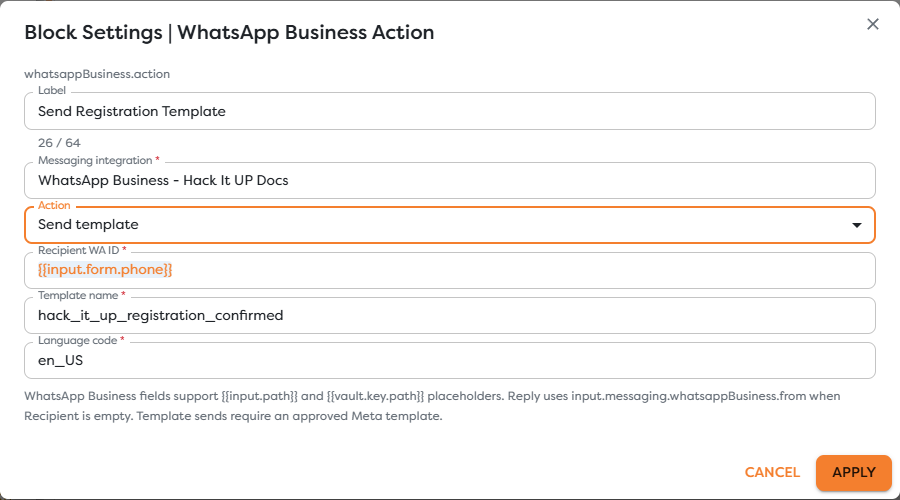
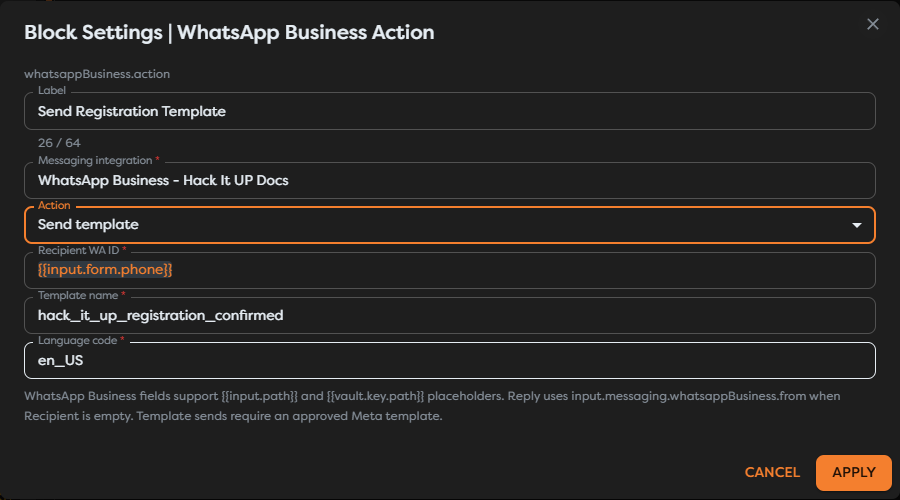
| Field | Required | Purpose |
|---|---|---|
| Label | Yes | Identifies the step in the graph, run trace, and logs. |
| Messaging integration | Yes | Selects the WABA, registered sender Phone number ID, and System User authorization. |
| Action | Yes | Chooses Send message, Reply, Send template, or Mark as read. |
| Recipient WA ID | Send message, Reply, and Send template | Supplies the recipient's WhatsApp ID. It remains visible for Mark as read but is not part of Meta's mark-read request. |
| Message body | Send message and Reply | Supplies the free-form text after template resolution. |
| Template name | Send template | Supplies the exact approved template name. |
| Language code | Send template | Supplies the exact language and locale approved for that template, such as en_US or pl_PL. |
| Message ID | Mark as read | Identifies the inbound WhatsApp message whose status should become read. |
WhatsApp Business fields support {{input.path}} and {{vault.key.path}} expressions. Use Designer autocomplete after inspecting real upstream output rather than assuming raw webhook paths.
Use WhatsApp identifiers correctly
Keep these values separate:
| Identifier | Typical value | Meaning |
|---|---|---|
| WABA ID | Numeric Meta object ID | WhatsApp Business Account authorization and management scope. |
| Phone number ID | Numeric Meta object ID | Registered business sender used in the Cloud API URL. |
| Display phone number | Human-readable business number | Operator-facing number; it does not replace the Phone number ID. |
| Recipient WA ID | International number or wa_id without formatting | WhatsApp user addressed by an outbound operation. |
| Message ID | Commonly begins with wamid | One provider message used for correlation or Mark as read. |
| Builders run ID | UUID | Workflow execution, not a WhatsApp message. |
For a phone-number recipient, normalize to the representation expected by Cloud API, normally country code plus national number without +, spaces, or punctuation. Prefer the exact inbound wa_id or normalized sender value exposed by WhatsApp Business Trigger when replying.
Do not confuse the visible customer number with Meta's Phone number ID. The integration selects the business sender; Recipient WA ID selects the customer.
Send a free-form message
Choose Send message when the workflow has a validated recipient and current WhatsApp policy allows free-form business messaging in that conversation.
The event-registration example can map the submitted phone number:
{{input.form.phone}}
and send a plain body:
Hack It UP: registration received for {{input.form.name}}.
We will send event updates in this WhatsApp conversation.
Free-form business messages must comply with Meta's current customer-service window and messaging rules. When the business cannot send free-form text, use an approved template instead. Check the conversation's actual inbound timestamp and policy state; a Builders run start time does not open or extend a WhatsApp messaging window.
The current block's Send message form exposes text only. It does not expose media, location, contacts, interactive buttons, lists, product messages, link-preview control, reactions, or structured reply context. Do not describe those Cloud API capabilities as supported by this block until Builders provides matching fields.
Reply to an inbound message
Choose Reply after WhatsApp Business Trigger when the workflow should answer the person who sent the inbound message. The form helper states that an empty Recipient can use input.messaging.whatsappBusiness.from, but the current validation still marks Recipient WA ID as required. Prefer an explicit mapping from inspected trigger context.
Before enabling an automatic reply:
- Inspect the direct input reaching WhatsApp Business Action.
- Preserve the inbound sender or
wa_idwithout display formatting. - Confirm that the event contains a supported inbound message rather than a delivery-status update.
- Reject messages from the business automation identity to prevent loops.
- Deduplicate by the inbound WhatsApp Message ID and business Phone number ID.
- Apply consent, messaging-window, content, and frequency rules before the action.
Reply selects the recipient from the incoming context; it does not guarantee a visible quoted-message relationship in the WhatsApp client. The current form does not expose a contextual Message ID for Reply. Treat it as a text response to the same person unless a tested Builders version documents stronger reply-context behavior.
Send an approved template
Choose Send template for a business-initiated notification that must use a WhatsApp message template. Provide:
- the recipient's WA ID;
- the exact template name from WhatsApp Manager;
- the exact approved language and locale code.
The screenshot uses:
Recipient: {{input.form.phone}}
Template: hack_it_up_registration_confirmed
Language: en_US
The name is illustrative. The operation succeeds only when that template and language exist for the integration's WABA, remain approved and enabled, and are available to its registered sender.
The current Builders form does not expose template header, body, or button component parameters. Use a template that requires no runtime components, or verify a separately documented Builders mechanism before selecting a template with variables, media headers, quick replies, or dynamic URL suffixes. Supplying only the template name and language cannot populate visible Cloud API component parameters.
Integration-level default template name and language are useful for a fixed outbound design, but the current block marks both fields as required. Keep them explicit in the graph so a reviewer can identify the exact approved asset used by the workflow.
Template approval does not replace recipient opt-in or other WhatsApp policy obligations. Confirm the template category, language, current status, expected audience, and rendered content in WhatsApp Manager before publishing.
Mark an inbound message as read
Choose Mark as read after receiving a supported inbound message. Pass the exact WhatsApp Message ID from the webhook context:
{{input.messaging.whatsappBusiness.messageId}}
Use autocomplete and a real run to confirm the normalized path. Raw Meta payloads commonly expose message IDs inside entry[].changes[].value.messages[], but Builders can normalize that structure.
The operation changes the provider read state for an inbound message. It does not read message history, return a conversation, acknowledge a workflow task, or prove that a human operator viewed the content. Meta's official Mark Message As Read request requires the inbound Message ID.
The generic Recipient field remains visible in this mode, although current validation requires only Message ID. Do not derive the message target from Recipient; the provider message identity is authoritative.
Mark as read only after the workflow has accepted responsibility for the message. If later validation or processing can fail and a human inbox relies on unread state, decide whether marking early would hide work that still needs attention.
Understand acceptance and delivery
For Send message, Reply, and Send template, Out means Meta accepted the Cloud API request and Builders received a successful response. Preserve the returned WhatsApp Message ID.
Acceptance is not final delivery. Meta can later report statuses such as sent, delivered, read, or failed through the subscribed messages webhook field. Correlate status updates using the outbound message ID and business Phone number ID; do not start customer-message logic from a status object.
Connect Error to controlled logging, alerting, or recovery. Preserve a sanitized Meta error code and request correlation data, but do not log the System User token, App Secret, Verify Token, full phone numbers, or unnecessary message content.
A timeout is ambiguous because Meta may have accepted the send before Builders received the response. Check provider status data and business-level idempotency before retrying. A blind retry can send duplicate messages and affect cost, recipient experience, or account quality.
Control consent, policy, and volume
Before any outbound message:
- record the recipient's relevant opt-in and its source;
- enforce opt-out and suppression state before the block;
- choose free-form or template behavior from the actual conversation and policy context;
- apply frequency caps and campaign eligibility;
- keep authentication codes, payment data, health data, and other sensitive content within the approved system boundary;
- monitor Meta quality, template status, rate limits, messaging limits, and provider rejections;
- review current WhatsApp pricing rather than assuming a fixed per-message or per-conversation model.
Policy and pricing change independently of Builders. Use WhatsApp Manager and Meta's current documentation as the source of truth at deployment time.
Test WhatsApp Business Action
- Use a controlled WABA, registered business number, and opted-in test recipient.
- Confirm that the integration passes Test connection and its System User has the required asset access.
- Run Send message inside a valid customer-service context and verify the returned Message ID and destination device.
- Start a published run through WhatsApp Business Trigger and test Reply with an explicit normalized recipient.
- Create or select an approved template with no runtime parameters, then test Send template using its exact name and language.
- Send an inbound message, pass its Message ID to Mark as read, and verify the conversation state.
- Inspect sent, delivered, read, and failed status callbacks separately from inbound customer messages.
- Test an invalid recipient, missing template language, paused template, expired or revoked token, closed free-form window, and provider rejection through Error.
- Repeat the same business input and confirm that duplicate prevention works before publishing.
No live WhatsApp message was sent while creating the documentation screenshot. The displayed template name documents the Builders fields and must not be treated as an approved production asset.
Troubleshoot WhatsApp Business Action
- The block is unavailable: create an active WhatsApp Business Platform integration in the project's ownership scope, then disable Hide unavailable blocks while checking availability.
- No integration appears: verify its status, type, owner, team access, and the project owner shown in Builders.
- Meta returns unauthorized: verify the System User token, permission, WABA and Phone number ID, business-asset assignment, token state, and Graph API version.
- Recipient is rejected: pass a normalized WA ID or international number supported by Cloud API and confirm recipient eligibility and opt-in.
- A free-form message is rejected: inspect the latest customer message, messaging window, content, account status, and current Meta policy; use an approved template when required.
- Reply goes to the wrong person: map the normalized inbound sender explicitly instead of using an unrelated default recipient.
- The template is not found: compare WABA, exact lowercase name, language code, approval status, and sender availability in WhatsApp Manager.
- The template requires values: the current block has no component-parameter fields; choose a parameterless template or use a separately documented supported mechanism.
- Mark as read fails: pass the exact inbound WhatsApp Message ID, not a recipient, timestamp, Builders run ID, or outbound message ID.
- The action succeeds but the message is not delivered: correlate the returned Message ID with Meta status webhooks, recipient eligibility, template state, quality, rate, and policy errors.
- Statuses create workflow replies: separate
value.statusesfromvalue.messagesbefore the reply path. - The same message is sent twice: deduplicate before the action and resolve ambiguous timeouts before retrying.
Next steps
- Messaging Action Blocks
- WhatsApp Business Trigger
- Configure Messaging Integrations
- Use Template Expressions
- Reference General Vault Values
- Read Block Logs and Output
- Build a Messaging Assistant
WhatsApp Business Action completes the current set of messaging action block references.