
Process Uploaded Files from an Endpoint
Build a synchronous HTTP workflow that accepts one text file, stages it in run-local storage, validates and normalizes its content, persists the result, and returns a JSON response.
This guide uses a dedicated Guide - Process Uploaded Files pipeline with the following path:
Endpoint Trigger -> Read File -> Code -> Save File -> Endpoint Response
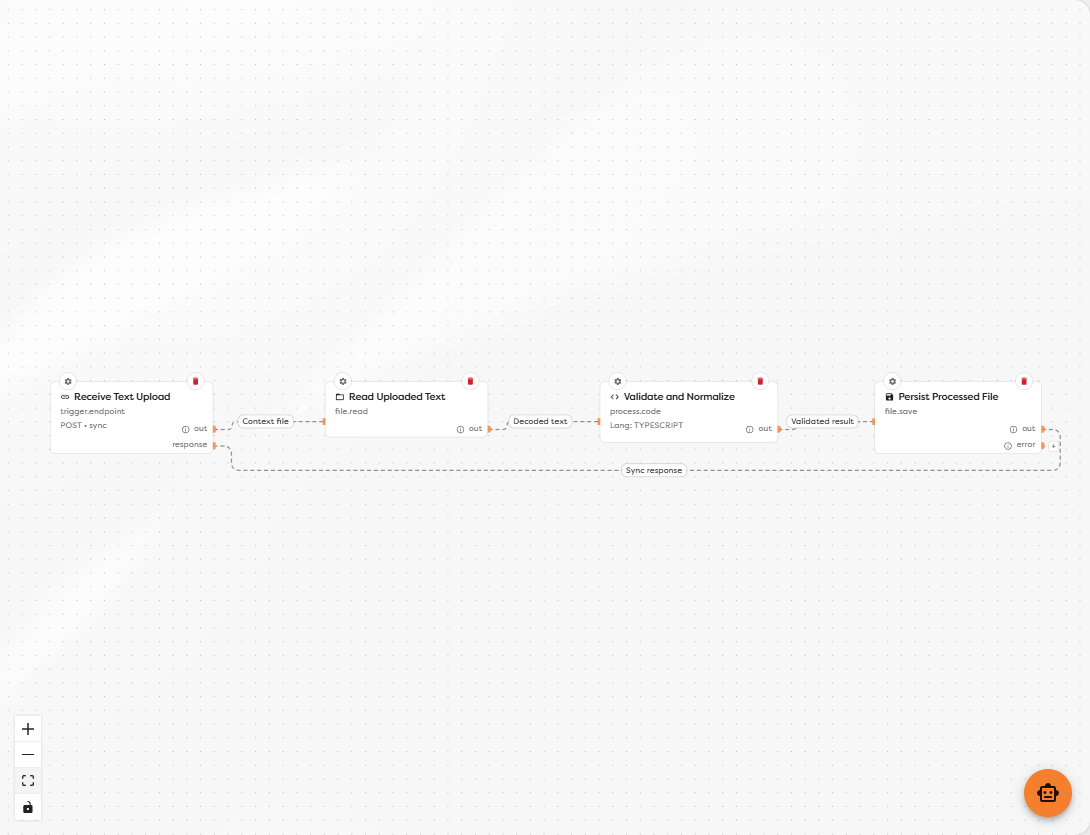
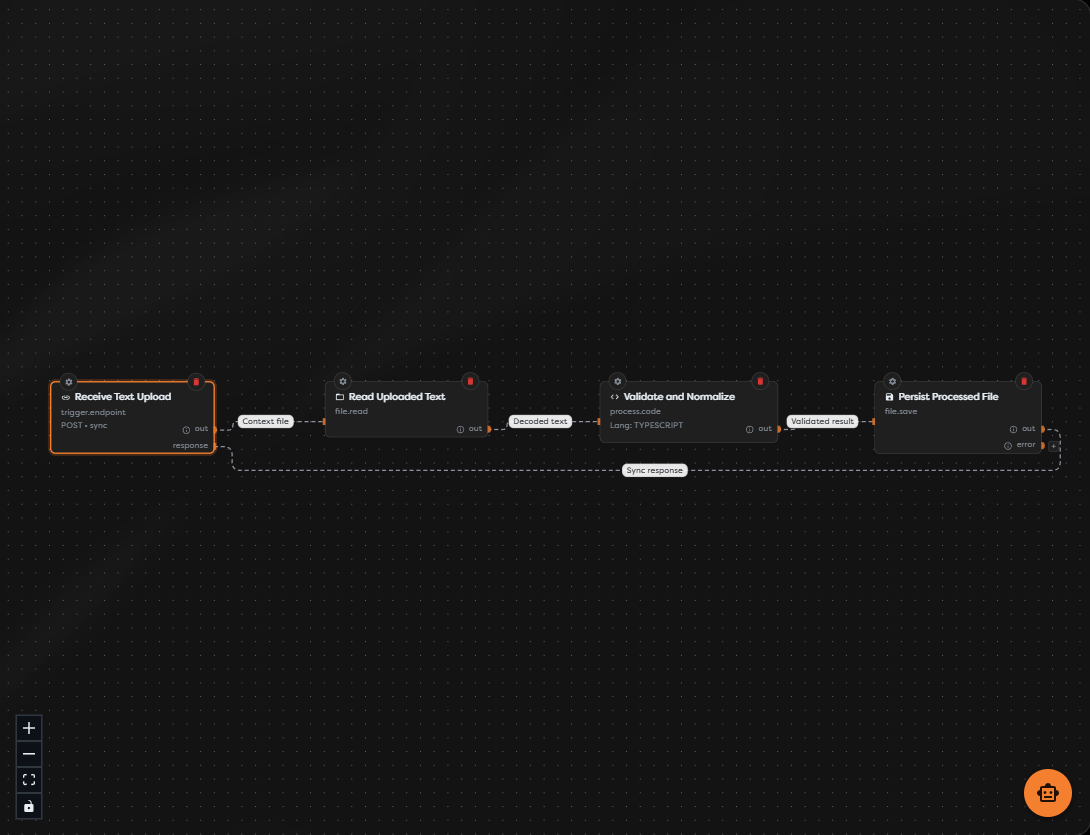
The example deliberately accepts UTF-8 text only. Use a separate, format-aware processing path for JSON, XML, images, PDFs, archives, or other binary files.
Before you begin
Define the endpoint contract before adding blocks. The example uses:
| Contract item | Example value |
|---|---|
| HTTP method | POST |
| Access | Protected endpoint |
| Request body | multipart/form-data |
| File field | file |
| File count | One |
| Transport limit | 5 MB |
| Intake storage | Context Drive |
| Processing | UTF-8 text normalization |
| Result storage | Static Drive |
| Response | Synchronous JSON |
Confirm that the project owner has access to the required drive scope and enough storage, compute, and concurrent-run capacity. Use non-sensitive test files until validation, retention, and cleanup behavior have been verified.
1. Configure the upload endpoint
Add Endpoint Trigger and label it Receive Text Upload. Configure POST, a custom path such as guides/process-uploaded-files, and a synchronous JSON response.
Open Request, enable Accept file, and configure the upload:
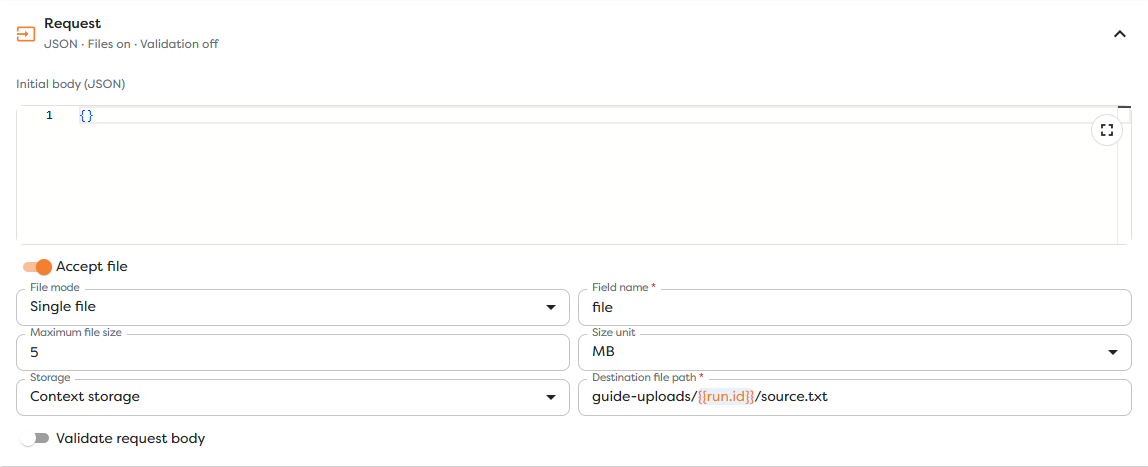
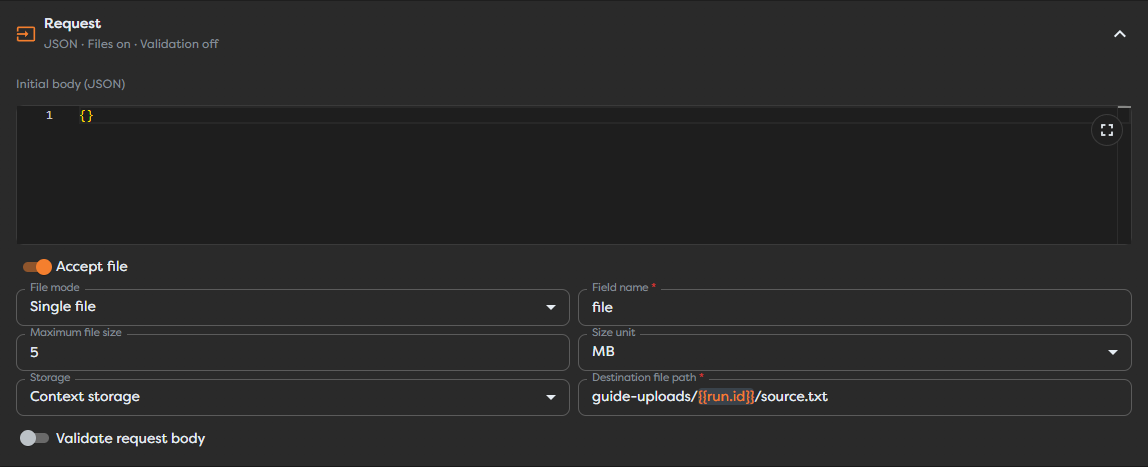
| Setting | Value |
|---|---|
| File mode | Single |
| Field name | file |
| Maximum size | 5 MB |
| Storage | Context |
| Destination file path | guide-uploads/{{run.id}}/source.txt |
Use a controlled destination filename and a unique run directory. Do not build a writable path directly from the caller-supplied filename. A filename is untrusted metadata and can contain collisions, unexpected separators, or traversal-like sequences.
Protect the endpoint and distribute its token only to authorized server-side callers. A long-lived endpoint token does not belong in public browser code. Apply an appropriate rate limit before publishing because rejected, failed, and malicious requests can still consume resources.
The trigger's maximum size is an intake limit, not complete file validation. It does not prove that the bytes are UTF-8 text or that the declared media type is correct.
2. Send a multipart request
The multipart field name must exactly match file:
curl --request POST "$BUILDERS_UPLOAD_URL" \
--header "Authorization: Bearer $BUILDERS_ENDPOINT_TOKEN" \
--form "file=@./notes.txt;type=text/plain"
In a trusted JavaScript client, construct the same request with FormData:
const form = new FormData();
form.append("file", selectedFile);
const response = await fetch(uploadUrl, {
method: "POST",
headers: {
Authorization: `Bearer ${endpointToken}`,
},
body: form,
});
Do not manually set a bare Content-Type: multipart/form-data header when the client creates FormData. The client must add the boundary that separates multipart fields. See Using FormData Objects on MDN and the multipart/form-data specification.
3. Stage the upload in Context Drive
The trigger writes the accepted file to:
guide-uploads/{{run.id}}/source.txt
Context Drive is isolated to the current run and is appropriate for temporary intake. It prevents an unvalidated upload from becoming a durable shared file merely because the request was accepted.
Keep the canonical file descriptor intact when a downstream block supports it. The descriptor carries the storage location and file metadata; it is not the same as the decoded file content. Persist only the original file when the business process and retention policy require it.
4. Read the file explicitly as text
Add Read File, label it Read Uploaded Text, and connect the Endpoint Trigger's Out port to it. Configure:
| Setting | Value |
|---|---|
| Storage | Context Drive |
| File path | guide-uploads/{{run.id}}/source.txt |
| Read as | Text |
Selecting Text makes the expected decoding explicit instead of relying on the extension or an automatically detected mode. It does not make arbitrary bytes valid text. Invalid encodings, unsupported content, and parsing failures must stop the success path.
Run one controlled upload and inspect the Read File output before writing downstream templates. Its Out object contains a canonical file; select the decoded content property from autocomplete rather than assuming that provider-specific metadata always has the same shape.
5. Validate and normalize the content
Add Code, label it Validate and Normalize, and connect Read File to it. Use Code for deterministic checks and transformations that are not covered by a dedicated parser block.
The following TypeScript is an illustrative normalization pattern. After a successful Read File run, replace input.file.content with the exact decoded-content path exposed by autocomplete:
export async function run(input: any, ctx: BuildersRuntimeContext) {
const source = String(input.file?.content ?? "");
if (!source.trim()) {
throw new Error("The uploaded text file is empty.");
}
if (source.length > 100_000) {
throw new Error("The decoded text exceeds the processing limit.");
}
const processedText = source
.replace(/\r\n?/g, "\n")
.split("\n")
.map((line) => line.replace(/[ \t]+$/g, ""))
.join("\n");
ctx.log("Text upload processed", {
characters: processedText.length,
});
return {
processedText,
summary: {
characters: processedText.length,
lines: processedText.split("\n").length,
},
};
}
Do not log the source text. Logs are operational records and may be visible to people who should not receive the uploaded content.
Apply validation in layers:
| Layer | What to verify |
|---|---|
| Transport | Method, authentication, file count, and maximum request size |
| Metadata | Allowed extension and declared media type |
| Bytes | Magic bytes, encoding, and actual format |
| Structure | Parse with a format-aware parser and enforce its schema or limits |
| Content policy | Required fields, allowed values, and business rules |
| Safety | Malware scanning or sandboxing where untrusted binary content requires it |
| Resource use | Expanded size, page or row count, recursion, and decompression limits |
Extensions and declared MIME values are useful signals, but neither authorizes the content. Use registered names from the IANA media type registry and validate the actual format. For PDFs, images, archives, and office files, use an appropriate parser or scanning service rather than treating bytes as text in Code.
The Code block documents the runtime entry point and links to the separate Builders Runtime API references.
6. Persist the processed result
Add Save File, label it Persist Processed File, and connect the Code block's Out port. Configure text mode:
| Setting | Value |
|---|---|
| Storage | Static Drive |
| Destination path | guide-results/{{run.id}}/normalized.txt |
| Text | {{input.processedText}} |
This creates a durable result only after validation succeeds. The run ID prevents concurrent requests from overwriting one another. If callers need stable business identifiers, validate authorization and uniqueness before using those identifiers in a path.
Static Drive belongs to the compatible personal or team owner scope. If the approved system of record is Google Drive, OneDrive, AWS S3, or Custom S3, select the matching integration in Save File and verify its write permissions, retention controls, encryption, and duplicate behavior.
Define cleanup for both successful results and abandoned data. Do not keep every processed file indefinitely simply because the workflow can persist it.
7. Return a stable synchronous response
Connect Save File's Out port back to the Endpoint Trigger's Response input. The example returns the Save File result as JSON so you can inspect the descriptor during development.
For a production API, add a Transform or small Code step before the response and expose a deliberate contract instead of raw provider metadata. For example:
{
"status": "processed",
"runId": "{{run.id}}",
"result": {
"path": "guide-results/{{run.id}}/normalized.txt"
}
}
Do not return credentials, internal provider identifiers, private storage URLs, or unvalidated request metadata.
When the caller should receive the processed bytes instead of JSON, choose the Endpoint Trigger's File response type and make Response path resolve to the canonical file descriptor. Set a validated filename, correct MIME type, and either inline or attachment disposition.
Keep synchronous processing short enough for the caller and every proxy in between. Move long-running parsing, AI processing, scanning, or conversion to an asynchronous pattern that returns an accepted status and a correlation identifier.
Response caching applies to stable synchronous GET file responses. This upload workflow uses POST; its response represents a new processing action and must not be cached as reusable content.
8. Publish and test the complete path
Save the version, publish it, and upload a controlled file only after all four blocks show valid configuration. Inspect the published run in execution order:
- Endpoint Trigger accepted exactly one
filepart and wrote the expected Context path. - Read File decoded the expected number of bytes as text.
- Code returned
processedTextand summary data without logging the source. - Save File wrote a unique Static Drive path.
- Endpoint Response returned the documented status and response body.
Cover negative cases as well:
| Test case | Expected result |
|---|---|
Missing file field | Request is rejected before processing |
| Wrong multipart field name | No upload is bound to the configured field |
| File above 5 MB | Trigger rejects intake |
| Empty text | Code stops the success path |
Binary file labeled text/plain | Format or decoding validation rejects it |
| Invalid or missing token | Request is unauthorized |
| Repeated request | A unique result is created or documented idempotency logic reuses the original result |
| Save File failure | Error path records the failure and no success response is emitted |
For retried business operations, add an idempotency key supplied by the caller or derived from an authorized business identifier. Store its completed outcome before performing another durable write. Do not rely on the original filename as an idempotency key.
Troubleshoot the workflow
| Symptom | Check |
|---|---|
| Endpoint receives no file | HTTP method, multipart encoding, exact file field, and client-generated boundary |
| Upload is rejected immediately | Authentication, configured size limit, file count, and rate limit |
| Read File cannot find the source | Matching Context path and the same {{run.id}} |
Code sees undefined content | Successful Read File output and the property selected from autocomplete |
| Text is corrupted | Source encoding and explicit Read File mode |
| Unsafe file passes extension checks | Actual-byte parser, signature checks, and scanning policy |
| Result overwrites another file | Unique destination path and retry or idempotency behavior |
| File disappears after the run | Context lifetime; persist the approved result to Static or external storage |
| Caller times out | Synchronous workload duration; redesign long processing as asynchronous |
| Caller receives internal metadata | Map a stable response contract before Endpoint Response |