
Resource Ownership and Workflow Visibility
Builders resources belong to a user or a team. Ownership determines which projects can select a Static Drive, General Vault entry, database connection, AI connection, or integration; matching display names do not create access across scopes.
Understand the ownership boundary
| Resource | Personal scope | Team scope |
|---|---|---|
| Static Drive | User-owned persistent files | Files maintained for compatible team projects |
| General Vault | Values available to compatible personal workflows | Shared configuration available to eligible team workflows |
| Database connection | User-maintained connection | Centrally maintained connection for eligible team projects |
| AI agent connection | Private provider configuration | Shared team provider configuration |
| Integration | User-owned external connection | External connection maintained for team workflows |
Project ownership is the first filter. Team membership and role permissions are additional filters; a resource being team-owned does not mean every account can edit it.
Select ownership at creation
Resource forms expose Owner type when the resource is created. Choose the long-term owner before workflows depend on it. In several edit forms the owner is fixed, so moving a live dependency usually means creating an equivalent resource in the target scope and reconnecting workflows.
Use personal ownership when one user controls the dependency and its workflows. Use team ownership when other maintainers must keep the workflow operational without that user's private resource.
Understand workflow selectors
A block selector shows only compatible resources available to the current project. An empty selector can therefore mean:
- no compatible resource exists;
- the resource belongs to another personal or team scope;
- the current user lacks access to the owning team;
- the integration lacks the required read, write, trigger, or MCP capability;
- the resource was deleted or replaced after the block was configured.
Do not work around an empty selector by placing credentials directly in a template or Code block. Correct the resource and project ownership instead.
Import or move a workflow
Workflow schemas contain references, not copies of credentials or scoped resources. When the destination project cannot access a referenced resource, Builders removes that selection and leaves the block incomplete.
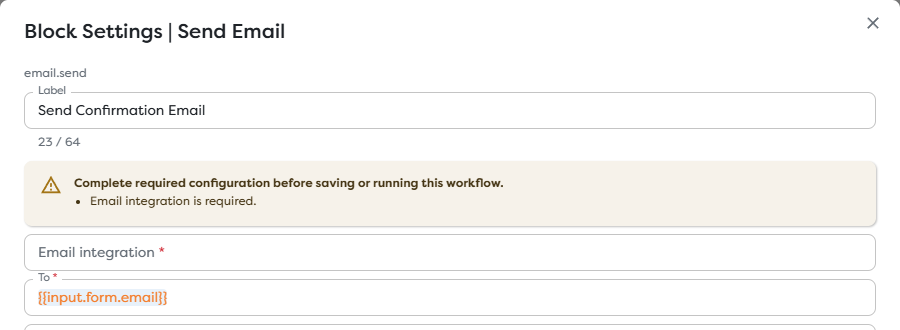
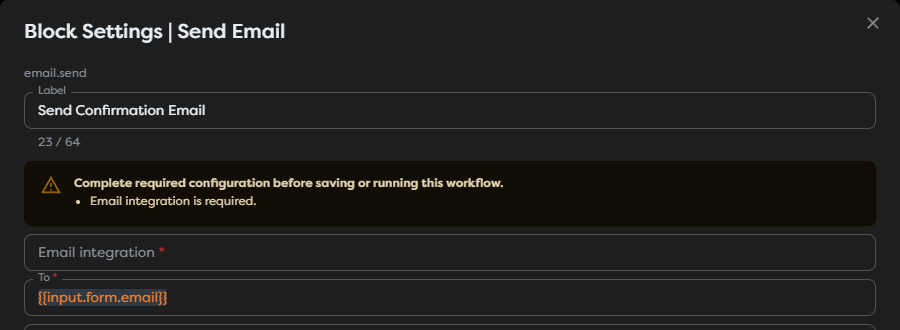
After importing or changing ownership:
- Inventory integrations, database connections, Vault keys, AI connections, and file paths used by the workflow.
- Create approved equivalents in the destination scope.
- Open every affected block and select the destination resource.
- Review templates, Static Drive paths, and secure values separately.
- Apply each block configuration and save the draft.
- Run controlled tests with the destination accounts and data.
- Publish only after every external effect has been verified.
A resource with the same display name may point to a different account, database, bucket, or provider project. Confirm its owner and target, not only its label.
Migrate shared resources safely
When replacing a personal dependency with a team-owned one:
- Identify every dependent project and published version.
- Create the team resource with least-privilege credentials or data.
- Reconnect and test one draft workflow at a time.
- Publish the verified versions.
- Monitor runs for authorization, path, and provider errors.
- Remove the personal resource only after all dependents have moved.
For Static Drive files, copy required assets to the target drive and update paths. For secure Vault entries, recreate values without exposing them in logs. For databases and provider connections, verify network allowlists and service-account permissions from the Builders runtime.
Respond to removed access
If a workflow suddenly loses a resource:
- confirm that the resource still exists and has not been rotated or deleted;
- confirm the project owner and the user's current team membership;
- open the affected block and inspect its required-field warning;
- select an approved replacement in the same scope;
- test both successful and denied operations;
- review published versions that may still reference the old dependency.
Access repair should not silently broaden provider privileges. Preserve the original least-privilege intent when creating the replacement.