
Email Integrations
Email integrations connect Builders to a mailbox for outbound messages, inbox reads, or both. Builders currently provides Email SMTP/IMAP, GMail, and Outlook adapters. Choose the adapter from the protocol and authorization boundary you need, not only from the address domain.
Choose an email adapter
| Integration | Transport | Authentication stored by Builders | Typical use | MCP step |
|---|---|---|---|---|
| Email SMTP/IMAP | SMTP for sending and IMAP for inbox access | Server settings and mailbox credentials | A compatible mail server, test mailbox, or provider-specific SMTP/IMAP account | No |
| GMail | Gmail API | Google OAuth client ID, client secret, and refresh token | Gmail or Google Workspace mailboxes using provider API authorization | Yes |
| Outlook | Microsoft Graph | Microsoft OAuth connection, account email, and tenant context | Outlook.com or Microsoft 365 mailboxes using delegated Microsoft authorization | Yes |
Prefer GMail or Outlook when the workflow should use the provider API, delegated consent, or supported AI email tools. Use Email SMTP/IMAP when the server exposes those protocols and Builders can authenticate with the credential method accepted by that server.
The generic Email integration has a four-step wizard and does not expose MCP. GMail and Outlook include the MCP step. Consequently, a generic SMTP/IMAP connection can back compatible workflow blocks and triggers, but only an email integration offered with MCP enabled can be selected by supported AI Agent email tools.
Separate sending from inbox access
Email capabilities are evaluated independently:
| Capability | Builders consumer | What must work |
|---|---|---|
| Send | Send Email and supported AI send tools | SMTP or provider API authorization, an accepted sender, and recipient delivery |
| Inbox read | Email Inbox Action and supported AI inbox tools | IMAP or provider API read authorization for the intended mailbox |
| New-message polling | Published Email Trigger | Inbox read plus a published polling context and a valid mailbox |
A successful send does not prove that inbox access works. An inbox read does not prove that the account may send as the configured address. Test each capability that the workflow will use.
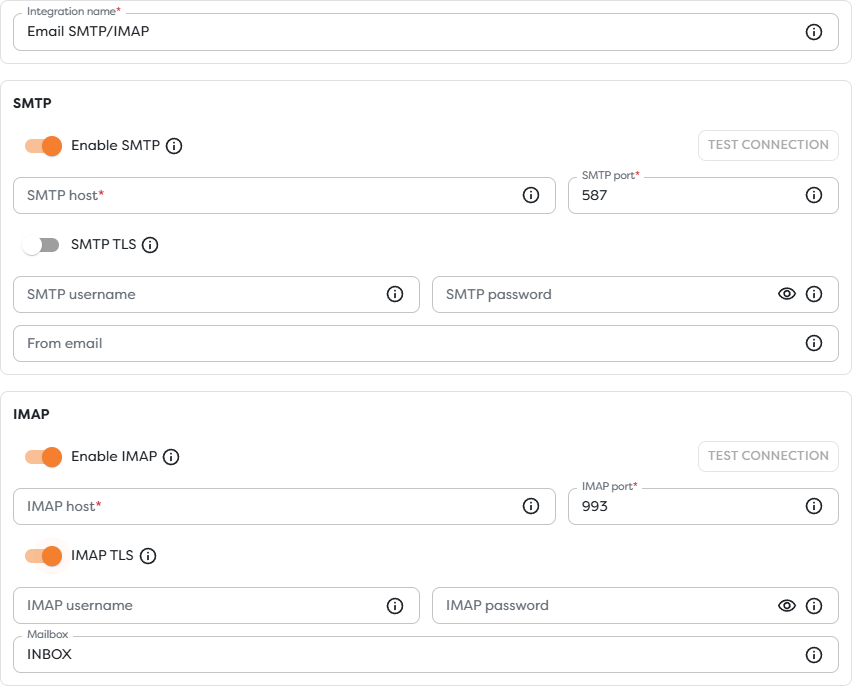
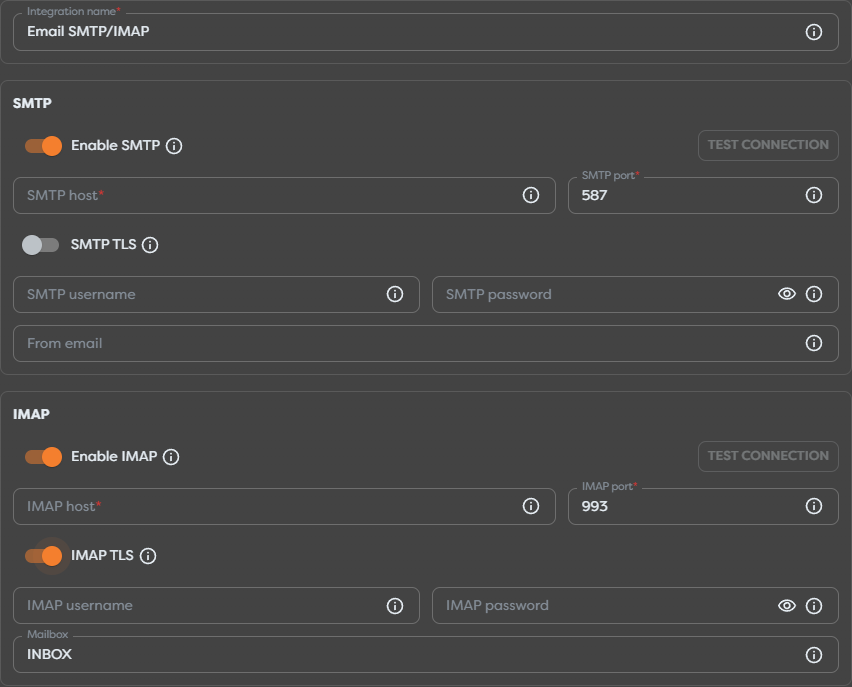
For Email SMTP/IMAP, enable only the required sections. Each section has its own Test connection action. Fill From email with an address the SMTP identity is authorized to use, and set Mailbox to the protocol-level IMAP folder name, commonly INBOX.
Configure Email SMTP/IMAP
Obtain the settings from the mailbox provider or mail administrator. Builders requires:
- SMTP host, port, TLS mode, username, password, and optional From address for sending;
- IMAP host, port, TLS mode, username, password, and default mailbox for inbox access.
The TLS switch describes how Builders connects to that endpoint; it does not make an unencrypted or incorrectly certificated server safe. Use the provider's documented encryption mode and ports, and keep production credentials separate from test credentials.
Many consumer providers require OAuth, an application password, or an administrator-approved client instead of the account's primary password. Confirm that the provider still accepts the authentication method supported by the generic integration. For example, Google recommends Google sign-in for Gmail clients, while Outlook.com documents OAuth2/Modern Auth for IMAP and SMTP. See Gmail client setup and Outlook.com POP, IMAP, and SMTP settings.
Configure GMail
The GMail integration uses the Gmail API and a server-side OAuth grant. The refresh token lets Builders obtain short-lived access tokens while the mailbox owner is offline.
- Create or select a Google Cloud project.
- Enable the Gmail API.
- Configure the OAuth consent screen and an OAuth web application client.
- Request only the scopes required by the intended Builders operations.
- Complete the authorization flow with offline access and obtain a refresh token.
- Enter the authorized mailbox email, client ID, client secret, and refresh token in Builders.
- Test the required read and send operations separately.
Scope selection is an external authorization boundary. gmail.send permits sending, gmail.readonly permits message reads, and broader scopes such as gmail.modify permit additional mailbox changes. Do not request the unrestricted https://mail.google.com/ scope unless the workflow genuinely requires operations that narrower scopes cannot provide.
Use Gmail API scopes, server-side authorization, listing Gmail messages, and sending Gmail messages.
Reconnect the integration when the refresh token is revoked, the OAuth client changes, consent is removed, or required scopes change. Changing scopes normally requires new consent; editing a label in Builders cannot expand the external grant.
Configure Outlook
The Outlook integration uses the Microsoft sign-in opened by Builders and calls Microsoft Graph for mailbox operations.
- Select Connect Outlook in the integration form.
- Sign in as the intended Outlook.com or Microsoft 365 account.
- Review the delegated permissions requested by the configured Builders OAuth application.
- Confirm the account email and tenant context.
- Set the default mailbox used when a block does not provide another mailbox.
- Test the operations required by the workflow.
Microsoft Graph separates mailbox read and send permissions. Mail.Read permits reading message content; Mail.Send permits sending. Reading or sending from another user's mailbox can also require shared or Exchange mailbox permissions in addition to the Graph grant.
Use the Microsoft Graph permissions reference, list messages, get a message, and sendMail. Review sending from another user before using a shared mailbox or delegated sender.
An accepted Graph request does not guarantee final delivery. Confirm the message in Sent Items when applicable and verify receipt at a controlled destination.
Start workflows from new email
Email Trigger can use an inbox-capable Email SMTP/IMAP, GMail, or Outlook integration. Select the integration and mailbox in the trigger settings.
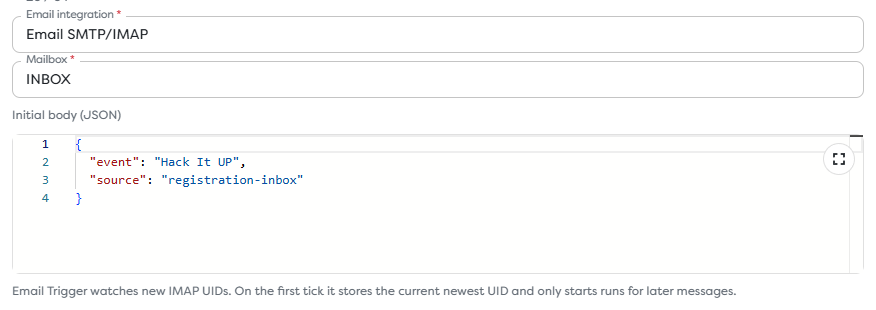
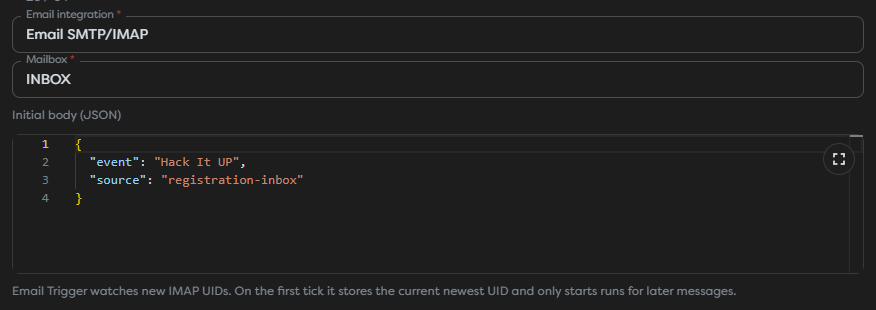
The trigger is polling-based and becomes active only for the published workflow version. On its first polling tick, Builders records the newest mailbox UID and starts runs only for messages that arrive later. It does not process the existing inbox as historical backlog.
Use this test sequence:
- Configure the integration and test inbox access.
- Select it in Email Trigger and enter the mailbox.
- Save and publish the intended workflow version.
- Wait for the first polling cycle to establish the UID baseline.
- Send a new message with a unique subject.
- Inspect the resulting published run and normalized
emailobject.


Mailbox UIDs are scoped to a mailbox. Keep the integration and mailbox together when reading or acting on the message downstream. Marking an old message unread does not create a new UID.
For complete trigger behavior, see Email Trigger.
Send email from a workflow
Send Email uses a sender-capable integration selected in the block. Keep provider credentials and the default sender in the integration; place recipients, subject, body, and supported attachments in the block input.
Before publishing:
- Send to a controlled test recipient.
- Confirm the resolved To, Cc, Bcc, subject, text or HTML body, and attachments in the run.
- Verify the provider accepted the configured From identity.
- Confirm actual receipt and inspect spam or quarantine results.
- Repeat the test with an invalid recipient and verify the workflow's error path.
Provider aliases and shared mailboxes require provider-side authorization. Entering a different From value in Builders does not grant Send As or Send on Behalf permission.
Make outbound actions idempotent. A retry after a timeout may send a second message even when the first request reached the provider. Store a business-level send key before or atomically with the outbound effect when duplicates are unacceptable.
Use email tools with an AI Agent
AI email tools add another authorization layer:
AI Agent
-> enabled email operation
-> compatible MCP-enabled email integration
-> provider mailbox permission
-> read or send action
Enable inbox and send tools independently. An agent that summarizes received messages does not need send access. An agent that produces a proposed reply can return draft text for approval instead of receiving permission to send automatically.
Treat every incoming subject, body, attachment, and quoted thread as untrusted content. Email can contain instructions intended to manipulate an AI Agent into disclosing data or calling an unrelated tool. Restrict tool access, validate recipients and actions in workflow logic, and require human approval for sensitive outbound mail.
See Configure Tools and Integrations and Test Runs, Output, Usage, and Errors.
Operate shared email integrations safely
- Use a dedicated automation mailbox where possible.
- Assign the Builders integration to the same personal or team scope as the project.
- Give test and production workflows different mailboxes or credentials.
- Keep OAuth client secrets, refresh tokens, passwords, and app passwords only in the integration.
- Record the credential owner, granted scopes, delegated mailboxes, expiry, and rotation process outside the secret itself.
- Reconnect and retest dependent workflows after consent, password, tenant, sender, or mailbox changes.
- Apply provider rate, recipient, attachment-size, and sending-policy limits before production traffic.
Deleting or rotating a shared email integration can break triggers, Send Email blocks, inbox actions, and AI tools across multiple pipelines. Inventory those dependencies first.
Troubleshoot email integrations
- SMTP connects but delivery fails: verify the From identity, recipient policy, relay permissions, quota, spam decision, and provider delivery logs.
- SMTP works but Email Trigger does not: test IMAP or provider inbox access separately and verify the exact mailbox.
- A new message creates no run: confirm the workflow is published, wait for the polling interval, and send the message after the first UID baseline.
- GMail returns an authorization error: verify the OAuth client, refresh token, mailbox account, and required Gmail scopes.
- Outlook returns
403: inspect Graph consent plus Exchange or shared-mailbox permissions for the target mailbox and sender. - The wrong inbox is read: check the integration account, default mailbox, trigger mailbox, and provider folder naming.
- The message body is missing: handle text, HTML, and multipart messages according to the payload received in a real run.
- Attachments fail: verify size, MIME type, provider limits, and the file descriptor passed by the workflow.
- A message is sent twice: add an idempotency key around the business action and inspect retry timing.
- An AI tool cannot select the integration: verify that the adapter exposes MCP, MCP is enabled, and the integration is available in the project's ownership scope.