
Microsoft Teams Action
Use Microsoft Teams Action to send a message, reply in a Teams conversation, or read messages through a Microsoft Teams integration available to the project. The block uses Microsoft Graph through the delegated Microsoft account connected to Builders and exposes separate Out and Error ports.
This article uses the Microsoft Teams - Hack It UP Docs integration and sends a registration notification for the Hack It UP - event project.
Prepare the Microsoft Teams integration
Create and test a Microsoft Teams integration before adding the block. Connect the intended Microsoft work or school account, confirm its Entra tenant, and grant only the Graph permissions needed by the workflow.
Sending and reading are separate permission decisions:
| Operation | Destination | Least-privileged delegated permission documented by Microsoft |
|---|---|---|
| Send or reply | Channel | ChannelMessage.Send |
| Send into a chat | Chat | ChatMessage.Send |
| Read | Channel | ChannelMessage.Read.All |
| Read | Chat | Chat.Read |
Use the official send channel message, send chat message, list channel messages, and list chat messages references when reviewing consent. Tenant policy or administrator consent can still prevent an operation even when the scope appears in the OAuth token.
The connected identity must also have access to the selected team, channel, or chat. A valid identifier does not grant membership, and the integration's default IDs are only outbound fallbacks.
Configure Microsoft Teams Action
Drag Microsoft Teams Action from the Process group onto the Designer canvas and open its settings.
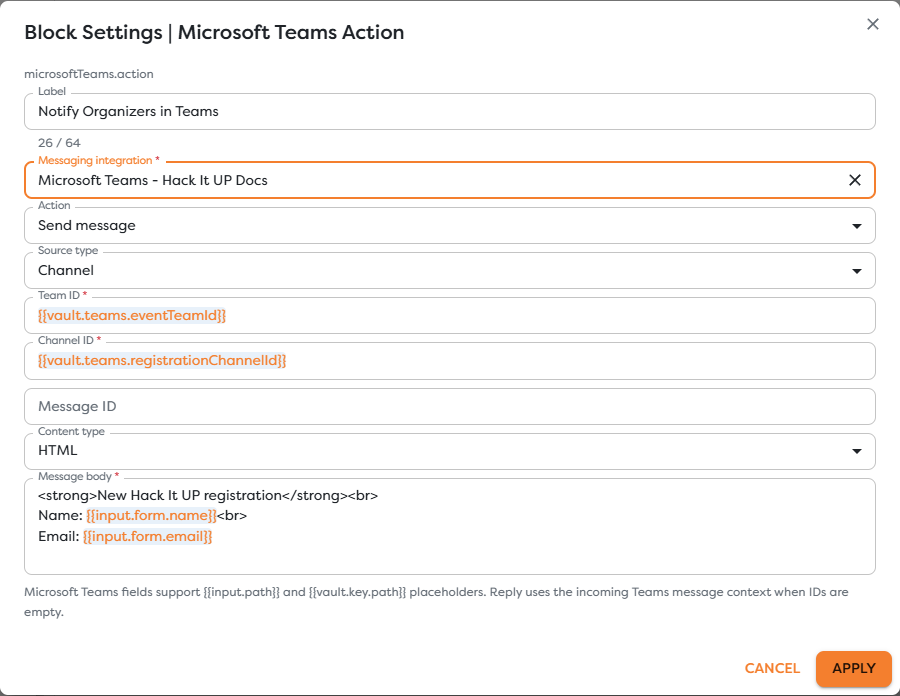
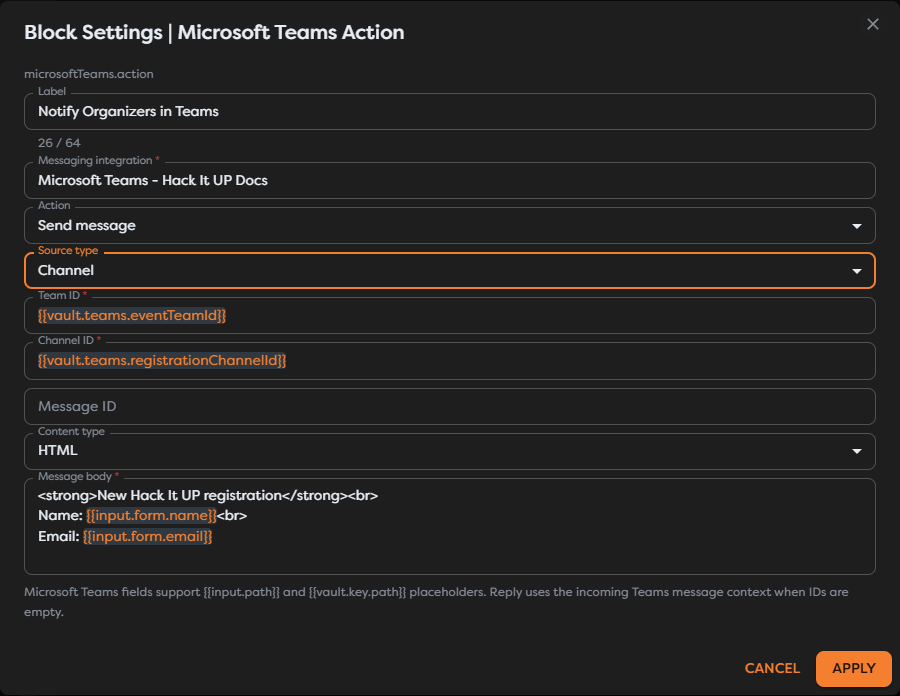
| Field | Required | Purpose |
|---|---|---|
| Label | Yes | Identifies the step in the graph, run trace, and logs. |
| Messaging integration | Yes | Selects the Microsoft OAuth account, tenant context, and optional default destinations. |
| Action | Yes | Chooses Send message, Reply, or Read messages. |
| Source type | Yes | Chooses Channel or Chat and changes the required destination fields. |
| Team ID | Channel | Identifies the team containing the channel. |
| Channel ID | Channel | Identifies the channel inside that team. |
| Chat ID | Chat | Identifies an existing one-to-one, group, or meeting chat. |
| Message ID | No | Supplies an existing Teams message identity when the selected operation needs a message target, especially a channel reply. |
| Content type | No | Selects HTML or Text for a message body; the default is HTML. |
| Message body | Send message and Reply | Supplies the body after template resolution. |
| Limit | Read messages | Caps the requested messages from 1 to 100; the default is 20. |
Teams fields support {{input.path}} and {{vault.key.path}} expressions. Use Designer autocomplete after inspecting real upstream output. Store fixed tenant resource IDs in General Vault, but pass a dynamic conversation ID from input when the workflow can target more than one destination.
The example uses:
Team ID: {{vault.teams.eventTeamId}}
Channel ID: {{vault.teams.registrationChannelId}}
and an HTML body:
<strong>New Hack It UP registration</strong><br>
Name: {{input.form.name}}<br>
Email: {{input.form.email}}
Choose Channel or Chat
Channel targets a conversation inside a team. Microsoft Graph addresses it with both a team ID and channel ID:
/teams/{team-id}/channels/{channel-id}/messages
Use stable Graph IDs rather than team or channel display names. A channel can be renamed without changing its ID.
Chat targets an existing chat directly:
/chats/{chat-id}/messages
Sending a chat message does not create a chat. Obtain the existing Chat ID from Microsoft Graph, trusted configuration, or inspected trigger context. Do not substitute a user email, Microsoft Entra user ID, or display name for a Chat ID.
The integration can define default team, channel, or chat IDs, but the current block form marks the identifiers for the selected source type as required. Configure them explicitly so the graph and its runtime contract remain understandable.
Send a message
Choose Send message, select Channel or Chat, and provide the corresponding IDs. Leave Message ID empty for a new top-level channel post or a new message in an existing chat.
For a channel destination, Microsoft Graph creates a new root chatMessage. For a chat destination, it appends a message to the selected chat. The response contains the provider message object and its ID when the operation succeeds.
Use Text for plain content. Use HTML only when formatting is required and produce valid, controlled markup. Microsoft documents both formats in its Teams messaging API overview.
Treat every interpolated value as untrusted. Escape values inserted into HTML so a form submission cannot alter links, formatting, or visible structure. The current block does not expose separate fields for the structured mentions, attachments, hosted content, importance, or subject properties of a Graph chatMessage. Typing @name or adding an <at> element alone does not create a reliable Graph mention.
Reply in a conversation
Choose Reply when the workflow responds to incoming Teams context. The form helper states that the action can use incoming Teams message context when IDs are empty, but the current validation still requires the destination identifiers for the selected source type. Prefer explicit IDs unless a tested, direct Microsoft Teams Trigger path supplies the normalized context.
For a Channel reply, preserve the root message ID together with its Team ID and Channel ID. Microsoft Graph uses a dedicated reply resource:
/teams/{team-id}/channels/{channel-id}/messages/{message-id}/replies
See send replies to a channel message. Do not use the ID of an unrelated reply or reconstruct a message ID from its timestamp or Teams URL.
For Chat, provide the existing Chat ID. Microsoft Graph sends messages to the chat collection and does not expose the channel reply endpoint for chats. Treat the result as a response in the same chat, not as proof of a channel-style threaded relationship.
Before enabling an automatic response:
- Inspect the exact input reaching Teams Action.
- Preserve Team ID, Channel ID, Chat ID, message ID, and tenant context as separate values.
- Reject edits, reactions, system messages, and other events that should not receive a reply.
- Filter messages created by the connected automation identity to prevent loops.
- Deduplicate the inbound Graph resource before producing the external effect.
Read messages
Choose Read messages and select the source type. Message body is replaced by Limit. Builders accepts values from 1 through 100 and starts at 20.
For Channel, provide Team ID and Channel ID. For Chat, provide Chat ID. Leave Message ID empty when the workflow intends to read a collection. Supply a Message ID only for a tested flow that intentionally targets the message-specific behavior of the current Builders version.
Microsoft Graph's channel list endpoint returns root messages without replies by default; replies are a separate collection or must be explicitly expanded. The chat list endpoint returns the messages in the selected chat. Inspect the actual block output before assuming that channel replies are included.
Graph can return fewer items than the Builders limit because of provider page limits, authorization, retention, or the number of available messages. The current Graph documentation limits $top to 50 for channel and chat list calls, while the Builders control accepts up to 100; Builders may need more than one provider page to satisfy a larger request. Treat the returned collection and continuation data as the source of truth.
The generic form keeps Message ID and Content type visible in Read messages mode. Content type does not filter existing message bodies. Inspect each returned message's own body.contentType instead.
Message results can contain names, IDs, HTML, mentions, reactions, attachments, hosted-content references, timestamps, and tenant context. Pass only the required fields to later blocks and avoid copying complete conversation history into logs or AI prompts by default.
Connect success and error paths
Connect Out only to work that should continue after Microsoft Graph accepts the operation. Connect Error to controlled logging, alerting, or recovery.
Preserve these values when available:
- Builders run ID;
- Microsoft tenant and connected account;
- Team ID and Channel ID or Chat ID;
- returned message ID and
replyToId; - Graph timestamps and web URL;
- sanitized Graph error code and request correlation ID;
- the business event used for duplicate control.
A successful send response means Graph created the message resource. It does not prove that every member saw the message or received a notification. Tenant policy, retention, moderation, and later deletion remain outside the block's success boundary.
Graph can throttle requests, and an OAuth or network timeout can be ambiguous. The first request may have created the message before Builders received the response. Correlate with the destination and business event before retrying; a blind retry can create a duplicate post.
Test Microsoft Teams Action
- Use a controlled Microsoft tenant, team, channel, and chat.
- Confirm that the integration passes Test connection and uses the intended work or school account.
- Verify granted consent and membership separately for channel send, chat send, channel read, and chat read.
- Run Send message to a test channel and retain the returned message ID.
- Run Reply against that root channel message and confirm its
replyToIdrelationship. - Run Send message in an existing chat and verify the connected account and chat members.
- Start a published run through Microsoft Teams Trigger and test the incoming-context reply path.
- Run Read messages with a small limit for both Channel and Chat.
- Test an inaccessible destination, missing permission, revoked consent, invalid ID, and throttled request through Error.
- Repeat the same business input and confirm that duplicate prevention works before publishing.
Test outbound actions and inbound Graph subscriptions independently. A successful Teams Action does not prove that a Microsoft Teams Trigger subscription exists, remains unexpired, or reaches the published workflow.
Troubleshoot Microsoft Teams Action
- The block is unavailable: create an active Microsoft Teams integration in the project's ownership scope, then disable Hide unavailable blocks while checking availability.
- No integration appears: verify its status, type, owner, team access, and the project owner shown in Builders.
- Microsoft authentication fails: reconnect the work or school account and review tenant policy, consent, conditional access, and token refresh health.
- Graph returns forbidden: compare the operation with the exact delegated permission and confirm that the connected user can access the destination.
- Team or channel is not found: preserve canonical Graph IDs and confirm that the channel belongs to the supplied team.
- Chat is not found: provide an existing Chat ID visible to the connected user; an email address or user ID is not a chat ID.
- A reply becomes a new root post: preserve the root Message ID and use Channel source with the correct Team ID and Channel ID.
- A chat response is not threaded: chat messages do not use the channel replies resource; verify the intended chat behavior.
- HTML renders incorrectly: validate the rendered body, escape dynamic values, and compare the markup with Teams messaging API support.
- Read messages omits channel replies: retrieve or expand the reply collection as supported by the current block and Graph API behavior.
- Read messages returns fewer records than Limit: inspect Graph paging, permissions, retention, source IDs, and returned continuation data.
- The workflow replies to itself: filter the connected account's messages and recorded outbound message IDs before the action.
- The same message appears twice: deduplicate before the action and resolve ambiguous timeouts before retrying.
Next steps
- Messaging Action Blocks
- Microsoft Teams Trigger
- Configure Messaging Integrations
- Use Template Expressions
- Reference General Vault Values
- Read Block Logs and Output
- Build a Messaging Assistant
Continue with WhatsApp Business Action to send, reply, use approved templates, and mark inbound messages as read through a configured Meta integration.