
Save File
Save File writes text or binary content to an internal drive or an integration-backed storage provider. It can also copy the canonical File produced by Read File, an upload trigger, or another file-aware block.
Configure Save File
- Add Save File from File System in Workflow Designer.
- Enter a descriptive label.
- Select the destination Storage type.
- For Google Drive, OneDrive, AWS S3, or Custom S3, select a compatible integration.
- Enter or pick the destination Path.
- Select the write Mode.
- Enter the Content template.
- Select Apply, save the draft, and run a controlled test.
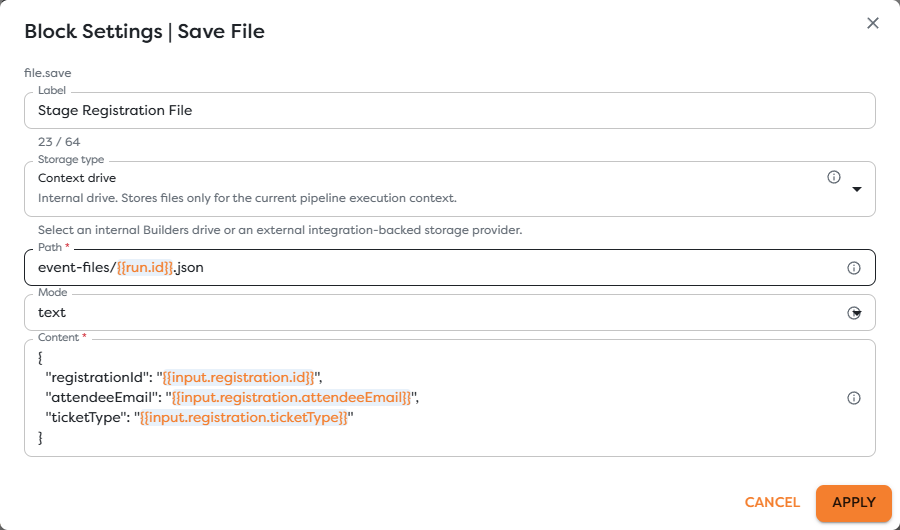
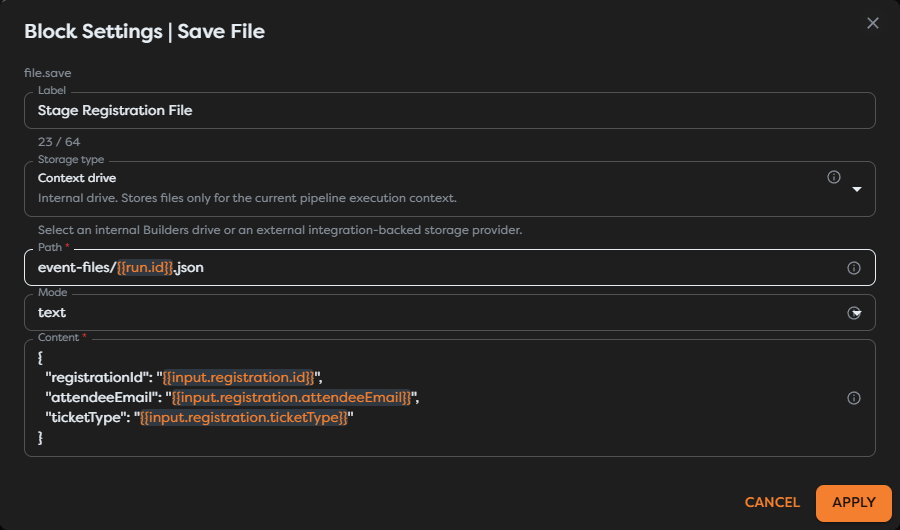
Select storage and integration
Context drive and Static drive are managed by Builders and do not require an integration. External storage requires an integration with write access:
| Selected storage | Required capability |
|---|---|
| Google Drive | drive.write |
| OneDrive | drive.write |
| AWS S3 | s3.write |
| Custom S3 | s3.write |
The integration owns the credentials and external provider configuration. For S3, keep the endpoint, region, bucket, and access keys in the integration; use the block's Path for the destination object key.
Read access does not imply write access. If an integration works in Read File but is absent or rejected in Save File, check its write capability and external account permissions.
Build the destination path
Use template values to make the destination unique or to group files:
event-registrations/{{run.id}}.json
For Google Drive and OneDrive, the path is resolved in the selected connected drive. For AWS S3 and Custom S3, it is an object key in the configured bucket. For Context and Static drives, it is a Builders file path.
Saving to an existing destination replaces that file. Include {{run.id}}, a source identifier, or a timestamp when each run must preserve a separate result.
The folder button can select a destination in Static drive or a supported external provider after its integration has been selected. Context drive paths are entered directly.
Choose a content mode
| Mode | Content requirement | Use for |
|---|---|---|
| text | String or template-rendered text, written as UTF-8 | JSON source, CSV, XML, HTML, logs, and plain text |
| binary/base64 | Base64-encoded content, decoded before writing | Images, PDFs, archives, and other binary payloads already represented as base64 |
| File reference | One canonical File value, supplied as an exact template | Copying a file while preserving its bytes and descriptor data |
Text mode does not serialize an arbitrary object automatically. Build the required text explicitly, as in this registration example:
{
"registrationId": "{{input.registration.id}}",
"attendeeEmail": "{{input.registration.attendeeEmail}}",
"ticketType": "{{input.registration.ticketType}}"
}
For binary/base64 mode, provide only the encoded payload expected by the field. Do not include a data: URL prefix unless the upstream value is specifically documented as a data URL and you remove that prefix before saving.
Copy a canonical File
Use File reference when an upstream block already provides a canonical File. The content must be an exact expression resolving to that File, not a JSON string containing it.
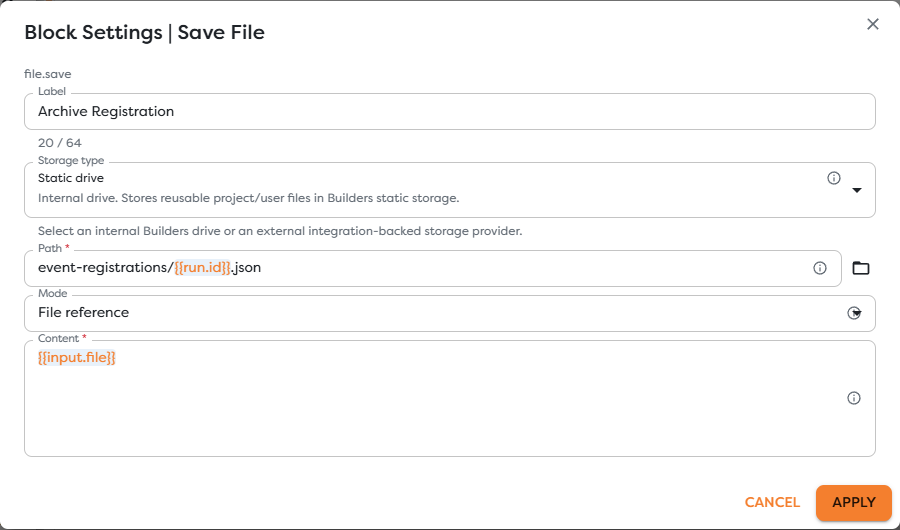
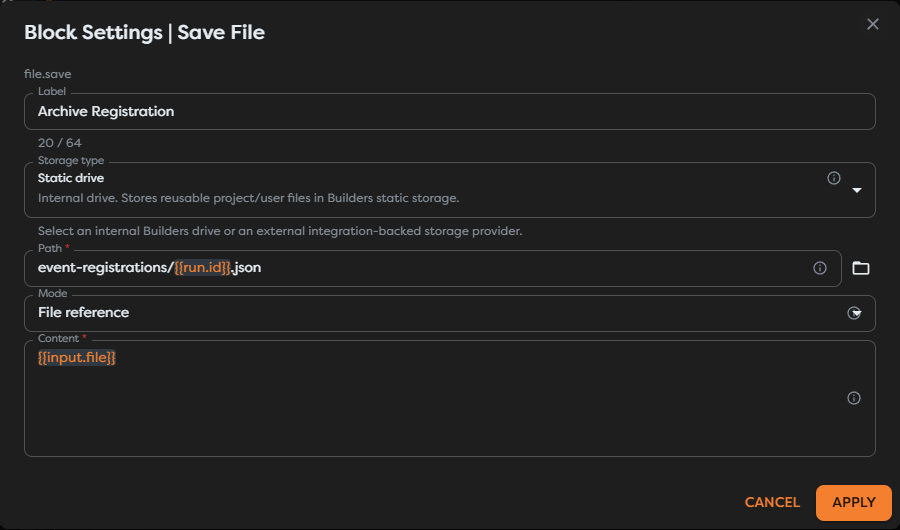
With a direct connection from Read File, use:
{{input.file}}
This is the clearest way to express the relationship between blocks and integrations:
- Read File uses the source integration's read permission.
- Builders exposes the result as a provider-independent File.
- The workflow edge passes that File to Save File.
- Save File uses the destination integration's write permission.
No credential or provider-specific client object travels through the workflow data.
Use the outputs
On success, Out passes a descriptor for the saved file so downstream blocks can log, return, or further process it. Inspect a test run before depending on provider metadata because external providers can expose different identifiers and metadata.
Save File also exposes Error. Connect it when the workflow must deliberately handle a failed write, for example by recording the failure, notifying an operator, or routing the item for retry. Keep the normal continuation connected to Out.
Test the write
- Run the workflow with representative content.
- Confirm that Save File reports
successand logs the rendered storage, path, and byte size. - Open the destination in Static drive or the external provider.
- Verify the filename, bytes, MIME behavior, and directory or object-key prefix.
- Run again with the same path to confirm that replacement is acceptable.
- Test a denied destination and verify the
Errorroute if the workflow uses one.
Troubleshoot Save File
- Path is required: enter a literal path or a template that resolves to a non-empty destination.
- Content is required: supply text, base64, or one canonical File according to the selected mode.
- Storage integration is required: select an external integration after selecting the storage type.
- Integration is unavailable: configure
drive.writeors3.writeaccess in the same ownership scope as the project. - File reference is rejected: use an exact expression such as
{{input.file}}; do not stringify or partially interpolate the File. - Binary output is corrupted: use binary/base64 mode and ensure the input contains valid base64 without unrelated formatting.
- The provider rejects the path: verify folder existence, bucket configuration, object-key rules, and the connected account's write permission.
- The wrong file was replaced: make the path unique with
{{run.id}}or another business identifier.