Folder
Workflow Designer
Workflow Designer is the visual editing surface for building a pipeline version from connected blocks. Use it to add workflow steps, arrange execution paths, configure data and resources, test changes, and prepare a version for publication.
How a workflow is structured
A workflow combines three elements:
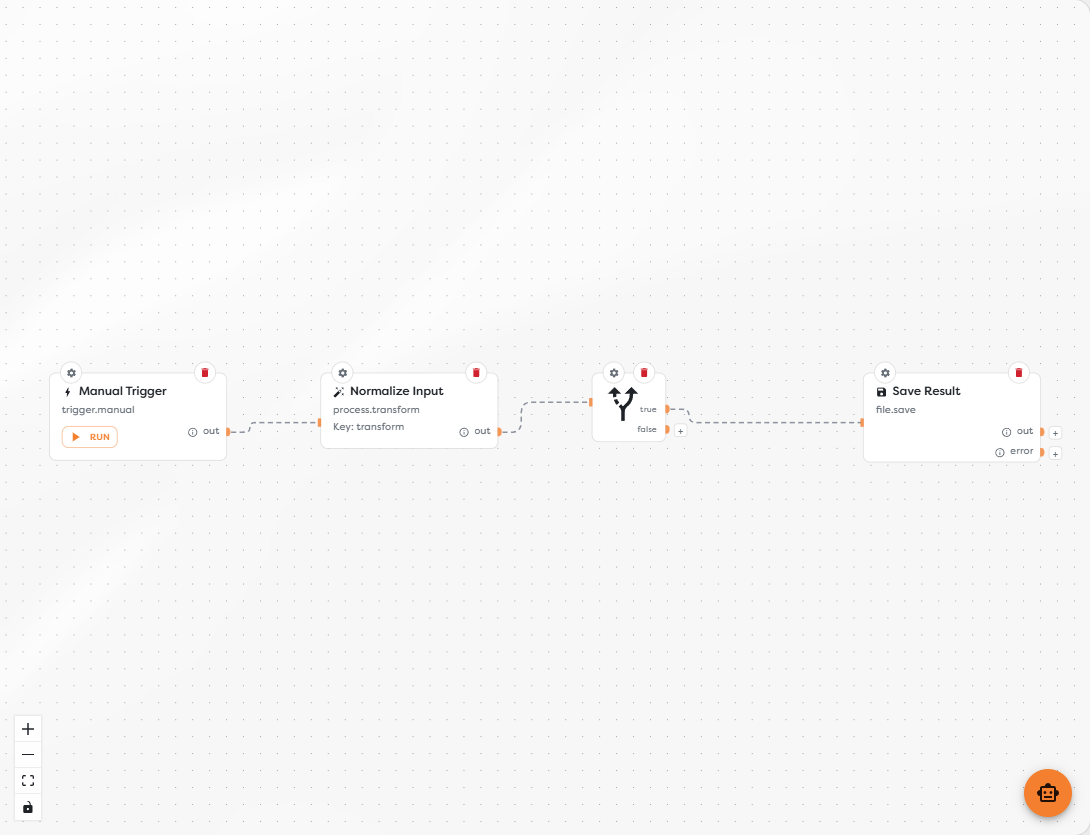
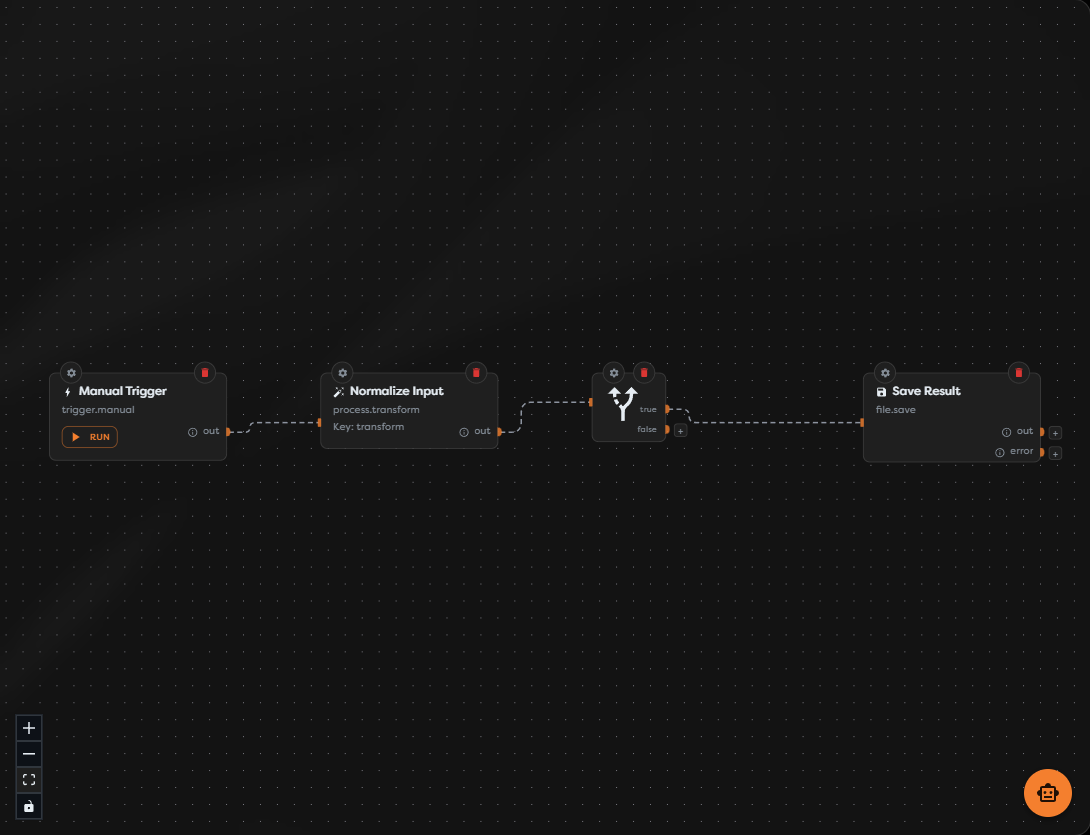
- Blocks perform individual tasks, such as receiving input, transforming data, evaluating a condition, calling an integration, or saving a result.
- Ports expose the inputs and named outputs available on each block.
- Links connect compatible ports and define the paths that a run can follow.
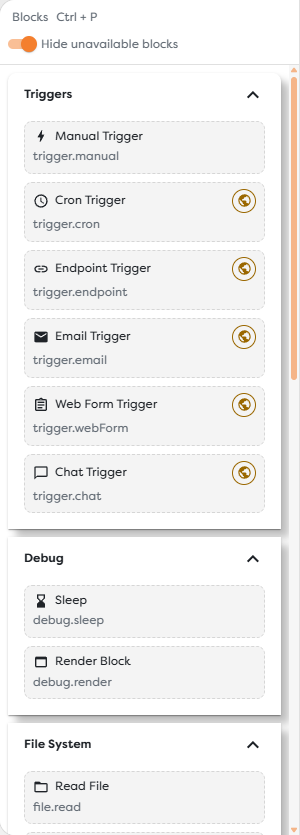
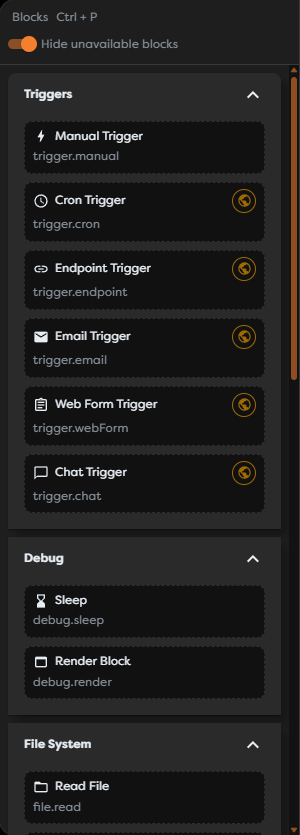
The block catalog is displayed beside the canvas. It groups available triggers, actions, conditions, flow controls, and decorative elements by purpose.
Editing lifecycle
Changes made on the canvas belong to the currently selected pipeline version. The usual editing cycle is:
- Add and connect the required blocks.
- Configure every block and resolve validation errors.
- Arrange the diagram and review each execution branch.
- Save the draft.
- Run a controlled test and inspect its result.
- Publish the tested version when it is ready for live traffic.
Saving does not publish a workflow. A published version is read-only and remains separate from later draft work until another version is published.
Start here
- Workflow Designer Overview explains the catalog, canvas, toolbar, ports, links, settings, navigation controls, and unsaved-change states.
- Add, Connect, and Configure Blocks walks through inserting blocks, wiring execution paths, resolving settings validation, and deleting blocks safely.
- Select, Copy, and Organize Blocks covers multi-selection, area selection, copy and paste, context menus, layout commands, and deleting a selection.
- Versions, Saving, and Publishing explains pending edits, save and rollback behavior, version creation and naming, publication status, and version deletion.
- Import and Export Workflow Schemas explains schema downloads, graph replacement, destination-scope validation, resource reconnection, and safe persistence of an imported draft.
- Collaborate on a Team Workflow in Real Time explains participant presence, remote selection colors, synchronized drafts, shared AI usage, edit conflicts, rollback impact, and final save ownership.
- Use the AI Designer Assistant explains AI source selection, workflow-scoped prompts, tool activity, deletion approval, shared team context, and review of unsaved AI changes.
- Use Template Expressions explains runtime input paths, General Vault references, run metadata, autocomplete, value types, and missing-path failures.
The next article will cover running and testing workflows.
Explore this folder
Workflow Designer OverviewWorkflow Designer is the visual workspace for building and maintaining a pipeline version.Add, Connect, and Configure BlocksBuild a workflow by adding blocks to a pipeline version, connecting compatible ports, and completing each block's required settings.Select, Copy, and Organize BlocksSelect one or more blocks when you need to move, copy, duplicate, or delete part of a workflow.Versions, Saving, and PublishingVersions separate work in progress from the workflow currently used by live triggers.Import and Export Workflow SchemasWorkflow schemas let you move a diagram between pipeline versions, projects, and ownership scopes.Collaborate on a Team Workflow in Real TimeReal-time collaboration lets permitted team members edit the same workflow diagram and see a shared draft before it is saved.Use the AI Designer AssistantThe AI Designer Assistant can inspect an editable workflow, answer questions about its structure, and prepare changes directly on the canvas.Use Template ExpressionsUse template expressions in supported block fields to reference upstream input, General Vault values, and current run metadata.