
Manual Trigger
Use a Manual Trigger to start a workflow deliberately from Builders. It is useful for controlled tests, operator-run processes, maintenance tasks, and published workflows that should run only after a user explicitly starts them.
This article uses the Documentation - Manual Trigger pipeline in the Hack It UP - event project. Its two trigger paths model attendee and speaker check-in.
Add and configure the trigger
Drag Manual Trigger from the Triggers section of the Designer block catalog onto the canvas. Open the block settings and configure:
- Label: a specific action such as
Start Attendee Check-in; - Initial body (JSON): the payload that should become the trigger output when the block runs.
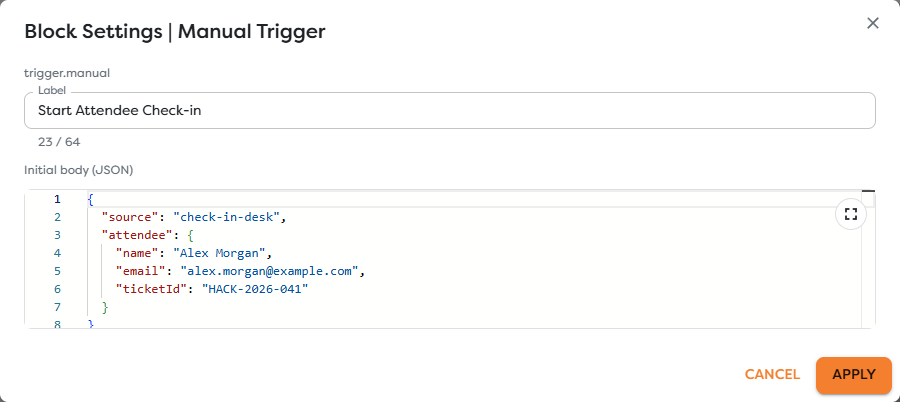
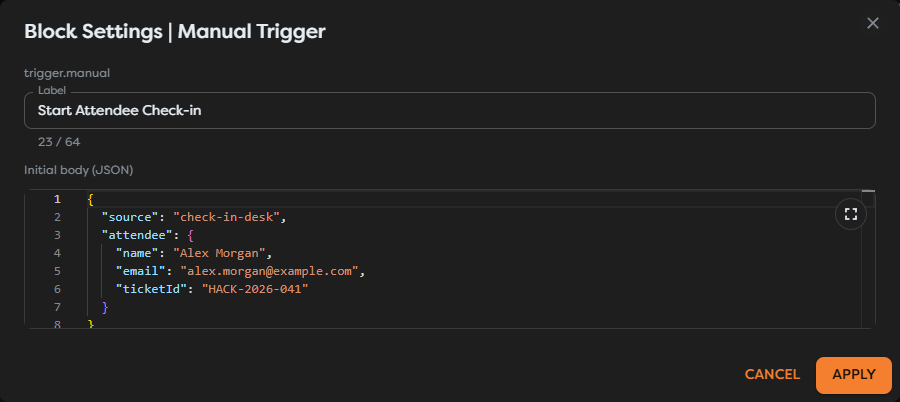
The initial body must be valid JSON. Objects, arrays, strings, numbers, booleans, and null keep their JSON types. Use a representative but non-sensitive example:
{
"source": "check-in-desk",
"attendee": {
"name": "Alex Morgan",
"email": "alex.morgan@example.com",
"ticketId": "HACK-2026-041"
}
}
Select Apply, then save the workflow version. Applying closes the settings dialog and changes the draft; it does not persist the version by itself.
Use the initial body downstream
The parsed initial body is emitted through the trigger's Out port. The first connected block receives it as input, so its fields can be referenced with expressions such as:
| Value | Expression |
|---|---|
| Event source | {{input.source}} |
| Attendee name | {{input.attendee.name}} |
| Attendee email | {{input.attendee.email}} |
| Ticket ID | {{input.attendee.ticketId}} |
The initial body is not a schema declaration. A downstream expression still fails or resolves without the expected value when the actual object does not contain that path. Keep the example aligned with the data shape required by the connected path.
Choose the intended manual path
A workflow can contain more than one Manual Trigger. Each trigger has its own label, workflow block ID, initial body, and connected path.
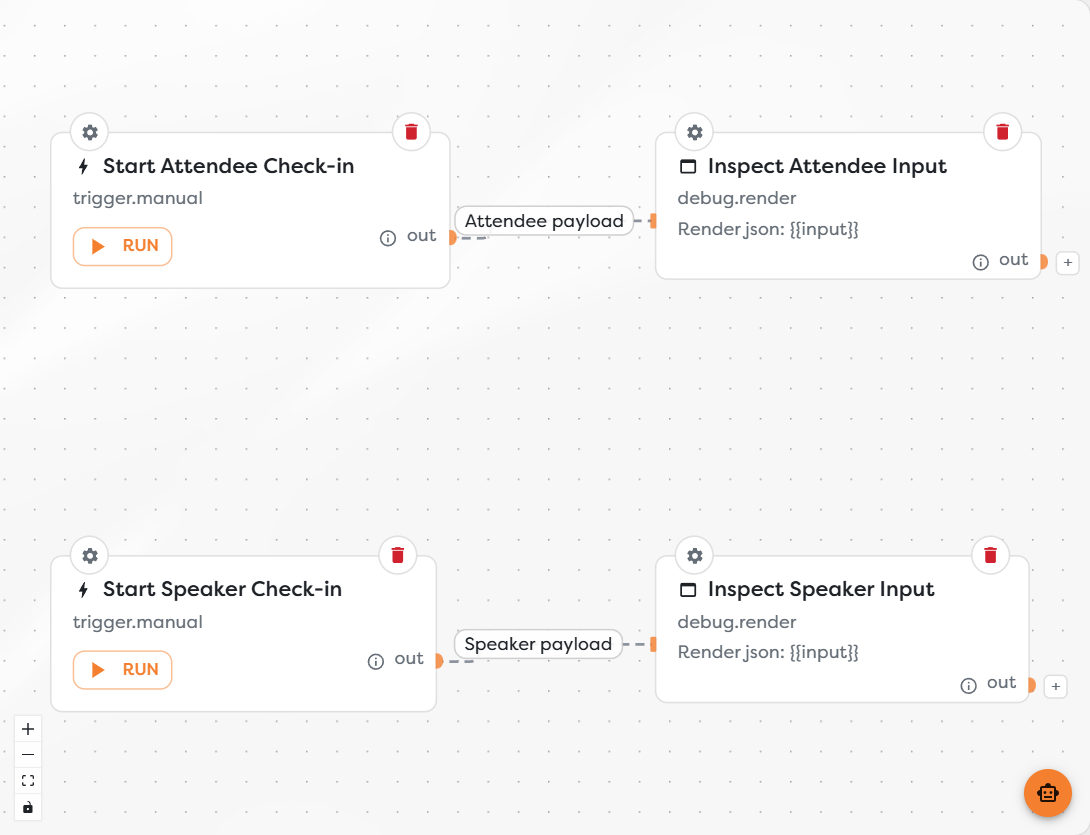
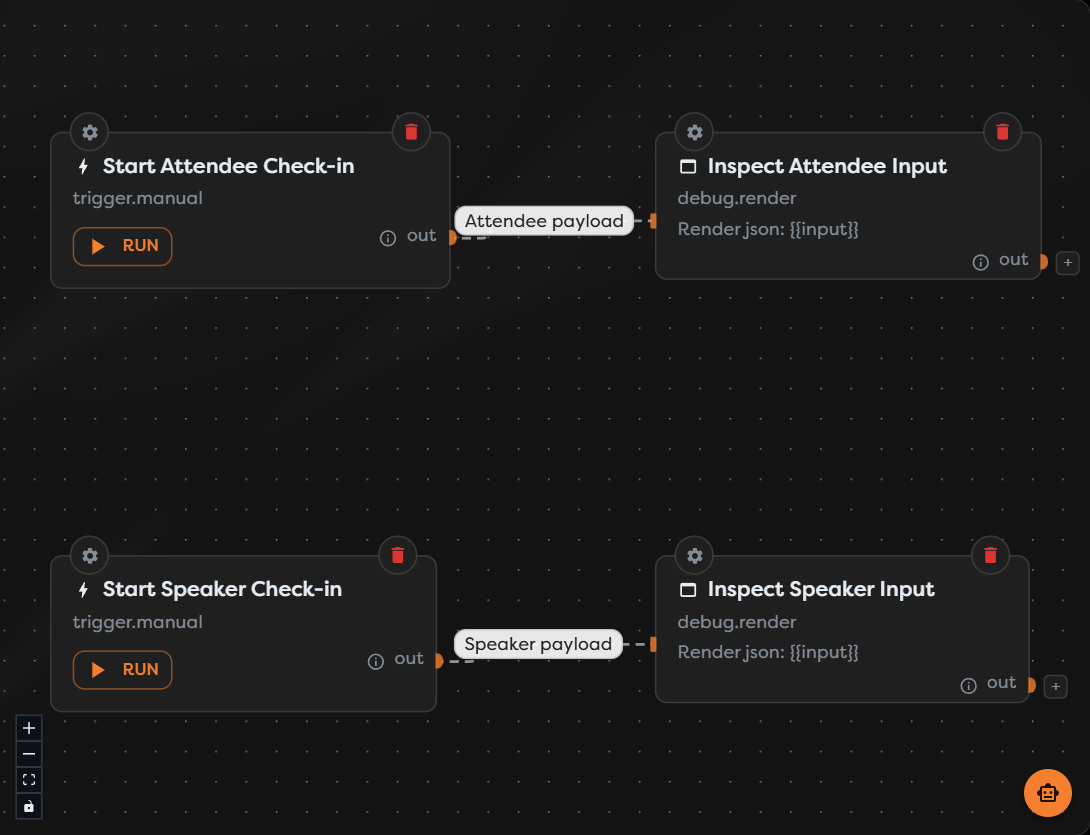
In the example:
Start Attendee Check-inhas the block IDmanual-attendeeand starts the attendee path;Start Speaker Check-inhas the block IDmanual-speakerand starts the speaker path.
Select Run on the trigger block that owns the input and path you want to execute. Builders uses that selected trigger block ID to disambiguate manual entry points. It does not run every Manual Trigger in the diagram.
Use distinct labels when several manual triggers exist. The label makes the choice understandable to an operator; the block ID identifies the exact node in run details and remains the reliable value when labels are similar.
Run a Designer test
Before selecting Run:
- Apply all block settings.
- Save the selected workflow version.
- Confirm that the initial JSON contains safe test data.
- Review the selected path for email, database, API, file, or other external effects.
- Select Run on the intended Manual Trigger.
The run inspector opens immediately. Wait until the run has a finish time and terminal status, then read the execution list from top to bottom.
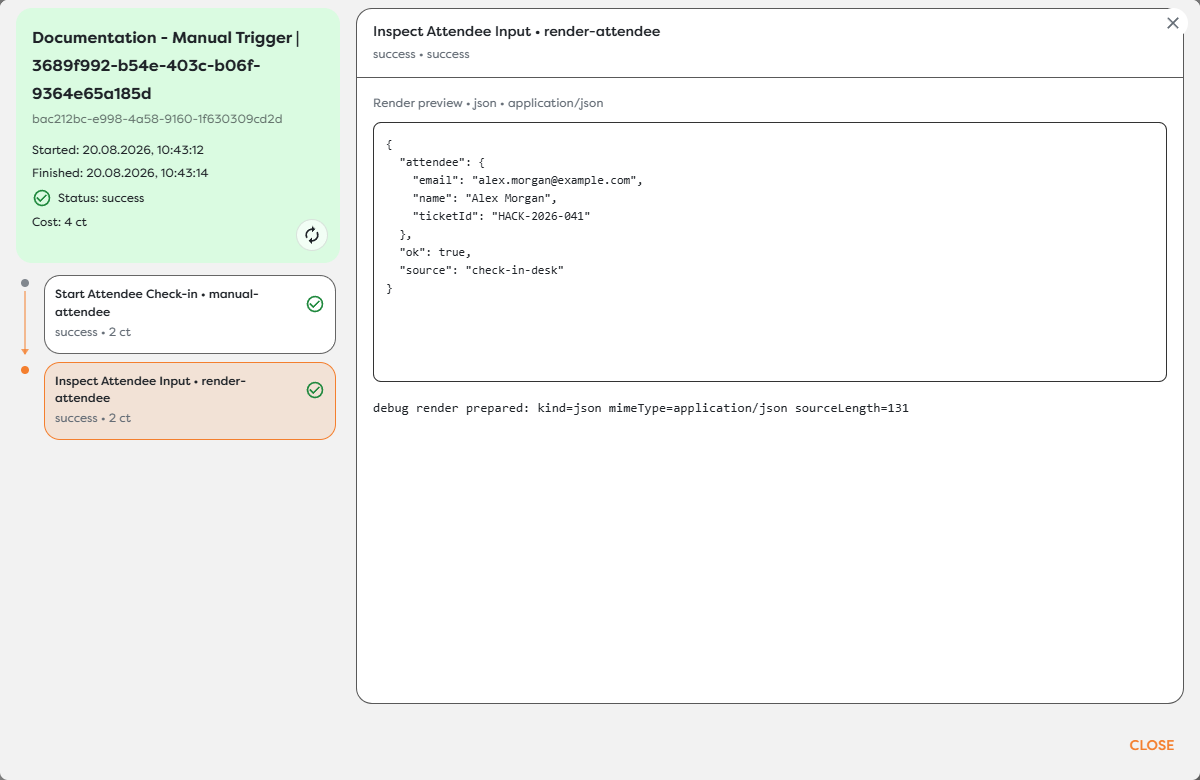
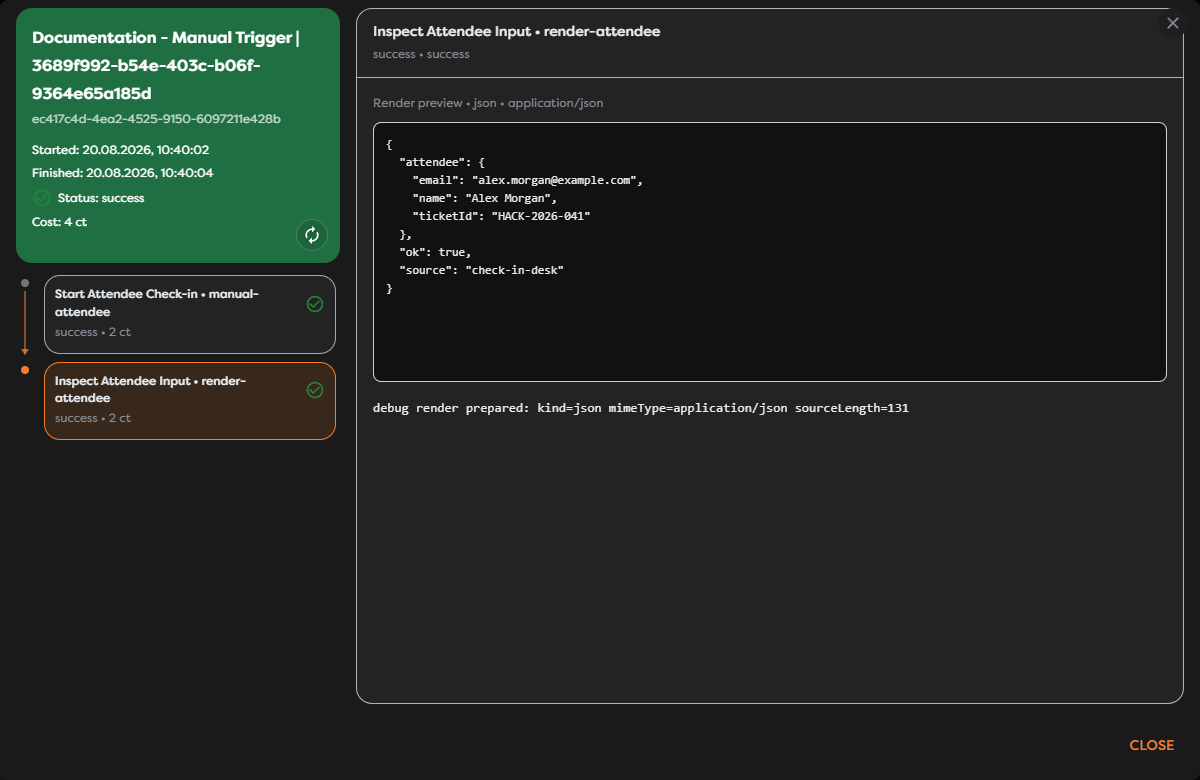
The example run identifies Start Attendee Check-in as manual-attendee, followed by Inspect Attendee Input as render-attendee. The Render preview confirms that the downstream block received the configured attendee object. The runtime may also add fields such as ok to the trigger result; build downstream expressions against the fields your workflow actually requires and verify them in a controlled run.
A Designer run is a real test execution, not a visual simulation. Reached blocks consume credits and can perform real side effects. Closing the inspector does not cancel an active run.
Inspect trigger output and downstream input
When checking a manual path:
- Confirm the pipeline and run ID in the inspector header.
- Select the Manual Trigger execution and verify its label, block ID, state, and messages.
- Select the first downstream execution.
- Compare its rendered or logged input with the initial body.
- Continue through the path until the expected business result is confirmed.
Use a Render Block with {{input}} when you need a human-readable view of the complete value during development. Remove or restrict debug output before using sensitive production data.
The green run status confirms that reached blocks completed. It does not by itself prove that the payload was semantically correct or that an external system produced the intended result.
Understand saved, test, and published behavior
Manual execution depends on where it is started:
| Context | Version used | Result |
|---|---|---|
| Run on a Designer trigger | The selected saved workflow version | Creates a test run for that trigger block and initial body. |
| Trigger run in the Runs view | The currently published workflow version | Creates a non-test manual run after the operator selects the available Manual Trigger. |
Unsaved Designer changes are not a reliable test boundary. Save before running so that the version, trigger ID, body, and connected path shown in Designer match the workflow definition being executed.
Publishing a version does not make Manual Trigger an anonymous HTTP endpoint or scheduled source. It makes that version available for an explicit published manual run from Builders. Use Endpoint Trigger for requests from applications and Cron Trigger for scheduled execution.
Later draft changes do not alter the published version. To change the body or path used by published manual runs, save and test a new version, then publish that version.
Design safe manual operations
- Give the trigger an action-oriented label that describes the operation, not just
Manual Trigger. - Use separate triggers when operator choices require different input shapes or downstream permissions.
- Put harmless defaults in the initial body and keep secrets in integrations or General Vault.
- Add validation near the trigger before expensive or irreversible actions.
- Preserve a business identifier such as a ticket, request, or maintenance task ID for correlation.
- Make repeated operations idempotent when an operator might select Run or Trigger run twice.
- Use
{{run.id}},{{run.isTest}}, and{{run.triggerType}}when an audit record must distinguish executions.
Troubleshoot Manual Trigger
- Run starts the wrong path: close the inspector, locate the intended Manual Trigger, and select Run on that block. Compare its label and block ID with the execution list.
- The body cannot be applied: correct JSON syntax, including quotes, commas, brackets, and braces.
- A downstream value is missing: inspect the complete trigger output and compare the expression with the exact nested path and letter casing.
- Recent changes are absent: apply the settings and save the selected workflow version before starting another run.
- Only the trigger appears: verify that its Out port is connected to the first executable block and that the edge belongs to the selected trigger.
- A test caused a real side effect: treat Designer tests as real executions and use controlled accounts, recipients, records, and endpoints.
- A published manual run uses older behavior: verify which workflow version is marked Published. Saving a newer draft does not replace it.
- The operation ran twice: find both run IDs and make the downstream action idempotent before allowing another operator retry.