
Import and Export Workflow Schemas
Workflow schemas let you move a diagram between pipeline versions, projects, and ownership scopes. An export captures the graph currently displayed in Designer; an import replaces the current graph with the file's nodes, connections, positions, and block configuration. This article uses the new Documentation - Import Export pipeline in the Hack It UP - event project.
Export the current workflow
Open the required pipeline version and select Export workflow schema in the Designer toolbar. The browser downloads a JSON file named from the pipeline and version.


The exported file identifies the Builders workflow schema version and includes source metadata, nodes, edges, positions, labels, and block configuration. Export uses the graph currently displayed in Designer, including pending edits that have not yet been saved. This makes it useful as a checkpoint before a large change, but it does not save those edits in Builders.
Treat the file as operational configuration. Review it before sharing because block settings can contain URLs, addresses, expressions, paths, public access tokens, and other environment-specific values. Credentials held separately in Integrations or General vault are not made portable simply because a block references them.
Choose the target scope before importing
Open the destination project, pipeline, and version before selecting Import workflow schema. The owner of the destination project determines which team or personal resources the imported blocks can use.
Import is a graph replacement, not a merge. Before continuing:
- Confirm the project and pipeline in the breadcrumb.
- Export the current target graph when you may need to restore it later.
- Save or deliberately discard any pending target changes.
- Select Import workflow schema and choose the exported JSON file.
Builders loads the diagram into the open version and reports that the version must be saved to persist it. The imported graph is still a draft: Rollback and Save become available, and leaving without saving discards the imported state.


The source pipeline and version are not modified. If the imported draft is exported again, the new file uses the destination pipeline's metadata and the graph currently shown there.
Review unavailable resource references
Resources are resolved in the destination scope. A reference that is not available to the destination project is removed instead of granting access to the original resource. The affected block remains in the diagram, but its settings become incomplete.
This commonly applies to:
- integration connections,
- databases and database connections,
- Static Drive or other scoped storage,
- General vault values,
- AI agents or provider configuration,
- team-owned resources that are not shared with the destination project owner.
Open every affected block and select an equivalent resource available in the target scope. The example below preserved the email content and expressions, but the unavailable email integration was removed. The block now reports that Email integration is required.
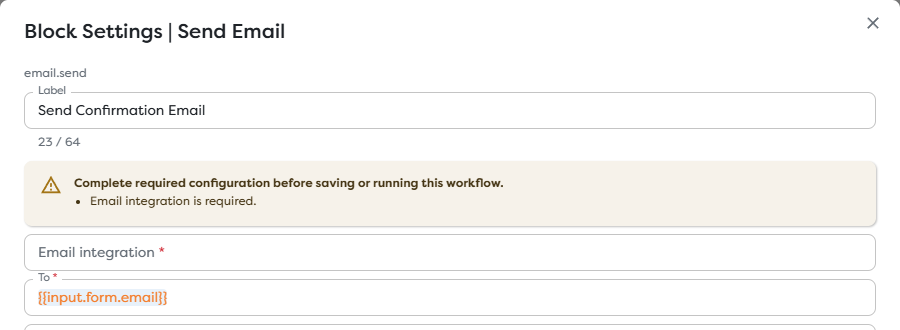
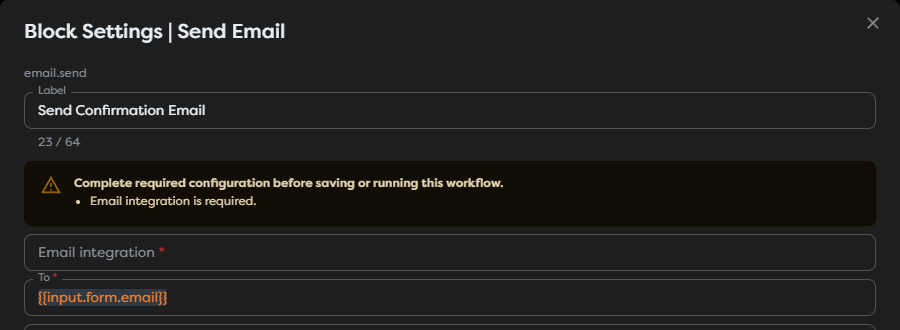
Do not assume that a matching display name proves access to the same resource. Confirm the destination owner, connection, account, database, folder, or vault entry explicitly.
Resolve validation by block
Review each imported block even when the canvas looks complete. Builders reports missing required configuration in the block settings, and saving or running can direct you to an incomplete block.
For each block:
- Open its settings from the gear action.
- Read the validation summary at the top of the dialog.
- Reconnect missing resources and replace environment-specific values.
- Check template expressions against the imported upstream outputs.
- Select Apply, then continue until no block reports required configuration.
Also inspect disconnected nodes, named condition branches, error paths, public trigger authentication, file paths, recipients, endpoints, and timeouts. Import validation cannot confirm that an available resource is the operationally correct choice.
Save the imported workflow safely
Complete the transfer in the destination version:
- Review the full diagram and use Fit View or Auto layout when needed.
- Resolve every block-level warning and confirm all connections.
- Select Save to persist the imported draft.
- Run a controlled test with non-production data.
- Inspect the run output and external effects.
- Publish only after the saved version behaves correctly in the destination scope.
Saving does not publish the version. Keep the existing published version active while the imported draft is being reviewed whenever the pipeline must continue serving live triggers.