
Move Pipelines and Change Project Ownership
Builders provides two ownership-sensitive operations. Move to project moves one pipeline into another project. Change ownership changes the user or team scope of an entire project and every pipeline it contains.
Neither operation copies credentials, Vault values, database connections, AI agents, or Static Drive files. Prepare compatible destination resources before changing scope.
Choose the correct operation
| Goal | Operation | Scope of change |
|---|---|---|
| Place one pipeline in another existing project | Move to project in Pipeline settings | The selected pipeline |
| Change a personal project into a team project | Change ownership in Project settings | The project and every pipeline it contains |
| Return a team project to the current user's personal scope | Change ownership in Project settings | The project and every pipeline it contains |
| Move several pipelines but keep the source project in its current scope | Move each pipeline separately | One pipeline per confirmed move |
Renaming a project or pipeline is not an ownership change. Use the dedicated ownership action so Builders can apply access, budget, and resource rules.
Confirm transfer permission
Ownership transfer is narrower than ordinary administration:
- the owner of a personal project can transfer its project or pipelines;
- only Team Owner can transfer a team project or a pipeline out of it;
- Team Leader, Designer, and Viewer cannot transfer team projects or pipelines;
- access to the destination does not replace the required transfer permission in the source scope.
The destination team must exist in the main Boilerplate Team workspace and have access to Builders. A team offered by the project ownership selector is one the current account can own in Builders.
Prepare the destination
Treat a transfer as a dependency migration. Before opening either dialog:
- Inventory every integration, General Vault key, database connection, AI agent, and Static Drive path used by the affected pipelines.
- Record published triggers, provider callbacks, public addresses, active runs, and scheduled executions.
- Create approved replacement resources under the destination owner.
- Copy required Static Drive files into the destination drive and preserve intentional paths.
- Recreate Vault entries without exposing secure values in drafts, exports, or logs.
- Verify provider scopes, database network access, AI provider billing, and destination credentials.
- Confirm that the destination budget, storage, project, pipeline, and concurrent-run limits allow the workflow.
- Export the workflow schema as a configuration reference and record the currently published version.
- Let active runs finish or cancel them deliberately before the maintenance window.
An exported schema does not contain copies of reusable resources or secure values. It is a recovery reference, not a self-contained backup of the destination environment.
Move one pipeline to another project
- Open Projects and enter the project that currently contains the pipeline.
- Open the pipeline's Settings action.
- Select Move to project.
- Choose a different eligible destination project.
- Read any access warning shown for the selected destination.
- Select Move once the destination and maintenance plan are confirmed.
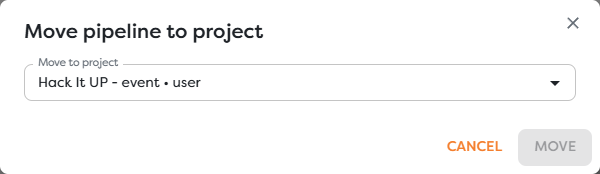
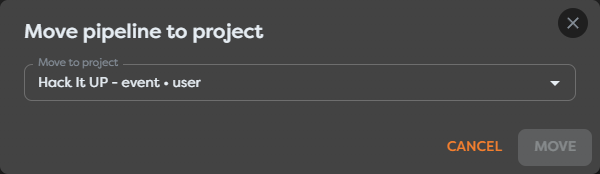
The current project is not a valid destination, so Move remains disabled until another project is selected. The destination label includes its project name and owner context; verify both instead of relying on a similar display name.
Builders can show these access warnings before confirmation:
| Transition | Warning meaning |
|---|---|
| Team project to the current user's personal project | Members who can see the team pipeline now will lose access |
| Current scope to a project owned by another team | The transferring user can lose access to pipeline settings and deletion after the move |
Moving updates the pipeline's project membership. Its pipeline ID remains the identifier for the same pipeline, but its inherited owner scope becomes the destination project's scope.
Respond to removed resource references
When a moved pipeline references resources unavailable to the destination project, Builders removes those references. The completion message reports how many unavailable resource references were removed and states that affected blocks must be configured again.
This protection prevents a workflow from retaining access to private or unrelated team resources. It can affect:
| Dependency | Required destination repair |
|---|---|
| Integration | Select a compatible destination-owned connection and verify provider callbacks and scopes |
| General Vault | Recreate the key in the destination scope and reselect or verify its template reference |
| Database connection | Select the destination connection and test network, SSL, and database permissions |
| AI agent | Select an approved destination model connection and verify provider billing and tools |
| Static Drive | Copy required files, select the destination drive, and verify paths |
Moving the pipeline back later does not recreate a reference that was already removed. Restore it manually from the migration inventory or exported configuration, then test it again.
Change a project's owner
- Open Projects.
- Open the project's Settings action.
- Select Change ownership.
- Choose
Userfor the current user's personal scope orTeamfor team ownership. - When
Teamis selected, choose the intended team from the Team field. - Confirm the owner type and team, then select Confirm.
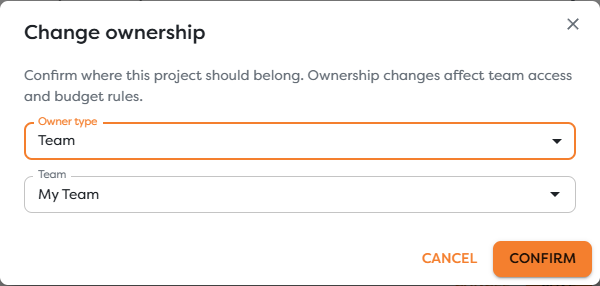
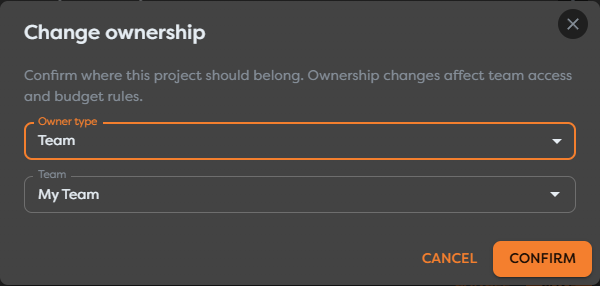
The dialog warns that ownership changes affect team access and budget rules. The project keeps its pipelines, but they all begin inheriting the new project owner scope.
Changing project ownership can therefore change at once:
- who can find, open, edit, run, publish, or administer every pipeline;
- which integrations and data resources are compatible with those pipelines;
- which personal or team compute-token budget funds new runs;
- which storage and product limits apply;
- which maintainers can respond to production failures.
Do not use project ownership change merely to share one pipeline. Move that pipeline into a prepared team project when the other pipelines should remain personal.
Validate the destination immediately
After either operation:
- Open the destination project and confirm its Owner type and Owner.
- Confirm that the moved pipeline appears in the intended project and that unrelated pipelines remain in place.
- Record any removed-reference count reported by Builders.
- Open every affected block, including blocks that do not yet show a visible error.
- Select destination-owned integrations, Vault entries, databases, AI agents, and drives.
- Verify template expressions, file paths, trigger addresses, provider callbacks, and secret-key names.
- Save the repaired draft and run controlled tests with non-production data.
- Inspect block input, output, logs, provider-side effects, and budget consumption.
- Publish only after the destination draft is complete.
- Exercise each live trigger and monitor the first production runs.
Do not assume that a successful move disables or repairs a published trigger. Treat every published version as a production dependency until its behavior in the destination has been verified.
Roll back a failed migration
If the destination cannot be made operational within the maintenance window:
- Stop new trigger traffic where the provider or workflow allows it.
- Record the current errors and every reference already repaired.
- Move the pipeline back or restore the project's previous owner only when the current account still has transfer permission.
- Reconnect references removed during either transition; reversing the owner does not restore them automatically.
- Test and republish the recovered workflow.
- Verify provider callbacks, schedules, and public trigger behavior.
- Keep destination resources until the recovered production path is stable.
If moving to another team's project would remove your ability to administer the pipeline, arrange a destination Team Owner to complete validation or rollback before confirming the move.
Troubleshoot transfer failures
- Change ownership is missing: confirm that the personal owner or Team Owner opened Project settings.
- Move to project is missing: the current role lacks pipeline transfer permission in the source project.
- The intended team is absent: confirm Team Owner status and the team's access to Builders in the main Team workspace.
- The intended project is absent: confirm that it exists, is visible to the current account, and is an eligible destination.
- Move is disabled: select a project different from the current project.
- The pipeline disappeared from the source list: open the selected destination project; a successful move removes it from the source project's list.
- Builders reports removed references: reopen affected blocks and select compatible destination-owned resources.
- A member lost access: verify the destination project owner, team membership, team Builders access, and the member's role.
- Runs fail after transfer: check resource selection, provider authorization, Vault keys, file paths, network access, budget, and limits.
- Moving back did not restore configuration: removed references must be recreated and selected manually.