
Test Runs in the Designer
Use a test run to execute a saved workflow version from the Designer before publishing it. A test run follows the configured graph, records block-level states and cost, and lets you inspect runtime messages without making the selected version public.
This article uses the unpublished Documentation - Test Runs pipeline in the Hack It UP - event project.
Prepare a controlled test
Before starting the run:
- Select the pipeline version you intend to test.
- Apply any open block settings and save the workflow.
- Use controlled input that is safe to process.
- Check the path for blocks that can send email, write data, call an API, or perform another external action.
- Confirm that the account has enough credits for the expected execution.
A test run is not a simulation. Blocks on the selected path execute normally and can create real side effects. Use test resources, recipients, and payloads where appropriate.
Start from the intended trigger
Trigger blocks provide their own Run action. Select the trigger that represents the path and input you want to test, then choose Run on that block.


The trigger matters when a workflow has more than one entry point. Starting a Manual Trigger does not validate the payload or behavior of an Endpoint, Cron, Email, or Web Form Trigger. Test each entry path separately with representative input.
The run details dialog opens after the request starts. Its header identifies the pipeline and project, and the UUID below the title identifies this run.
Read a running test
The run header reports:
- Started and Finished timestamps;
- the overall run Status;
- accumulated Cost in credits;
- Cancel while the run remains active.
The left column lists block execution instances in execution order. Select an entry to inspect its details and runtime messages in the right panel.
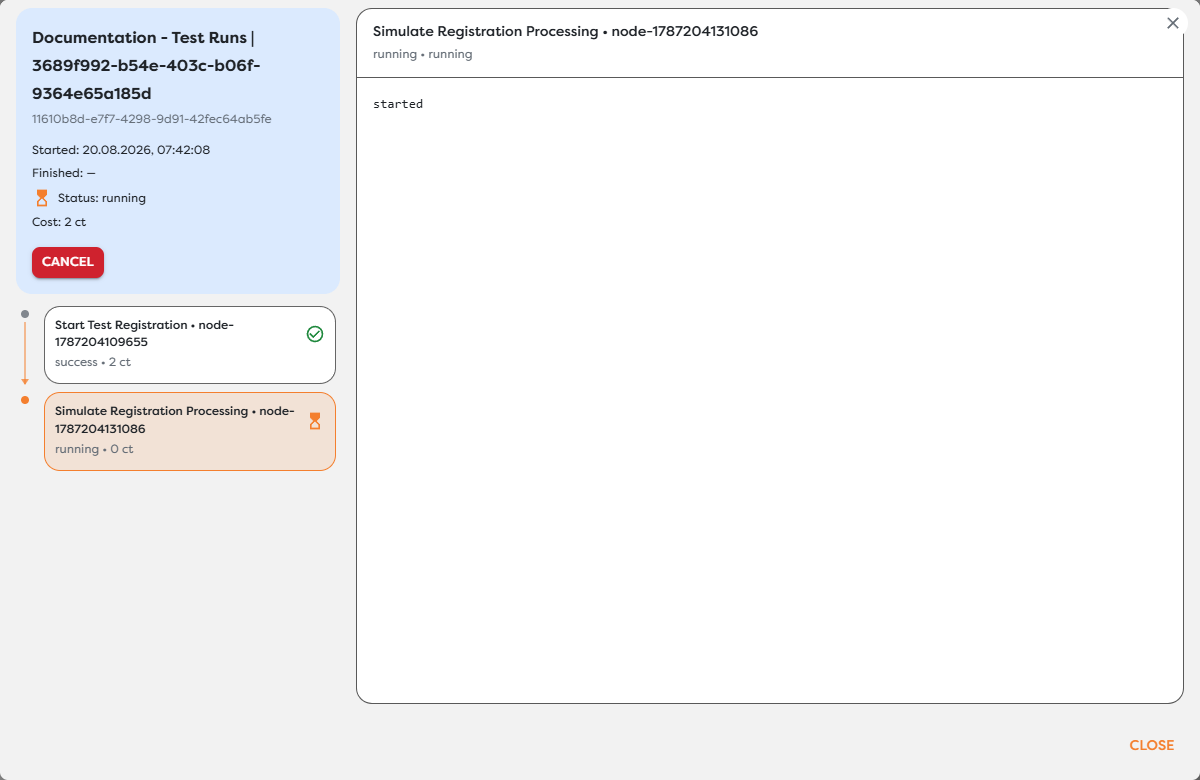
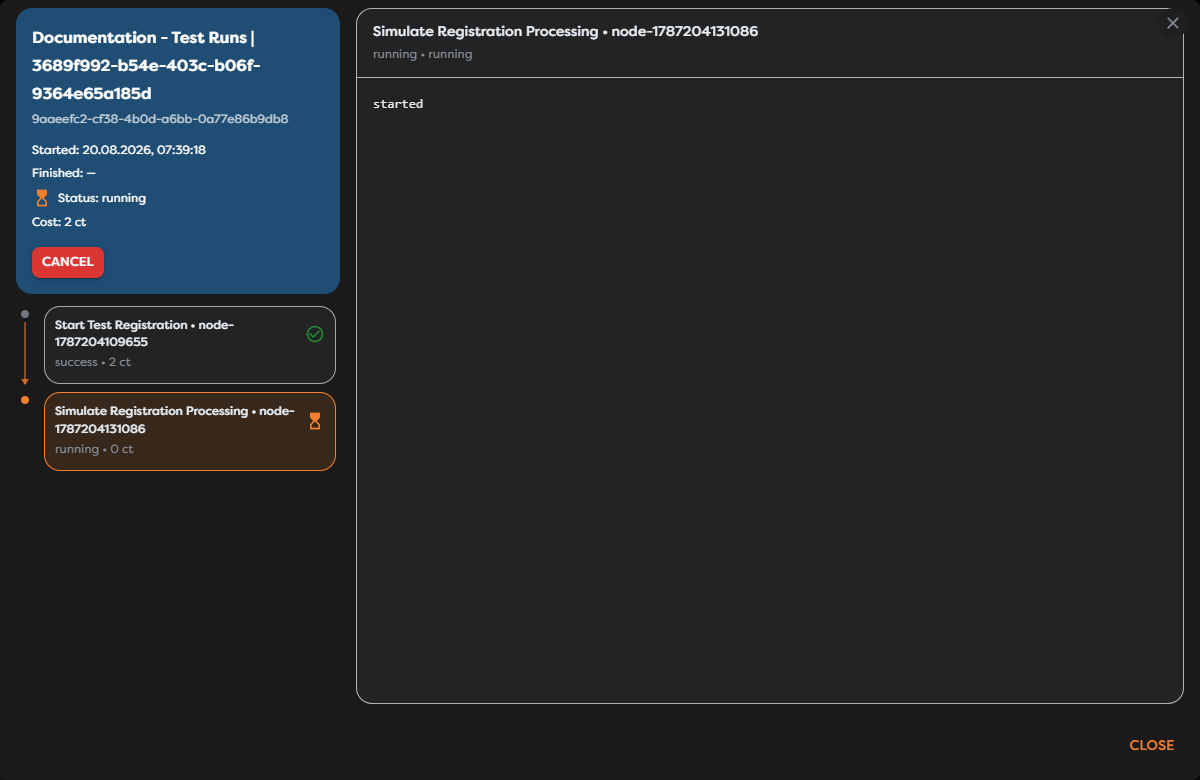
In the example, Start Test Registration is already success while Simulate Registration Processing is running. The run remains running, its finish time is empty, and the active block displays the hourglass state.
Use block states as follows:
| Block state | Interpretation |
|---|---|
running | The selected execution instance has started but has not reached a terminal state. |
success | The block completed and its downstream path may continue. |
failed | The block stopped with an error; select it and read its messages first. |
cancelled | Execution stopped because the run was cancelled. |
The run summary and block list refresh while the test is active. A completed block can appear before the header changes to the final run state, so wait for a finish time and terminal status before treating the test as complete.
Distinguish repeated executions
The identifier shown after a block label, such as node-..., identifies the block in the workflow definition. A loop, repeated branch, or re-entry can execute that same block more than once, creating multiple execution entries with the same node identifier.
Treat each entry as a separate execution instance. Use its position in the execution list, state, cost, and messages to identify the occurrence you are investigating. When correlating data outside the dialog, keep both the run UUID and the execution instance identifier; a block label or node identifier alone is not unique enough for repeated work.
Inspect the completed path
Wait until the header shows a finish time and a terminal status. A successful run displays every completed execution in the left column. Selecting an entry opens its result category and runtime messages.
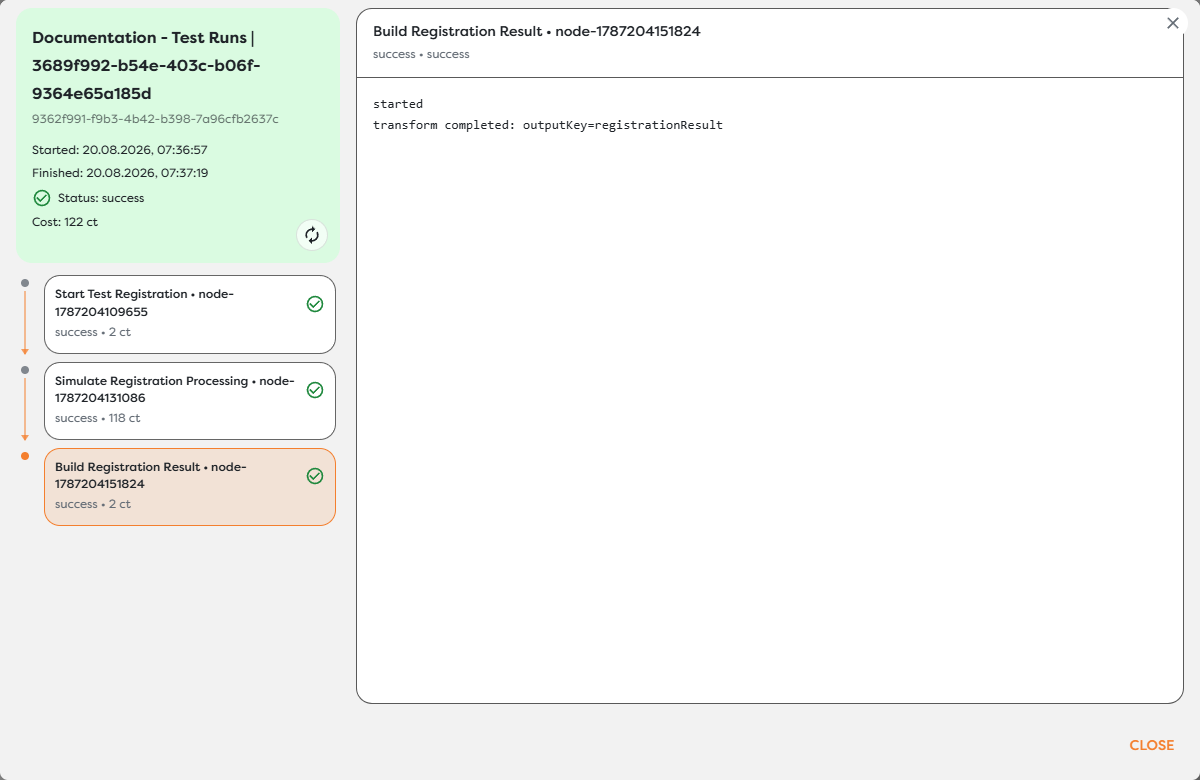
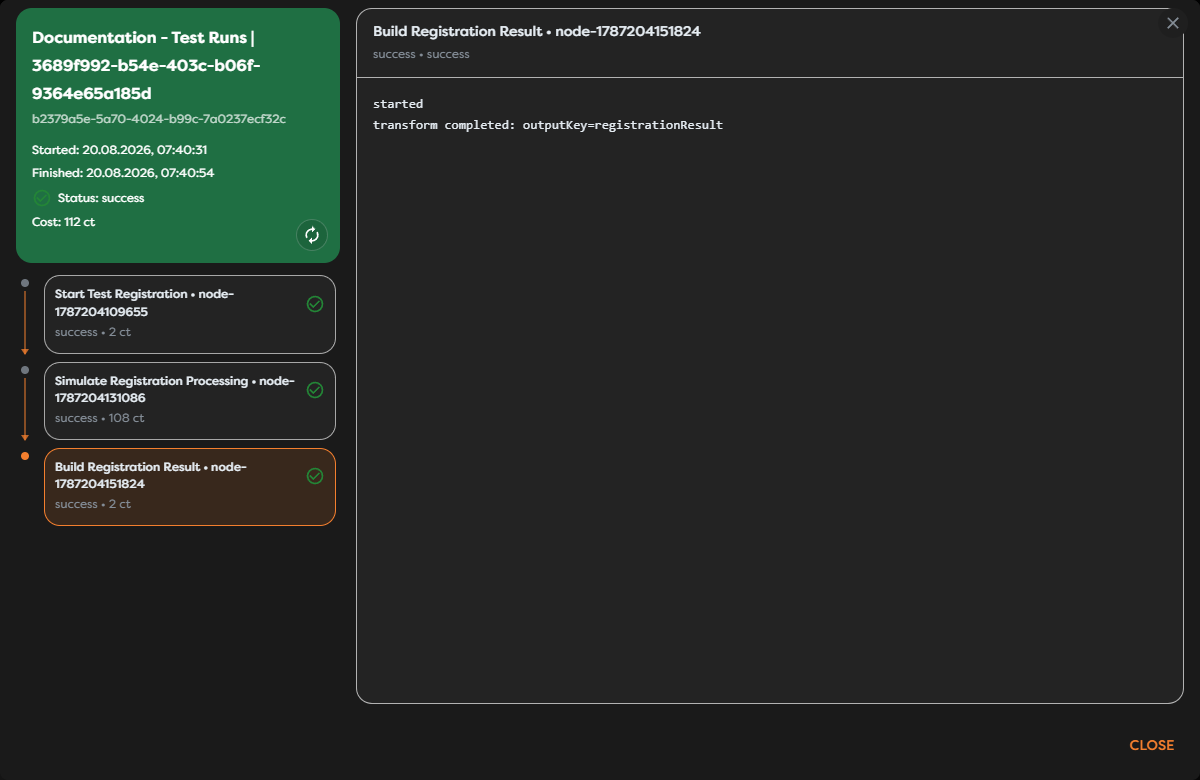
The example Transform block reports success and logs the output key registrationResult. Output visibility is block-specific: some blocks display a value directly, while others report only the key or operation in their runtime messages. Use a downstream Render or debug block when you need a human-readable representation of a generated value.
When diagnosing a result:
- Start with the first block whose state differs from the expected path.
- Select the exact execution instance, especially when a node ran more than once.
- Read messages from top to bottom and note the final result category.
- Compare the block's input assumptions with the upstream output and template paths.
- Record the run UUID before closing the dialog when the run must be correlated with monitoring data.
Do not use the green run status alone to validate business data. Confirm the output or external effect that the workflow was intended to produce.
Cancel a long-running test
Choose Cancel in the run header while the status is running. Cancellation prevents the workflow from starting additional downstream work, but it does not undo blocks that have already completed or reverse their external effects.
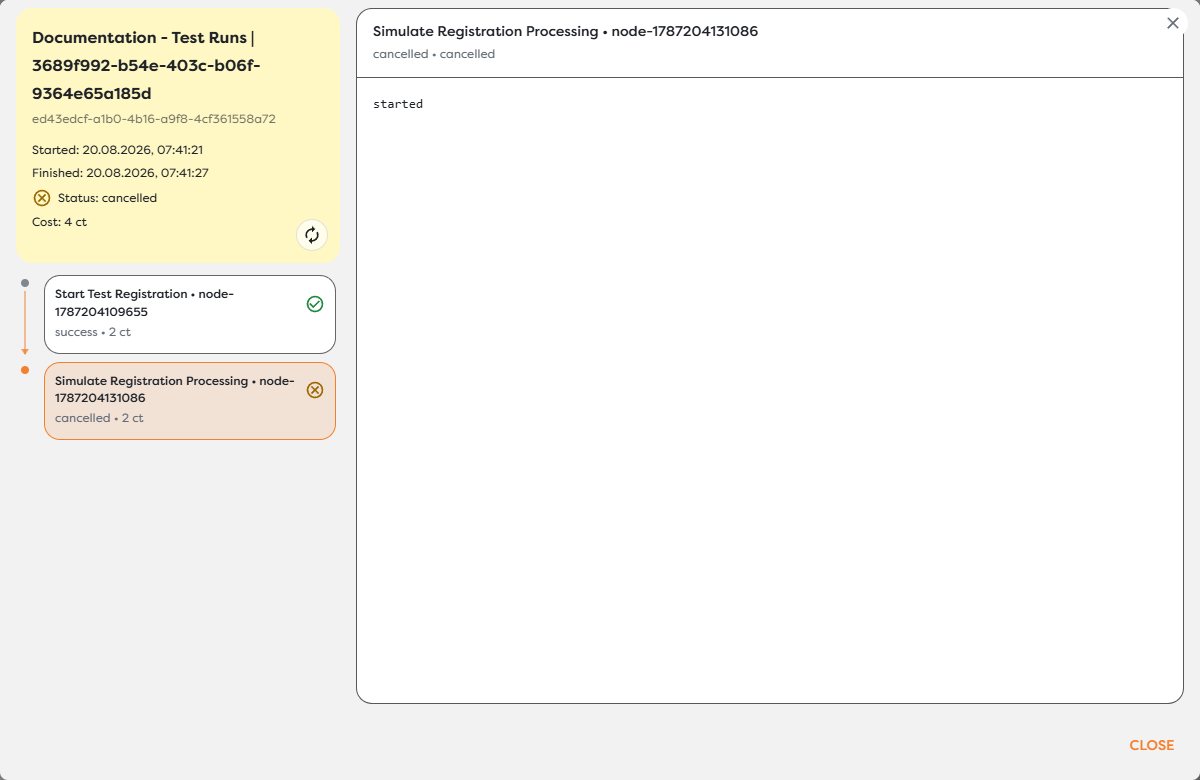
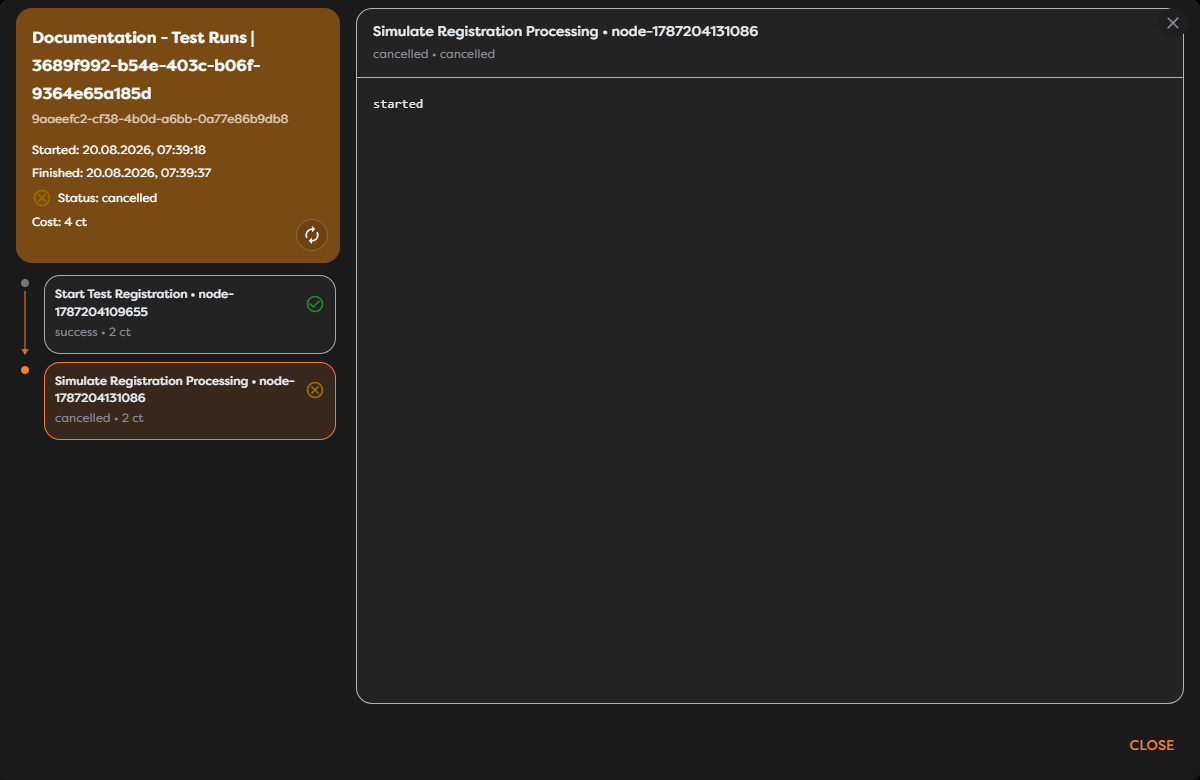
After cancellation:
- the run receives a finish time and the status
cancelled; - completed blocks remain
success; - the active block becomes
cancelledwhen cancellation takes effect; - blocks that were not reached do not appear as successful executions;
- credits already consumed remain part of the run cost.
Cancellation is asynchronous. Wait for the terminal cancelled status before assuming execution has stopped.
Compare tests with published runs
A Designer test and a published run use the same block behavior, logging model, and credit accounting, but they start in different contexts:
| Test run | Published run |
|---|---|
| Started manually from a trigger's Run action in the Designer | Started by a live trigger on the public pipeline version |
| Exercises the selected saved workflow version | Uses the version currently marked Published |
Exposes test context through values such as {{run.isTest}} | Represents live trigger traffic |
| Does not publish or replace a version | Continues using the public version until another version is published |
Passing a test is evidence for the exact input and path that ran. Test every trigger, branch, error path, and important payload shape before publishing. After publication, verify a controlled live execution from the real trigger surface as a separate release check.