Trigger Blocks
Trigger blocks define how a Builders workflow starts. A trigger accepts a manual action, schedule, public request, hosted interaction, or external event and exposes the resulting payload to the first downstream block.
Choose the trigger that matches the real source of the event. Testing a convenient Manual Trigger does not verify that an email, webhook, schedule, queue, or public interface can start the published workflow.
Browse available triggers
Expand Triggers in the Designer block catalog. Disable Hide unavailable blocks to see triggers that require integrations not yet configured for the current project.
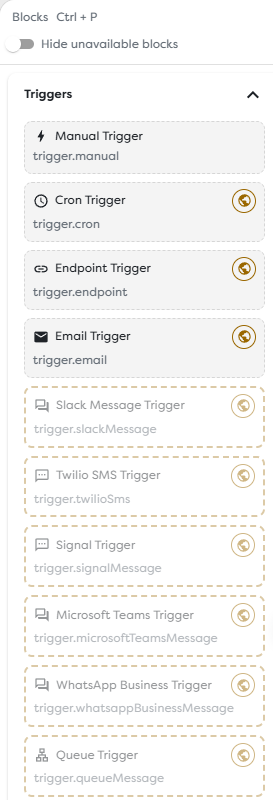
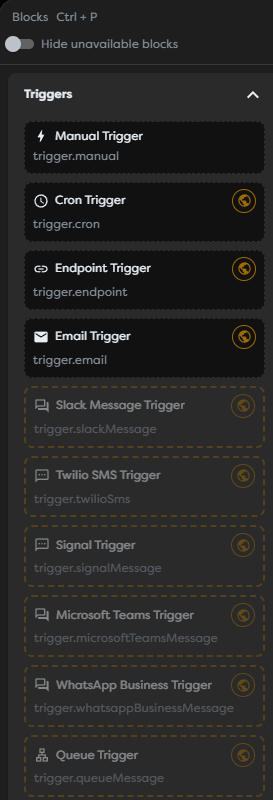
Each item shows its display name and schema type. A normal item can be dragged onto the canvas. A muted item with a dashed outline requires a compatible integration or capability. The public marker identifies a trigger that starts live runs only after its pipeline version is published.
Choose a trigger type
Builders provides several kinds of workflow entry points:
| Trigger | Schema type | Use it when |
|---|---|---|
| Manual Trigger | trigger.manual | A user should start a controlled run from Builders with a supplied JSON body. |
| Cron Trigger | trigger.cron | A workflow must run on a recurring schedule in a specified time zone. |
| Endpoint Trigger | trigger.endpoint | An application or webhook sender must call a generated HTTP endpoint. |
| Email Trigger | trigger.email | A supported mailbox should start a run for a newly received message. |
| Slack Message Trigger | trigger.slackMessage | A Slack message event should start the workflow. |
| Twilio SMS Trigger | trigger.twilioSms | An inbound SMS received by Twilio should start the workflow. |
| Signal Trigger | trigger.signalMessage | A self-hosted Signal bridge should deliver an inbound message. |
| Microsoft Teams Trigger | trigger.microsoftTeamsMessage | A Microsoft Graph subscription should deliver a Teams message event. |
| WhatsApp Business Trigger | trigger.whatsappBusinessMessage | Meta should deliver an official WhatsApp Business message event. |
| Queue Trigger | trigger.queueMessage | A supported queue or topic should deliver work for asynchronous processing. |
| Issue Trigger | trigger.issueEvent | A Jira, GitHub, or GitLab issue event should start the workflow. |
| Web Form Trigger | trigger.webForm | Builders should host a form that converts a submission into workflow input. |
| Chat Trigger | trigger.chat | Builders should host or embed a chat interface that starts a run for each message. |
Start with the event source, not the expected downstream action. For example, an automation that replies to an email starts with Email Trigger and later uses Send Email or Email Inbox Action for the reply.
Understand the trigger output
A trigger has no upstream execution input. It creates the initial runtime payload and sends it through its output port. Downstream blocks read that value through {{input...}} expressions.


The output shape depends on the trigger:
| Source | Typical input |
|---|---|
| Manual | The configured JSON body and selected trigger block context. |
| Schedule | Schedule and run metadata for the fired cron occurrence. |
| Endpoint | Method, path, headers, query values, validated body, and uploaded-file descriptors. |
| Sender, recipients, subject, text, HTML, message IDs, thread data, and attachments when supported. | |
| Messaging | Provider message ID, sender, destination or conversation context, text, media, and provider metadata. |
| Queue | Body, attributes, receipt or acknowledgement context, and provider metadata. |
| Issue | Issue identifiers, project or repository context, state, labels, author, assignees, comments, and event type. |
| Web Form | A structured object built from the configured form fields and root key. |
| Chat | The submitted message and chat-session context exposed by the configured widget. |
Do not assume that two providers expose identical fields. Save the workflow, generate one controlled event, and inspect the trigger execution output before writing downstream templates.
Distinguish test and live execution
The Run action on a trigger block starts a Designer test for the selected saved workflow version. This is useful for checking connections, expressions, and downstream behavior without waiting for an external source.
A live event follows different rules:
- Save and test the draft.
- Publish the intended version.
- Configure the live URL, schedule, mailbox, webhook, subscription, queue, or hosted interface.
- Generate one controlled event through that real source.
- Find the resulting non-test run and inspect its trigger output.
Publishing activates live triggers such as Cron, Endpoint, Email, Web Form, Chat, and integration-backed event sources. Later draft changes do not affect live traffic until another version is published.
Manual Trigger is primarily intended for user-initiated and test execution inside Builders. Its configured initial body remains part of the selected workflow version.
Prepare required integrations
Integration-backed triggers are available only when their compatible resource is accessible in the project's personal or team ownership scope.
| Trigger | Required resource or setup |
|---|---|
| Email, Gmail, or Outlook integration with inbox access and a selected mailbox. | |
| Slack Message | Slack integration plus the required Slack Events API callback and event subscriptions. |
| Twilio SMS | Twilio SMS integration plus the Builders callback URL configured for inbound messages. |
| Signal | Protected, self-hosted Signal bridge and its integration callback. Builders does not host or register the Signal account. |
| Microsoft Teams | Microsoft integration, required Microsoft Graph permissions, and a valid message subscription. |
| WhatsApp Business | Official WhatsApp Business integration, verified Meta callback, and subscribed message events. |
| Queue | RabbitMQ, ActiveMQ, Amazon SQS, or Amazon SNS integration with the required queue, exchange, topic, or subscription settings. |
| Issue | Jira, GitHub, or GitLab integration with its provider webhook and supported issue events. |
An integration can be configured correctly but remain unavailable to the pipeline when it belongs to another owner scope. Confirm project ownership before troubleshooting provider credentials.
Compare delivery models
Triggers do not all receive events in the same way:
- Direct request: Endpoint, Web Form, and Chat receive traffic through Builders-hosted public surfaces.
- Schedule: Cron creates runs according to its expression and IANA time zone.
- Webhook or subscription: Slack, Twilio, Signal, Teams, WhatsApp Business, and Issue triggers receive provider callbacks.
- Mailbox monitoring: Email observes a supported inbox through its selected integration.
- Polling or webhook delivery: Queue behavior depends on the selected provider and integration configuration.
This distinction affects latency, retries, duplicate delivery, authentication, and failure diagnosis. An accepted provider event confirms delivery to the entry point; it does not confirm that downstream blocks completed successfully.
Use multiple triggers carefully
A pipeline can contain several trigger blocks, each starting its own connected path. This is useful when the same business process accepts more than one entry point, but every path must produce input compatible with the downstream blocks it shares.
When several triggers connect to one transformation:
- Normalize provider-specific fields into one common object near each trigger.
- Preserve source IDs for correlation and deduplication.
- Record
{{run.triggerType}}when downstream behavior depends on the entry point. - Test every trigger path separately.
- Confirm that a manual test uses the intended trigger block.
Do not connect unrelated event sources to the same path merely to reduce the number of pipelines. Separate pipelines are easier to own and monitor when their permissions, retry behavior, or business effects differ.
Secure and validate live input
- Protect Endpoint, Web Form, and Chat surfaces with the access mode appropriate to their audience.
- Use token-protected endpoints for non-public callers and validate request bodies with JSON Schema.
- Keep webhook verification values, access tokens, and provider secrets in supported integration or Vault fields.
- Grant only the mailbox, channel, phone number, queue, repository, or project permissions required by the trigger.
- Filter high-volume provider events before expensive AI, database, or integration actions.
- Make downstream effects idempotent when a provider can retry or redeliver the same event.
- Use a controlled test account, message, issue, or payload that is safe to process.
For Cron Trigger, choose an IANA time zone deliberately and account for daylight-saving changes. For Endpoint and hosted triggers, define limits for uploaded files and validate all untrusted values before using them in code, queries, templates, or file paths.
Troubleshoot trigger runs
- The trigger is unavailable: disable Hide unavailable blocks, then configure the required integration in the project's ownership scope.
- A live event creates no run: verify that the intended version is published and that the provider, schedule, or public URL points to its current configuration.
- A test works but live traffic fails: reproduce the event through the actual published entry point and inspect authentication, webhook delivery, subscription, polling, or mailbox access.
- The input path is missing: inspect the trigger execution output and use the provider's normalized field names rather than assuming another trigger's schema.
- The same event runs twice: use the provider event or message ID to detect duplicates before performing external effects.
- The wrong manual path ran: select the intended Manual Trigger block and use its Run action.
- A scheduled run fires at an unexpected local time: verify the cron expression, selected IANA time zone, and daylight-saving transition.
Trigger guides
- Manual Trigger - Configure initial JSON, select one of several manual entry points, inspect its downstream input, and distinguish test runs from published manual runs.
- Cron Trigger - Configure a five-field recurring schedule, choose an IANA time zone, publish it, and plan for daylight-saving and missed-run behavior.
- Endpoint Trigger - Configure an HTTP method and path, protect and validate requests, handle uploads, and return asynchronous, synchronous, or file responses.
- Email Trigger - Select an inbox-capable Email, Gmail, or Outlook integration, establish the first UID baseline, inspect normalized messages, and diagnose mailbox polling.
- Slack Message Trigger - Connect Slack Events API to a Builders integration callback, subscribe to the required message events, inspect live input, and prevent retries or bot loops from duplicating effects.
- Twilio SMS Trigger - Route an SMS-capable Twilio number or Messaging Service to a Builders callback, inspect inbound message and media fields, and correlate replies with provider message SIDs.
- Signal Trigger - Connect a protected self-hosted Signal bridge, authenticate inbound forwarding, inspect message envelopes, and operate the unofficial integration boundary safely.
- Microsoft Teams Trigger - Connect Microsoft OAuth, create and renew Graph message subscriptions, validate notifications, and inspect channel or chat context.
- WhatsApp Business Trigger - Connect the official WhatsApp Business Platform, verify the Meta callback, subscribe to inbound messages, and inspect sender, content, and media context.
- Queue Trigger - Compare ActiveMQ, RabbitMQ, Amazon SQS, and Amazon SNS delivery, configure polling limits, and handle acknowledgement, deletion, retries, and duplicates.
- Issue Trigger - Connect Jira, GitHub Issues, or GitLab Issues webhooks, normalize issue activity, apply event and content filters, and prevent retries or action loops from duplicating effects.
- Web Form Trigger - Design a hosted form, structure and validate its fields, handle uploads, choose access protection, publish it, and inspect submitted workflow input.
- Chat Trigger - Configure a hosted or embedded chat, connect the response loop, protect visitor access, apply rate limits, and inspect message-session input.
All trigger types currently available in the Designer now have a focused guide.