
Signal Trigger
Use a Signal Trigger to start a published workflow when a self-hosted Signal bridge forwards an inbound message to Builders. The bridge owns the Signal account and receive connection; Builders authenticates the forwarded webhook and sends the normalized message context through the trigger's Out port.
This article uses the separate Documentation - Signal Trigger pipeline in the Hack It UP - event project. Its example path receives an event-registration message and sends the complete input to a Render Block for inspection.
Understand the integration boundary
Builders does not provide an official Signal service, host signal-cli, register a phone number, or link a Signal device. You must deploy and operate a compatible bridge, such as signal-cli-rest-api, outside Builders.
The complete path has three parts:
- Signal delivers an encrypted message to the account managed by your bridge.
- The bridge receives and converts the message, then sends an authenticated
POSTrequest to the Builders integration callback. - Builders dispatches that message to every published Signal Trigger that uses the integration.
Outbound Signal Action operations travel in the other direction: Builders calls the bridge base URL to send, reply to, or read messages. A working outbound bridge call does not prove that inbound forwarding is configured.
signal-cli and signal-cli-rest-api are community projects, not official Signal clients or APIs. The signal-cli project warns that old releases may stop working as Signal Server changes. Include bridge and signal-cli upgrades in normal operations.
Prepare and protect the bridge
Deploy the bridge in a controlled environment with persistent storage for its account data. Complete registration or device linking through the bridge before configuring Builders. The signal-cli-rest-api setup guide describes both approaches.
Prefer a dedicated Signal number for production automation. Linking the bridge as a secondary device can be useful for testing, but the wrapper documentation notes that some behavior may differ from a separately registered account.
Before exposing the bridge to Builders:
- use HTTPS with a valid certificate;
- restrict inbound network access where possible;
- protect the bridge API with a gateway token or equivalent authentication;
- store account data on an encrypted persistent volume;
- run the service as a non-privileged user;
- monitor bridge health, receive connectivity, disk usage, and version age;
- back up only the material required for recovery and protect it as account credentials.
Do not expose an unauthenticated bridge directly to the public internet. Control both the API called by Builders and the process that forwards inbound messages.
Create the Builders integration
Open Integrations, create a Signal Messenger integration, and assign it to the same personal or team ownership scope as the project.
Complete these fields:
| Field | Purpose | Required |
|---|---|---|
| Signal bridge base URL | HTTPS base address Builders calls for bridge operations. | Yes |
| Bridge API token | Optional credential expected by the protected bridge or API gateway. | No |
| Signal account | Registered bridge account, normally an E.164 phone number. | Yes |
| Default recipient | Optional fallback used by outbound Signal actions. | No |
| Webhook secret | Shared secret required on inbound bridge-to-Builders requests. | Yes |
Use Generate to create a strong webhook secret or provide an independently generated value. The bridge API token and webhook secret protect opposite directions and should not be reused.
Save the integration once, then reopen it. Builders now displays its stable Webhook callback URL.
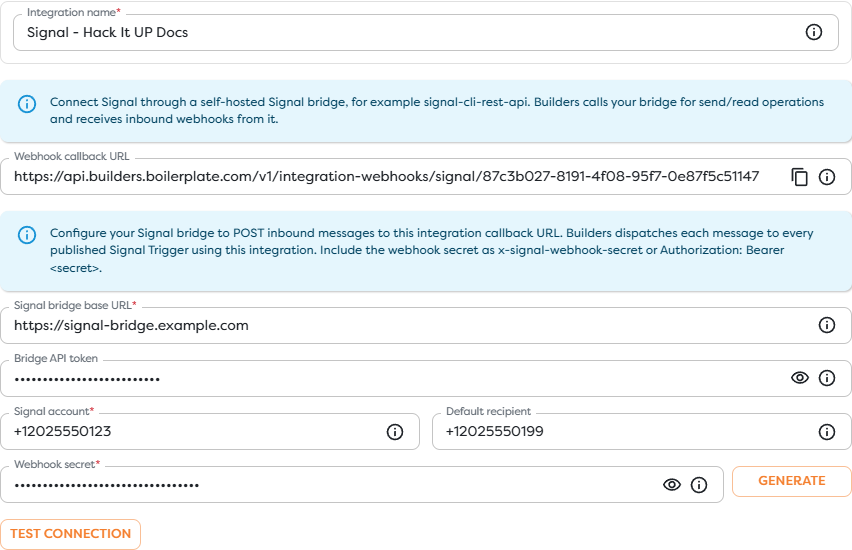
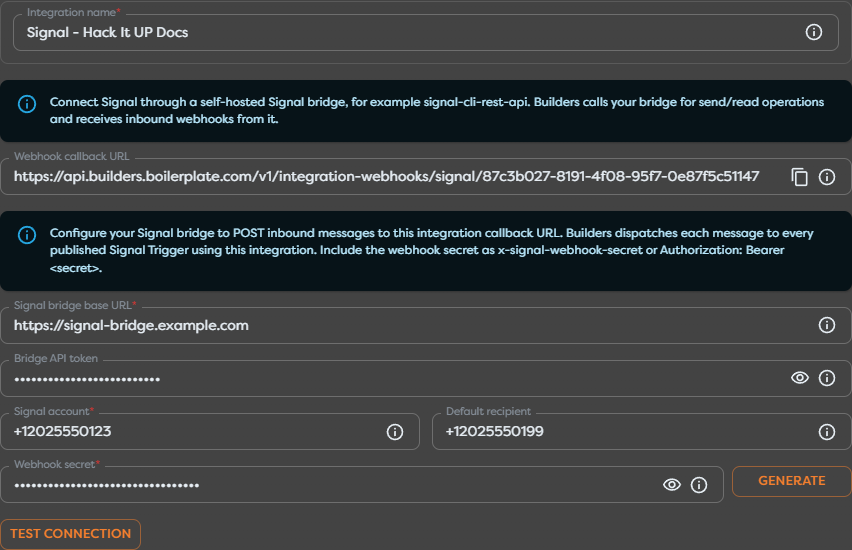
The screenshot uses a reserved example hostname and non-working demonstration credentials. It documents the Builders fields and does not represent a reachable bridge.
Use Test connection only after the bridge is reachable and the Signal account is registered or linked. A successful test confirms the configured bridge path; it does not verify inbound webhook forwarding or a published workflow.
Forward inbound messages to Builders
Configure the bridge or a small forwarding service to receive Signal events and send each supported inbound message to the Builders Webhook callback URL with HTTP POST.
Authenticate every request using one of the methods shown by Builders:
x-signal-webhook-secret: <webhook-secret>
or:
Authorization: Bearer <webhook-secret>
Use exactly the secret stored in the integration. Do not put it in the query string or JSON body, where proxies and logs are more likely to expose it.
The upstream receive mechanism depends on the bridge mode. signal-cli can expose incoming JSON-RPC notifications or a Server-Sent Events stream, while signal-cli-rest-api exposes receive behavior through its wrapper. See the signal-cli JSON-RPC manual and signal-cli-rest-api examples before implementing the forwarder.
Do not run two independent consumers that remove or acknowledge the same pending messages unless the bridge explicitly supports that delivery model. The signal-cli-rest-api documentation warns that a separate receive schedule can consume messages intended for another receiver.
Configure Signal Trigger
Drag Signal Trigger from Triggers onto the Designer canvas and open its settings. Give the block a meaningful label and select the Signal integration whose callback is used by the bridge.


The trigger has one provider setting: Messaging integration. Account, sender, group, and content filters are not configured on the block. The bridge decides which events it forwards; downstream blocks decide which authenticated messages continue through the workflow.
If the block is unavailable, disable Hide unavailable blocks and read its availability message. Signal Trigger requires an active Signal integration accessible within the project's ownership scope.
Connect the incoming path
Connect the trigger's Out port to the first block that should inspect or normalize every message. During development, use a Render Block with {{input}} so a controlled live event reveals the complete payload before templates depend on individual paths.


The example edge is labeled Incoming Signal message. After confirming the payload, replace or extend the inspection step with validation, conditions, event registration logic, database writes, AI processing, or a Signal Action.
Inspect the message context
The exact Builders input depends on the bridge payload and message type. Inspect a real published run and use Designer autocomplete rather than assuming raw signal-cli paths.
Common data groups to locate include:
| Data group | Typical bridge values |
|---|---|
| Account | Signal account that received the event. |
| Sender | Source number, UUID, profile name, and source device when supplied. |
| Message | Text, timestamp, expiration settings, view-once state, mentions, and attachments. |
| Conversation | Direct recipient context or group identifier and group metadata. |
| Envelope | Receipt timestamp and the original data, sync, receipt, typing, or call-message structure. |
| Bridge metadata | Bridge-specific event type, delivery information, and raw provider context when included. |
The signal-cli JSON-RPC examples expose an envelope with values such as source, sourceNumber, sourceUuid, sourceName, sourceDevice, timestamp, and a nested dataMessage. A compatible forwarding adapter may preserve, rename, or normalize those fields before Builders receives them.
Start with {{input}}, send one controlled message, and inspect the Render Block output. Test direct messages, group messages, attachments, reactions, and disappearing messages separately when the workflow supports them because their shapes differ.
Filter and normalize events
A receive stream can contain more than a newly typed text message. Depending on bridge mode and forwarding rules, it may expose receipts, sync messages, typing events, calls, reactions, group changes, attachment events, or messages sent by a linked device.
Add a Condition or Transform block immediately after the trigger. Useful checks include:
- the supported envelope or event type;
- an allowlist of sender numbers or UUIDs;
- an allowlist of group identifiers;
- required message text or registration command;
- whether the event originated from the automation account or a linked device;
- supported attachment MIME types and size limits;
- disappearing-message and view-once handling required by the business process.
Treat message text, profile names, group metadata, attachment references, and bridge-provided filenames as untrusted input. Validate them before using them in code, database queries, file paths, HTML, AI prompts, or privileged actions.
Prevent self-generated loops when the workflow replies through Signal. Reject events created by the same automation account or add a correlation rule that distinguishes outbound replies from new user messages.
Publish and test a live event
Signal events start live runs only for the published pipeline version. Save the graph and publish the intended version before testing the bridge callback.
- Confirm that the bridge is running a supported, current
signal-cliversion. - Confirm that the configured Signal account is registered or linked and can receive a message.
- Confirm that the bridge API is reachable from Builders and passes Test connection.
- Confirm that the forwarder uses the complete Builders callback URL and one supported secret header.
- Publish the pipeline version containing Signal Trigger.
- Send one message with a unique marker, such as
Hack It UP Signal registration 2026-08-20. - Open the resulting published run and inspect the trigger and first downstream block.
Compare the account, sender, timestamp, message text, group context, and attachments with the bridge event. A Designer test run or successful Signal Action does not verify the bridge receive stream and webhook forwarder.
This guide uses a demonstration bridge URL and credentials, so no live Signal message was sent while creating the screenshots.
Reply through Signal
Add a Signal Action after validation when the workflow should respond. Select the same integration and use the reply behavior when the action should derive its recipient or conversation from the incoming trigger context.
Before enabling replies:
- Confirm the exact direct-message and group paths from real runs.
- Verify whether the bridge expects an E.164 recipient, UUID, or group identifier.
- Prevent replies to receipts, typing events, sync events, and self-generated messages.
- Enforce attachment and message-size limits supported by the bridge.
- Record the inbound event identity, outbound bridge result, and Builders run ID.
Do not assume that a successful bridge API response proves end-device delivery or reading. Preserve bridge logs and Signal timestamps for correlation.
Handle duplicates and ordering
Signal event envelopes commonly include timestamps, but the best deduplication key depends on the bridge payload. Prefer a stable bridge or envelope identifier when one is available. Otherwise combine the receiving account, sender or conversation, message timestamp, event type, and another stable payload attribute.
Before creating a registration, sending a reply, or performing another external effect:
- Normalize the observed event identity.
- Check whether the business effect already completed.
- Record the key atomically with that effect when possible.
- Preserve the Builders run ID and raw bridge timestamp for investigation.
Do not deduplicate by sender and text alone. Repeated text can be legitimate, and sync or group events can reuse related message data.
Do not assume strict ordering across bridge restarts, multiple devices, retries, or reconnects. Design downstream state changes so a delayed receipt or older event cannot overwrite a newer business state.
Secure and operate the callback
Use a separate, random webhook secret for every Signal integration. Store it only in the Builders integration and the bridge forwarder. Redact it from reverse-proxy access logs, application logs, shell history, screenshots, and monitoring labels.
The callback secret authenticates the bridge to Builders; it does not protect the bridge API itself. Protect outbound Builders-to-bridge access with the Bridge API token, network controls, and TLS.
Rotate either secret when it is exposed:
- create the replacement credential;
- update the receiving side;
- update the sending side immediately;
- test both bridge API access and one inbound callback;
- revoke the previous credential;
- check logs for use of the old value.
Monitor the entire chain: Signal account state, bridge process, receive connection, forwarding queue, callback responses, published trigger runs, and downstream failures. A healthy Builders integration cannot detect every failure inside the self-hosted bridge.
Troubleshoot Signal events
- Signal Trigger is unavailable: create an active Signal integration in the same personal or team scope as the project, then reload Designer.
- Test connection fails: verify the HTTPS bridge URL, network reachability, API token, registered account, certificate, and bridge health endpoint or API behavior.
- No callback URL appears: save the integration once, reopen it, and copy the generated URL from the configuration step.
- The callback returns unauthorized: send the exact Webhook secret using
x-signal-webhook-secretorAuthorization: Bearer <secret>. - Outbound actions work but inbound messages do not: inspect the bridge receive connection and forwarding service; outbound API access and inbound webhook delivery are separate.
- Messages disappear before forwarding: stop competing receive consumers or automatic receive schedules and review the bridge mode.
- A linked device misses functionality: reproduce with a dedicated registered account and compare the bridge documentation for linked-device limitations.
- Only direct messages work: inspect group identifiers, group membership, envelope type, and forwarder filtering.
- Attachments are missing: inspect the bridge's attachment storage and serving configuration, then compare the raw event with Builders input.
- The payload path is missing: inspect
{{input}}from a real published run and use autocomplete instead of assuming raw JSON-RPC placement. - The same effect occurs more than once: deduplicate using the strongest identity exposed by the observed bridge payload.
- Messages stop after an upgrade or several months: verify the
signal-cliand bridge versions, account state, migration logs, and compatibility with current Signal Server behavior. - The bridge is reachable only on a private network: provide a controlled network path for Builders or place a protected forwarding adapter where both sides can reach it.
Next steps
- Trigger Blocks
- Use Template Expressions
- Read Block Logs and Output
- Run Published Workflows
- Messaging Integrations
The next article will cover Microsoft Teams Trigger.