
WhatsApp Business Trigger
Use a WhatsApp Business Trigger to start a published workflow when Meta delivers an inbound message for an official WhatsApp Business Platform phone number. Builders receives the Meta webhook through the callback URL of a WhatsApp Business integration and passes the accepted message through the trigger's Out port.
This article uses the separate Documentation - WhatsApp Business Trigger pipeline in the Hack It UP - event project. Its example path sends every accepted registration message to a Render Block so the incoming structure can be inspected before individual values are referenced.
Use the official Business Platform
WhatsApp Business Trigger works with the official WhatsApp Business Platform Cloud API. It is intended for a WhatsApp Business Account, a phone number registered with Meta, and an app authorized to use that business asset.
It does not automate a personal WhatsApp account, WhatsApp Web browser session, QR-code login, or an unofficial bridge. Do not substitute consumer-account automation for the required Meta integration. It has a different authentication model, is not represented by the Builders fields in this guide, and can violate WhatsApp terms or stop working without notice.
Understand the event path
A working trigger has four independent parts:
- A Meta app contains the WhatsApp product and has access to the intended WhatsApp Business Account and registered phone number.
- A Builders WhatsApp Business integration stores the WABA ID, phone number ID, System User token, App Secret, and Verify Token.
- Meta verifies the Builders callback URL and the app is subscribed to the WABA
messageswebhook field. - The pipeline version containing WhatsApp Business Trigger is published.
Saving an integration does not subscribe the app in Meta. Publishing a workflow does not register the callback. Both the provider-side webhook and the Builders-side published trigger must be active.
Prepare Meta access
Create or select a Meta business app, add the WhatsApp product, and connect the WhatsApp Business Account that owns the sender number. In WhatsApp > API setup and Meta Business Settings, locate:
- the WhatsApp Business Account ID;
- the Phone number ID, which is a Graph API object ID and is not the visible telephone number;
- the visible business phone number used for operator-facing summaries;
- the Meta app's App Secret;
- a System User access token authorized for the business assets.
For the Builders integration, the System User token needs the whatsapp_business_messaging and whatsapp_business_management permissions. Grant the System User access only to the WABA and other assets needed by the automation. A temporary token from the API setup page is useful for initial exploration but should not be treated as a production credential.
Review Meta's Cloud API overview and current business verification, phone registration, token, permission, and messaging requirements before enabling production traffic. Meta can change product-policy and onboarding requirements independently of Builders.
Create the Builders integration
Open Integrations, create a WhatsApp Business Platform integration, and assign it to the same personal or team ownership scope as the project.
Complete these fields:
| Field | Purpose | Required |
|---|---|---|
| WhatsApp Business Account ID | Numeric WABA ID from Meta Business Suite, Business Settings, or WhatsApp API setup. | Yes |
| Phone number ID | Numeric Graph API ID of the registered sender number. | Yes |
| Display phone number | Human-readable sender number shown in Builders summaries. It does not replace the phone number ID. | No |
| Default recipient | International recipient number without +, used only when an action block does not supply a recipient. | No |
| System user access token | Long-lived token with the required WhatsApp Business permissions and business-asset access. | Yes |
| Meta app secret | Secret of the Meta app that owns the WhatsApp product; Builders uses it to verify webhook signatures. | Yes |
| Webhook verify token | Strong secret chosen by you or generated by Builders. The exact same value is entered in Meta's webhook configuration. | Yes |
| Default template language | Optional language code such as en_US or pl_PL for outbound template actions. | No |
| Default template name | Optional approved WhatsApp Manager template used by outbound actions when a block does not provide one. | No |
Save the integration once and reopen it. Builders now displays the stable Webhook callback URL.
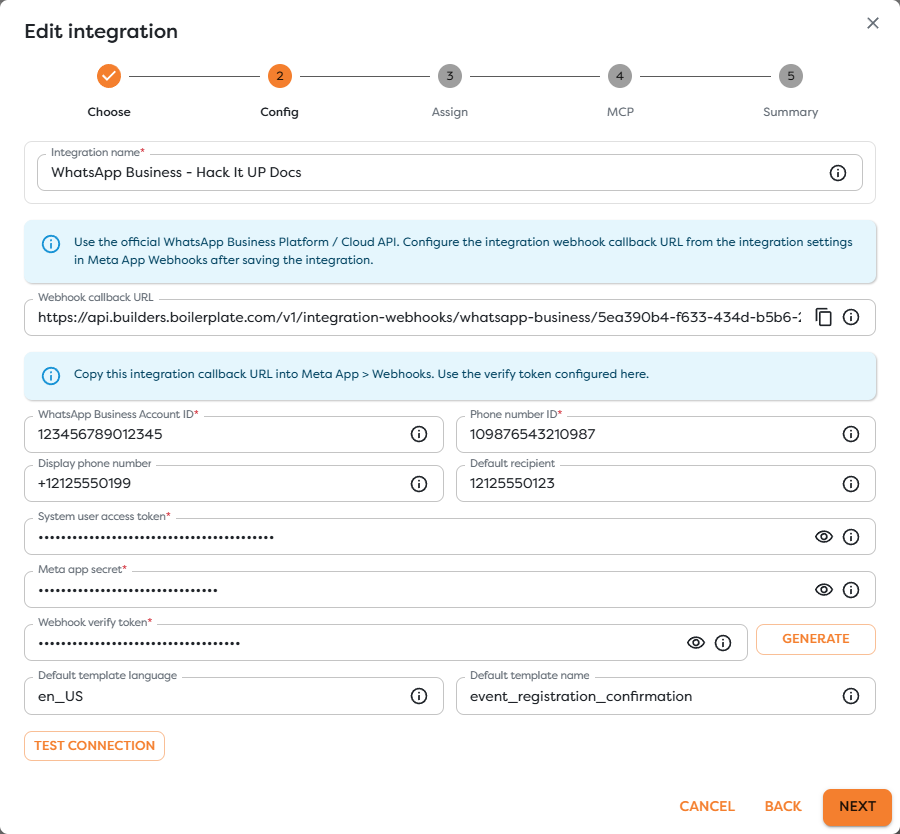
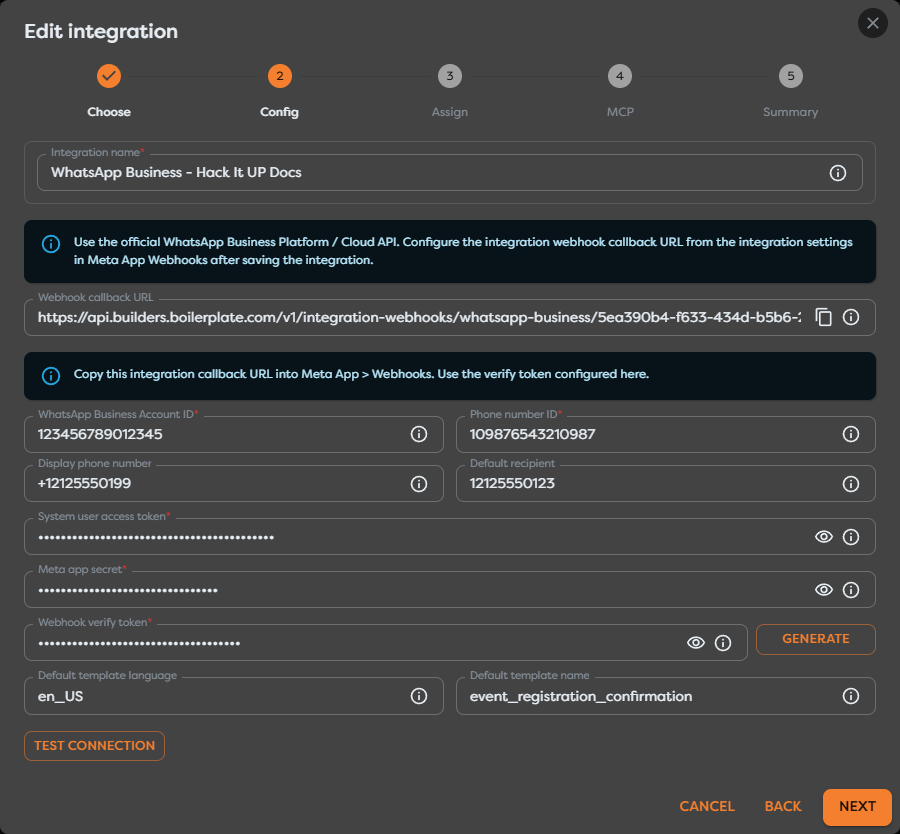
The screenshot uses fake identifiers, phone numbers, access token, App Secret, and Verify Token. It documents the available fields but is not connected to Meta. Never reuse screenshot values or expose production credentials in documentation, logs, screenshots, templates, or workflow output.
The default recipient, language, and template name are outbound fallbacks for WhatsApp Business Action. They do not determine which inbound messages start the trigger. Meta's WABA subscription and the phone number associated with the integration determine the inbound source.
Verify the Meta webhook
After saving the integration, copy its complete Webhook callback URL. In the Meta app's WhatsApp webhook configuration:
- Set Callback URL to the Builders URL without changing its path or identifier.
- Set Verify token to the exact value stored in Webhook verify token.
- Complete callback verification.
- Subscribe the app to the WABA
messagesfield.
During callback verification, Meta sends a GET request with hub.mode, hub.verify_token, and hub.challenge. Builders compares the supplied verify token and returns the challenge for a valid request. The Verify Token is a shared verification value chosen by you; it is not the System User access token or App Secret.
After verification, Meta sends event payloads with POST. Builders uses the configured App Secret to validate the X-Hub-Signature-256 signature before accepting supported deliveries. Meta maintains an official webhook signature-validation example and WhatsApp webhook examples for the underlying provider contract.
Do not place a proxy in front of the callback that rewrites the request body before signature validation. Do not create a second custom endpoint that bypasses Builders unless you also own its verification, signature checking, retry handling, and forwarding security.
Configure WhatsApp Business Trigger
Drag WhatsApp Business Trigger from Triggers onto the Designer canvas and open its settings. Give the block a meaningful label and select the integration whose callback was verified in Meta.
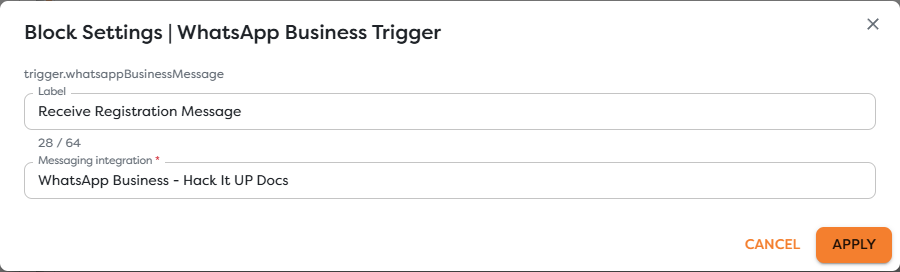
The trigger has one provider setting: Messaging integration. Sender, phone number, message type, conversation, and content filters are not configured on the block. Apply those checks in downstream Condition or Transform blocks.
If the block is unavailable, disable Hide unavailable blocks and inspect its availability message. WhatsApp Business Trigger requires an accessible WhatsApp Business integration with whatsapp_business.trigger capability in the project's ownership scope.
Connect the incoming path
Connect the trigger's Out port to the first validation or normalization block. During development, use a Render Block with {{input}} and send a controlled WhatsApp message through the published integration.


The example edge is labeled Incoming WhatsApp message. After inspecting actual events, replace or extend the Render Block with registration parsing, Conditions, database writes, AI processing, or a WhatsApp Business Action.
Inspect the inbound message
Meta's raw webhook envelope normally identifies whatsapp_business_account, contains one or more entry[].changes[] items, and uses the messages field. A message change can include business-number metadata, contact information, and one or more inbound messages. Builders may normalize or flatten parts of this structure before exposing input, so inspect a real run rather than assuming raw Meta paths.
Common values to locate include:
| Data group | Typical values to inspect |
|---|---|
| Business destination | WABA entry ID, metadata.phone_number_id, and metadata.display_phone_number. |
| Sender | contacts[].wa_id, profile name when supplied, and messages[].from. |
| Message identity | WhatsApp message ID, commonly prefixed wamid, plus timestamp. |
| Content | Message type and its type-specific object, such as text.body. |
| Conversation context | Reply context, referenced message ID, referral data, button, or interactive response. |
| Media | Media ID, MIME type, filename, caption, and hash when supplied for the message type. |
| Provider envelope | Messaging product, change field, app/WABA entry, and delivery metadata retained by Builders. |
Start with {{input}}, send a uniquely identifiable message such as Hack It UP WhatsApp registration 2026-08-20, and compare the run with the original conversation. Test every message type the workflow claims to support.
Text, image, document, audio, video, sticker, location, contact, interactive, button, and other WhatsApp message types have different content objects. A path that works for text does not automatically work for media or interactive replies. Add a Condition on the actual message type before referencing type-specific fields.
Media webhooks carry identifiers and metadata rather than guaranteeing that the binary file is embedded in the trigger input. Retrieving media through Cloud API requires authorized access and has its own availability and retention behavior. Download only required files, validate type and size, and store them according to the workflow's retention policy.
Treat sender names, message bodies, captions, filenames, contact cards, locations, referrals, and interactive values as untrusted input. Validate or sanitize them before using them in HTML, database queries, file paths, AI prompts, or privileged actions.
Separate messages from statuses
The subscribed Meta messages webhook field can represent inbound messages as well as outbound message status updates. A raw change with value.messages is not the same as one with value.statuses.
WhatsApp Business Trigger is intended to start from supported inbound messages. Confirm the actual Builders trigger output and do not build business logic that mistakes sent, delivered, read, or failed statuses for new customer content. When delivery status is needed, handle it only through a documented status-capable path and correlate it with the outbound message ID.
Provider webhooks can batch more than one entry or change. Do not assume that the first raw array item is the only event unless the observed Builders normalization explicitly guarantees a single accepted message per run.
Filter messages and prevent loops
Add validation near the trigger. Useful checks include:
- the destination phone number ID matches the expected business number;
- the sender belongs to an allowed market, campaign, or test group when appropriate;
- the message type is supported before its type-specific fields are read;
- text or interactive input matches the expected registration command or option;
- media type and size meet the workflow's limits;
- the WhatsApp message ID has not already been processed;
- the message is not an event generated by the automation's own outbound behavior.
If the workflow replies through WhatsApp Business Action, preserve the inbound sender and message ID as correlation context. Do not use Default recipient when a reply must return to the actual sender.
WhatsApp messaging rules distinguish customer-initiated conversations from template-based outreach. Outside Meta's current customer service window, use an approved message template with the correct name, language, category, and parameters. Review current Cloud API messaging documentation and WhatsApp Manager status before relying on a template. Policy acceptance and template approval are controlled by Meta, not by publishing the Builders workflow.
Publish and test a live message
Meta callbacks start live runs only for a published pipeline version containing the configured trigger.
- Confirm that the WABA, phone number ID, System User token, permissions, and business-asset assignment are correct.
- Save the Builders integration and copy its complete callback URL.
- Verify the callback in Meta with the same Verify Token.
- Subscribe the app to the WABA
messagesfield. - Save and publish the pipeline version containing WhatsApp Business Trigger.
- Send a unique message from a controlled WhatsApp account to the registered business number.
- Open the resulting published run and inspect the trigger and first downstream block.
A successful Test connection confirms only the supported API check for the stored integration. It does not prove that Meta verified the callback, the WABA is subscribed, the intended phone number is active, or the pipeline version is published.
This guide uses placeholder Meta values, so no live webhook verification or WhatsApp message was performed while taking the screenshots.
Handle retries and duplicates
Meta can retry webhook delivery when a callback is unavailable, slow, or returns an unsuccessful response. Network retries and batched changes mean the workflow must be idempotent.
Use the provider's WhatsApp message ID as the primary deduplication key and include the destination phone number ID or WABA context when one store serves several business numbers. Record the key atomically with registration creation, database writes, notifications, or outbound sends when possible.
Do not deduplicate by sender and body alone. A person can legitimately send the same text twice, while a retry refers to the same provider message ID.
Keep early validation fast. Expensive AI calls, file processing, or external effects should run only after the destination, message type, required fields, and duplicate state have been checked.
Rotate and protect credentials
- Store the System User token, App Secret, and Verify Token only in protected integration fields.
- Rotate credentials through a controlled procedure and update Builders before revoking a credential that still serves live traffic.
- Re-test the API connection and one inbound webhook after rotation.
- Review System User asset assignments and remove access to unused WABAs or apps.
- Do not print raw request headers, tokens, App Secret, Verify Token, or unnecessary customer content in Render Blocks or logs.
- Apply retention and access rules to message bodies, phone numbers, media, and contact information.
The Verify Token validates Meta's callback setup request. The App Secret protects webhook authenticity. The System User token authorizes Graph API operations. They are separate credentials and should not share the same value.
Troubleshoot WhatsApp events
- WhatsApp Business Trigger is unavailable: create or activate a WhatsApp Business Platform integration in the project's ownership scope and confirm its trigger capability.
- No callback URL appears: save the integration once, reopen it, and copy the generated URL.
- Meta cannot verify the callback: compare the complete callback URL and Verify Token character for character; do not use the access token or App Secret as the verify value.
- Webhook verification succeeds but no run starts: confirm the app is subscribed to the WABA
messagesfield, the intended phone number belongs to that WABA, and the pipeline version is published. - Test connection fails: inspect the System User token, required permissions, WABA and phone number IDs, business-asset assignment, token expiration or revocation, and Graph API error.
- Statuses arrive but customer messages do not: inspect the WABA subscription, phone-number registration, app mode and access, message envelope, and Builders trigger logs.
- Text works but images or interactive replies fail: branch on the actual message type and inspect its type-specific object before referencing content.
- Media cannot be downloaded: verify that the integration token can access the media ID, retrieve it within the provider's supported period, and validate the returned content.
- The same registration is created twice: deduplicate atomically by WhatsApp message ID and destination context before external effects.
- Replies go to the wrong number: use the normalized inbound sender for replies instead of an unrelated default recipient.
- A template send is rejected: verify the approved template name, language, current status, parameter order, conversation context, and current Meta messaging rules.
- The expected field is missing: inspect
{{input}}from the actual message type and use Designer autocomplete instead of assuming raw webhook placement.
Next steps
- Trigger Blocks
- Use Template Expressions
- Read Block Logs and Output
- Run Published Workflows
- Messaging Integrations
The next article will cover Queue Trigger.