
Integration Ownership and MCP Access
Integration access in Builders is controlled by resource ownership, provider compatibility, and, for AI tools, MCP eligibility. These controls are independent: a working credential can remain unavailable to a project, and an integration visible to a normal workflow block can remain unavailable to an AI Agent.
Understand the access gates
A trigger, action, or file block reaches an external service through this path:
project ownership scope
-> compatible integration in that scope
-> compatible trigger, block, or file operation
-> provider permissions
-> external operation
An AI Agent has additional gates:
project ownership scope
-> compatible integration in that scope
-> connector supports MCP tools
-> Allow MCP usage enabled on the integration
-> individual tool enabled in the AI Agent
-> that integration selected for the tool
-> provider permissions
-> model may request the external operation
Failure at one gate is not repaired by another. Team ownership does not enable MCP, MCP does not share a personal integration with a team project, and a provider administrator token does not make an incompatible Builders connector selectable.
Match project and integration ownership
Every project has a personal or team owner. Integrations have the same ownership boundary.
| Project scope | Integration scope | Expected availability |
|---|---|---|
| Personal project | Integration owned by the same user workspace | Available when the integration type is compatible |
| Team project | Integration owned by the same team | Available to compatible selectors for permitted team members |
| Personal project | Team-owned integration | Not automatically available to the personal project |
| Team project | User-owned integration | Not automatically available to the team workflow |
| Team project | Integration owned by another team | Not available unless Builders explicitly exposes a supported sharing relationship |
Treat matching ownership as a required resource contract. Do not design a team pipeline around a personal credential that only one collaborator can access.
Team ownership shares use of the stored connection through Builders. It does not change the provider account behind the credential or expand that account's permissions. Team roles still govern who may manage the integration, edit dependent workflows, test runs, and publish versions.
Choose ownership during assignment
The Assign step chooses the owner type and, for a team resource, the intended team. Select the scope that will own the project and operate the connection over its full lifecycle.


The current edit wizard shows the saved integration's Owner type as read-only. Do not assume that editing an integration transfers it between personal and team scopes.
Before saving a new integration, decide:
- which project or team pipelines will use it;
- who owns the provider account or service identity;
- who may rotate or revoke the credential;
- which environment the connection represents;
- whether collaborators need ordinary workflow use, AI tool use, or both;
- which budget and operational team owns the dependent runs.
When ownership must change and Builders does not expose a transfer action for the integration, create a replacement in the target scope, rebind dependent blocks and tools, test them, and only then remove the old record.
Move a project without losing resources
Changing project ownership does not automatically move its integrations, databases, Vault entries, AI connections, or files. A workflow can retain a stored reference that is no longer selectable or executable in the destination scope.
Use this migration sequence:
- Inventory every integration referenced by triggers, blocks, file operations, and AI tools.
- Record the provider account, capability, environment, callback, and ownership purpose without recording secrets.
- Create or identify equivalent integrations in the destination scope.
- Re-register provider callbacks when the replacement generates a different URL.
- Rebind every affected block and AI tool to the destination integration.
- Save a new workflow version and run representative tests.
- Publish only after external reads, writes, triggers, and callbacks work in the new scope.
- Monitor the first live runs before revoking the previous credential or deleting the old integration.
Do not delete the old integration first. That removes the working reference before the destination workflow has been validated.
Separate ownership from provider authorization
Builders ownership controls which project may select a connection. The credential inside the integration controls what the external provider allows.
| Builders control | It answers | It does not answer |
|---|---|---|
| Owner type / Owner | Which personal or team scope contains the integration? | Does the provider credential have read or write permission? |
| Integration type | Which Builders blocks and tools can use the connector? | Is the external account correctly configured? |
| Test connection | Can the connector perform its supported test operation now? | Will every operation, callback, trigger, or destination work? |
| MCP | May compatible AI tooling consider this integration? | Which tools are enabled, or whether the model will call them? |
| Provider permissions | What can the external identity do? | Is the integration visible to the current project? |
For example, a team-owned Slack integration can be visible to a Slack Action but fail to send because the bot lacks chat:write. A personal Google Drive integration can test successfully but remain absent from a team project's file block.
Enable MCP deliberately
For integrations whose connector exposes the MCP step, Allow MCP usage makes the saved connection eligible for MCP-capable tools.
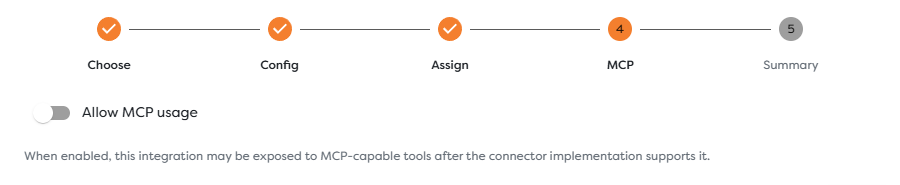
The setting says the integration may be exposed after the connector implementation supports the tool. It is not a promise that every operation exists for that provider.
MCP enablement does not:
- enable any AI Agent tool automatically;
- make the integration visible across ownership scopes;
- change the provider credential's permissions;
- prove that the connection is healthy;
- grant the model access to every operation from that integration category;
- connect the integration to the AI Agent with a Designer edge.
Some integration types do not expose an MCP step. Their connectors are intended for ordinary workflow use without current AI-tool eligibility. The current Email SMTP/IMAP and SSH forms use the shorter wizard without MCP.
Read MCP status in the integrations list
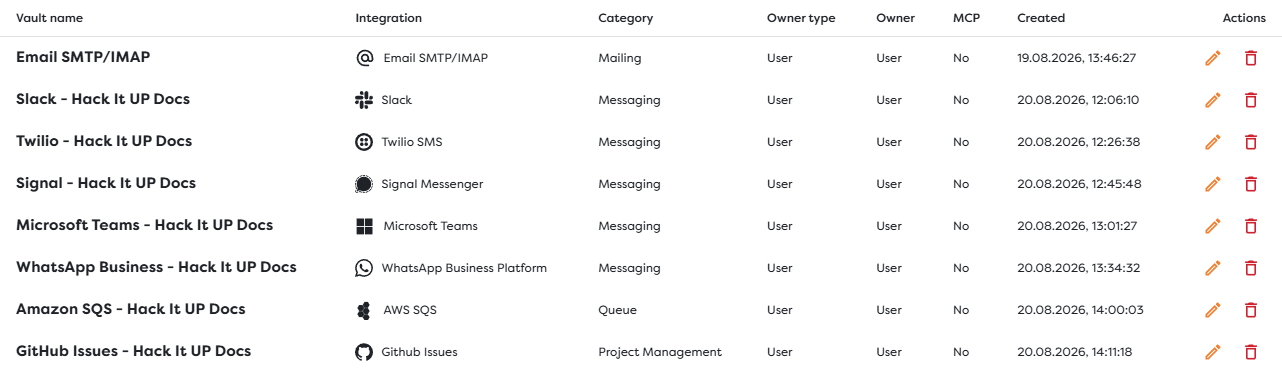
The MCP column reports whether MCP usage is enabled for that stored integration.
| List value | Meaning | Next check |
|---|---|---|
| Yes | The record permits supported MCP tooling to consider it | Confirm connector support, project ownership, tool configuration, and provider permission |
| No | The record is not eligible for MCP-backed AI tools | Leave it disabled for block-only use, or deliberately enable it when AI access is required |
The column is not a connection-health indicator. A row with Yes can have an expired token; a row with No can still work correctly in a normal trigger or action block.
Disabling MCP should remove the connection from compatible AI tool selection without intentionally disabling ordinary workflow blocks. Retest the affected AI Agents after changing this flag because their saved tool configuration may no longer resolve an eligible integration.
Configure the AI tool separately
Inside the AI Agent, enable only the required operation and select the intended compatible integration. Built-in project tools, such as Static Drive operations, can be ready without an external integration. Provider tools add the integration requirement.


Tool readiness communicates a different state from the integration list:
| Tool status | Meaning | Resolution |
|---|---|---|
| Ready | The enabled tool currently has the required configuration | Test its arguments, output, and side effects |
| Disabled | This AI Agent cannot request the operation | Enable it only when the task requires it |
| Needs integration | No compatible selectable integration resolves for the tool | Create the provider integration in the project scope, enable MCP when required, and select it |
| MCP disabled | A compatible integration exists but does not permit MCP usage | Enable MCP on the intended connection and reopen the tool configuration |
The integration is selected in the tool settings, not on the Designer canvas. A workflow edge moves execution and data; the tool setting authorizes a model-requested operation.
See Configure Tools and Integrations.
Grant the smallest useful capability
Treat each layer as an independent least-privilege decision:
- Give the provider identity access only to the required account, repository, bucket, queue, mailbox, channel, or project.
- Store the integration in the narrowest ownership scope that supports the workflow.
- Leave MCP disabled when only deterministic workflow blocks need the connection.
- Enable only the individual AI operations required by the task.
- Separate read tools from send, write, delete, acknowledge, transition, or close tools.
- Validate sensitive destinations and arguments in deterministic workflow logic.
- Require approval for high-impact or irreversible operations.
Avoid Full access as the default AI-tool preset. A broad preset can expose unrelated email sends, message posts, file writes, queue acknowledgements, or issue transitions once compatible integrations become available.
Design team integrations for operations
A shared integration should have a named operational owner even when Builders lists a team as the resource owner.
Record outside the secret fields:
- provider service-account or application owner;
- intended environment and data classification;
- dependent projects and pipelines;
- callback registrations and event subscriptions;
- required provider scopes;
- rotation date and revocation procedure;
- MCP decision and approved AI operations;
- incident contact and rollback plan.
Use separate integration records for development and production. Do not let a documentation pipeline, experimental AI Agent, or personal project share the production credential merely because the provider type matches.
Change MCP or credentials safely
Before editing a shared integration:
- Identify dependent triggers, blocks, file operations, and AI tools.
- Determine whether the change affects ordinary workflow access, MCP access, provider authorization, callbacks, or all four.
- Test replacement credentials in a non-production integration when possible.
- Update callbacks or provider subscriptions when the integration URL changes.
- Re-run one representative read, write, and inbound event path.
- Inspect AI tool readiness after any MCP or ownership change.
- Monitor published runs after the change.
- Revoke the old provider credential only after the replacement path is confirmed.
Deleting an integration is more disruptive than disabling MCP. Deletion can break every ordinary block, trigger, and AI tool that references the record. MCP disablement targets AI eligibility but still requires regression testing of affected agents.
Test the complete access matrix
Use a controlled project and reversible provider operation.
| Test | What it proves |
|---|---|
| Integration appears in a compatible block | Type and project ownership resolve for ordinary workflow use |
| Test connection succeeds | The stored credential passes the connector's supported check |
| Trigger receives a real event | Provider callback or polling and the published trigger are configured |
| AI tool shows Ready | Tool enablement, compatible integration selection, ownership, and MCP eligibility resolve |
| AI tool performs a controlled operation | Model tool call, provider permission, arguments, and connector operation work together |
| Another project cannot select the integration | The intended ownership isolation is enforced |
Do not use one successful test as evidence for the other rows. A connection check is not an access-control test, and a ready tool is not proof that a provider write will succeed.
Troubleshoot ownership and MCP
- A compatible integration is missing from a block: compare project owner type and owner with the integration row, then verify the connector type and required capability.
- A personal integration is missing from a team project: recreate or configure the connection in that team scope and rebind the workflow.
- A project transfer broke resource selectors: replace personal resources with destination-team resources and save a new validated workflow version.
- Owner type cannot be changed while editing: the saved integration keeps its assigned scope in the current wizard; create a destination-scope replacement when no transfer action is available.
- MCP is Yes but the tool is absent: confirm that the connector implements that tool, the project scope matches, and the operation exists for the selected provider.
- The tool says Needs integration: create a compatible connection in the current project scope, enable MCP when supported, then reopen the AI tool selector.
- The tool says MCP disabled: edit the intended integration, enable Allow MCP usage, save, and reopen the tool configuration.
- A tool is Ready but the operation fails: inspect provider permissions, expired credentials, tool arguments, destination policy, and the AI block's Error output.
- Disabling MCP did not stop a normal block: this is expected; MCP controls AI-tool eligibility, not deterministic block authorization.
- The MCP column is No after editing: complete the wizard through Summary and save; navigating away before saving does not persist the toggle.
- A team member cannot manage the integration: check team membership and role in addition to resource ownership.