
Workflow Designer Overview
Workflow Designer is the visual workspace for building and maintaining a pipeline version. It combines a searchable block catalog, a canvas for arranging workflow logic, version and run controls, and validation-aware editing tools.
This article uses the dedicated Documentation - Designer Overview pipeline in the Hack It UP - event project. The example remains an unpublished draft.
Open Designer
Open Projects, select a project, open Pipelines, and select a pipeline. The breadcrumb identifies the current project, pipeline, and version. Use it to return to the pipeline list without losing track of the object you are editing.
The top bar contains the version selector and the controls that apply to the current workflow version.


The controls include:
- Version selector: switch versions, rename the current version, or create a new version.
- Snap to grid: align moved blocks to the canvas grid.
- Runs: open run history scoped to this pipeline.
- Import and Export: load or download a workflow schema.
- Rollback: discard unsaved workflow changes.
- Save: persist the current draft after its configuration passes validation.
- Set public: publish the selected saved version. Published versions are read-only until they are unpublished or copied into a new version.
Find blocks in the catalog
The left sidebar groups available blocks by purpose, including triggers, debugging, file system, AI, processing, conditions, flow control, and decorative blocks. Select a category header to collapse or expand it. Use Ctrl + P to focus block search when the catalog is available.
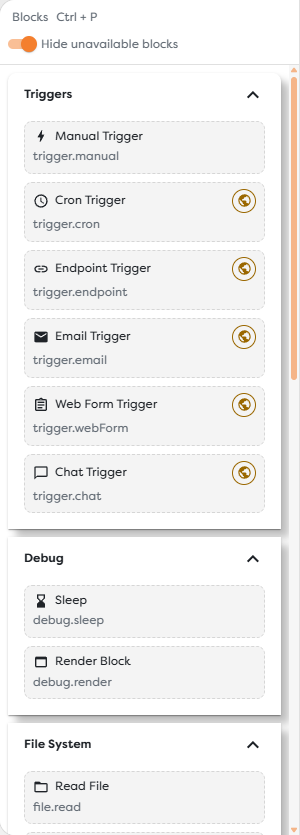
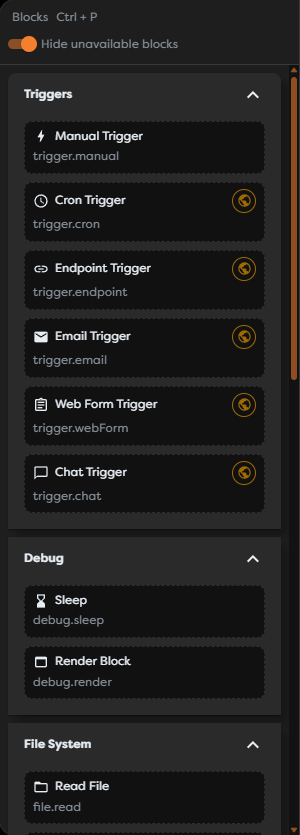
Each catalog item shows a display name and its block type, such as trigger.manual or process.transform. A status indicator marks a block that is unavailable in the current workspace because a required capability or resource is missing. Enable Hide unavailable blocks when you only want to browse blocks that can currently be used.
Drag an available block from the catalog onto the canvas. A workflow normally starts with a trigger and continues through processing, condition, integration, storage, or output blocks.
Read the canvas
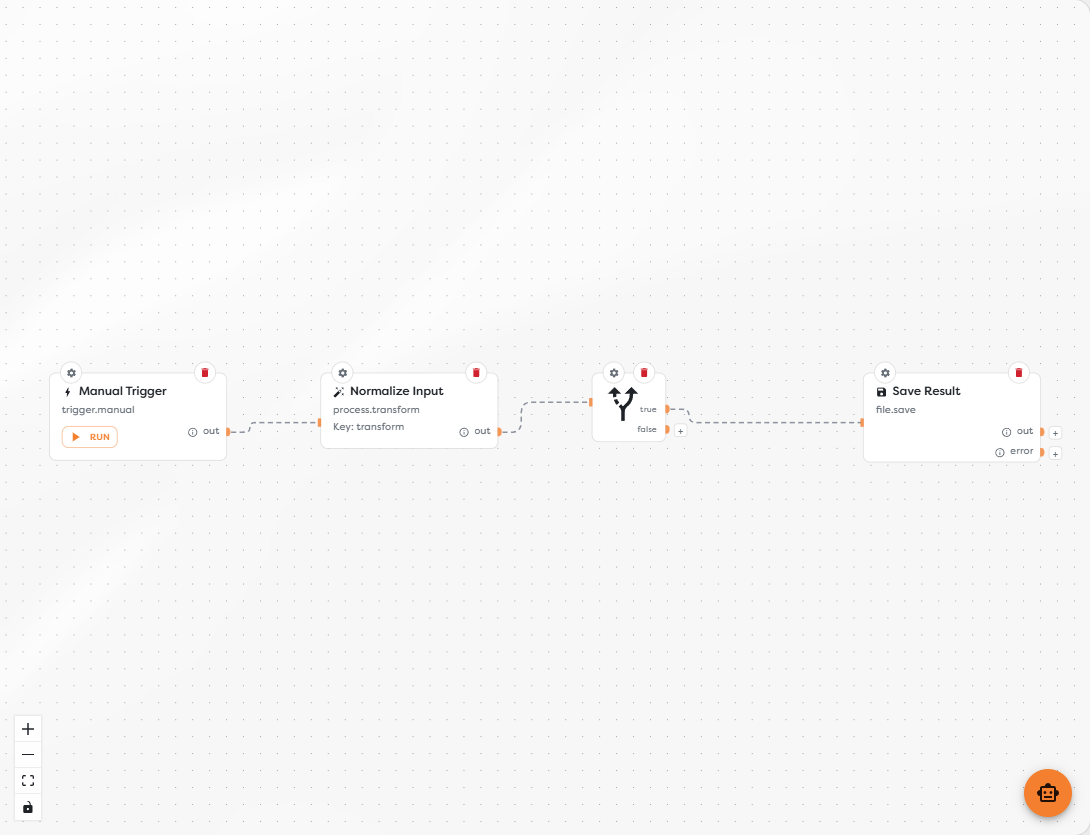
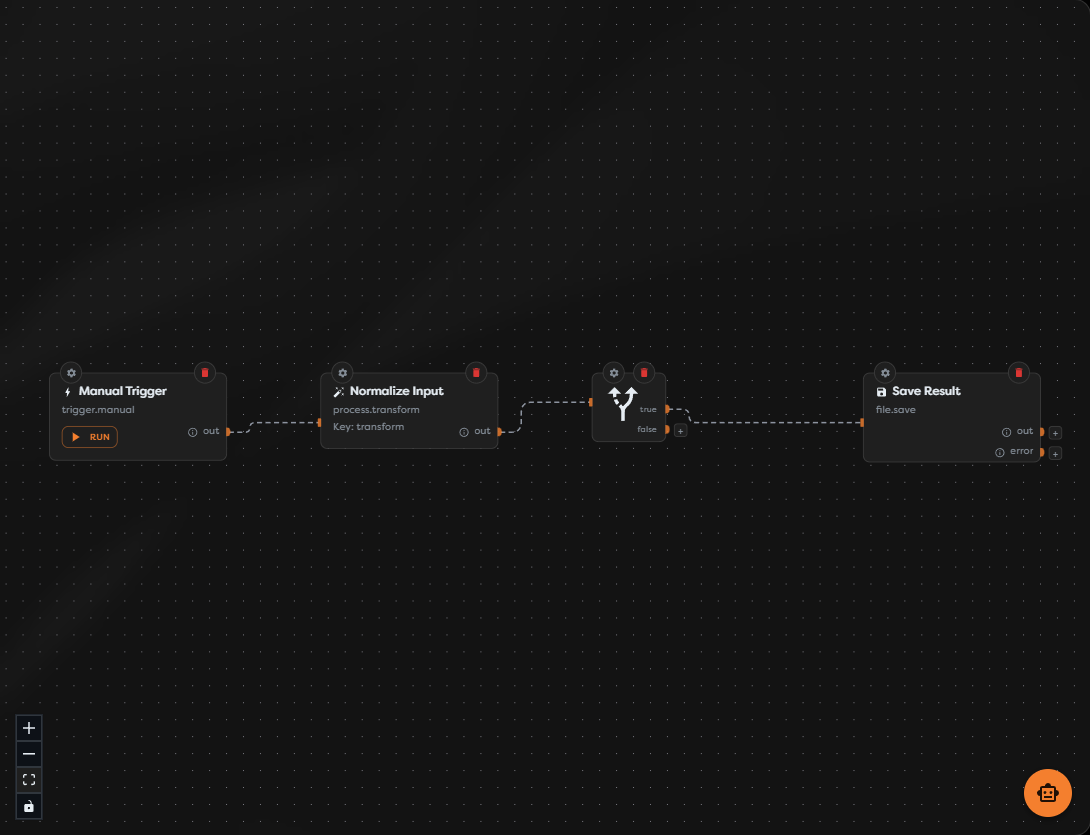
Blocks are workflow steps. Solid links show how execution or data moves between their ports. The example below starts manually, normalizes input, evaluates a condition, and follows the true output to save a result.
A block can expose several kinds of controls:
- The gear opens block settings.
- The delete action removes the block from the draft.
- Input ports receive links from earlier blocks.
- Named output ports, such as
out,true,false, orerror, determine which path can run next. - A plus action next to an output starts adding a connected follow-up block.
- Trigger blocks can expose a RUN action for a controlled test.
Create a link by dragging from an output port to a compatible input port. Condition blocks can have several outputs, so connect each branch deliberately. A link attached to true does not handle the false or error path.
Select a block or link before editing it. Selected elements are highlighted. You can move selected blocks with the pointer; keyboard selection also allows arrow-key movement and deletion. Use a blank area of the canvas to pan. Right-click a supported canvas element to open its context menu.
Navigate a large workflow
The controls in the lower-left corner of the canvas provide:
- Zoom In and Zoom Out for changing detail level.
- Fit View for framing all current blocks.
- Toggle Interactivity for locking or enabling canvas interaction.
Use the mouse wheel or trackpad to zoom when supported. Pan across blank canvas space, then use Fit View whenever blocks move outside the visible area. Enable Snap to grid when consistent spacing matters; disable it temporarily for precise free placement.
Configure blocks
Open a block's gear to edit its label and block-specific fields. Settings can include plain inputs, selectors, credentials, paths, expressions, or JSON editors.
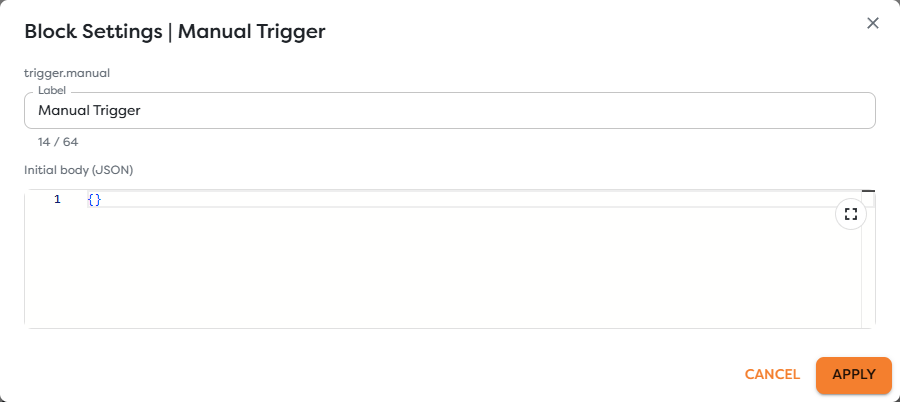
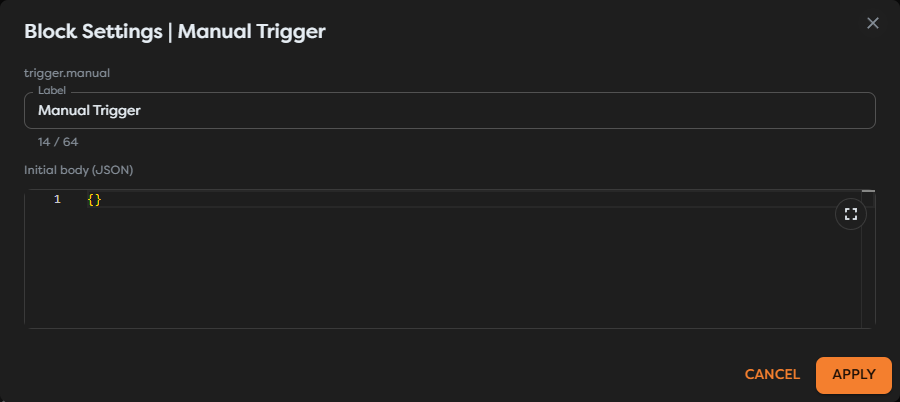
Select Apply to place valid settings in the current draft. Apply does not save or publish the workflow. Select Cancel or close the dialog to leave the block unchanged.
Required fields and invalid values are reported inside the settings dialog. Resolve every listed problem before saving or running. A block can appear on the canvas while still being incomplete, and a visually connected workflow is not necessarily executable.
Recognize unsaved changes
Editing a block, moving a block, adding or deleting a link, or importing a schema changes the draft state. When there are pending changes:
- Save becomes available after the workflow passes validation.
- Rollback becomes available and restores the last saved state.
- Closing or navigating away can discard work that has not been saved.
When both Save and Rollback are disabled, the displayed workflow matches the saved version. If Save opens a block settings dialog instead of completing, that block still has required or invalid configuration. Correct it, select Apply, and save again.
Saving and publishing are separate actions. Save the draft first, test it, and only then use Set public when the selected version is ready to receive live traffic.