
Microsoft Teams Trigger
Use a Microsoft Teams Trigger to start a published workflow from Microsoft Graph change notifications for Teams channel or chat messages. Microsoft Graph delivers the notification to the callback URL of a Builders Microsoft Teams integration; Builders validates the integration context and sends the event through the trigger's Out port.
This article uses the separate Documentation - Microsoft Teams Trigger pipeline in the Hack It UP - event project. Its example path sends every accepted registration message to a Render Block so the incoming structure can be inspected before individual fields are referenced.
Understand the event path
A working Teams trigger has four independent parts:
- A Microsoft work or school account is connected to Builders through OAuth.
- The required Microsoft Graph permissions are granted in the Microsoft Entra tenant.
- A Microsoft Graph subscription targets a channel, chat, user, or tenant resource and uses the Builders callback as its
notificationUrl. - The pipeline version containing Microsoft Teams Trigger is published.
Connecting Microsoft does not by itself create every subscription your workflow needs. The subscription defines the monitored Teams scope, change types, callback, client state, and expiration. Builders provides the receiving URL and integration context.
Microsoft Graph supports channel-level subscriptions at /teams/{team-id}/channels/{channel-id}/messages and chat-level subscriptions at /chats/{chat-id}/messages. Broader user-level and tenant-level resources require different permission models. Review change notifications for Teams messages before choosing a scope.
Prepare Microsoft Entra access
Use the smallest Microsoft Graph scope that covers the selected subscription and any downstream Teams Action.
| Scenario | Subscription resource | Least-privileged documented access |
|---|---|---|
| One channel | /teams/{team-id}/channels/{channel-id}/messages | Delegated ChannelMessage.Read.All |
| One chat | /chats/{chat-id}/messages | Delegated Chat.Read |
| All channels in a tenant | /teams/getAllMessages | Application ChannelMessage.Read.All |
| All chats in a tenant | /chats/getAllMessages | Application Chat.Read.All |
The channel and chat change-notification APIs do not support delegated personal Microsoft accounts. Use a work or school account and obtain tenant administrator consent where the selected permissions require it.
If the workflow will reply or send messages, grant the separate delegated send permission required by Microsoft Graph. The send chatMessage API documents ChannelMessage.Send as the least-privileged delegated permission for channel and chat sends. Read and send access are separate decisions.
Avoid tenant-wide application permissions when one channel or chat is sufficient. They increase the number of messages the endpoint can receive and the impact of a credential or workflow error.
Create the Builders integration
Open Integrations, create a Microsoft Teams integration, and assign it to the same personal or team ownership scope as the project.
Select Connect Microsoft and complete Microsoft sign-in and consent. Builders fills Account email after a successful managed OAuth connection.
Complete or review these fields:
| Field | Purpose | Required |
|---|---|---|
| Account email | Microsoft work or school account connected by OAuth. | Yes |
| Tenant ID | Optional Microsoft Entra tenant ID for tenant-specific access; otherwise common or an empty value can be used as allowed by the organization. | No |
| Default team ID | Fallback team used by Teams Action blocks when a block does not supply one. | No |
| Default channel ID | Fallback channel for outbound channel operations; it must belong to the default team. | No |
| Default chat ID | Fallback Microsoft Graph chat ID for outbound direct or group chat operations. | No |
| Webhook client state | Secret value compared with clientState in Microsoft Graph notifications. | No, recommended |
Save the integration once and reopen it. Builders now displays its stable Webhook callback URL.
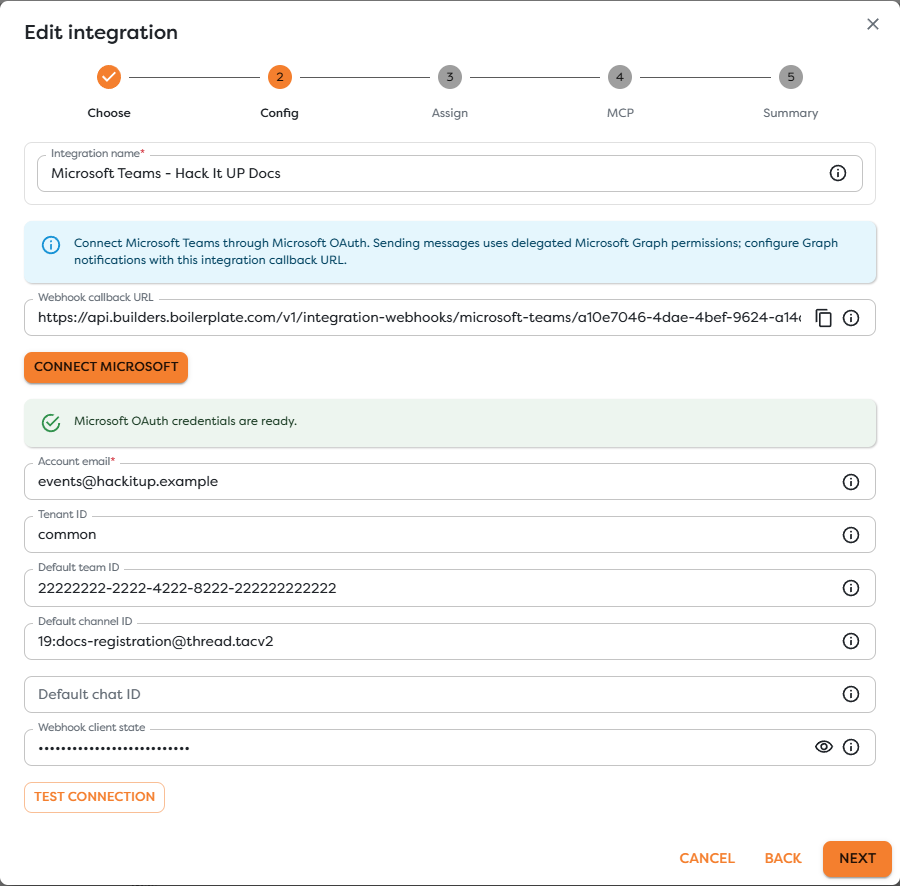
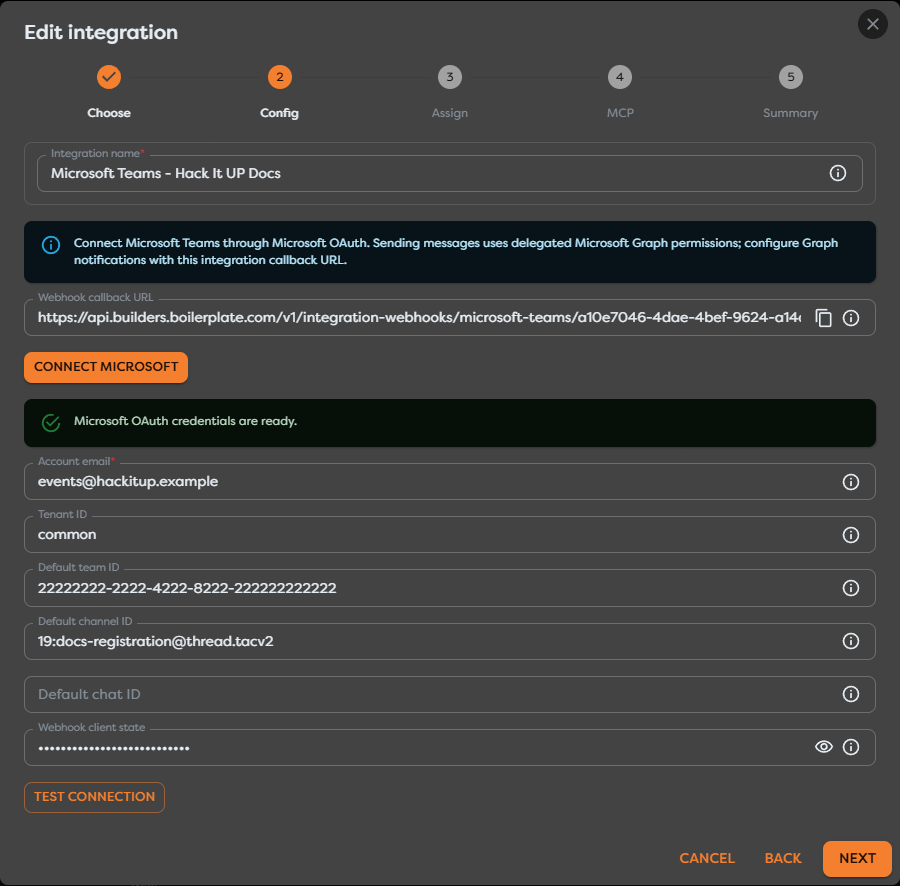
The screenshot uses placeholder tenant, team, channel, OAuth, and client-state values. It documents the available fields but does not represent a live Microsoft tenant. Never create a production subscription with copied example identifiers or secrets.
Default team, channel, and chat IDs are outbound fallbacks. They do not limit which events reach Microsoft Teams Trigger. The Microsoft Graph subscription resource determines the inbound scope.
Use Test connection only after OAuth completes. A successful test confirms that Builders can use the stored Microsoft connection; it does not prove that a change-notification subscription exists, remains unexpired, or targets the intended resource.
Create a Microsoft Graph subscription
Create the subscription through Microsoft Graph with an access token authorized for the selected resource. Use the complete Builders Webhook callback URL as notificationUrl and the same random value stored as Webhook client state as clientState.
This basic channel-message example omits resource data, so it does not require an encryption certificate:
POST https://graph.microsoft.com/v1.0/subscriptions
Authorization: Bearer <microsoft-graph-access-token>
Content-Type: application/json
{
"changeType": "created",
"notificationUrl": "<builders-webhook-callback-url>",
"resource": "/teams/<team-id>/channels/<channel-id>/messages",
"includeResourceData": false,
"expirationDateTime": "<supported-utc-expiration>",
"clientState": "<same-random-client-state>"
}
For chat messages, change resource to /chats/<chat-id>/messages. Use created,updated only when edits should start workflows too. If only newly created messages matter, restricting the change type prevents edits from repeating downstream effects.
During subscription creation, Microsoft Graph validates the notification URL by sending a POST request containing a validationToken query parameter. The callback must return the URL-decoded token as plain text with HTTP 200 within 10 seconds. See Receive change notifications through webhooks for the exact validation contract.
If validation fails, Microsoft Graph does not create the subscription. Confirm that the callback URL is complete, publicly reachable through HTTPS, unchanged after saving the integration, and not being rewritten by a proxy.
Choose basic or rich notifications
With includeResourceData: false, a notification identifies the subscription, resource, change type, tenant, and message resource data required to locate the changed object. Builders can use the connected Graph context for supported message operations, but you should inspect a live run before depending on a specific normalized field.
Rich notifications use includeResourceData: true and require encryptionCertificate and encryptionCertificateId. They also require decryption and validation of the resource payload. Do not enable them merely to copy a basic-notification example. Follow Microsoft's resource-data notification setup and verify that the receiving implementation supports the required certificate lifecycle.
For basic notifications, validate clientState on every item. For rich notifications, Microsoft additionally requires validation of the JWT values in validationTokens and decryption of encrypted resource data.
Configure Microsoft Teams Trigger
Drag Microsoft Teams Trigger from Triggers onto the Designer canvas and open its settings. Give it a meaningful label and select the Microsoft Teams integration whose callback is used by the Graph subscription.
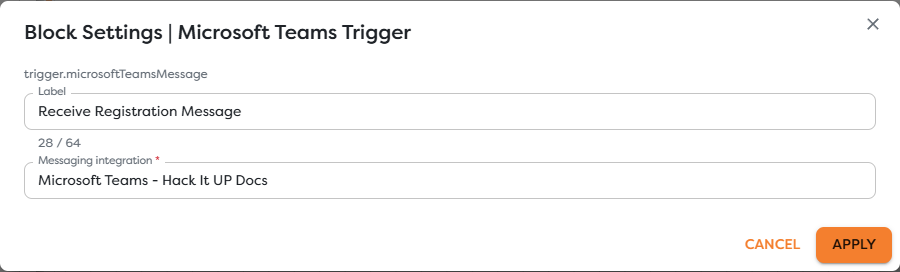
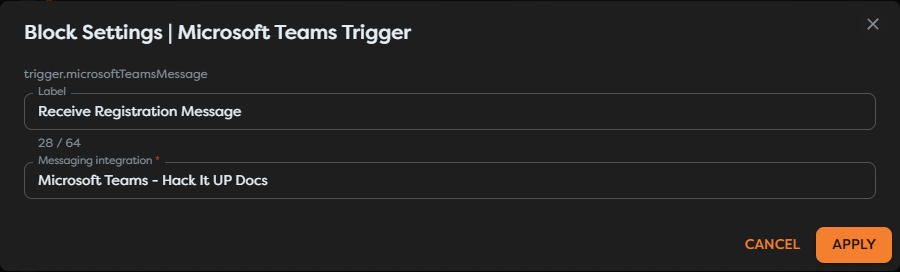
The trigger has one provider setting: Messaging integration. Team, channel, chat, sender, and message filters are not configured on the block. Define the inbound scope in Microsoft Graph and add downstream Conditions when the same integration or subscription family can deliver multiple event types.
If the block is unavailable, disable Hide unavailable blocks and inspect its availability message. Microsoft Teams Trigger requires an accessible Microsoft Teams integration with the trigger capability enabled.
Connect the incoming path
Connect the trigger's Out port to the first validation or normalization block. During development, use a Render Block with {{input}} and send a controlled message through the published subscription.


The example edge is labeled Incoming Teams message. After inspecting actual events, replace or extend the Render Block with registration logic, Conditions, database writes, AI processing, or a Microsoft Teams Action.
Inspect channel and chat context
The exact input depends on subscription scope, notification mode, change type, and Builders normalization. Inspect the trigger output from a real published run instead of assuming Graph paths.
Common values to locate include:
| Data group | Typical values |
|---|---|
| Subscription | Subscription ID, expiration, tenant ID, client state, and change type. |
| Resource | Graph resource path and resource type. |
| Message | Message ID, created or modified time, body content and content type. |
| Sender | User, application, device, or conversation identity when supplied. |
| Channel context | Team ID, channel ID, message ID, and reply or thread relationship. |
| Chat context | Chat ID, message ID, participants or conversation metadata when available. |
| Message features | Mentions, attachments, reactions, hosted content references, and importance. |
Start with {{input}}, send a uniquely identifiable message, and compare the run with the original Teams message. Test channel root messages, channel replies, one-to-one chats, group chats, edits, mentions, and attachments separately if the workflow supports them.
Treat sender names, message HTML, attachment metadata, mentions, and hosted-content references as untrusted input. Validate or sanitize them before using them in HTML, database queries, file paths, AI prompts, or privileged actions.
Filter events and prevent loops
Add a Condition or Transform block immediately after the trigger. Useful checks include:
changeTypeis one the workflow intentionally supports;- the team, channel, or chat identifier is allowlisted;
- the sender is a permitted user or application;
- the message is a root message or reply as required;
- the body contains the expected registration command or structured content;
- attachment types and sizes are supported;
- the message was not created by the automation account.
Prevent reply loops when the workflow sends through Microsoft Teams Action. Reject messages from the connected automation identity, or record outbound message IDs and ignore their corresponding notifications.
Edits and reactions can generate additional notifications for an existing message. Do not treat every notification as a new business event unless that behavior is intentional.
Publish and test a live message
Microsoft Graph notifications start live runs only for a published pipeline version containing the configured trigger.
- Confirm that Microsoft OAuth is connected and the required tenant consent is present.
- Save the integration and copy its complete callback URL.
- Create the Graph subscription and retain its returned ID and expiration time.
- Confirm that subscription validation succeeds.
- Publish the pipeline version containing Microsoft Teams Trigger.
- Post a unique message in the subscribed channel or chat, such as
Hack It UP Teams registration 2026-08-20. - Open the resulting published run and inspect the trigger and first downstream block.
A successful Teams Action or integration connection test does not verify the inbound subscription. Conversely, a successfully created subscription does not prove that the intended pipeline version is published.
This guide uses placeholder OAuth and tenant values, so no live Microsoft Graph subscription or Teams message was created while taking the screenshots.
Renew and monitor subscriptions
Microsoft Graph subscriptions expire. The subscription resource documentation currently lists a maximum of three days for Teams chatMessage basic subscriptions and under one day for rich notifications. Always calculate against the value returned by Graph rather than assuming the requested expiration was accepted unchanged.
Renew well before expiration with:
PATCH https://graph.microsoft.com/v1.0/subscriptions/<subscription-id>
Authorization: Bearer <microsoft-graph-access-token>
Content-Type: application/json
{
"expirationDateTime": "<new-supported-utc-expiration>"
}
Microsoft documents the renewal operation in Update subscription. Store the subscription ID, resource, returned expiration, integration owner, and renewal status in operational state.
For Teams message subscriptions whose expiration is more than one hour in the future, Microsoft requires a lifecycleNotificationUrl. Operate a compatible lifecycle endpoint and handle reauthorizationRequired, subscriptionRemoved, and missed-notification recovery as described in Microsoft Graph lifecycle notifications. Do not assume a message callback also manages subscription renewal.
Alert before expiration, on repeated renewal failure, on OAuth consent or refresh failures, and when the callback stops receiving expected traffic. If a subscription expires or is removed, create a new one and reconcile potentially missed messages before resuming external effects.
Handle duplicates and ordering
Microsoft Graph can retry delivery, batch multiple notification items, and notify again when a message changes. Make every external effect idempotent.
Prefer a key built from the tenant or subscription, Graph resource, message ID, and supported change type. For channel replies, preserve the parent message relationship too. Record the key atomically with registration creation, database writes, or outbound sends when possible.
Do not deduplicate using sender and body text alone. Users can legitimately repeat a message, while edits and reactions can refer to the same message ID.
Do not assume strict ordering between creation, edit, reaction, lifecycle, and retry notifications. Compare Graph timestamps or business-state versions before allowing an older event to overwrite a newer result.
Troubleshoot Teams events
- Microsoft Teams Trigger is unavailable: create or activate a Microsoft Teams integration in the project's ownership scope and confirm its trigger capability.
- Connect Microsoft fails: verify the hosted OAuth configuration, popup behavior, work or school account, tenant policy, and administrator consent.
- Account email remains empty: complete Microsoft OAuth; the field is read-only and filled by the managed connection.
- No callback URL appears: save the integration once, reopen it, and copy the generated URL.
- Graph rejects the notification URL: verify HTTPS reachability and the validation-token response contract, including the 10-second deadline and plain-text response.
- Subscription creation returns a permission error: compare the resource with the delegated or application permission required for that exact scope and confirm admin consent.
- Subscription creation requires a lifecycle URL: provide a compatible
lifecycleNotificationUrlor request a supported expiration of no more than one hour. - No run starts: confirm that the subscription is active, unexpired, targets the intended resource, uses the correct callback, and the pipeline version is published.
- Client state does not match: use the exact same secret in the Builders integration and Graph subscription, then recreate or update the subscription as appropriate.
- Channel messages work but chats do not: chat subscriptions use a different resource and permission set; verify the chat ID and
Chat.Reador application access. - Root messages work but replies do not: inspect the channel resource, reply relationship, Graph payload, and downstream filter.
- Edits repeat an effect: restrict
changeTypetocreatedwhen appropriate or deduplicate by message identity and change type. - Replies create an infinite loop: filter the automation identity or recorded outbound message IDs before Microsoft Teams Action.
- Events stop after several days: inspect subscription expiration, renewal logs, lifecycle events, and OAuth refresh health.
- The expected field is missing: inspect
{{input}}from the actual subscription mode and use Designer autocomplete instead of assuming raw Graph placement.
Next steps
- Trigger Blocks
- Use Template Expressions
- Read Block Logs and Output
- Run Published Workflows
- Messaging Integrations
The next article will cover WhatsApp Business Trigger.