
Collaborate on a Team Workflow in Real Time
Real-time collaboration lets permitted team members edit the same workflow diagram and see a shared draft before it is saved. It is available when the project is team-owned and the selected pipeline version is not published. Published versions remain read-only.
This article uses the dedicated Documentation - Realtime Collaboration pipeline to identify the shared editing surfaces and the coordination rules a team should follow.
Start in a team-owned draft
Open the same project, pipeline, and version as the other collaborators. Confirm the full breadcrumb before editing: two versions of one pipeline are separate collaboration sessions.
Real-time collaboration requires:
- a project owned by a team,
- access to that team and permission to edit Builders workflows,
- an unpublished pipeline version,
- an active connection to the collaboration session.
A personal project does not display team presence. Publishing a version also ends editing on that version because its Designer becomes read-only. Create or select another draft version when the team needs to continue working.
Recognize active collaborators
When other team members open the same draft, their participant avatars appear in the top toolbar between Snap to grid and Runs. The avatar list represents other active users, not everyone who can access the project. Hover over it to identify the connected participants.
An avatar disappearing means that the participant has left or lost the live connection. It does not confirm that their work was saved. Treat Save state and the current diagram as the source of truth.
Interpret colored block outlines
Each remote participant has a collaboration color. Builders uses that color as an outer outline around blocks the person has selected or is actively editing. Several outlines can appear around the same block when several people are working there.
Use the outlines as coordination signals:
- a colored outline means another participant is focused on that block,
- different colors identify different remote editors,
- several rings mean the block has overlapping attention,
- no outline does not lock the block or guarantee that nobody is about to change it.
Avoid opening settings for a block already being edited by somebody else. The outlines communicate presence; they are not exclusive locks.
Understand the shared unsaved draft
Canvas edits synchronize through the collaboration session. Other participants can receive changes such as:
- blocks added or dropped onto the canvas,
- block movement and diagram layout,
- new, changed, or removed connections,
- applied labels and block settings,
- block or selection deletion,
- workflow changes produced through the AI Assistant.
These updates form one shared unsaved graph. They are not independent local drafts. After any participant changes the workflow, Rollback and Save indicate that the shared graph differs from the persisted version.


If another participant deletes a block while you have its settings open, Builders closes the stale edit and reports that the block was removed by another collaborator. Reopen the current graph before continuing instead of recreating the block without checking the team's intent.
Avoid conflicting edits
Real-time synchronization does not turn a block settings dialog into a field-level lock. Two people can edit related nodes, branches, or settings at the same time, and the resulting shared state may invalidate an assumption made in another open dialog.
Before a larger change:
- State which block or branch you are taking.
- Watch the participant colors before editing the same area.
- Apply a coherent settings change rather than leaving a dialog open while others restructure the graph.
- Recheck connected ports and expressions after another participant changes an upstream block.
- Pause overlapping edits before a save, rollback, import, or AI-generated rewrite.
Import and rollback affect the shared diagram broadly. When other participants are present, rollback explicitly warns that it will discard the unsaved changes for everyone currently editing that diagram.
Coordinate the shared AI Assistant
The Designer AI Assistant uses the pipeline version as its collaboration context. Open it from the floating assistant action in the lower-right corner of the canvas.
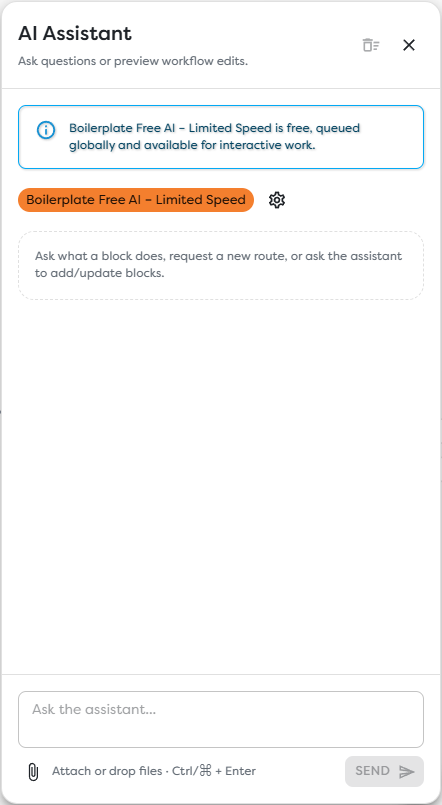
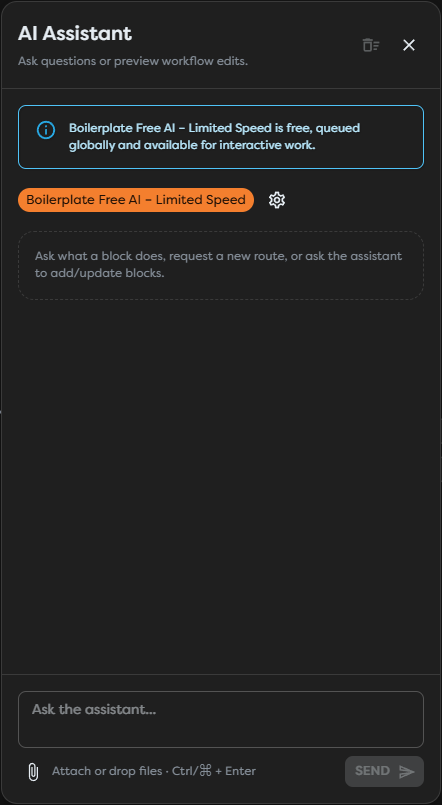
In a team workflow, the panel identifies itself as the shared assistant for that workflow. When a participant is actively using it, other collaborators can see who is directing the assistant. The conversation, attachments, streamed responses, proposed actions, and accepted workflow edits therefore require the same coordination as manual canvas changes.
Follow these rules:
- nominate one person to direct the assistant at a time,
- read the existing version conversation before adding another request,
- wait for an active task to finish or be stopped before sending a competing instruction,
- review proposed graph changes before applying them,
- announce destructive requests such as removing or replacing a branch,
- remember that clearing the assistant context affects the pipeline version's shared context,
- treat accepted AI edits as unsaved shared workflow changes until the version is saved.
The assistant does not replace review by the collaborators who own the affected integrations, data paths, and publication decision.
Assign final save ownership
Agree who performs the final save. Save persists the current shared graph, including synchronized changes made by other participants. It is not limited to the edits made by the person selecting the button.
Before saving:
- Ask collaborators to finish or pause active edits.
- Confirm that participant outlines are no longer moving through the area under review.
- Inspect every changed branch and open affected block settings.
- Resolve validation errors and resource-access differences.
- Select Save once, then wait for the shared session to receive the saved state.
- Run a controlled test and inspect the result.
Do not use Rollback as a personal undo action during collaboration. It restores the last saved workflow for the entire shared session and can discard everybody's pending work.
Saving does not publish. Keep publication as a separate team decision after testing the saved version. If more editing is required after publication, create or select an unpublished version instead of trying to change the read-only live version.
Recover from a collaboration problem
If the diagram stops updating or reports a collaboration error:
- Stop making additional edits.
- Compare the project, pipeline, and version breadcrumb with another participant.
- Confirm that the project is still team-owned and your role still allows editing.
- Reopen the version to reconnect and reload the shared graph.
- Ask the designated saver whether the latest intended state was persisted.
- Use an exported schema only after the team agrees which graph should replace the current draft.
Do not rely on an open browser tab as the only durable copy of team work. Save deliberate checkpoints and export a schema before a risky replacement.