
Use Template Expressions
Template expressions insert data that is only available when a workflow runs. Use them in supported block fields to reference upstream input, General Vault entries, and metadata for the current run. This article uses the unpublished Documentation - Template Expressions pipeline in the Hack It UP - event project.
Expression syntax
Wrap a dot-separated path in two pairs of braces:
{{input.registration.attendee.name}}
The first segment selects a data source:
inputreads data received from connected upstream blocks.vaultreads an entry from General Vault.runreads metadata generated for the current execution.
Paths are case-sensitive. Keep every segment consistent with the source data, including capitalization and nesting.
In Template JSON, a field whose complete value is one expression can resolve to the source value's native type. For example, "ticketQuantity": "{{input.registration.ticket.quantity}}" resolves to a number when the source value is numeric. Text added around an expression produces a string instead.
Reference upstream input
Start with input, then follow the structure produced by an upstream block. Given this trigger body:
{
"registration": {
"attendee": {
"name": "Ada Nowak",
"email": "ada@example.com"
},
"event": {
"title": "Hack It UP 2026"
},
"ticket": {
"quantity": 2
}
}
}
the attendee name is available as:
{{input.registration.attendee.name}}
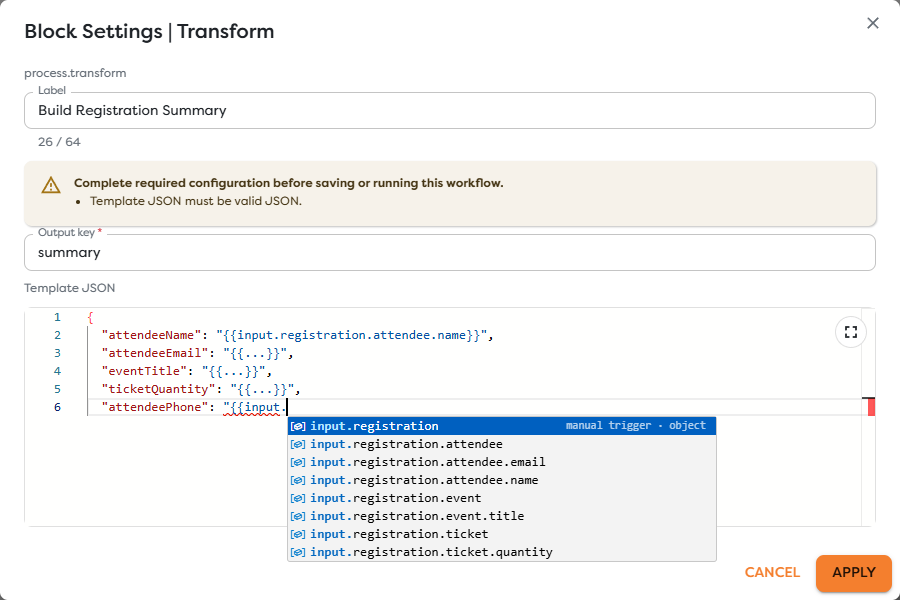
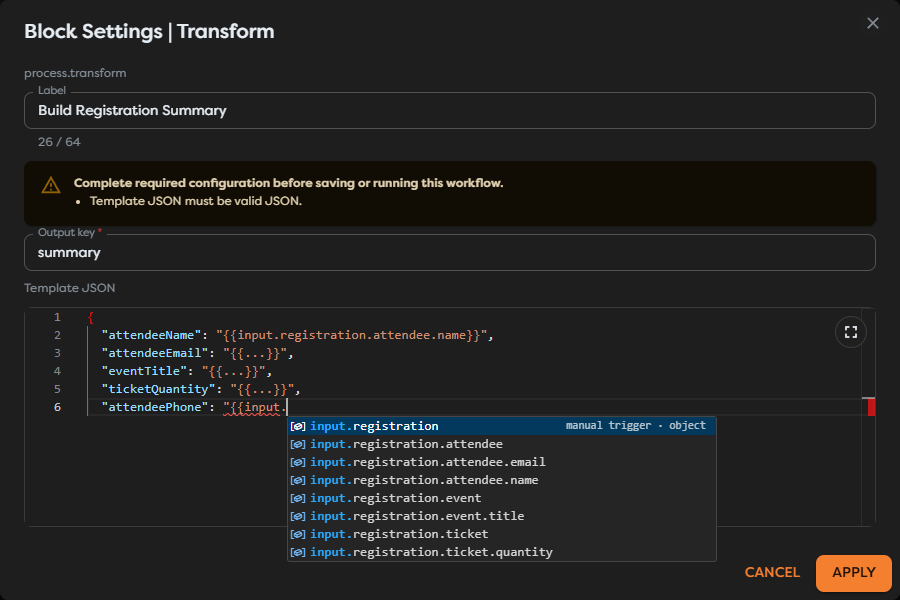
Autocomplete can combine paths inferred from configured trigger data with paths observed in a previous run. Run the upstream path once when you need suggestions and example values for its actual payload.
Reference General Vault values
General Vault stores a value independently from the workflow that uses it. The Vault name identifies the entry in the General Vault screen, while the entry key becomes part of the template path.
Store the value in General Vault
Create or edit an entry and complete these fields:
- Vault name: a descriptive name used to manage the entry, such as
Documentation Event Settings. - Key: the identifier used by templates, such as
eventVenue. - Value type: the stored data format. Use Simple value for one text value.
- Value: the runtime value, such as
New York Expo.
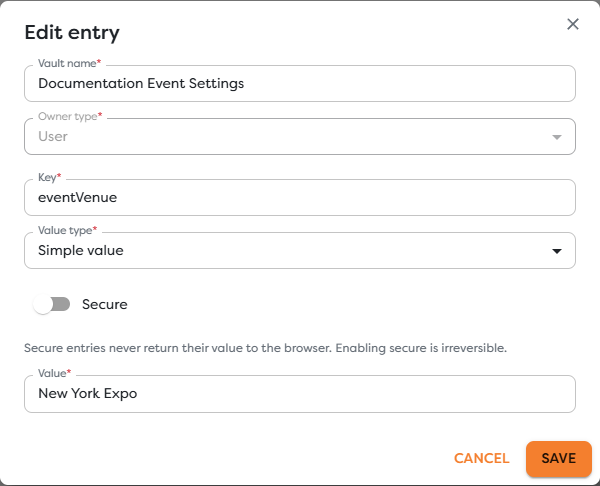
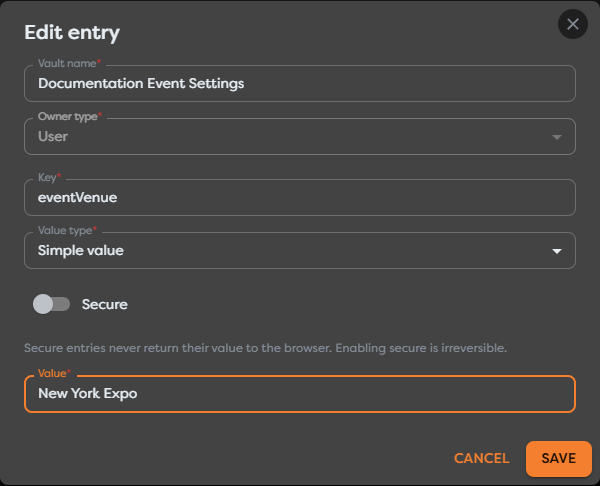
The Vault name does not appear in the expression. For the configuration above, Documentation Event Settings is the management label and eventVenue is the referenceable key.
Use the stored value in a template
Start with vault and append the entry key:
{{vault.eventVenue}}
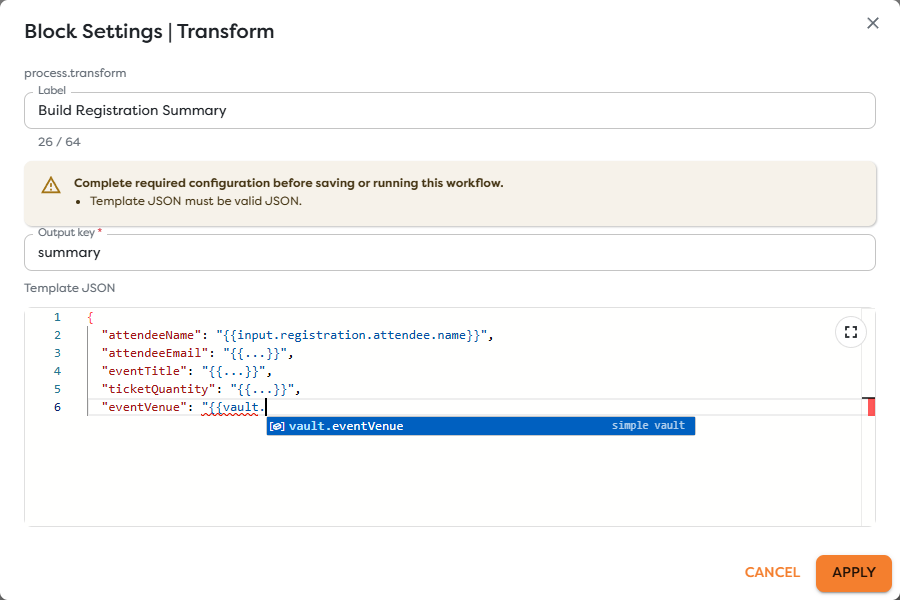
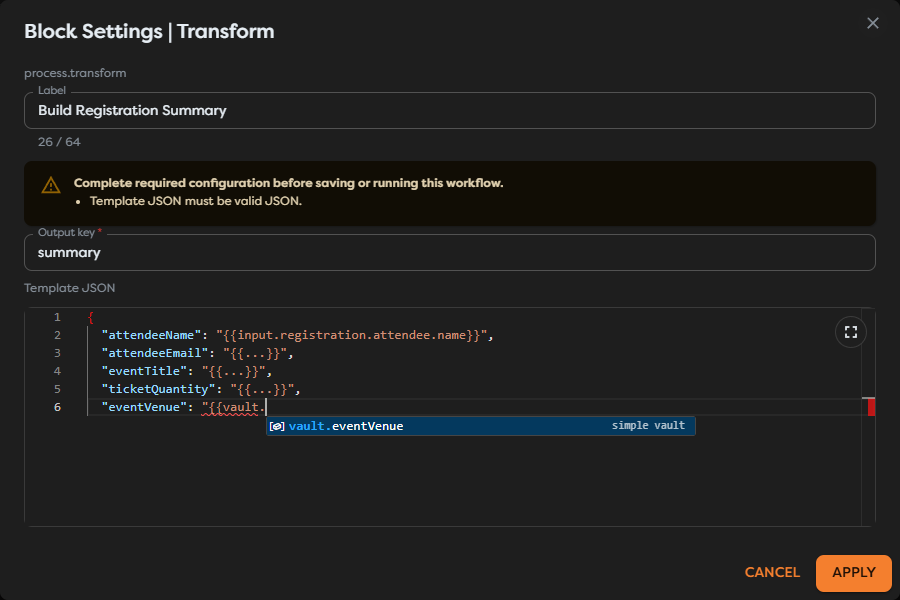
The stored configuration, expression, and resolved result correspond as follows:
| General Vault field | Configured value | Template or runtime value |
|---|---|---|
| Vault name | Documentation Event Settings | Not included in the expression |
| Key | eventVenue | {{vault.eventVenue}} |
| Value | New York Expo | Resolves to New York Expo at runtime |
For example, this Template JSON:
{
"eventVenue": "{{vault.eventVenue}}"
}
resolves during the run to:
{
"eventVenue": "New York Expo"
}
A JSON Vault entry can expose nested paths. For an eventConfig entry containing a nested venue.name field, use:
{{vault.eventConfig.venue.name}}
The workflow must be allowed to access the selected Vault entry. A missing key, a renamed key, or insufficient access prevents resolution. Secure entries do not return their value to the browser; Builders resolves them during execution. Do not treat an autocomplete preview as a way to inspect a secure value.
Reference run metadata
The run namespace describes the current execution and provides values that do not come from an upstream block.
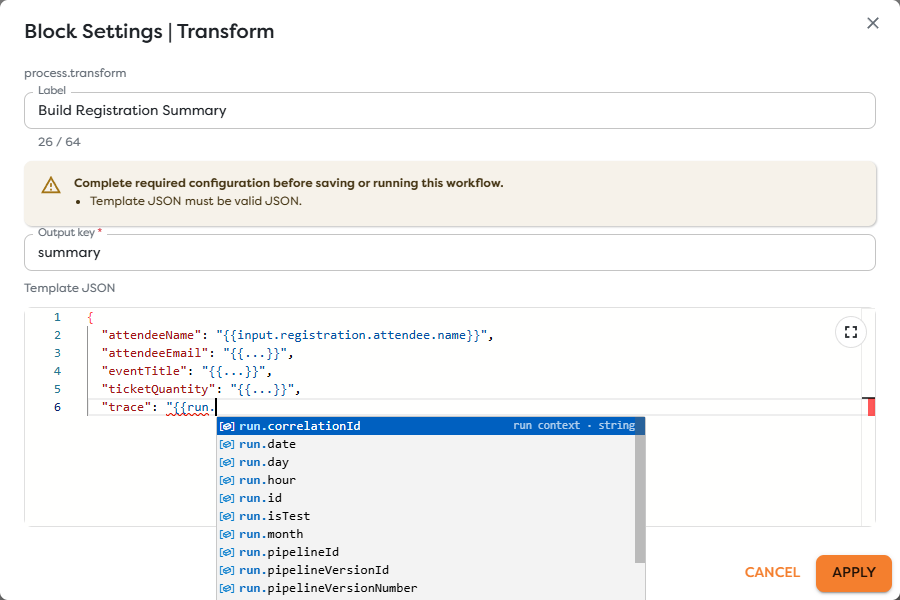
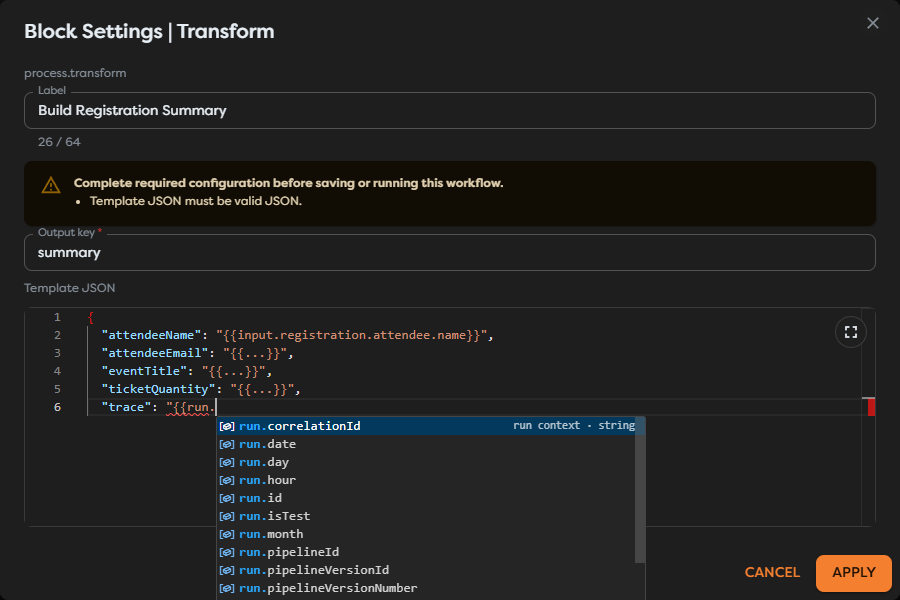
Common fields include:
| Expression | Value |
|---|---|
{{run.id}} | Stable identifier of the current run |
{{run.startedAt}} | Run start time in ISO 8601 UTC format |
{{run.timestamp}} | Run start time as Unix milliseconds |
{{run.date}} | UTC date in YYYY-MM-DD format |
{{run.time}} | UTC time in HH:mm:ss format |
{{run.uuid-gen}} | A newly generated UUID v4 |
{{run.projectId}} | Current project identifier |
{{run.pipelineId}} | Current pipeline identifier |
{{run.pipelineVersionId}} | Current pipeline version identifier |
{{run.pipelineVersionNumber}} | Current pipeline version number |
{{run.triggerBlockId}} | Block that started the run |
{{run.triggerType}} | Type of the trigger that started the run |
{{run.isTest}} | Whether the execution is a test run |
{{run.correlationId}} | Correlation identifier for related execution data |
The namespace also provides UTC date parts through run.year, run.month, run.day, and run.hour.
run.id stays the same throughout one execution. By contrast, each resolution of run.uuid-gen creates a new UUID. Store one generated value in an output if later blocks must reuse the same UUID.
Use autocomplete
In a supported editor, type {{, enter a namespace, and type a period to narrow the list. Each suggestion identifies its source and may include an example from a previous run.
Autocomplete is a discovery aid, not a guarantee that a path will exist in every execution. Suggestions can come from:
- configured manual-trigger data;
- values observed in the latest run;
- General Vault entry metadata;
- the built-in run context.
While an expression or its surrounding JSON is incomplete, the settings dialog can temporarily report that Template JSON is invalid. Finish both closing braces and restore valid JSON before selecting Apply.
Test the resolved output
Apply the block settings, save the pipeline version, and run the workflow with controlled input. Inspect the block that consumes or displays the transformed value.
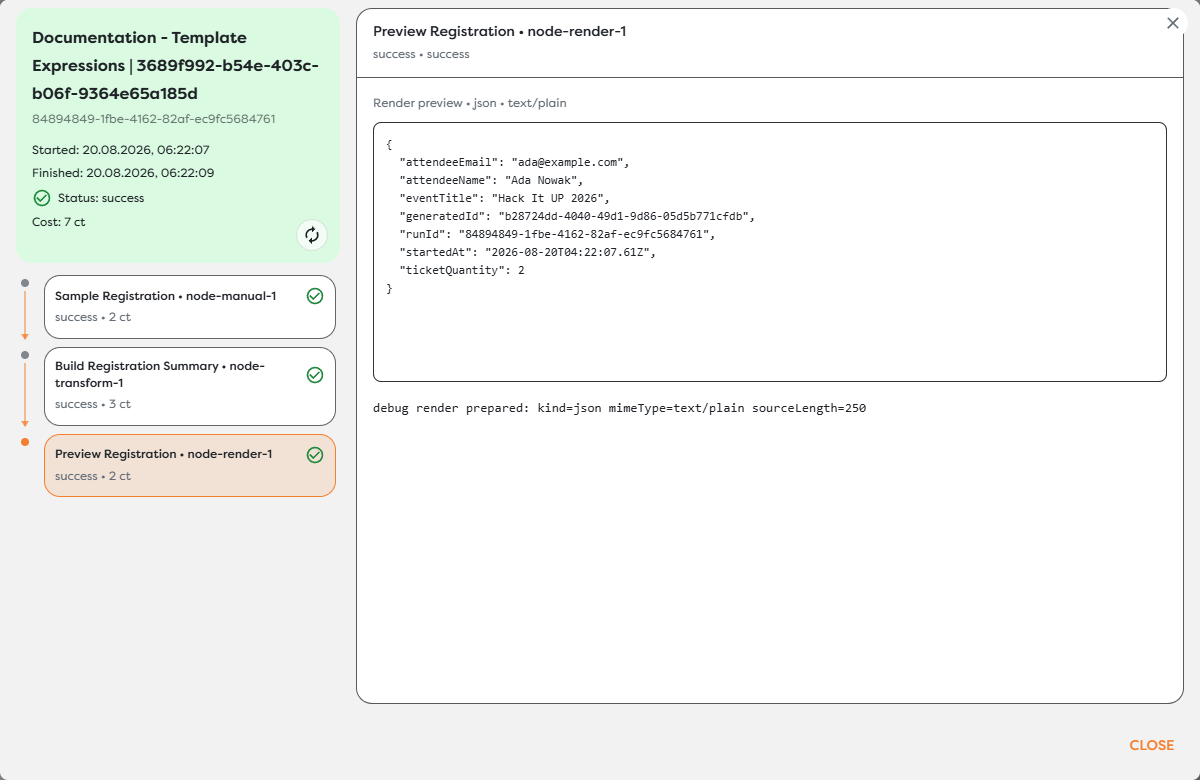
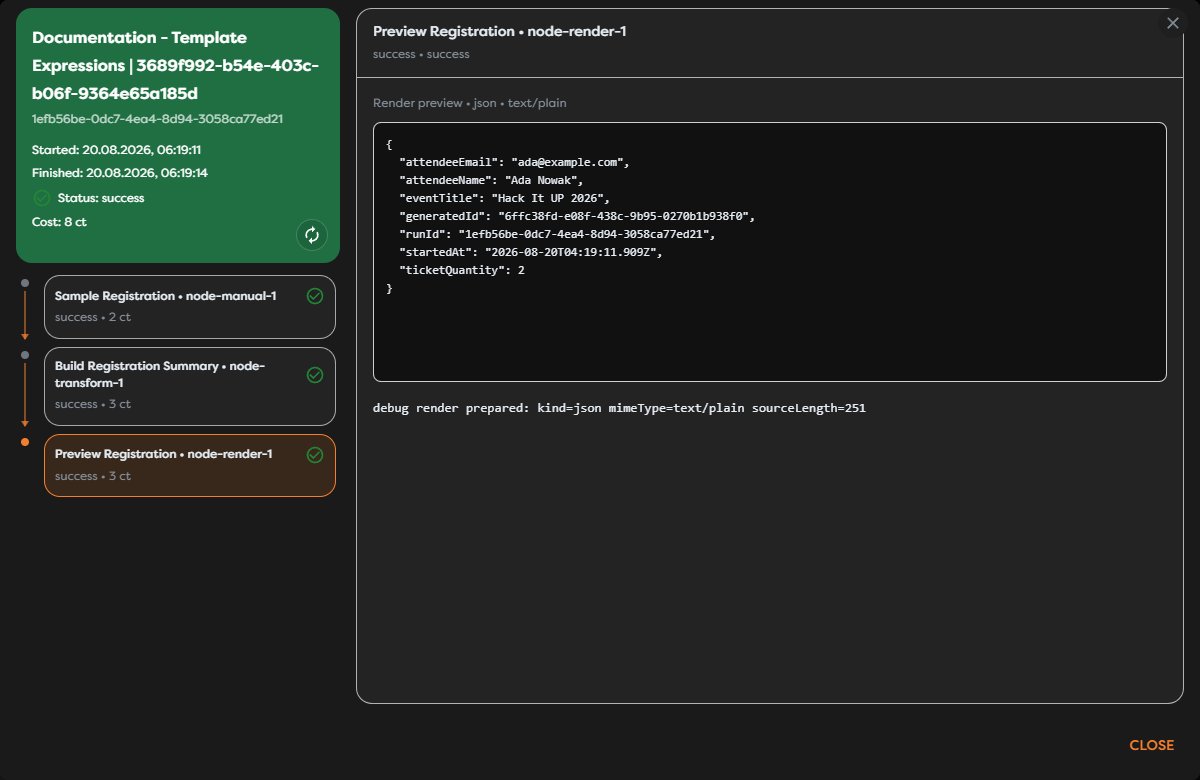
The example output preserves the numeric ticket quantity and resolves the attendee, event, run ID, start time, and generated UUID at runtime. Preview examples in autocomplete can be stale, so use the completed run result when verifying the value that was actually processed.
Troubleshoot expression failures
If a template cannot be resolved, inspect the first failed block and compare the reported path with the current input or Vault structure.
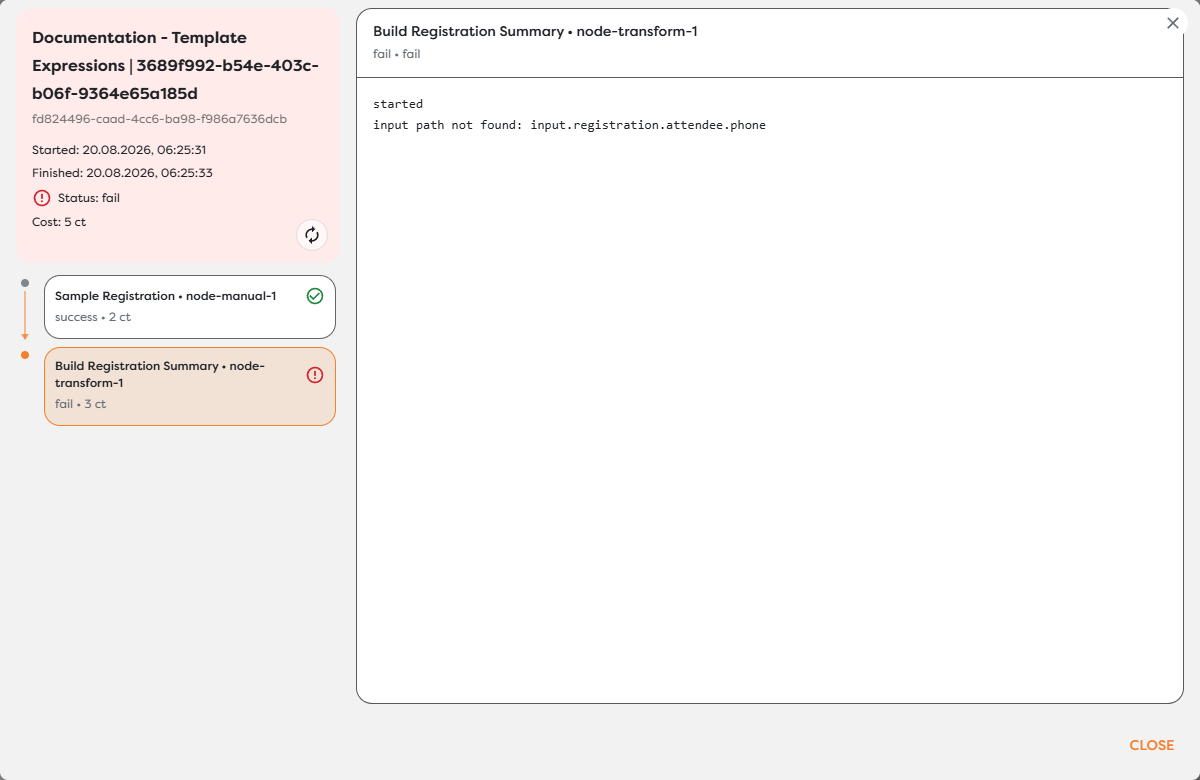
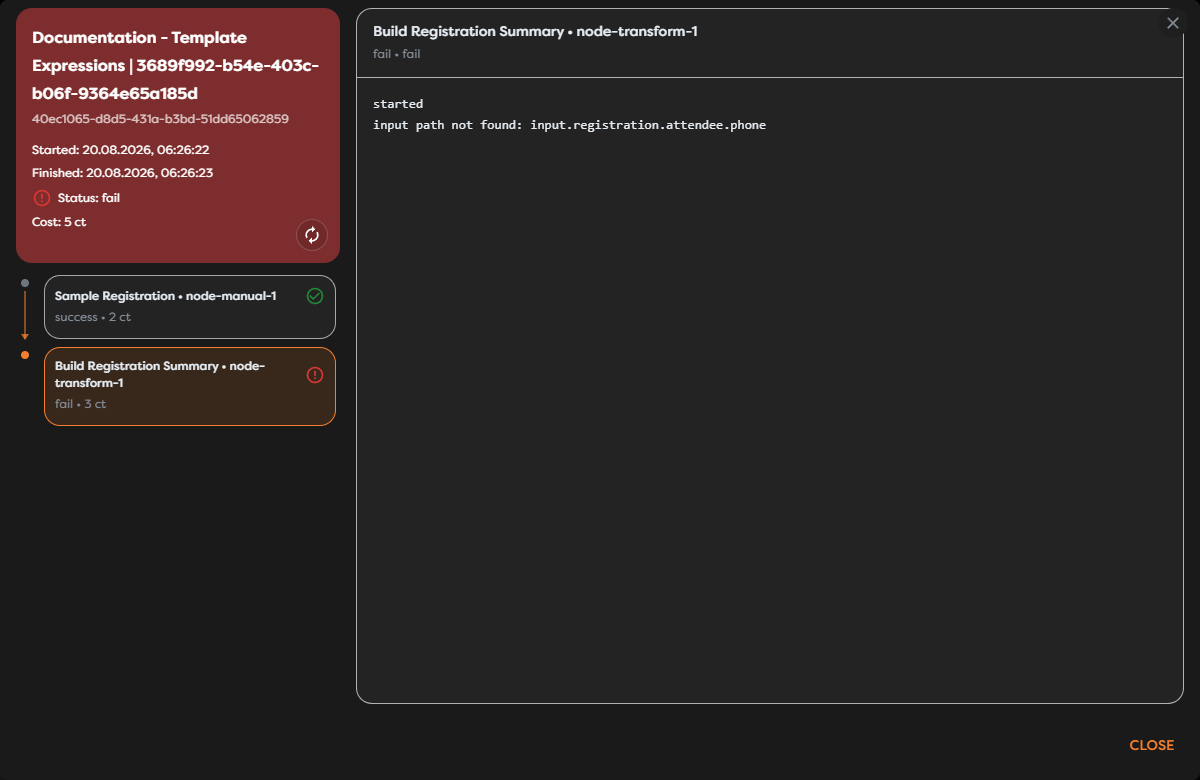
Builders stops the block when a referenced input path is missing. In the example, {{input.registration.attendee.phone}} fails with input path not found: input.registration.attendee.phone because the trigger payload has no phone field.
Check these common causes:
- Missing path: Confirm that every object and field exists for this execution.
- Stale suggestion: Run the upstream path again after its payload changes, then reopen the editor.
- Renamed output or key: Update expressions after changing a block output key or Vault entry key.
- Wrong nesting or capitalization: Compare the expression one segment at a time with the actual JSON.
- Unavailable Vault entry: Verify the entry scope and the workflow's access.
- Type mismatch: Use a complete expression when the destination expects the source value's native type; deliberately format it as text only when the destination expects a string.
- Invalid Template JSON: Fix JSON syntax separately from the expression path. A valid expression can still sit inside invalid JSON.
After correcting the source or expression, apply and save the draft, then start a new controlled run. Previous run results do not change when the pipeline is edited.