
Signal Action
Use Signal Action to send a message, reply to an inbound Signal conversation, or read messages through a Signal integration available to the project. The block exposes separate Out and Error ports.
Signal Action does not connect to a vendor-hosted Signal automation API. Builders calls the API of the self-hosted bridge configured in the selected integration. The bridge owns the Signal account or linked-device state and is part of the production security and availability boundary.
This article uses the Signal - Hack It UP Docs integration and sends a registration confirmation for the Hack It UP - event project.
Prepare the Signal integration
Create and test a Signal Messenger integration before adding the block. Configure the bridge base URL, its outbound API authentication when used, the registered or linked Signal account, and an optional default recipient.
Builders names signal-cli-rest-api as one possible community-maintained bridge. Its supported endpoints and account modes can change independently of Builders. The underlying signal-cli project also requires timely updates to remain compatible with the Signal service.
Treat the bridge as production infrastructure:
- expose it only through trusted TLS and restricted network access;
- require authentication for Builders-to-bridge requests;
- persist and protect the account and linked-device state required by the bridge;
- supervise the process, disk usage, account linkage, and receive path;
- update the bridge and
signal-clideliberately and test after each change; - keep Bridge API credentials out of block fields, Vault templates, logs, and screenshots.
The bridge can process plaintext message content while performing automation. Signal's end-to-end encryption between Signal clients does not remove that trust boundary from the workflow system, bridge host, logs, or downstream services.
Configure Signal Action
Drag Signal Action from the Process group onto the Designer canvas and open its settings.
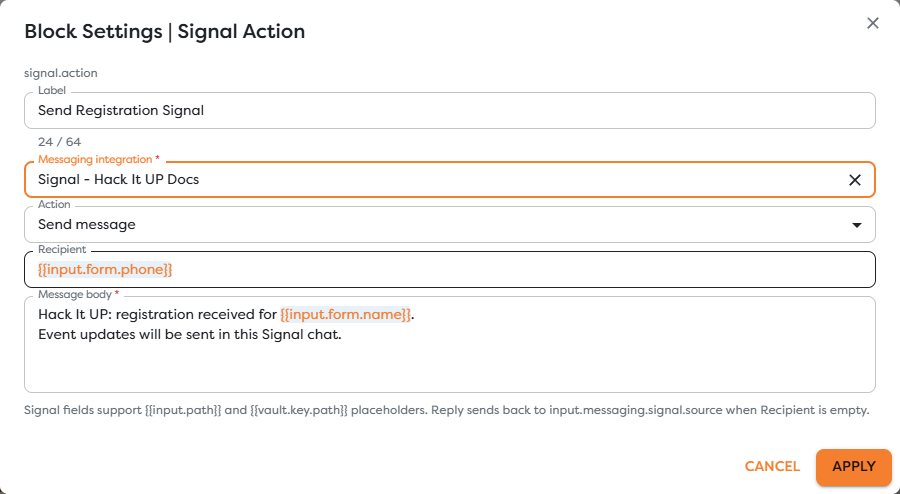
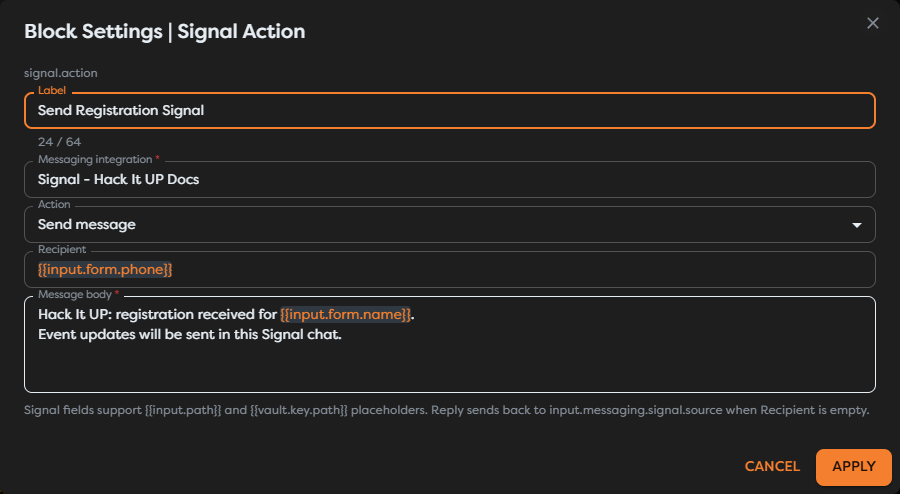
| Field | Required | Purpose |
|---|---|---|
| Label | Yes | Identifies the step in the graph, run trace, and logs. |
| Messaging integration | Yes | Selects the saved Signal bridge and account configuration. |
| Action | Yes | Chooses Send message, Reply, or Read messages. |
| Recipient | Context-dependent | Selects the destination for Send message or overrides the inbound source for Reply. It is hidden for Read messages. |
| Message body | Send message and Reply | Supplies the text after template resolution. |
| Limit | Read messages | Caps the requested messages from 1 to 100; the default is 20. |
Signal fields support {{input.path}} and {{vault.key.path}} expressions. Use Designer autocomplete after inspecting real upstream output so recipient and content paths are based on the actual workflow contract.
Send a new message
Choose Send message when the workflow already knows the destination. Provide Recipient explicitly unless the selected integration's documented default recipient is deliberately part of the workflow design.
The registration example maps the phone number submitted through the form:
{{input.form.phone}}
Its message body combines fixed event context with the attendee name:
Hack It UP: registration received for {{input.form.name}}.
Event updates will be sent in this Signal chat.
Normalize and validate the recipient before the action. Depending on the bridge operation, a destination can require a phone number, UUID, or group identifier. Preserve the exact identifier accepted by the configured bridge instead of deriving it from a display name. For phone-number destinations, use an internationally unambiguous representation such as E.164 when the bridge expects it.
Do not use user-controlled text as a recipient without validation. Keep destination allowlists or routing rules upstream when a workflow can send only to approved contacts or groups.
Reply to an inbound message
Choose Reply after Signal Trigger when the workflow should answer the incoming conversation. When Recipient is empty, the block replies to input.messaging.signal.source if that value exists in the direct input context.
Use the same Signal integration for the trigger and action unless the workflow intentionally transfers the conversation to another account. If the action is not reached directly from Signal Trigger, or an intermediate block replaces the messaging context, map a validated Recipient explicitly.
Before enabling an automatic reply:
- Inspect the direct input reaching Signal Action, not only the original trigger output.
- Confirm the source shape separately for direct messages and groups.
- Reject receipts, typing events, sync events, and other non-message envelopes.
- Filter messages sent by the automation account or linked devices to prevent reply loops.
- Deduplicate the inbound event before producing the external effect.
The empty-recipient reply behavior depends on the normalized Builders path input.messaging.signal.source. Do not assume that an arbitrary raw bridge field such as sourceNumber is available at that location without verifying a published run.
Read messages
Choose Read messages to request recent messages through the selected bridge. The Recipient and Message body fields disappear, and the block exposes only Limit. Builders accepts values from 1 through 100 and starts at 20.
The current settings do not expose an account, conversation, sender, or group filter. The selected integration determines the bridge and Signal account, while the bridge implementation and receive mode determine which messages are available to the operation. Start with a small limit and inspect the returned output before creating downstream mappings.
Do not assume the returned count equals the limit. Account state, bridge mode, pending-message consumption, retention, and available records can produce a smaller result. A receive operation may also affect which messages remain available to another consumer; review the chosen bridge's receive documentation before combining Signal Action with a separate forwarder or scheduled receiver.
Messages can contain sensitive text, identifiers, group metadata, and attachment references. Pass only the fields required by later blocks and avoid sending complete message history to logs or AI prompts by default.
Connect success and error paths
Connect Out only to work that should continue after Builders receives a successful bridge response. Connect Error to controlled logging, alerting, or recovery.
Preserve these values when the bridge returns them:
- Builders run ID;
- receiving Signal account;
- destination or source identifier;
- bridge or envelope timestamp;
- bridge response or message identifier;
- the business event used for duplicate control;
- a sanitized provider error.
A successful send response proves that the bridge accepted the operation, not that the recipient's device received or read the message. A timeout is ambiguous because the bridge might have completed the send before Builders received its response. Check bridge logs and correlation data before retrying; an unconditional retry can send the same message twice.
Test Signal Action
- Use a controlled bridge, Signal account, and test recipient.
- Confirm that the integration passes Test connection and that its account is registered or linked.
- Run Send message with an explicit recipient and verify both the block output and the receiving device.
- Start a published run through Signal Trigger and test Reply with Recipient empty.
- Inspect the direct action input and confirm that
input.messaging.signal.sourceidentifies the intended conversation. - Test direct and group conversations separately when both are supported.
- Run Read messages with a small limit and compare the result with the bridge's receive behavior.
- Stop or isolate competing receive consumers before evaluating missing messages.
- Test an invalid recipient, unavailable bridge, expired linkage, and rejected authentication through Error.
- Repeat the same business input and confirm that duplicate prevention works before publishing.
Test outbound calls and inbound callback forwarding separately. A successful Signal Action does not prove that Signal Trigger can receive events, and a successful trigger callback does not prove that the bridge can send.
Troubleshoot Signal Action
- The block is unavailable: create an active Signal integration in the project's ownership scope, then disable Hide unavailable blocks while checking availability.
- No integration appears: verify its status, type, owner, team access, and the project owner shown in Builders.
- The bridge cannot be reached: verify the HTTPS base URL, certificate, DNS, firewall, reverse proxy, API authentication, and bridge health.
- The account is not available: inspect registration or linked-device state, persisted bridge data, bridge logs, and
signal-clicompatibility. - Send message rejects Recipient: compare its format with the endpoint and account mode supported by the configured bridge.
- Reply has no destination: ensure Signal Action receives
input.messaging.signal.sourcedirectly or set Recipient explicitly from validated data. - A group reply goes to the wrong place: preserve and map the observed group identifier; do not substitute the group name or a member's number.
- Read messages returns nothing: check the selected account, bridge receive mode, pending records, and whether another consumer already received them.
- Messages repeat: deduplicate before Signal Action and resolve ambiguous timeouts against bridge logs before retrying.
- A workflow replies to itself: filter events created by the automation account and linked devices before the action.
- Outbound works but inbound does not: inspect the receive process and bridge-to-Builders forwarder; the two directions are independent.
Next steps
- Messaging Action Blocks
- Signal Trigger
- Configure Messaging Integrations
- Use Template Expressions
- Reference General Vault Values
- Read Block Logs and Output
- Build a Messaging Assistant
Continue with Microsoft Teams Action to send, reply to, and read Teams messages through a configured Microsoft integration.