
Issue and Project Management Integrations
Issue integrations connect Builders to Jira Cloud, GitHub Issues, or GitLab Issues. A saved integration authorizes issue reads and changes through the provider API, receives provider activity through a webhook callback, and can back compatible AI Agent tools when MCP is enabled.
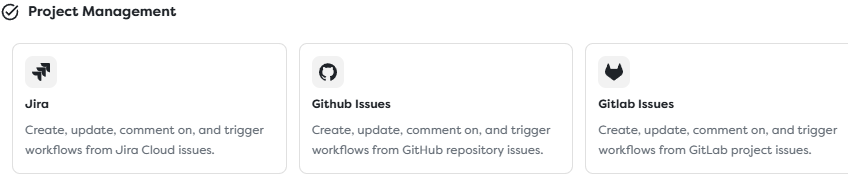
Choose the provider boundary
Each Builders integration is scoped to a specific provider account and project container.
| Integration | API credential | Stored scope | Local issue identity | Inbound verification |
|---|---|---|---|---|
| Jira | Atlassian account email and API token | Jira Cloud site, with optional default project key and issue type | Issue key such as EVENT-42, plus a numeric ID | Supported Jira webhook secret or signature flow |
| GitHub Issues | Repository-authorized token | One repository owner and repository name | Issue number within that repository | HMAC-SHA256 in X-Hub-Signature-256 |
| GitLab Issues | Personal or project access token | One GitLab.com or self-managed project | Project-scoped issue iid, plus a global ID | X-Gitlab-Token for the secret-token mode supported by the current integration |
Use a separate integration when repositories, GitLab projects, Jira sites, environments, credential owners, webhook secrets, or rotation schedules should remain independent.
Understand the two directions
Issue automation has two operational paths:
Inbound issue activity
provider webhook
-> saved Builders integration callback URL
-> Issue Trigger in a published pipeline
-> workflow run
Outbound issue operation
Issue Action or approved AI tool
-> Builders integration API credential
-> provider issue, comment, status, or transition
The paths share an integration record but have separate failure modes. Test connection can prove an API request with the stored credential; it does not prove that a webhook exists, uses the correct secret, subscribes to the right events, or targets a published trigger.
Likewise, a successful inbound webhook does not prove that the API identity may create, edit, transition, close, reopen, or comment on an issue.
Save the integration before registering a webhook
Builders generates the callback URL for a saved issue integration. Use this setup order:
- Enter the API credential and provider scope.
- Choose a strong webhook secret supported by the provider and Builders adapter.
- Assign the integration to the project's personal or team ownership scope.
- Decide whether supported AI Agent tools may use it through MCP.
- Save the integration.
- Reopen it and copy the complete Webhook callback URL.
- Register that URL and the matching secret in the provider webhook settings.
- Subscribe only to issue and issue-comment activity required by the workflow.
- Select the integration in Issue Trigger and publish the intended pipeline version.
- Send a real provider event and inspect the resulting run.
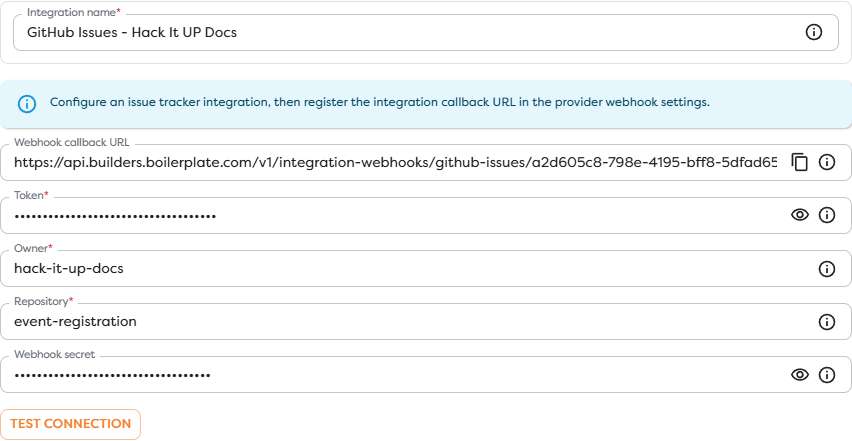
The screenshot uses a documentation repository and placeholder credentials. The token and webhook secret remain masked.
Do not put a proxy in front of the callback that rewrites the URL, raw request body, encoding, or signature headers. Those values can participate in provider verification.
Configure Jira
Configure the Jira Cloud Base URL, Atlassian account Email, API token, optional Default project key, optional Default issue type ID, and Webhook secret supported by the registration method.
- Use the site root such as
https://organization.atlassian.net, not an individual issue URL. - Treat the API token as having the Jira access of its Atlassian user.
- Use the provider project key and issue type ID rather than their display names.
- Apply provider-side JQL to reduce unrelated issue and comment deliveries before they reach Builders.
- Subscribe only to the required events, commonly issue created, issue updated, and comment created.
- Add project write access only when Issue Action or an AI tool must modify Jira.
Jira webhooks can distinguish events such as jira:issue_created, jira:issue_updated, and comment_created. A JQL filter can narrow supported issue-related events, but Builders filters still remain necessary for workflow-specific content and loop prevention.
Review Jira Cloud webhooks, Jira issue integration guidance, and Atlassian API-token management.
Configure GitHub Issues
Configure a repository-authorized Token, Owner, Repository, and a strong Webhook secret.
Prefer a fine-grained token restricted to the selected repository. Read-only automation needs Issues read permission; create, update, comment, close, or reopen operations require the corresponding Issues write permission. Use a GitHub App installation identity instead of a personal token where the ownership and lifecycle model justifies it.
Create a repository webhook with:
- Payload URL set to the Builders callback;
application/jsonas the content type;- the same random value in GitHub Secret and Builders Webhook secret;
- SSL verification enabled;
- only Issues and Issue comments selected.
GitHub sends issue lifecycle activity through issues and comment activity through issue_comment. Validate the HMAC-SHA256 signature carried in X-Hub-Signature-256 before accepting the payload. Preserve X-GitHub-Delivery as the stable webhook delivery identity when Builders exposes it.
An issue_comment event also covers comments on pull requests because GitHub models pull requests as issues at this API boundary. Reject payloads with pull-request context when the workflow is intended only for repository issues.
Follow GitHub webhook events and payloads, webhook delivery validation, and fine-grained token permissions.
Configure GitLab Issues
Choose GitLab.com or enable Custom server and enter the trusted HTTPS base URL for a self-managed instance. Configure the API Token, provider Project ID, and Webhook secret.
- Scope the token to the selected project and only the API access required by the workflow.
- Use a numeric project ID or the identifier format accepted by the Builders field.
- For self-managed GitLab, ensure the Builders runtime can reach the server and trusts its certificate chain.
- Register the callback under Settings > Webhooks for the intended project.
- Enable Issues events and Comments rather than unrelated repository events.
- Enter the same secret in GitLab's legacy Secret token field while that is the verification mode explicitly supported by the Builders integration.
GitLab 19.1 recommends signing tokens for new webhooks. They generate a Standard Webhooks HMAC signature and provide stronger integrity protection than the plain X-Gitlab-Token secret header. The current Builders form exposes a webhook-secret field for the secret-token flow. Do not switch to signing-token-only delivery until the adapter explicitly supports and documents webhook-signature validation.
Use webhook-id or the legacy Idempotency-Key as the stable retry identity when it is exposed in trigger input. A comment webhook can target an issue, merge request, commit, or snippet, so confirm the normalized target is an issue before applying issue-specific effects.
Review GitLab project webhooks, GitLab webhook events, access token scopes, and the Issues API.
Connect the integration to Builders
The integration stores authorization, default scope, and callback verification. The selected Builders surface determines the operation.
| Builders surface | Direction | Typical behavior | Required live state |
|---|---|---|---|
| Issue Trigger | Inbound | Normalize created, updated, or commented webhook activity and apply trigger filters | The pipeline version containing the trigger must be published |
| Issue Action | Outbound | Create, read, update, comment, transition, close, or reopen through the selected provider adapter | The workflow must reach the block and provide the required provider identifier |
| AI Agent issue tool | Model-requested | Perform an individually allowed issue operation through a selected MCP-enabled integration | MCP must be enabled and the specific tool must be allowed |
A Designer edge carries issue data between blocks. It does not grant provider access. Issue Action and AI tools still require a compatible integration visible in the project's ownership scope.
Use Issue Trigger for trigger filters, normalized input, webhook testing, retry identities, and detailed troubleshooting.
Preserve provider-specific identifiers
Do not pass an unscoped number between providers or projects.
| Provider | Address an issue with | Preserve alongside it |
|---|---|---|
| Jira | Issue key or numeric issue ID accepted by the operation | Jira site and project key |
| GitHub | Repository-scoped issue number | Repository owner and repository name |
| GitLab | Project-scoped issue IID for project API routes | GitLab host and project ID; retain the global issue ID when exposed |
Store the canonical provider web URL separately from API identifiers. A URL is useful to people, but parsing it at runtime is weaker than preserving the structured identifiers emitted by the trigger.
Issue titles, bodies, comments, labels, usernames, attachment links, and provider URLs are untrusted input. Validate and escape them before using them in SQL, HTML, commands, file paths, API routes, or AI prompts.
Separate read, write, and transition access
Choose permissions from the actual operations rather than from the broad Project Management category.
| Workflow purpose | Provider access | Builders capability |
|---|---|---|
| Observe issue activity | Webhook administration plus issue read access where the adapter test or enrichment needs it | Issue Trigger and optional read operation |
| Create or update issues | Issue write access in the selected project or repository | Issue Action or an individually allowed AI tool |
| Comment only | Comment or issue write access required by the provider | Comment operation without unrelated transition tools |
| Change workflow state | Transition, close, or reopen rights for the specific provider and project | Explicit action or tool operation guarded by state checks |
MCP is an additional gate, not a replacement for provider authorization. Enabling MCP makes the integration selectable by compatible AI tools, but the AI Agent still needs each operation enabled separately.
For high-impact transitions, let the AI Agent propose a change and place a deterministic Condition or approval boundary before Issue Action performs it. Do not expose a broad transition tool merely because the agent needs to summarize an issue.
See Configure Tools and Integrations.
Prevent webhook loops
An outbound update can generate the same kind of webhook that started the workflow:
Issue Trigger receives update
-> workflow calls Issue Action
-> provider records another update or comment
-> provider sends another webhook
-> Issue Trigger starts again
Use more than one guard for workflows that write back to their source:
- Exclude the dedicated automation account through the normalized author when possible.
- Add a marker label, comment token, or provider metadata value and reject matching inbound events.
- Record outbound issue, comment, and delivery identities and ignore their corresponding inbound events.
- Require an explicit source state and write a different terminal state after processing.
- Cap deliberate retries or follow-ups with a durable counter or state record.
- Keep inbound triage and outbound remediation in separate integrations when their permission boundaries differ.
Do not rely on issue title or body text alone. Two valid issues can contain identical text, while one retry keeps the provider delivery identity.
Deduplicate provider retries
Build an idempotency key from the provider, site or repository scope, and the most stable delivery identifier available:
| Provider | Preferred retry context |
|---|---|
| Jira | Webhook delivery identity when exposed; otherwise provider event, issue identity, action, and event timestamp |
| GitHub | X-GitHub-Delivery with owner and repository |
| GitLab | webhook-id or Idempotency-Key with host and project |
Store the idempotency key atomically with the business effect. If a timeout occurs after an outbound issue operation, query the provider or use an operation-specific marker before retrying; the provider may have accepted the first request even though Builders did not receive the response.
Test both paths
Use a dedicated non-production project or repository and one uniquely named issue.
- Run Test connection with the final API credential.
- Save and reopen the integration.
- Register the callback and identical webhook secret in the provider.
- Confirm the selected issue and comment events in provider settings.
- Create a minimal Issue Trigger workflow that records
{{input}}without writing back. - Publish the intended pipeline version.
- Create, update, and comment on one test issue.
- Match the provider delivery identity with the Builders run.
- Execute one controlled Issue Action and verify its provider-side result.
- Confirm that loop guards reject the webhook caused by that outbound action.
- Redeliver one webhook from the provider console and verify idempotency.
For GitHub, also test that pull-request comments do not enter an issue-only path. For GitLab, test the exact issue and note hook types used by the chosen server version. For Jira, verify the JQL scope and project permissions with both a matching and non-matching issue.
Secure issue integrations
- Keep API tokens, webhook secrets, callback configuration, and sensitive issue content out of workflow templates, logs, exports, and screenshots.
- Use a dedicated service identity or application installation where possible.
- Restrict tokens to the intended Jira projects, GitHub repositories, or GitLab projects and required read or write operations.
- Use separate credentials and webhook secrets for development, staging, and production.
- Keep SSL verification enabled and use trusted certificates for self-managed providers.
- Subscribe only to required webhook events and apply provider-side scope filters before Builders filters.
- Rotate credentials deliberately and retest every dependent trigger, action, and AI tool.
- Treat issue content as an untrusted prompt when an AI Agent reads it; content in a comment must not be able to broaden tools or override the workflow's authorization rules.
Troubleshoot issue integrations
- Test connection fails: verify the base URL, token, account email, owner, repository, project ID, token scope, and provider account access.
- Issue Trigger is unavailable: create a compatible integration in the project's personal or team scope and publish the pipeline containing the trigger.
- No webhook run appears: confirm the callback belongs to the integration selected by the trigger, the provider event is subscribed, and the provider delivery received a successful response.
- The webhook is rejected: compare the stored secret and inspect GitHub HMAC, GitLab secret-token mode, or the Jira verification mode used by that registration.
- API actions work but triggers do not: API authorization and webhook registration are independent; inspect provider delivery history and the published trigger.
- Triggers work but writes fail: add only the provider write permission required by the selected Issue Action or AI tool and confirm the resource scope.
- GitHub comments arrive from pull requests: reject events whose issue payload contains pull-request context.
- GitLab comments arrive from other targets: accept Note Hook input only when its target or
noteable_typeis an issue. - The wrong issue is modified: combine the local issue number, key, or IID with the provider site, repository, or project scope.
- The workflow comments or updates forever: exclude the automation actor or marker, persist outbound identities, and require an explicit state transition.
- An AI tool cannot select the integration: verify project ownership, MCP status, provider compatibility, and the individual tool allowlist.
- The same effect happens twice: deduplicate at a durable boundary using the provider delivery identity before performing the effect.