
Attach Files to an AI Agent
Attachment sources add selected workflow files to the current AI request. The block accepts Builders canonical File values, limits each request to five files, and exposes media modes supported by the selected AI source.
Start with a canonical File
An attachment expression must resolve to a canonical Builders File object, not a URL string or raw base64 text. A canonical file includes storage metadata such as its name, path, MIME type, size, and storage scope.
Common sources include:
- a file uploaded by a trigger;
- the output of Save File or another File block;
- a canonical File returned by an earlier workflow step;
- a
File[]assembled for From code attachments.
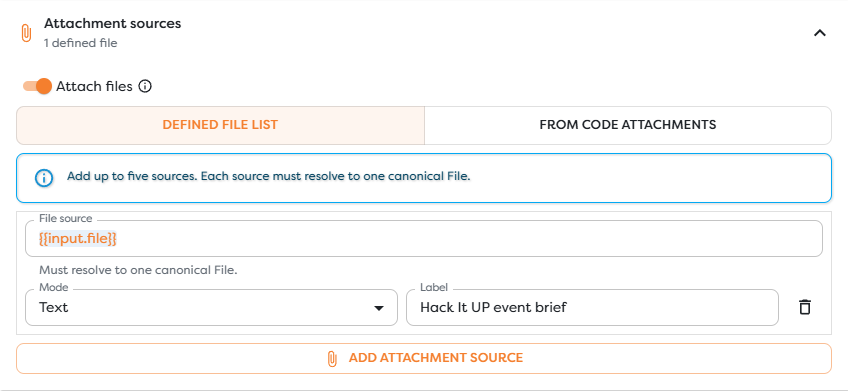
For example, a Save File block can create briefs/hack-it-up-event.txt in Context Drive. If its output reaches the AI Agent as input.file, use {{input.file}} as the attachment source.
Do not paste a public URL into File source. Download or read the file through an appropriate block first so the AI Agent receives the canonical object and Builders can enforce its storage and media rules.
Choose an attachment source mode
| Mode | Expression contract | Use it when |
|---|---|---|
| Defined file list | Each row resolves to one canonical File | The workflow has a known set of file locations and each file needs an explicit interpretation mode or label |
| From code attachments | One expression resolves to File[] | An earlier step determines the attachment list dynamically |
Defined file list supports up to five source rows. From code attachments allows an empty array and automatically interprets the returned files, but the non-empty result is still limited to five files.
Select how each file is interpreted
| Mode | Behavior |
|---|---|
| Auto | Builders chooses the interpretation from the file and selected model capabilities |
| Text | Sends supported textual content for reading or analysis |
| Image | Sends the file as an image input when the selected AI source supports images |
| PDF document | Sends the file as a PDF document when the selected AI source supports PDFs |
The selected model source controls whether Image and PDF document are available. Choosing a different source can therefore change which attachment modes can be configured. A source without image or PDF support can still accept supported text attachments.
Use Label to tell the model what a defined attachment represents, for example Hack It UP event brief or Signed registration form. Labels are optional and limited to 120 characters. A clear label helps disambiguate files, but it does not replace instructions in the prompt.
Pass the file through the workflow
The following pattern keeps file creation and AI interpretation explicit:
trigger or upstream data
-> Save File / Read File
-> AI Agent attachment expression
-> model request
The attachment expression is evaluated against the AI Agent's actual input. If an intermediate block replaces the input shape, paths from the original trigger may no longer exist. Inspect the preceding block's output and reference the path that reaches the AI Agent.
When dynamic code produces the list, return canonical File objects without converting them to plain JSON lookalikes. See Code Block for the processing step and File Blocks for supported file operations.
Keep attachment use bounded
- Attach only files required for the current task.
- Treat file contents as untrusted input, especially when the agent also has side-effecting tools.
- State which source is authoritative when attachments may disagree.
- Put the requested action in the prompt; a file label alone is not an instruction.
- Reattach files on later requests that still require their contents.
- Keep credentials and secrets out of files sent to a model unless the task explicitly and securely requires them.
Attachments, prompt text, conversation history, tool definitions, and the requested response all share the selected model's context capacity. Large or numerous files can increase latency, provider usage, and the chance that relevant content is truncated by the provider.
Troubleshoot attachment failures
| Symptom | Check |
|---|---|
| Source does not resolve | Confirm the expression exists in the AI Agent's immediate input |
| Value is rejected | Confirm it is a canonical File or, in code mode, a File[] |
| Image or PDF mode is unavailable | Select an AI source that declares the required media capability |
| Too many files | Reduce the request to no more than five attachments |
| Model ignores relevant content | Use a clear label and tell the model exactly which file and facts to use |
| File from a previous run is missing | Use the correct durable storage scope or recreate/read the file in the current run |
Connect Error and inspect the failed AI block. A final render or notification block can succeed even when attachment resolution caused the AI Agent itself to fail.