
Publish Your First Automation
Publishing turns a saved workflow version into the version used by live triggers. Keep the draft, published version, and run history separate: saving preserves your work, publishing activates the selected version, and a production run proves how that version behaves with real input.
Prepare the version
Open the pipeline in Designer and select the version you intend to publish. Give it a recognizable name through Rename version. Version names can contain up to 64 characters and must be unique within the pipeline.
Before publishing:
- Open every block's settings and resolve required fields or validation errors before selecting Apply.
- Confirm that connections lead from the trigger through every required action.
- Check integrations, database connections, Drive paths, vault values, and AI agents referenced by the workflow.
- Review the trigger's authorization and input configuration.
- Save the workflow and run it through the available test path when the trigger supports test execution.
The Designer toolbar groups the controls used around publication.


From left to right after Snap to grid, the toolbar provides access to Runs, schema import, schema export, rollback, save, and Set public. Save and rollback remain disabled when there are no pending workflow changes.
Saving does not publish the version. It only persists the current draft. Publication also does not prove that external services, credentials, or runtime data will behave correctly, so a successful test remains part of the release process.
Publish the selected version
To publish:
- Confirm the intended version in the version selector.
- Select Save if the button is enabled.
- Select the globe icon labeled Set public.
- Open the version selector and confirm that the intended entry displays Published.
After publication, Designer displays Public version is read-only. Editing, importing, deleting blocks, rollback, save, and the AI assistant are unavailable for that version. The publication control changes to Unpublish.
Identify publication-dependent triggers
Triggers that expose or listen to a live channel require a published workflow before they can receive production traffic. Examples include hosted web forms, HTTP endpoints, schedules, inboxes, queues, issue trackers, and messaging services.
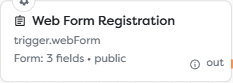
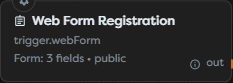
The public label on this Web Form Trigger describes its authorization mode. It does not by itself prove that the workflow version is published. Verify both the trigger configuration and the Published version status.
Actions such as saving a file or sending an email do not start a workflow. They run only after a trigger creates a run and execution reaches them.
Trigger the live workflow
Use the real entry point associated with the published trigger:
- For a Web Form Trigger, open its settings in the published version, copy the Form URL, and submit a controlled registration.
- For an Endpoint Trigger, send a request to the published endpoint with the expected method, authorization, headers, and body.
- For a schedule, queue, inbox, issue, or messaging trigger, create one controlled event in the connected service.
- For a Manual Trigger, use Trigger run from the pipeline's Runs view when the pipeline is available there.
Use clearly identifiable test data and avoid sending production messages to real recipients during release verification. A success message returned by a public form or endpoint only confirms that the trigger accepted the request; downstream blocks can still fail afterward.
Inspect the published run
Open the pipeline's Runs action or select Runs in Designer. Find the new entry and check its status, start time, compute-token cost, run ID, and Test column. Select Logs to inspect execution block by block.
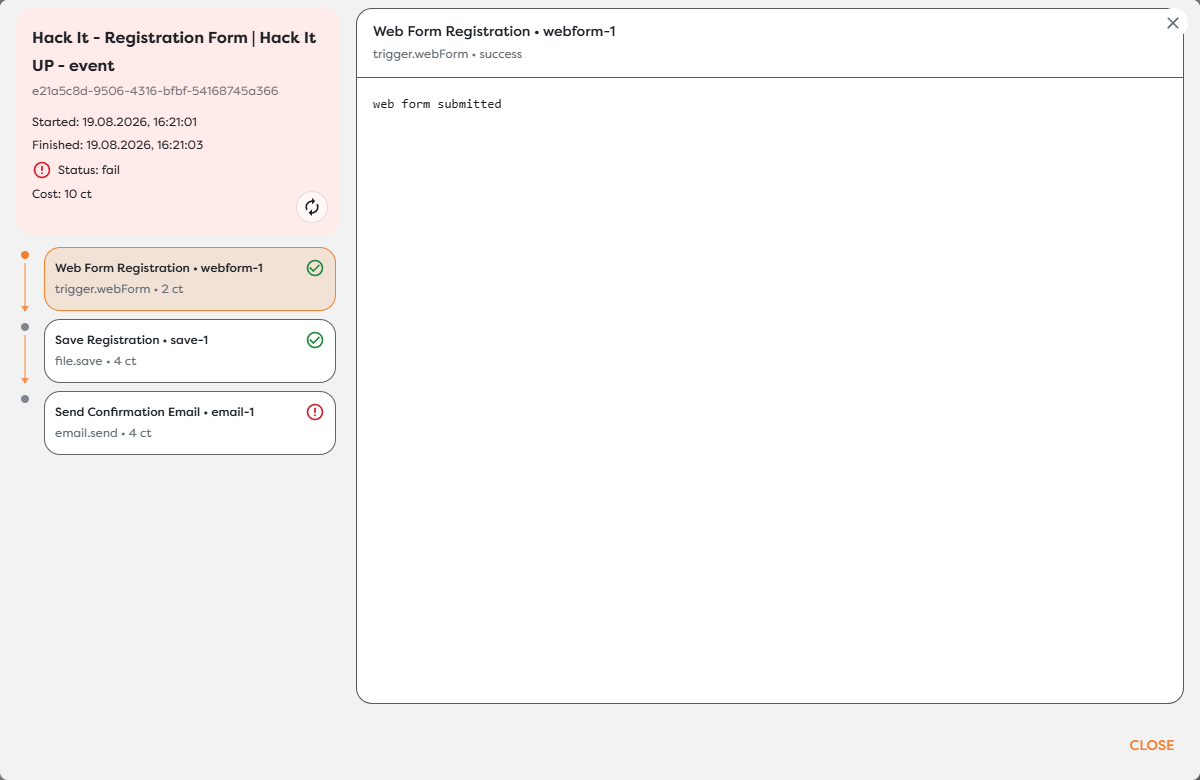
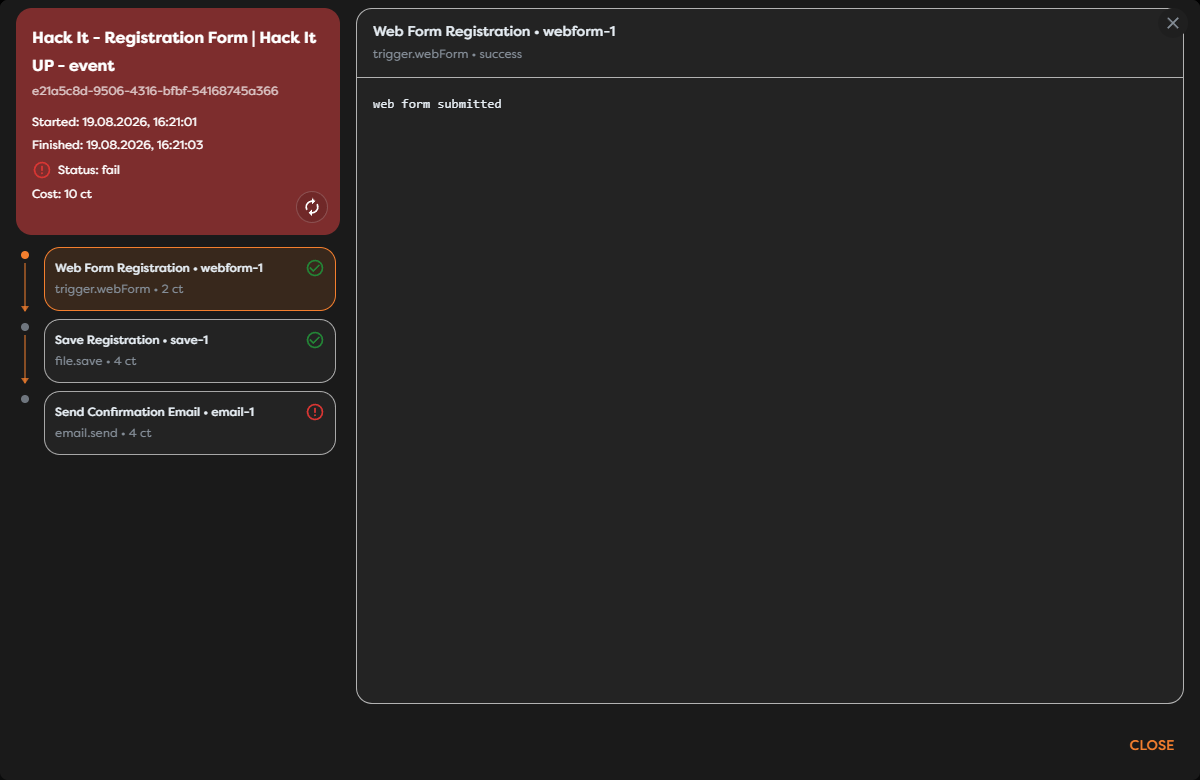
The example run demonstrates why this verification is required: the Web Form Trigger accepted the submission and the registration file was saved, but the confirmation email failed. Select the failed block in the run inspector to read its exact error and correct the draft before publishing a replacement version.
Do not treat a partially completed run as a successful release. Confirm that every required block has a success status and that the intended external effect, such as a saved record or delivered message, actually occurred.
Test runs and published runs
The run history records both kinds of execution, but they answer different questions:
- A test run is used while verifying an editable workflow. It is identified in the Test column and should not be treated as proof that a live trigger is active.
- A published run starts from the version currently marked Published, usually through its live trigger. It is the relevant record for production monitoring.
- Running or saving a draft does not replace the published version.
- A live request continues to use the published version even when a newer editable draft exists.
Some triggers cannot be reproduced through Trigger run because they require their real external event. Test those triggers through a controlled form submission, HTTP request, message, queue item, email, or scheduled occurrence.
Make changes after publication
A published version is read-only. To continue development:
- Open the version selector.
- Select Create new version.
- Enter a unique version name and select Create version.
- Edit, save, and test the new draft.
- Publish the new version only after it passes release verification.
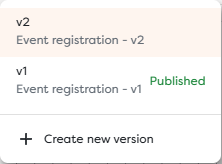
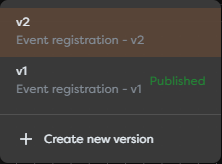
The new version starts as an editable copy of the selected workflow. In the example, v1 remains marked Published while changes are made in v2. Those v2 changes do not alter live form runs until the new version is published.
Before publishing a replacement, confirm which version currently carries the Published label. After publishing, trigger the live workflow again and inspect a new run; do not rely only on the previous version's results.
Unpublish safely
Open the published version and use Unpublish when the live entry point must stop accepting new production work. Unpublishing is not a way to cancel a run that is already executing. Use the run controls for active executions and verify the trigger after changing publication state.
Release checklist
- The intended version has a unique, meaningful name.
- All block settings and required resources are valid.
- Pending changes are saved.
- A supported test run has been reviewed.
- The intended version displays Published.
- The live trigger accepts a controlled request or event.
- Every required block succeeds in the production run.
- The expected external result has been verified.