
Select, Copy, and Organize Blocks
Select one or more blocks when you need to move, copy, duplicate, or delete part of a workflow. This article uses the unpublished Documentation - Select Copy Organize pipeline in the Hack It UP - event project.
Select blocks
Select a block with a single click. Builders highlights the selected block with an orange outline.
To build a multi-block selection:
- Select the first block.
- Hold
Shiftand select each additional block. - Release
Shiftafter the required blocks are highlighted.
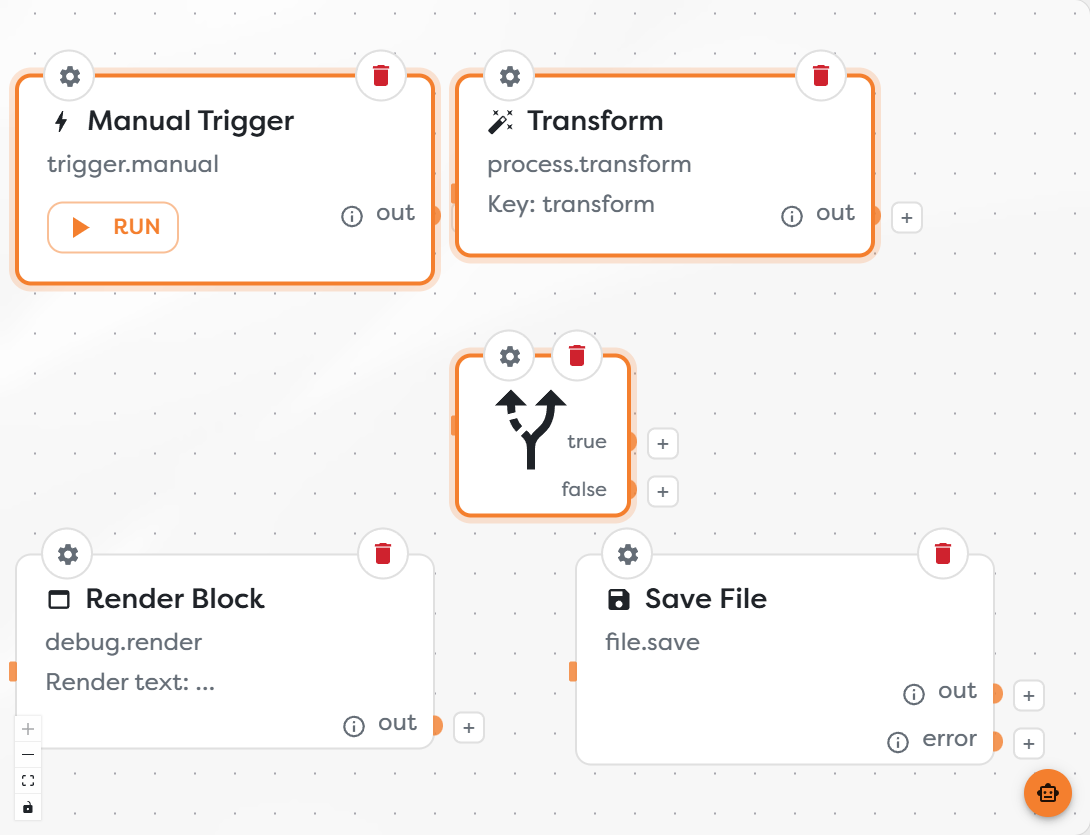
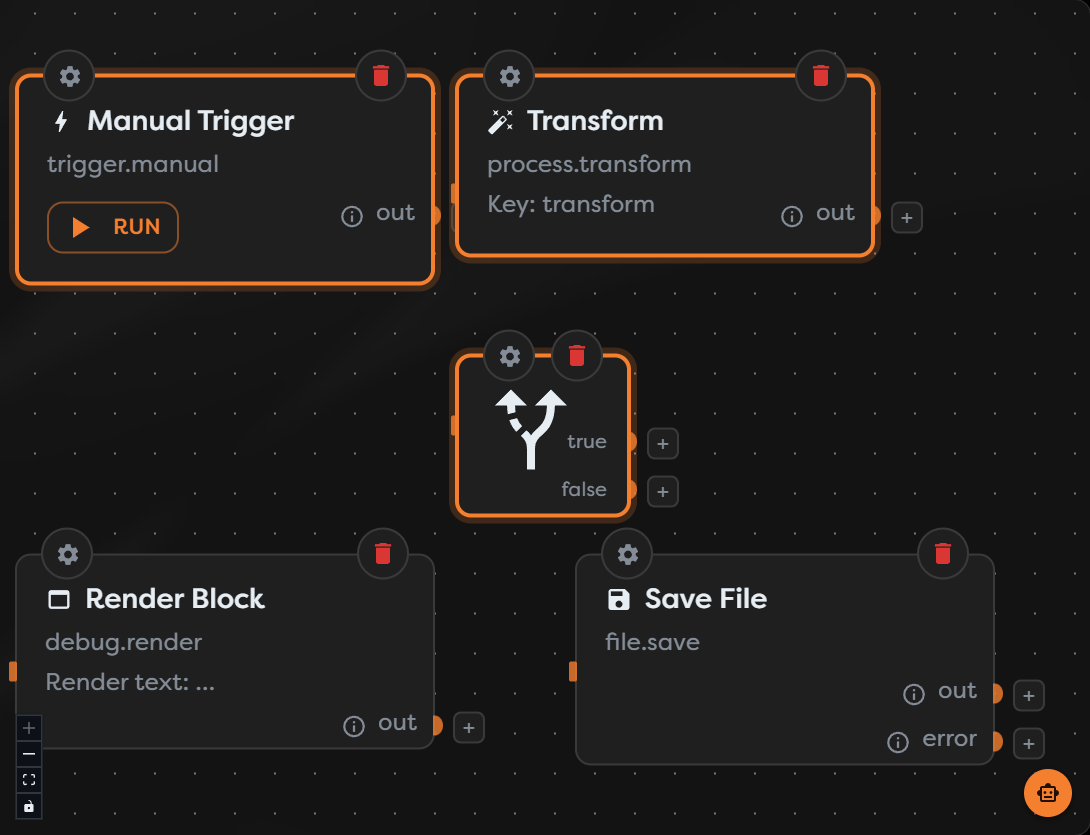
Select an empty part of the canvas to clear the selection. Selecting another block without Shift replaces the current selection.
Select an area
Hold Shift and drag across an empty part of the canvas to draw a selection area around several blocks. Start the gesture away from a block or port so that you do not move a block, pan the canvas, or begin creating a connection.
After releasing the pointer, the blocks covered by the area become the active selection. Drag one of the selected blocks to move the group while keeping the blocks' relative positions. Review the surrounding links after moving a group, especially when it crosses another workflow branch.
Copy and paste blocks
Use the keyboard to copy an existing selection:
- Select one or more blocks.
- Press
Ctrl + C. - Press
Ctrl + V.
The pasted blocks are separate draft elements and become the active selection. Builders offsets them from their originals so that you can identify and move the copies.
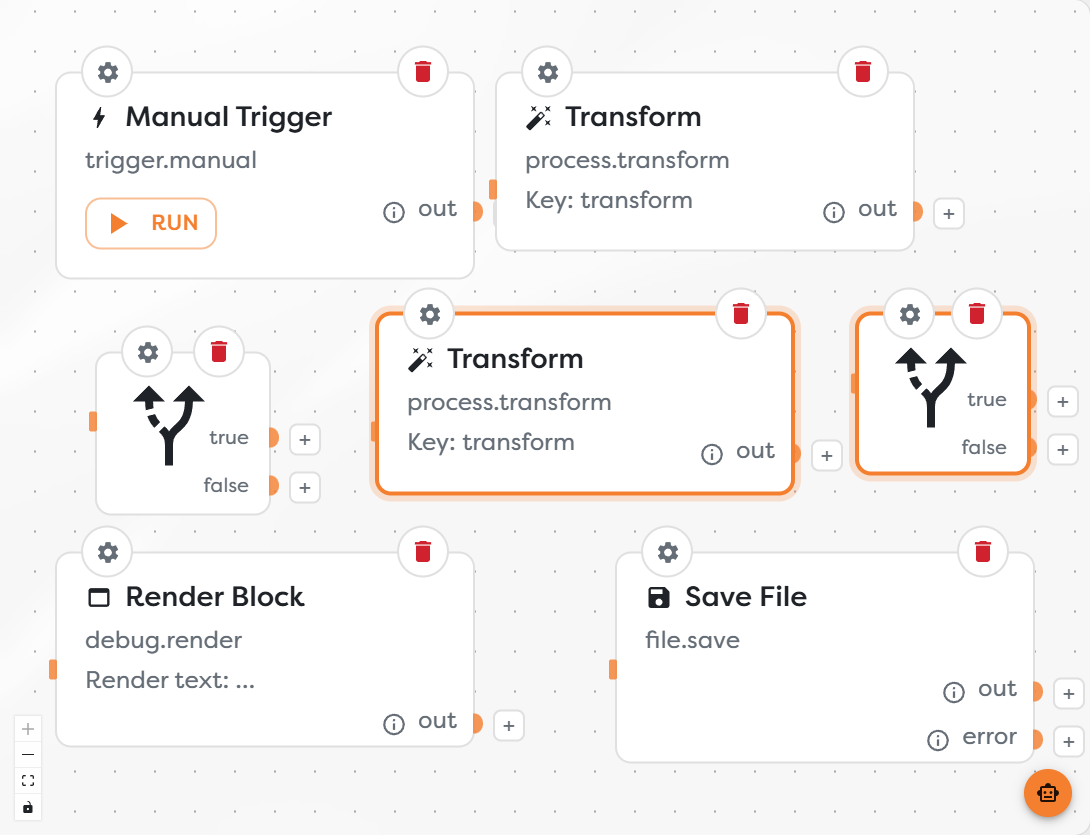
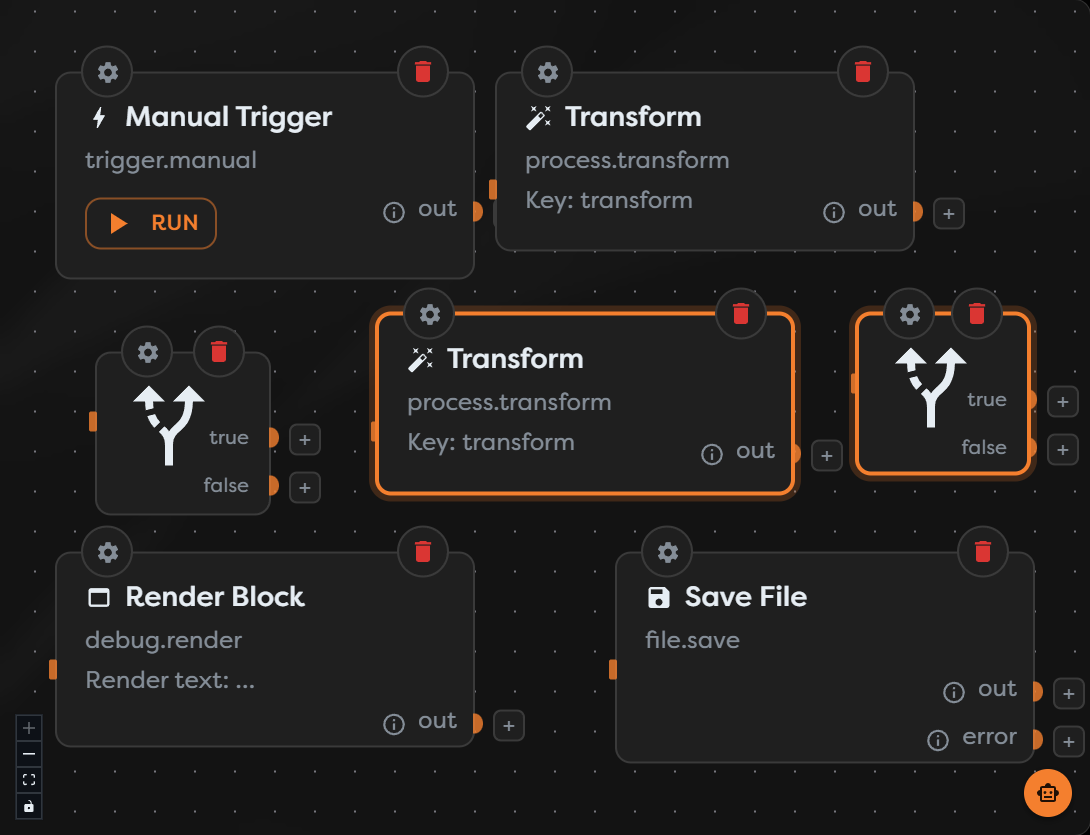
Move the pasted selection before continuing if it obscures another part of the diagram. Open each copied block's settings and verify values that should be unique, such as labels, paths, resource choices, or branch-specific expressions.
Use the block context menu
Right-click a block to open commands that apply to that block or the current selection.
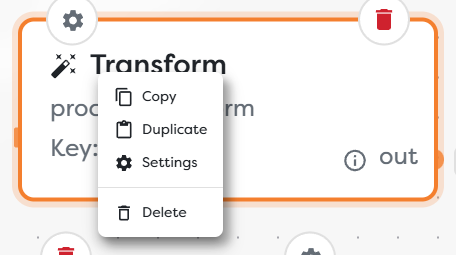
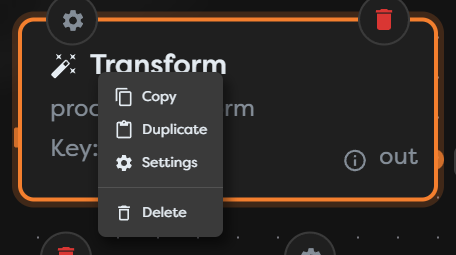
The menu provides:
- Copy to prepare the selected block for pasting.
- Duplicate to create another instance directly on the canvas.
- Settings to open the block configuration dialog.
- Delete to start removing the block.
For a multi-block action, build the selection first and then right-click one of its selected blocks. Check the orange outlines before choosing a command so that you know which elements are in scope.
Use the canvas context menu
Right-click an empty area of the canvas to open commands for inserting, pasting, and arranging elements.
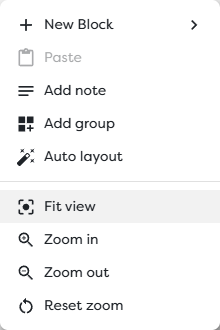
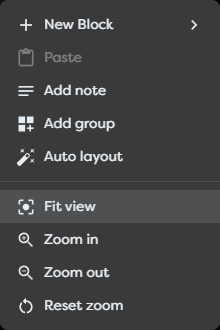
The canvas menu includes:
- New Block for inserting a block at the selected canvas location.
- Paste for placing a previously copied block or selection. It remains unavailable until there is content to paste.
- Add note and Add group for documenting or visually grouping a section of the workflow.
- Auto layout for arranging the diagram from its current workflow structure.
- Fit view, zoom commands, and Reset zoom for restoring a useful canvas view.
Use Auto layout after the main connections are in place. It changes block placement, not the workflow's block settings or execution paths. Review the result before saving because manual spacing and annotations may need adjustment.
Delete selected blocks
Select one or more blocks and press Delete, or choose Delete from the block context menu. Builders shows a confirmation listing every block that will be removed.
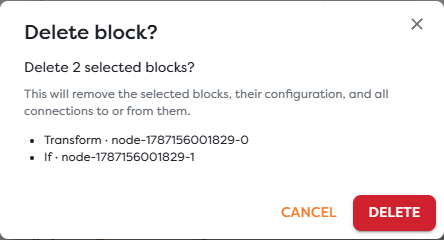
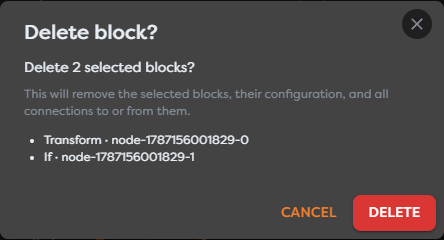
Deleting a selection removes the listed blocks, their configuration, and all connections attached to or from them. Select Cancel if the list contains an unintended block. After confirming with Delete, inspect the surrounding workflow for incomplete paths.
Review organization changes
Before saving an organized workflow:
- Confirm that only the intended blocks were copied, moved, or deleted.
- Check copied settings for values that must be unique.
- Follow every affected connection and named output.
- Make sure notes and groups do not hide workflow controls.
- Use Fit view to scan the complete diagram.
- Save the draft after its validation errors are resolved.