
Slack Action
Use Slack Action to send a message, reply in an existing Slack conversation, or read recent messages through a Slack integration available to the project. The block runs inside the workflow and exposes separate Out and Error ports.
This article uses the Slack - Hack It UP Docs integration and a registration notification for the Hack It UP - event project.
Prepare the Slack integration
Create and test a Slack integration before adding the block. The integration stores the bot token, signing secret, optional default channel, and the callback used by Slack Message Trigger. Slack Action uses the outbound Web API authorization; it does not need the Events API callback unless the same workflow also receives Slack events.
Grant only the scopes required by the selected operation:
| Operation | Typical Slack API capability | Common bot scopes |
|---|---|---|
| Send message | Post a message to a conversation | chat:write; optionally chat:write.public when the app must post to public channels it has not joined |
| Reply | Post a message with a parent thread timestamp | chat:write plus access to the destination conversation |
| Read messages | Read channel history or a thread | The matching channels:history, groups:history, im:history, or mpim:history scope |
Slack documents these boundaries in the chat:write scope, chat.postMessage, conversations.history, and conversations.replies references. Reinstall the Slack app after changing its OAuth scopes, then update or retest the Builders integration.
The bot must also be able to access the selected conversation. Invite it to private channels and to public channels when the workspace does not grant broader posting access.
Configure Slack Action
Drag Slack Action from the Process group onto the Designer canvas and open its settings.
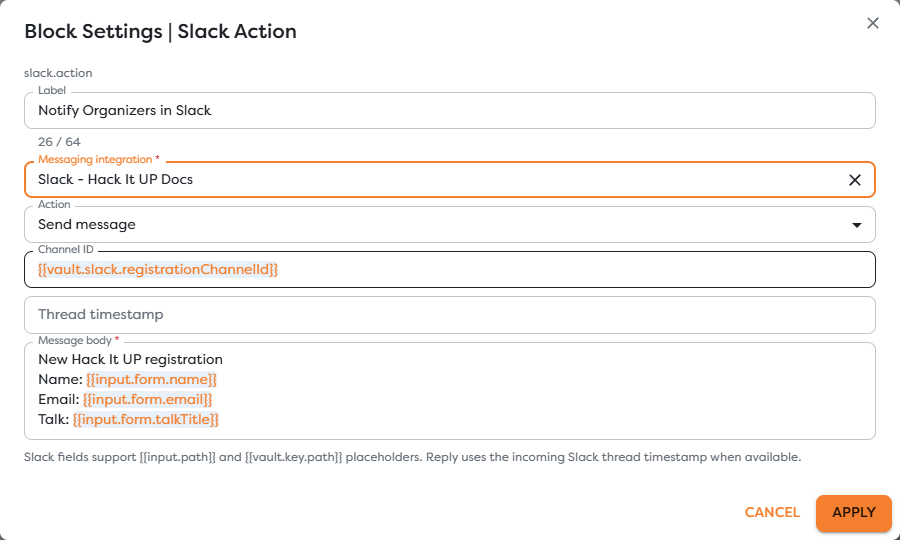
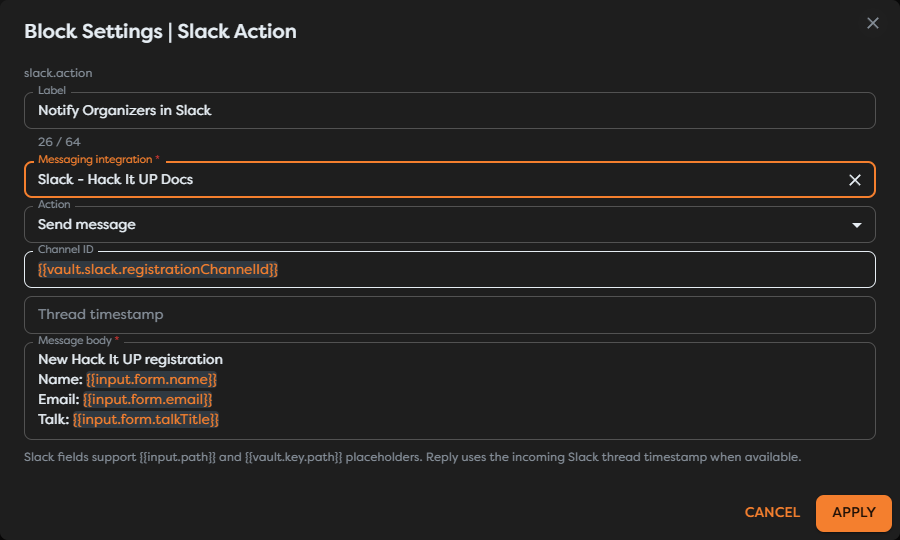
| Field | Required | Purpose |
|---|---|---|
| Label | Yes | Identifies the step in the graph, run trace, and logs. |
| Messaging integration | Yes | Selects the saved Slack authorization used for the Web API request. |
| Action | Yes | Chooses Send message, Reply, or Read messages. |
| Channel ID | Context-dependent | Identifies the public channel, private channel, DM, or group DM. An empty value can use the integration's default channel or supported inbound Slack context. |
| Thread timestamp | No | Identifies the parent message for a thread operation. Use Slack's stable ts value, not visible text or a date formatted by the workflow. |
| Message body | Send and Reply | Supplies the message text after template resolution. |
| Limit | Read messages | Caps the returned messages from 1 to 100; the default is 20. |
Slack fields support {{input.path}} and {{vault.key.path}} expressions. Use the autocomplete list to select paths from real upstream output instead of typing an assumed payload shape.
Choose an operation
Send message
Choose Send message for a new outbound notification. Set Channel ID explicitly when the destination changes by run. Leave it empty only when the integration's default channel is the intended fixed destination.
Set Thread timestamp when the new message must be posted inside an existing thread. Leave it empty for a top-level message.
The example keeps the event channel in General Vault:
{{vault.slack.registrationChannelId}}
Its message body combines fixed context with registration data:
New Hack It UP registration
Name: {{input.form.name}}
Email: {{input.form.email}}
Talk: {{input.form.talkTitle}}
Validate user-controlled values before posting them. A template expression does not escape Slack mentions or prevent values such as @channel from notifying a large audience.
Reply
Choose Reply when the workflow responds to a Slack conversation. The block can use the incoming Slack thread timestamp when that context is available. For an explicit mapping, pass both the original Channel ID and its parent Thread timestamp from Slack Message Trigger.
Do not rebuild a timestamp from a date, message text, or run start time. Slack message timestamps are provider identifiers and must be preserved exactly.
A new top-level message may not contain thread_ts. Decide whether the workflow should reply to that message itself or to an existing parent, then map the corresponding timestamp. Test both a top-level message and a message already inside a thread.
Read messages
Choose Read messages to retrieve recent messages for the selected conversation. The Message body field is replaced by Limit. Builders accepts values from 1 through 100 and starts at 20.
Use a small limit unless the next step genuinely needs more history. Reading more messages increases payload size, exposes more conversation data to downstream blocks, and consumes provider rate capacity.
Provide Thread timestamp when the intended context is a thread. Without a thread target, the operation reads conversation history. The integration needs the history scope matching the conversation type, and the bot must be a member where Slack requires membership.
Slack can apply stricter limits than the value requested by the block. Treat the returned collection as the source of truth and do not assume that Limit = 20 guarantees exactly 20 items.
Use Slack identifiers correctly
Keep the provider identifiers separate:
| Identifier | Typical shape | Meaning |
|---|---|---|
| Channel ID | C..., G..., or D... | Public channel, private channel, or direct-message conversation. |
| Message timestamp | 1712345678.123456 | Stable identifier of one Slack message. |
| Thread timestamp | Same format as a message timestamp | Identifies the root message of a thread. |
| Event ID | Ev... | Identifies an Events API delivery and is useful for deduplication. |
| Builders run ID | UUID | Identifies workflow execution, not a Slack conversation. |
Use a stable channel ID instead of a display name. Channel names can change, while the ID is what Slack APIs use to select the conversation.
Connect the workflow
For the registration example, connect the successful registration path to Notify Organizers in Slack. Connect its Out port only to work that should happen after Slack accepts the request. Connect Error to logging, alerting, or a controlled recovery path.
When Slack Message Trigger starts the same workflow, filter bot-authored messages before Slack Action. Otherwise, the action can create a message that starts another run and produces a reply loop.
Preserve these values in logs or downstream output when available:
- Builders run ID;
- Slack workspace and channel ID;
- returned message timestamp;
- parent thread timestamp;
- provider error code;
- the business event used to prevent duplicates.
Do not log the bot token, signing secret, complete message history, or sensitive message bodies.
Understand success and delivery
The Out port means Slack accepted the API operation and Builders received a successful response. It does not prove that every human saw the message, that a notification was delivered, or that Slack retained the message indefinitely.
Slack applies per-channel and workspace rate limits. A retry after a timeout is ambiguous because the first request may already have succeeded. Before retrying a send or reply, check the provider result when possible and deduplicate by the business event, destination, and intended thread.
Read operations are not delivery operations. Their result is a snapshot constrained by authorization, membership, retention, pagination, and Slack's current API limits.
Test Slack Action
- Use a controlled Slack workspace and channel.
- Confirm that the integration passes Test connection.
- Confirm that the bot is a member of every private or restricted conversation used by the test.
- Run Send message with a fixed test channel and verify the returned channel and message timestamp.
- Run Reply from both a top-level Slack message and an existing thread.
- Run Read messages with a small limit and compare the returned messages with Slack.
- Revoke one required scope or use an inaccessible channel to verify the Error path.
- Repeat the same workflow input and confirm that duplicate external effects are prevented where required.
- Publish only the workflow version that produced the expected Slack result.
Test outbound Web API calls and inbound Events API delivery separately. A successful Slack Action does not prove that Slack Message Trigger receives callbacks.
Troubleshoot Slack Action
- The block is unavailable: create an active Slack integration in the same ownership scope as the project, then disable Hide unavailable blocks while checking availability.
- No integration appears: verify its status, type, owner, team access, and the project owner shown in Builders.
- Slack returns
not_in_channel: invite the bot to the conversation or use an authorized destination. - Slack returns
missing_scope: grant the exact write or history scope required by the action, reinstall the app, and retest the integration. - The channel is not found: pass a canonical conversation ID and confirm that the token can access it.
- A reply becomes a top-level message: preserve and map the correct parent thread timestamp.
- Read messages returns nothing: verify the conversation type, history scope, membership, retention, thread target, and requested limit.
- The workflow replies to itself: filter bot events and message subtypes before the action.
- A timeout creates duplicates: treat the result as ambiguous and check Slack before retrying.
- The message is sent to the default channel: provide an explicit Channel ID when the run must choose another destination.
Next steps
- Messaging Action Blocks
- Slack Message Trigger
- Configure Messaging Integrations
- Use Template Expressions
- Reference General Vault Values
- Read Block Logs and Output
- Build a Messaging Assistant
Continue with Twilio SMS Action to send, reply to, and read messages through a configured Twilio integration.